
 プランを見る
痕跡を残さずに写真から人物を削除する
素晴らしい場所に観光客が多すぎる? 誰かがフレームに割り込んで、写真を台無しにしてしまった? Luminarを使えば、写真から人を簡単に削除して、もともと撮りたかった写真に仕上げることができます。
プランを見る当社のツールが、写真から人物を消去するのにどのように役立つか
「消しゴムツール」を使えば、数回クリックするだけで不要な部分を削除できます。
「消しゴムツール」を選択すると、カーソルがブラシに変わり、削除したい領域に赤いオーバーレイマスクを適用できるようになります。
不要な人物をオーバーレイで隠して、ボタンを押すだけ! とても簡単です。
「消しゴムツール」を選択すると、カーソルがブラシに変わり、削除したい領域に赤いオーバーレイマスクを適用できるようになります。
不要な人物をオーバーレイで隠して、ボタンを押すだけ! とても簡単です。
人物を削除した後も写実感を維持する
エフェクトを適用すると、Luminarは削除したい人物の周囲のピクセルを分析し、照明や陰影がリアルに調和するテクスチャを生成します。
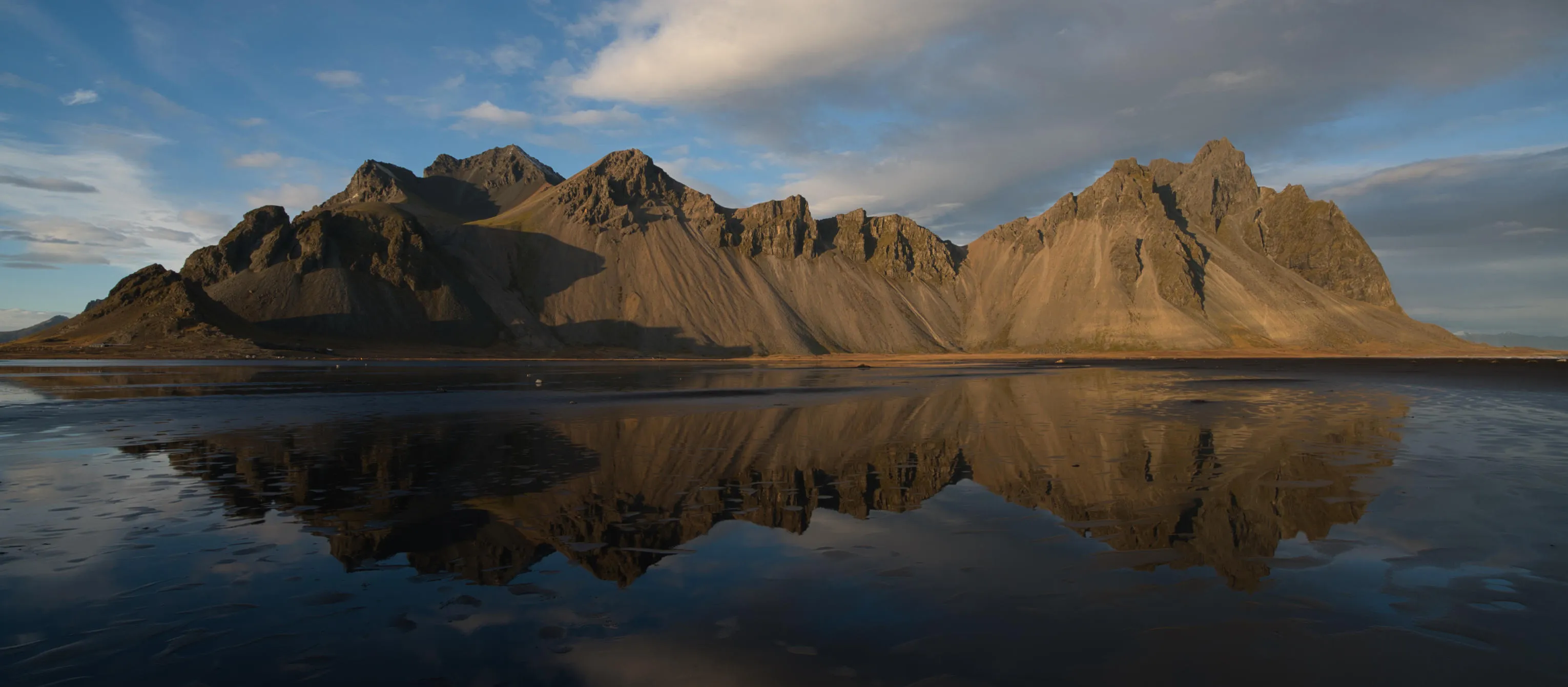


© BalanceFormCreative

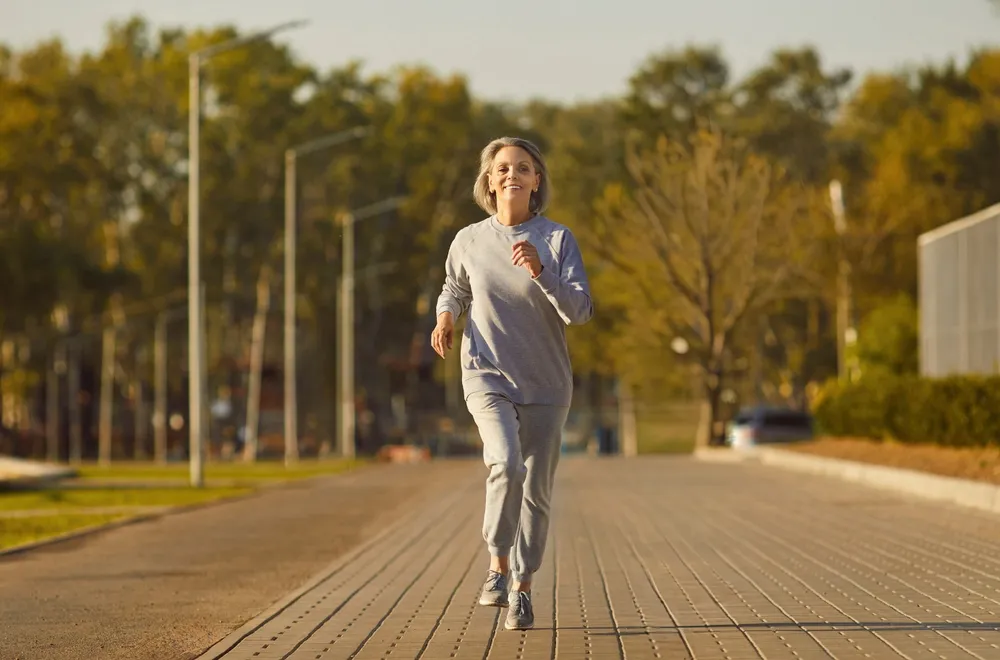
© Depositphotos
人物を削除した後も写実感を維持する
Luminarの「消しツール」は、最小限の手間で魅力的な写真に仕上げるのに役立つ、使いやすい機能です。


© Melinda Nagy

.webp)
© ake1150sb
写真から人物を削除して、ごちゃごちゃした背景を置き換える
選択
デフォルトでは、「選択」ボタンが選択されています。「選択」が選択された状態で画像上にブラシを動かすと、消去する領域(赤いオーバーレイで表示されます)を選択できます。
選択を解除
「選択解除」ボタンをクリックすると、消去する領域の選択を解除できます(赤いオーバーレイが消えます)。
選択を解除
現在選択している項目をすべて解除して、最初からやり直してください。
復元
現在の選択範囲を復元します。
サイズ
塗る範囲に応じて、ブラシのサイズを大きくしたり小さくしたりしてください。
その他の機能を見る
Luminarには、編集作業をより速く、より簡単に行えるようサポートする機能が他にもたくさんあります




モーションブラー効果
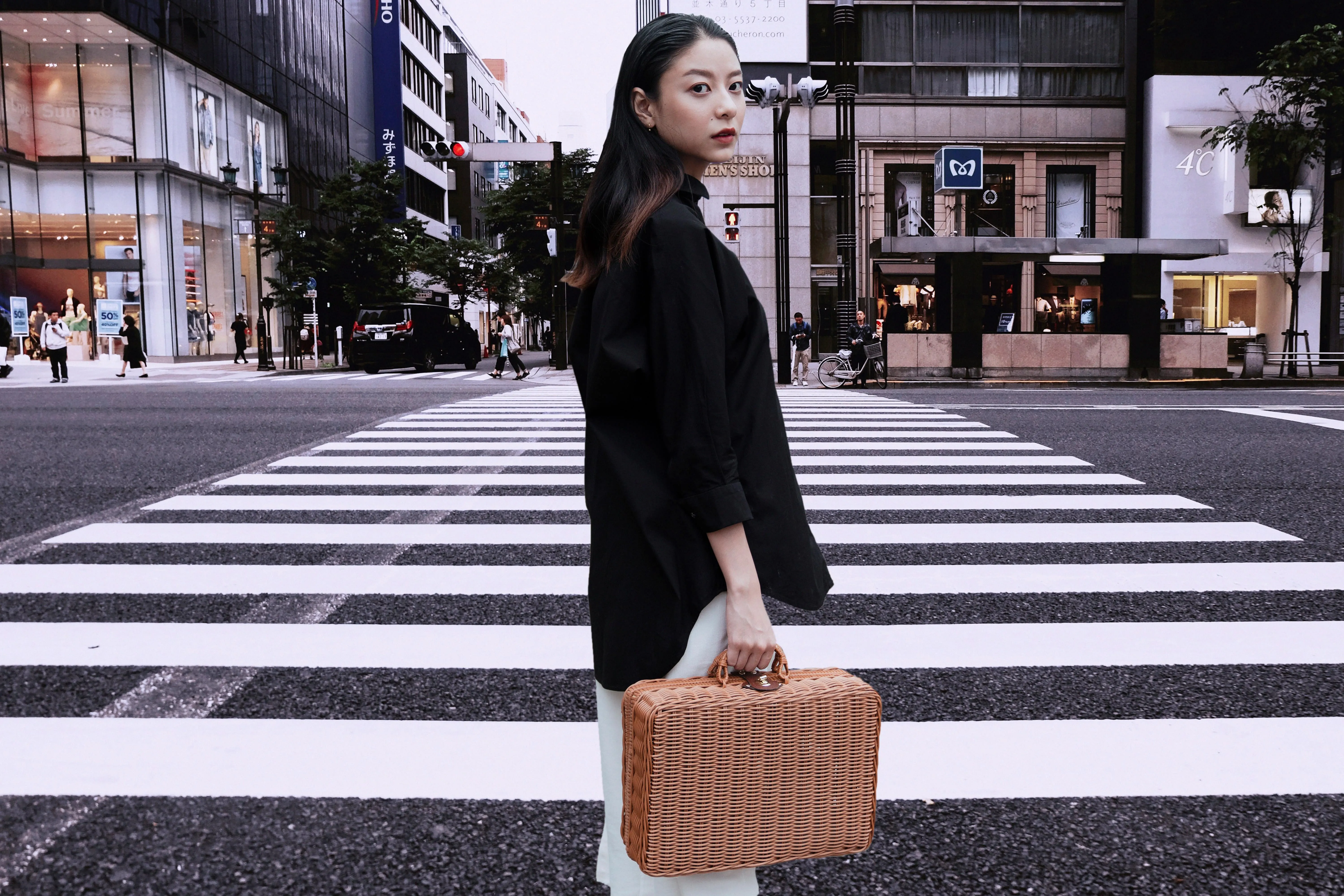
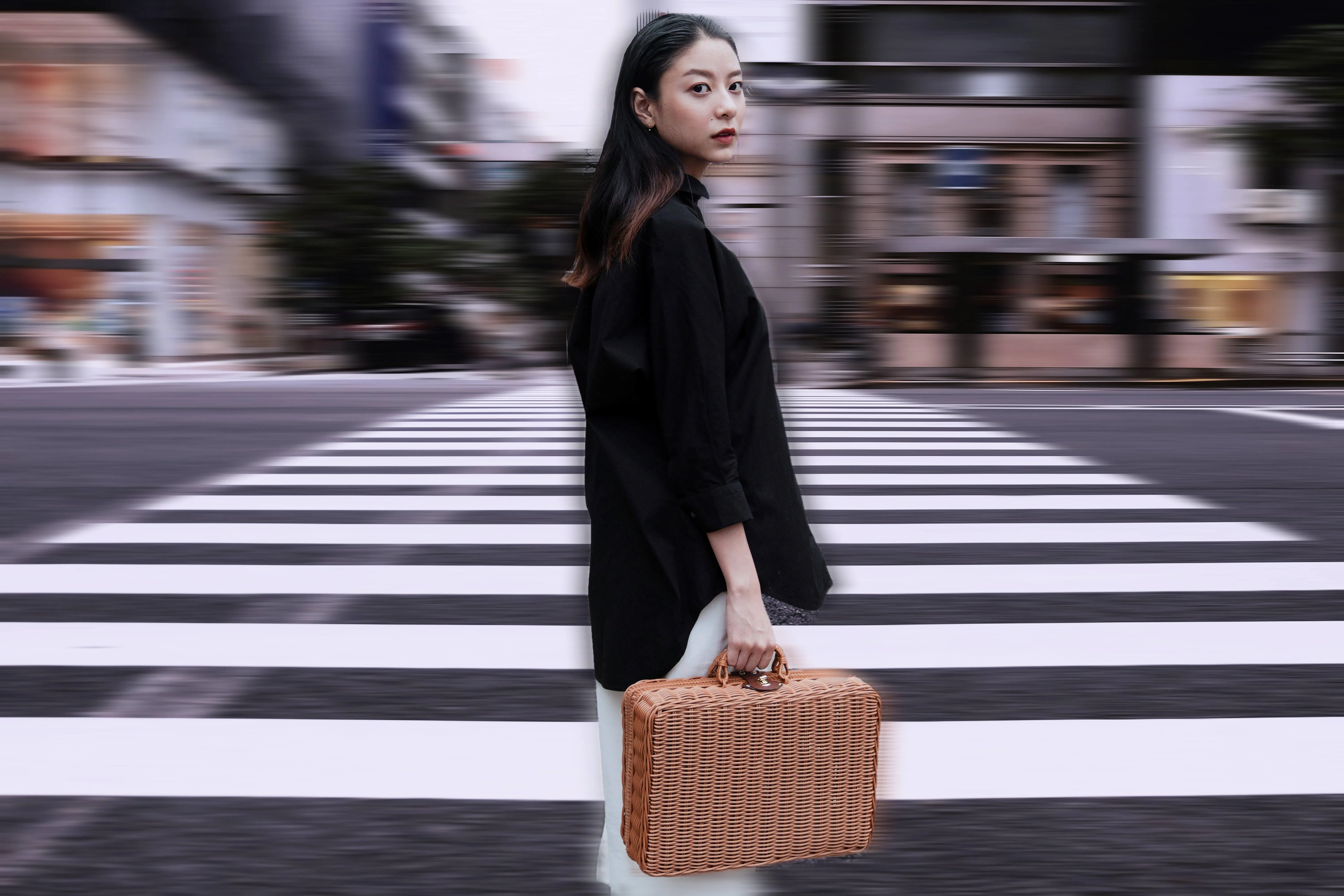
© theshots.contributor
モーションブラー効果
今すぐクリックして、Luminarのモーションブラー効果を体験し、ありふれた写真を驚くほど躍動感あふれるものに変えてみましょう。

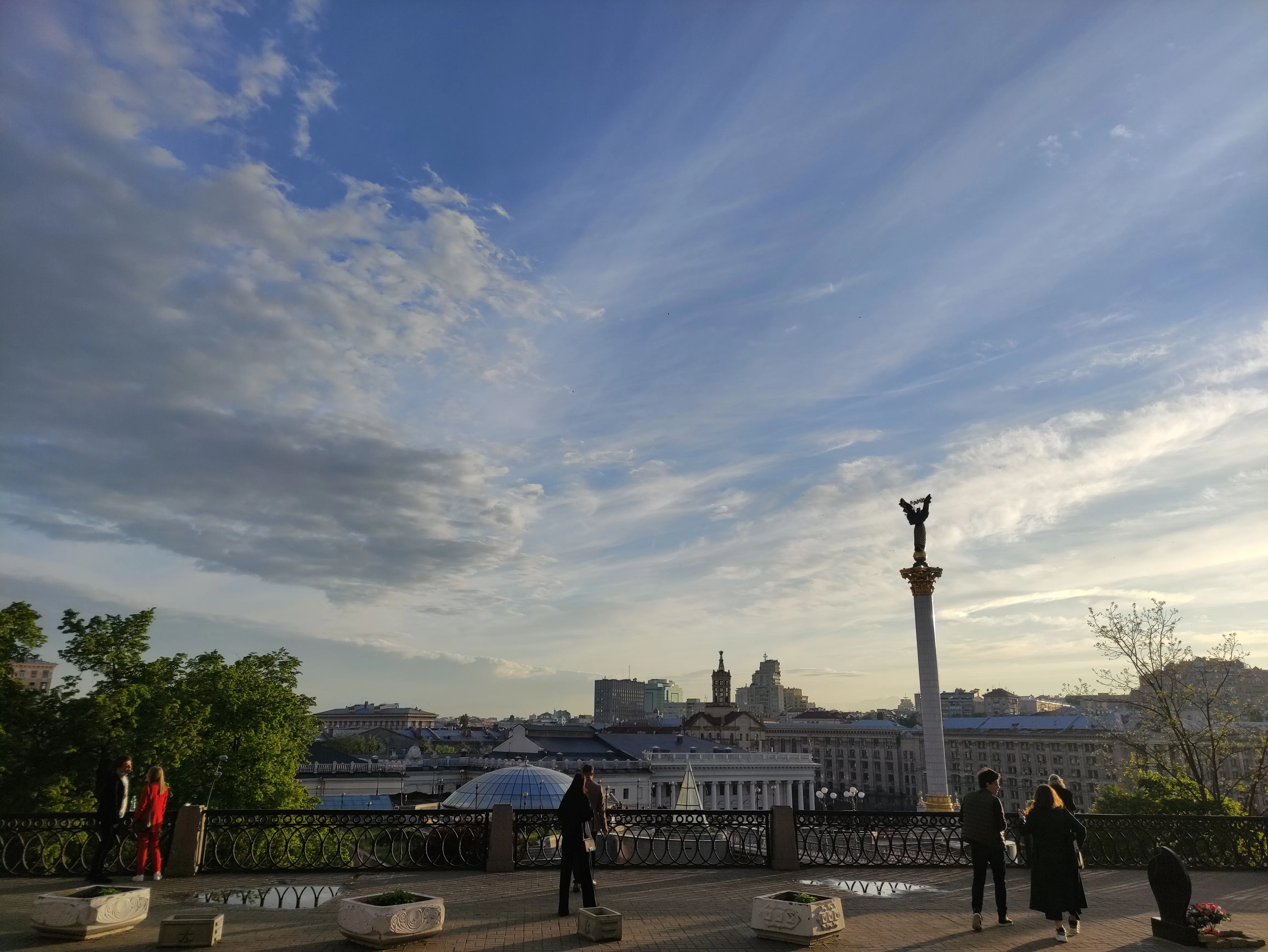
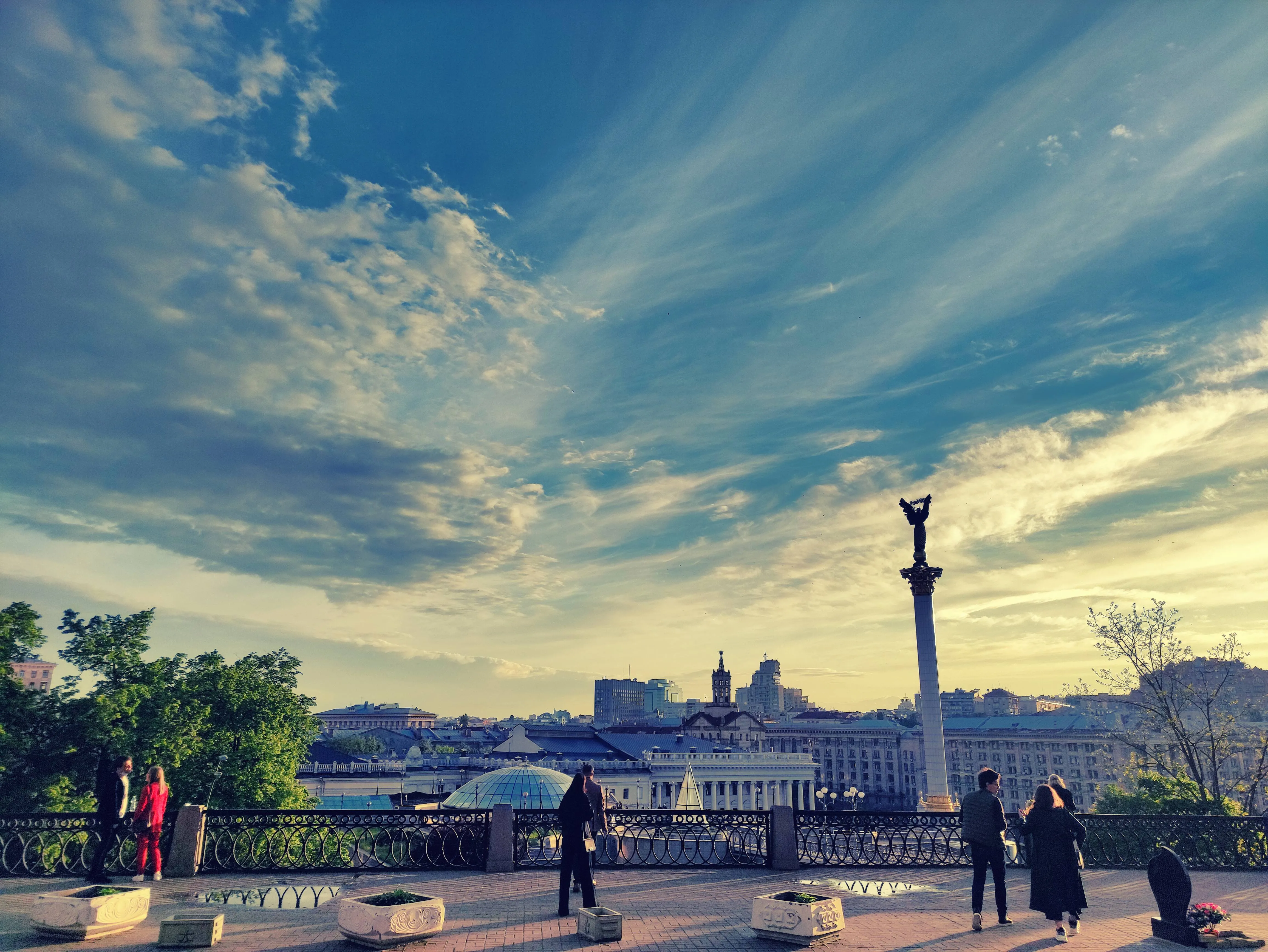




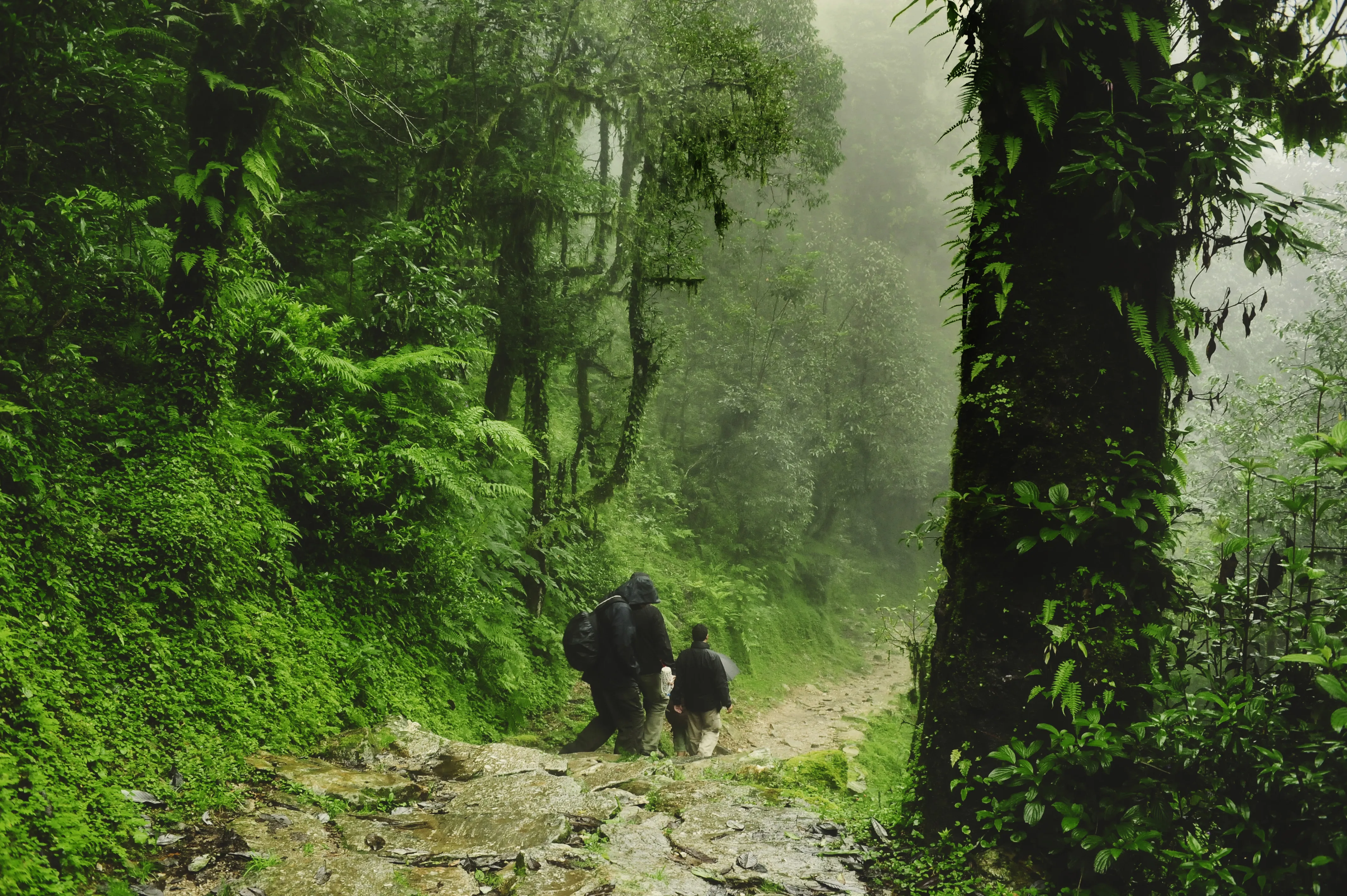
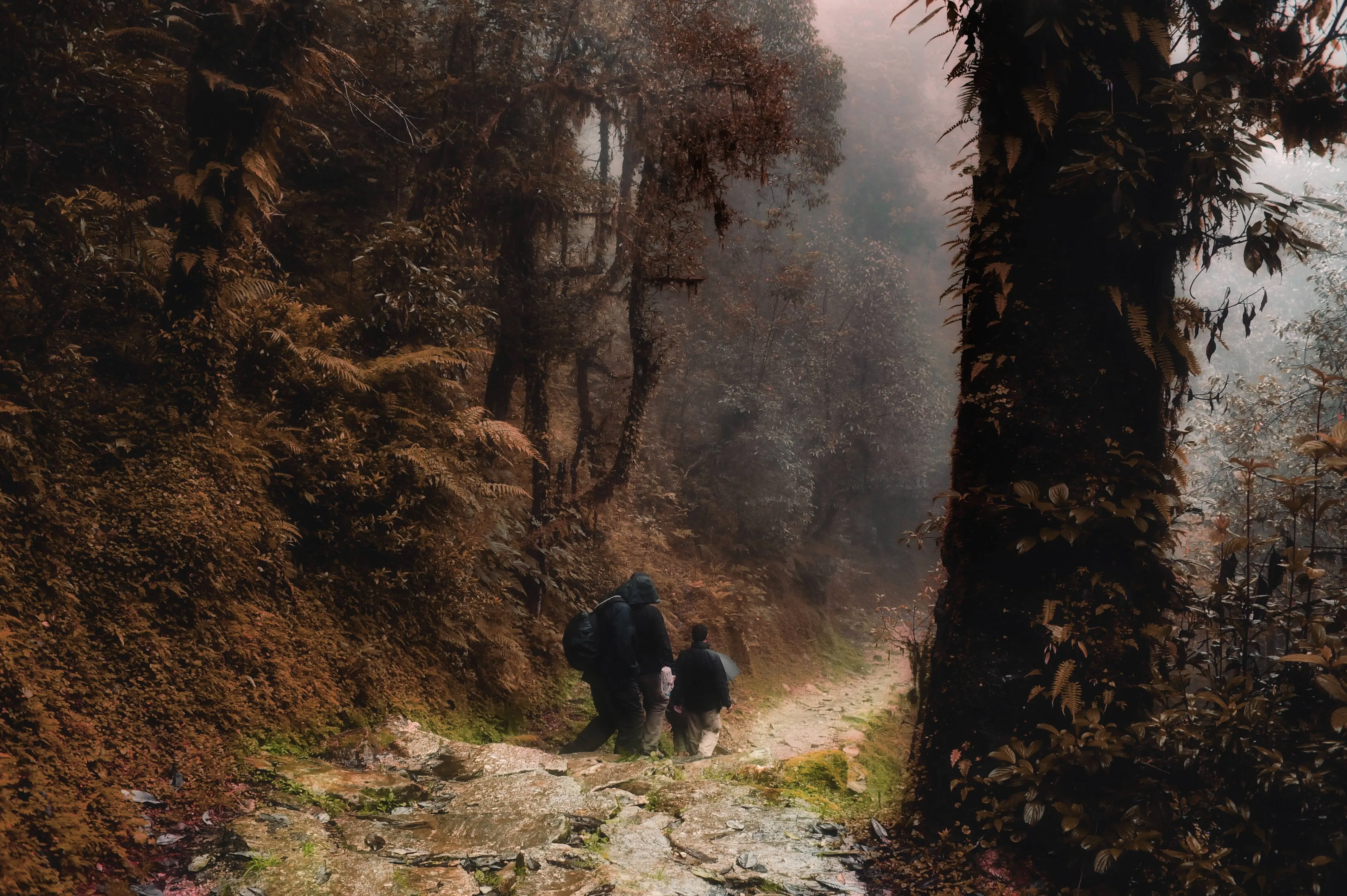

-min.webp)

アプリケーションとプラグイン
macOS および Windows 用
- 高性能AIエディタ
24時間365日のテクニカルサポート
30日間の返金保証
コミュニティに参加しましょう

よくある質問
当社の最先端ツールを使って、人物を完璧に削除するにはどうすればよいでしょうか?
写真から人物を削除するには、Luminarの「消去」ツールを使用するだけです。削除したい部分(この場合は、背景に写り込んで邪魔になっている人々)をブラシでなぞり、次に「消去」をクリックします。さらに精密な調整を行うには、マスキング機能を使用することもできます。
集合写真から特定の人物を削除するにはどうすればよいですか?
写真によっては、少し難しい場合もあります。ただし、その人物が前景にいない場合や、写真の中であまり大きなスペースを占めていない場合は、「消しゴムツール」を使ってその人物を塗りつぶし、集合写真から消すことができます。その際、近くに立っている人を誤って塗りつぶさないように注意してください。必要に応じて、ブラシのサイズを調整してください。
なぜLuminarは最高のAI人物除去ツールなのか?
Luminarは、AIを活用して不要な要素をリアルな背景で置き換えることで、写真から人物を削除するための最先端ソリューションとして広く認知されています。このツールは、質感、照明、奥行きを保ちつつ、被写体をきれいに削除できるように設計されています。Luminarは、目立つ不自然さや隙間を残さずに、自然な仕上がりを実現することに優れています。
Luminar AIの人物除去機能は、どのような方に役立つのでしょうか?
Luminarは、さまざまな用途において画像をきれいに整えることができるという点で、広く採用されています:
• 写真家: 風景写真や街並み写真から不要な要素を取り除く
• トラベルクリエイターズ: 混雑したシーンを整理して、よりすっきりとした構図にする
• コンテンツクリエイター: ソーシャルメディアの画像における視覚的な焦点を改善する
• 不動産写真家: 清潔で、気が散らない空間を提供する
• 一般ユーザー: プライベートな写真から不要な要素を取り除く
• 写真家: 風景写真や街並み写真から不要な要素を取り除く
• トラベルクリエイターズ: 混雑したシーンを整理して、よりすっきりとした構図にする
• コンテンツクリエイター: ソーシャルメディアの画像における視覚的な焦点を改善する
• 不動産写真家: 清潔で、気が散らない空間を提供する
• 一般ユーザー: プライベートな写真から不要な要素を取り除く
なぜ、写真から人物を消去するLuminarのツールは、写真家たちから信頼されているのでしょうか?
写真家がLuminarを選ぶ理由は、被写体の除去や背景の再構築において卓越した精度を発揮するからです。このツールは、非破壊的なワークフローと、AIを活用した信頼性の高い除去ツールにより、プロフェッショナルから厚い信頼を得ています。Luminarは、複雑な編集を自動化しつつ、手動での微調整も完全に制御できる点で際立っています。
