
 プランを見る
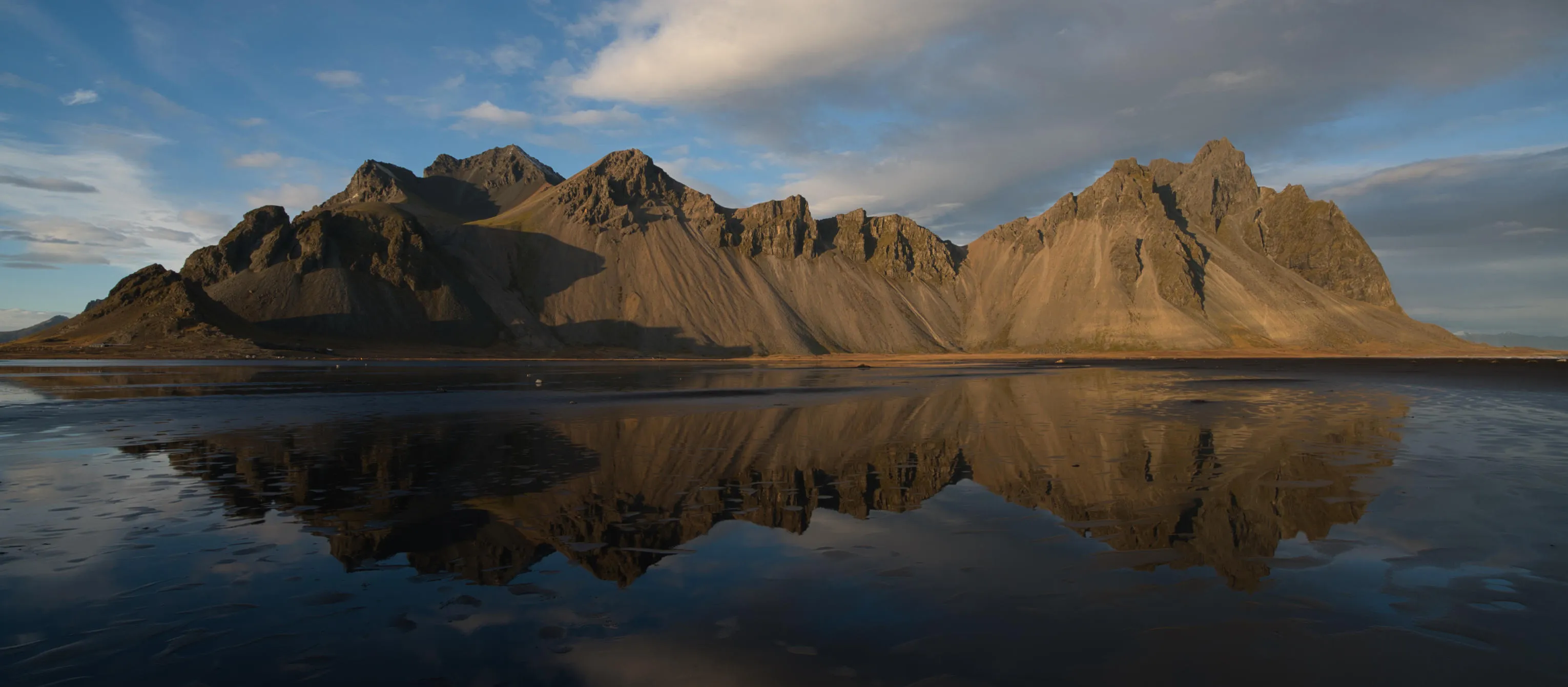
画像の彩度を活用して、写真を際立たせるには?
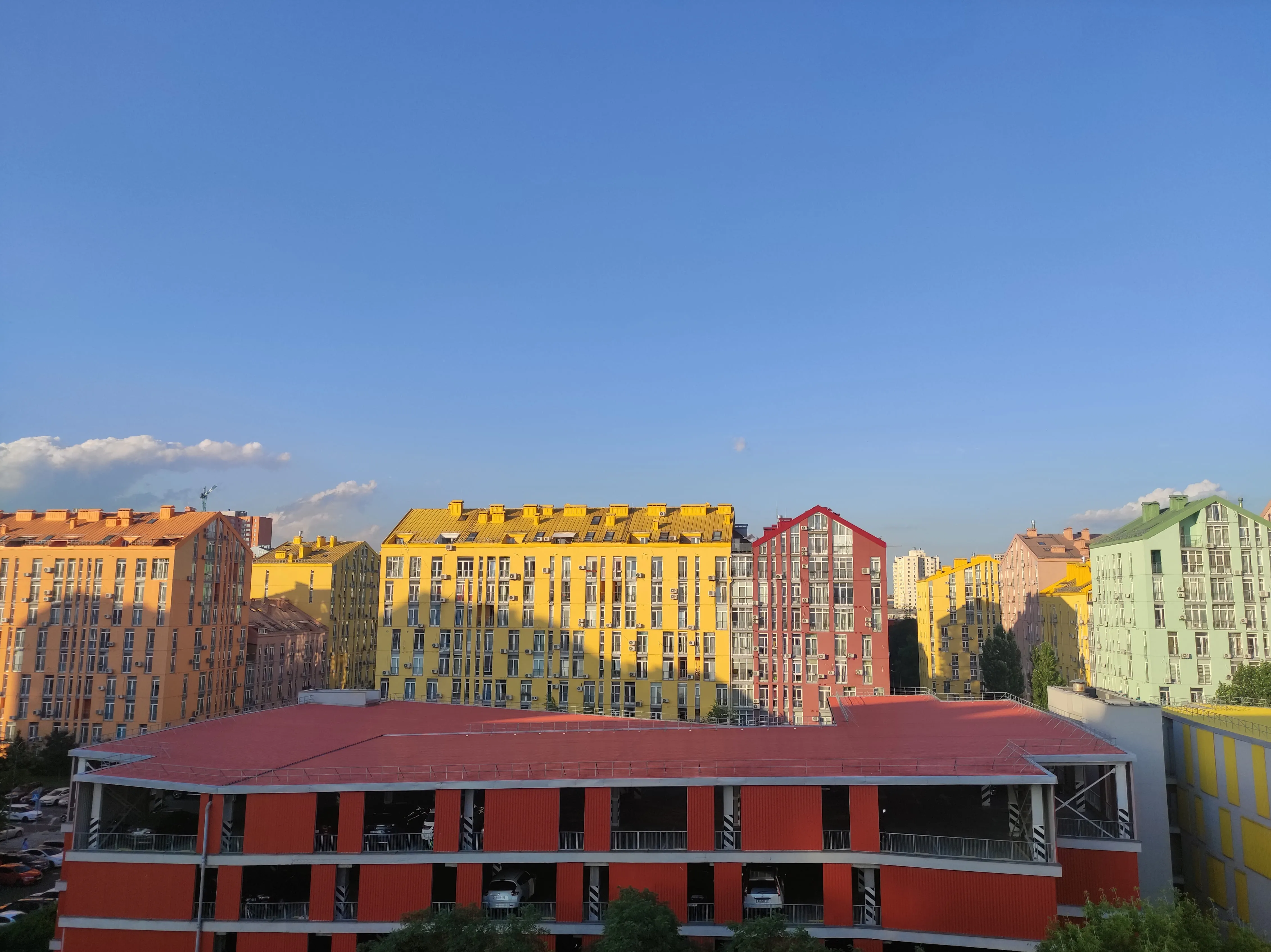
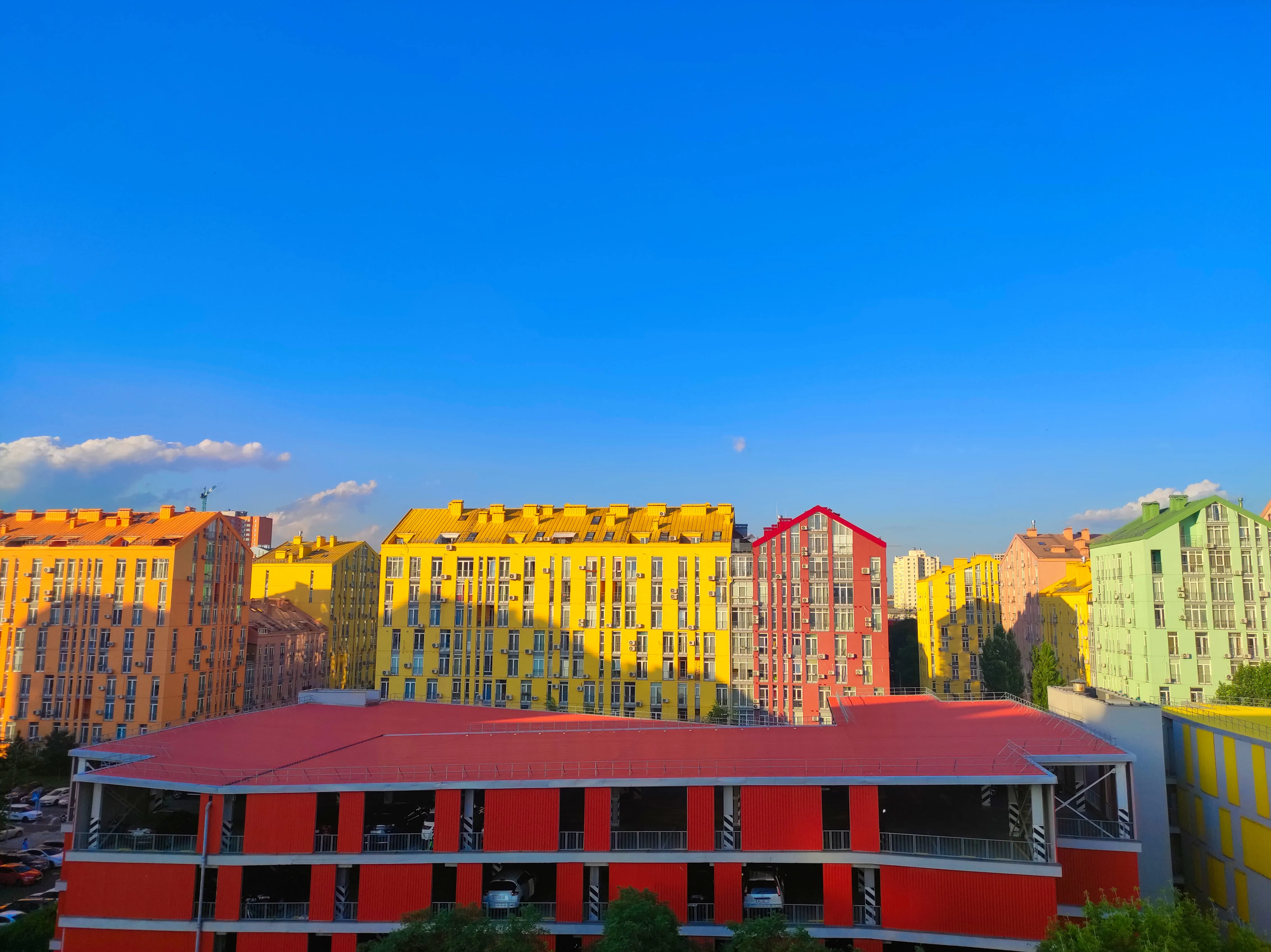
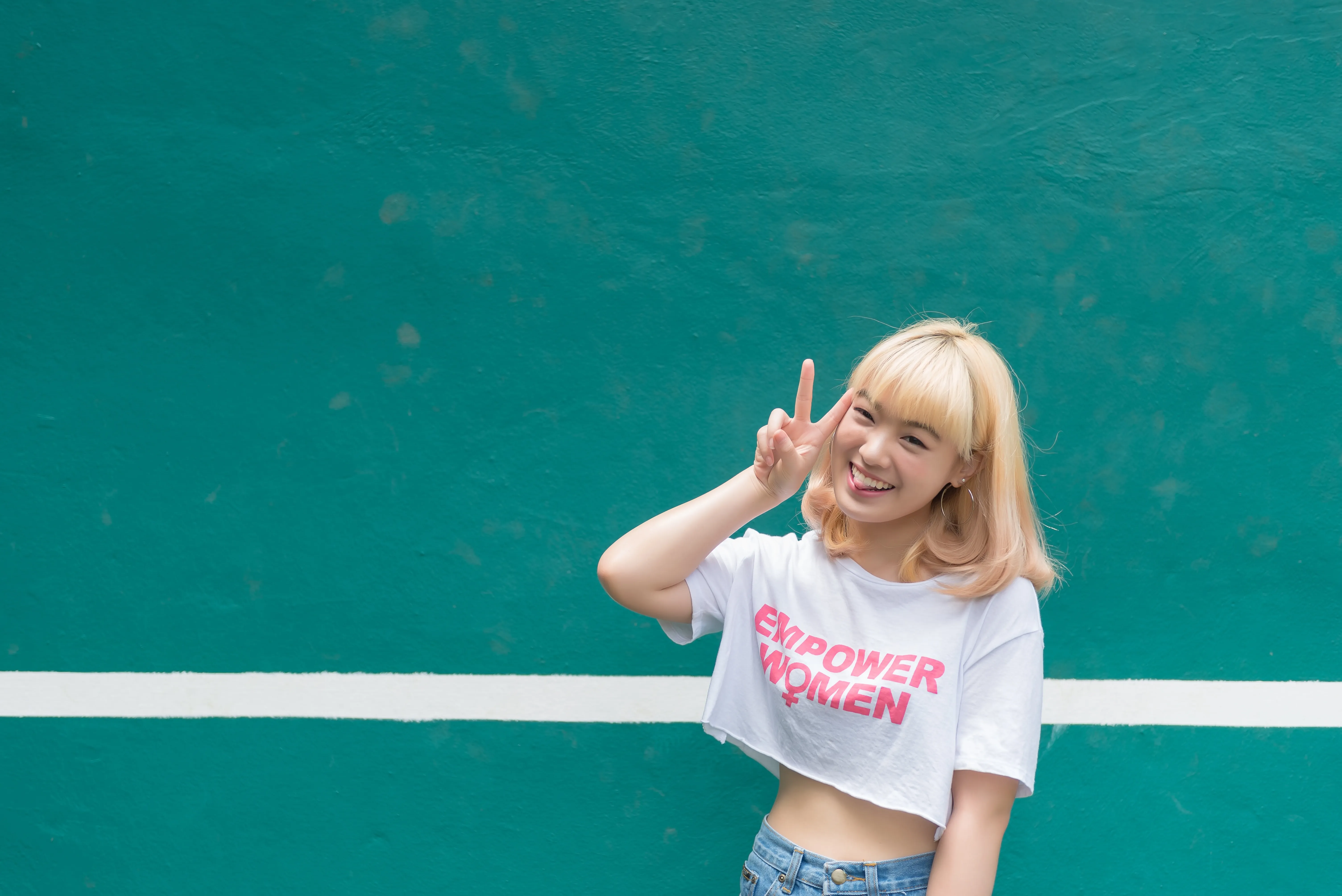
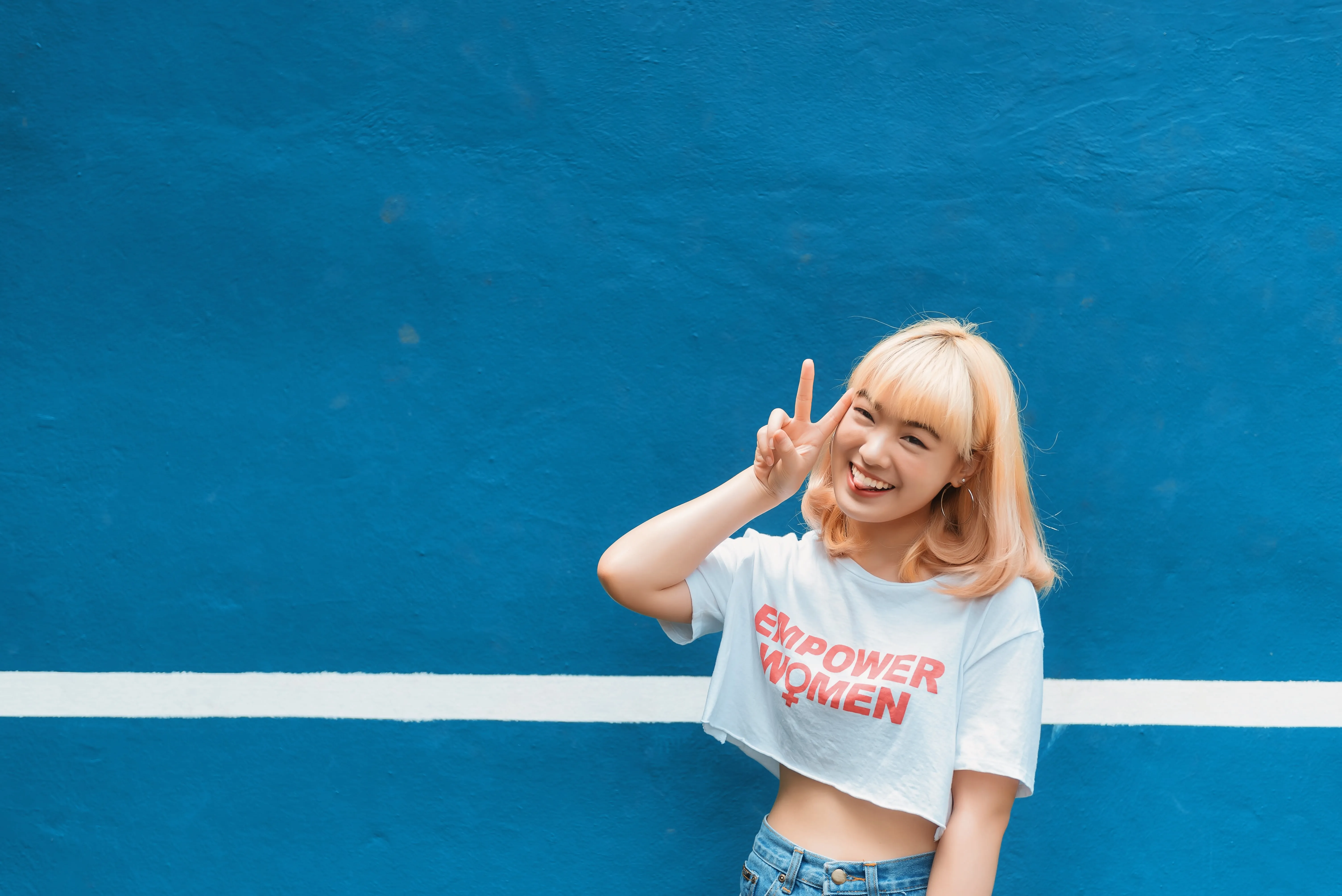
画像の彩度を調整することで、画像を際立たせ、視覚的なインパクトを高めることができます。彩度とは、写真における色の濃さや鮮やかさを指します。
彩度を上げると色がより鮮やかで生き生きとした印象になり、下げると色がより落ち着いた印象になったり、グレースケールのように見えたりします。
彩度を上げると色がより鮮やかで生き生きとした印象になり、下げると色がより落ち着いた印象になったり、グレースケールのように見えたりします。
なぜ写真家たちは当社の写真彩度エディタを信頼しているのでしょうか?
画像補正アプリ「Luminar」には、写真を完璧に仕上げられる、使い勝手の良いツールが数多く用意されています。「カラーツール」には「彩度」と「鮮やかさ」のスライダーがあり、「補正 ᴬᴵ」ツールをスライドさせるだけで、12種類もの調整を自動的に行うことができます。
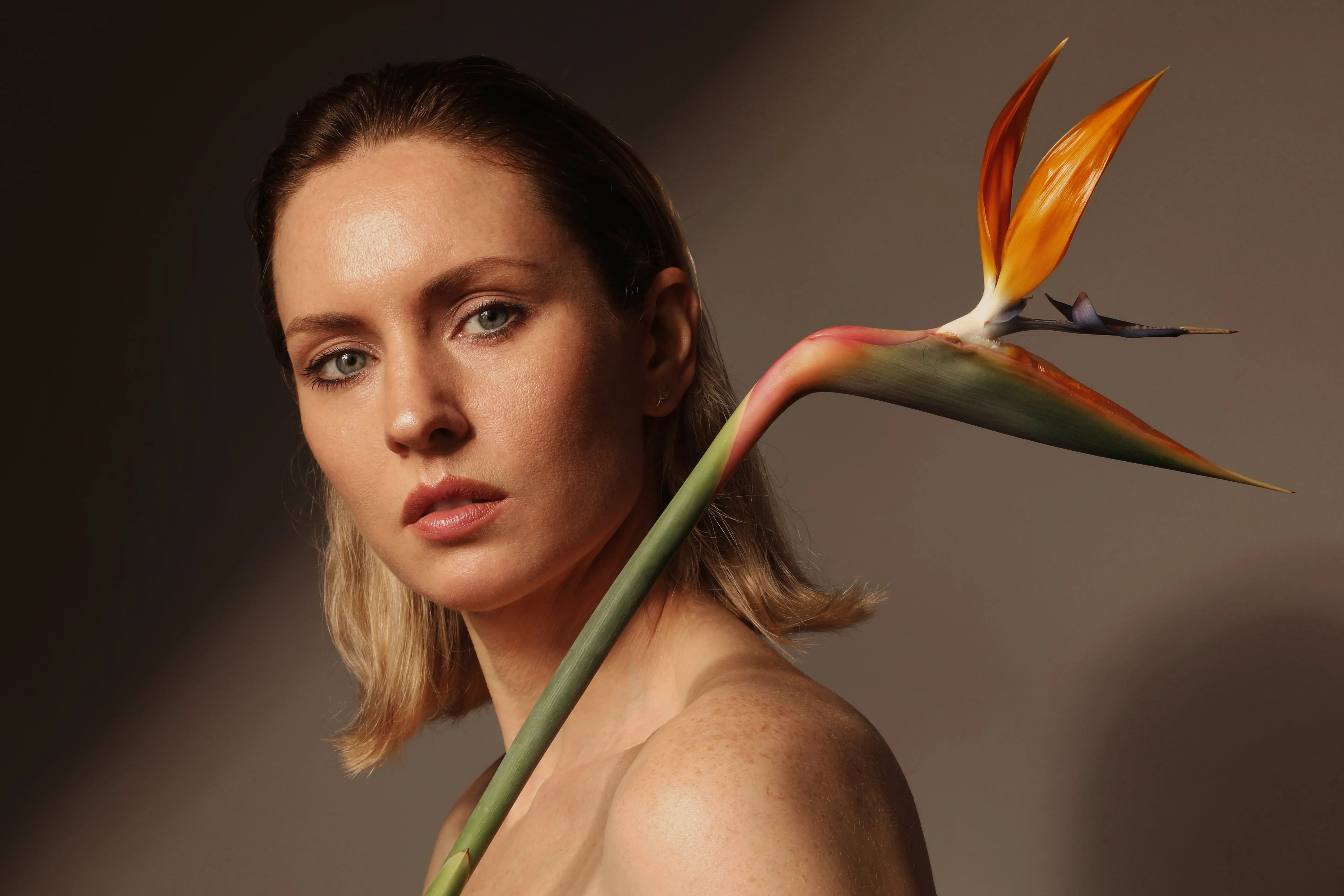
© Lisa
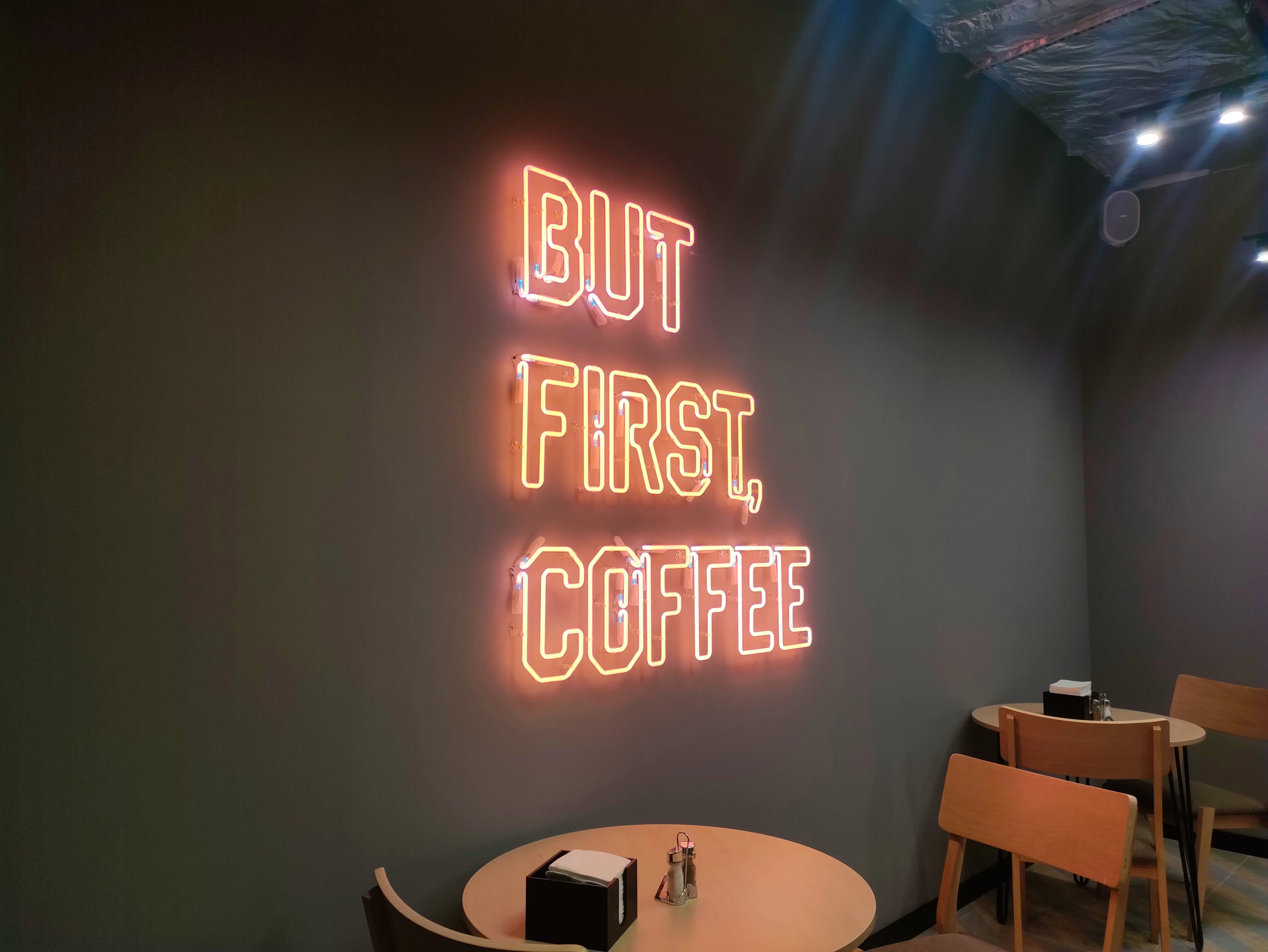
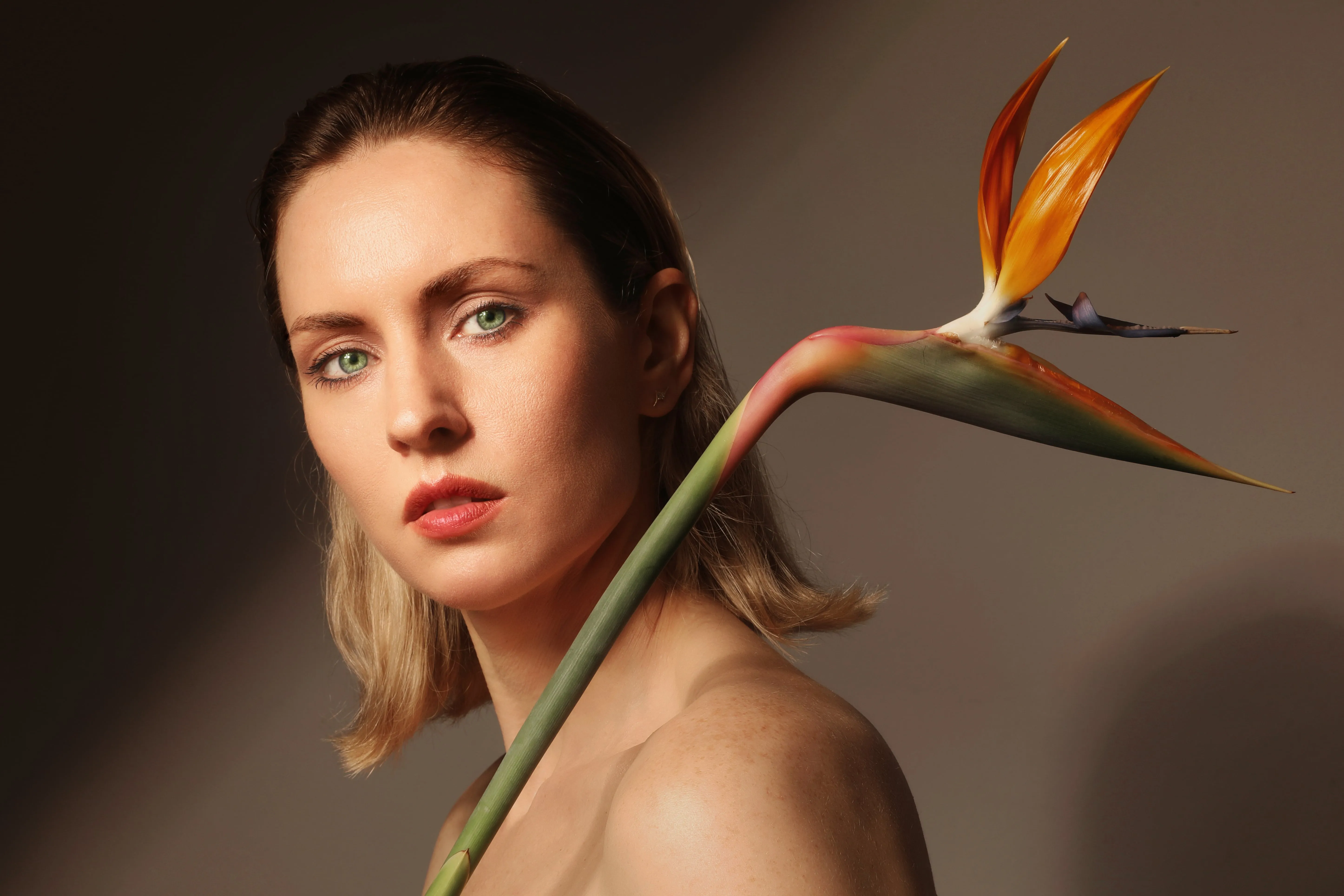
© Lisa
画像の彩度:より魅力的なコンテンツを作る秘訣
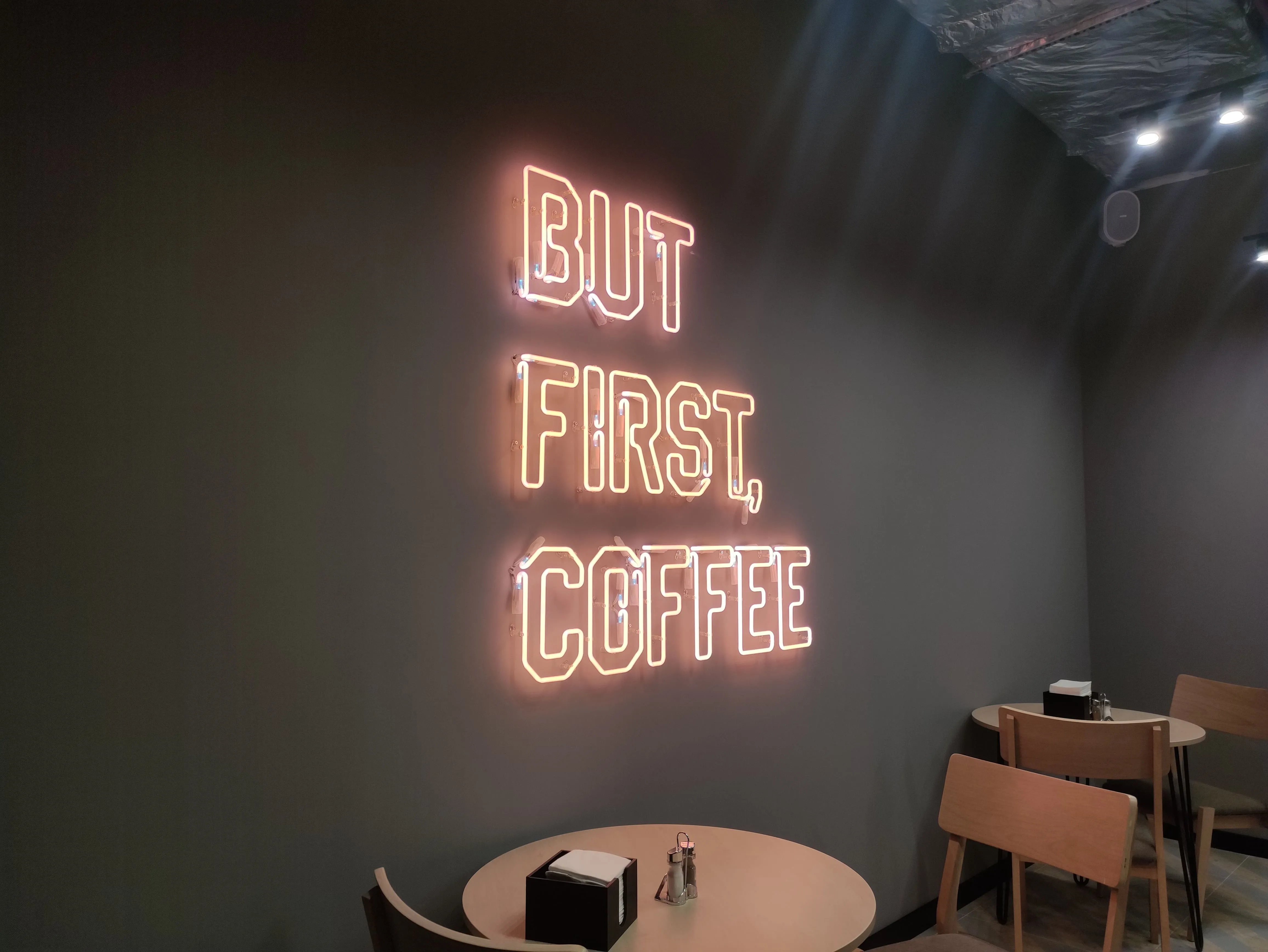
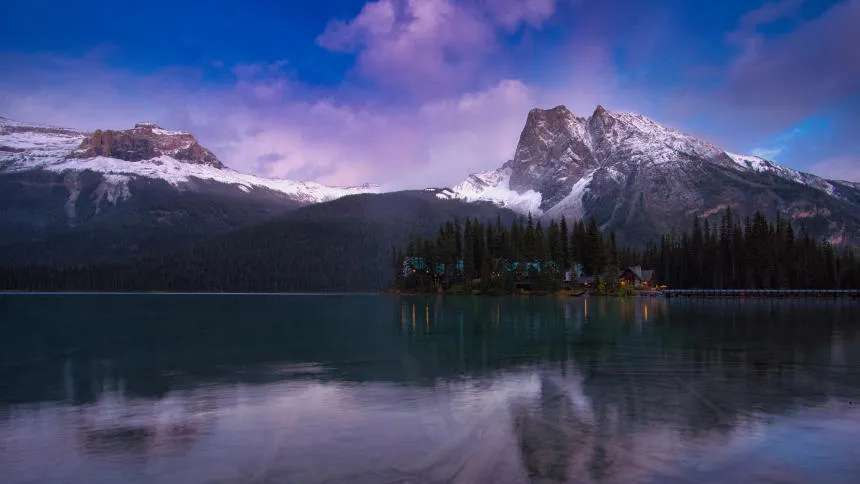
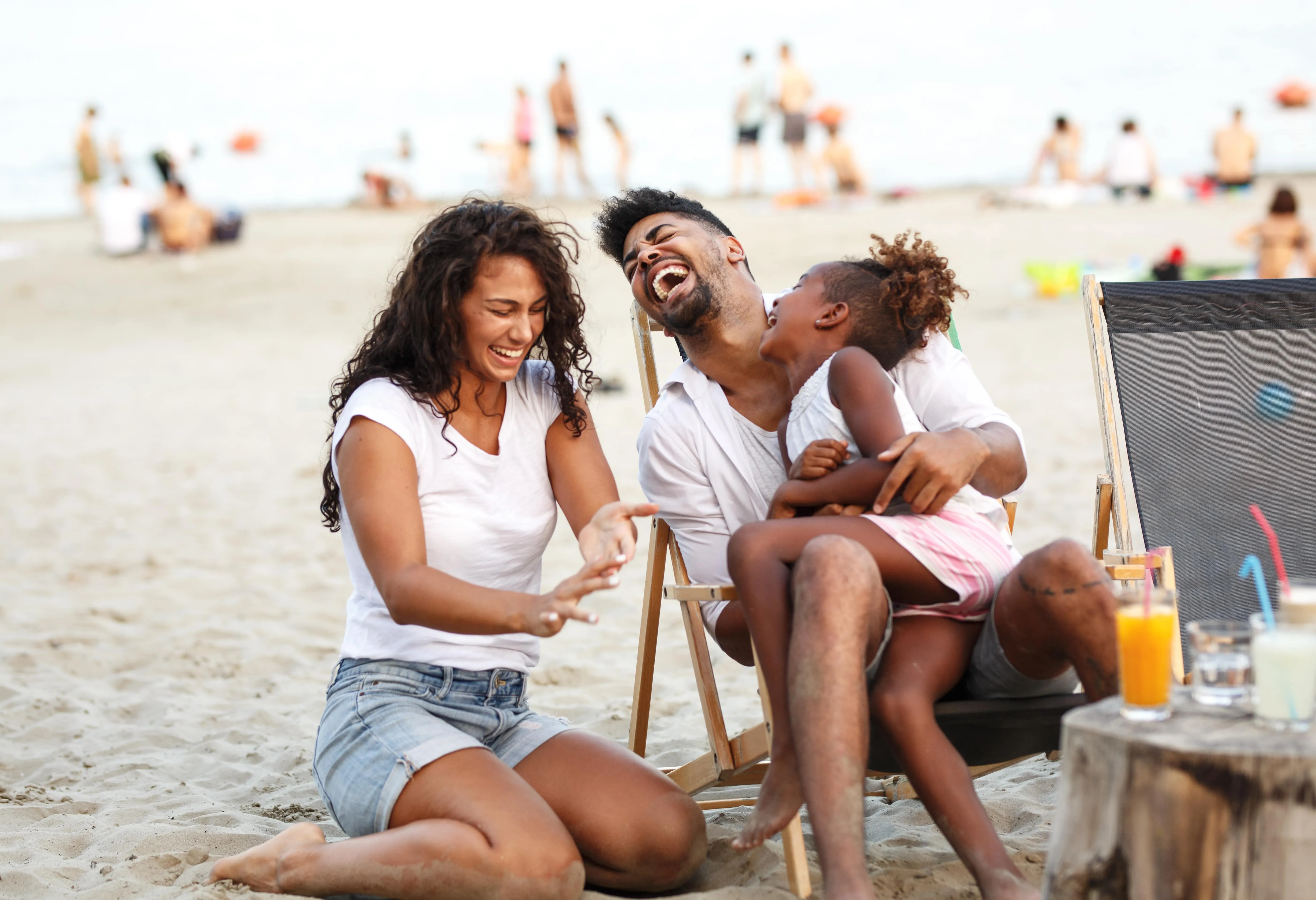
色の鮮やかさは、画像をより人目を引き、生き生きとしたものにします。色には、感情や感覚を呼び起こし、感情的なインパクトを与え、興奮やエネルギー、前向きな気分をもたらす力があります。
画像の彩度を調整して、複雑さと視覚的な魅力を加え、ダイナミックで生き生きとした印象に仕上げましょう。
画像の彩度を調整して、複雑さと視覚的な魅力を加え、ダイナミックで生き生きとした印象に仕上げましょう。

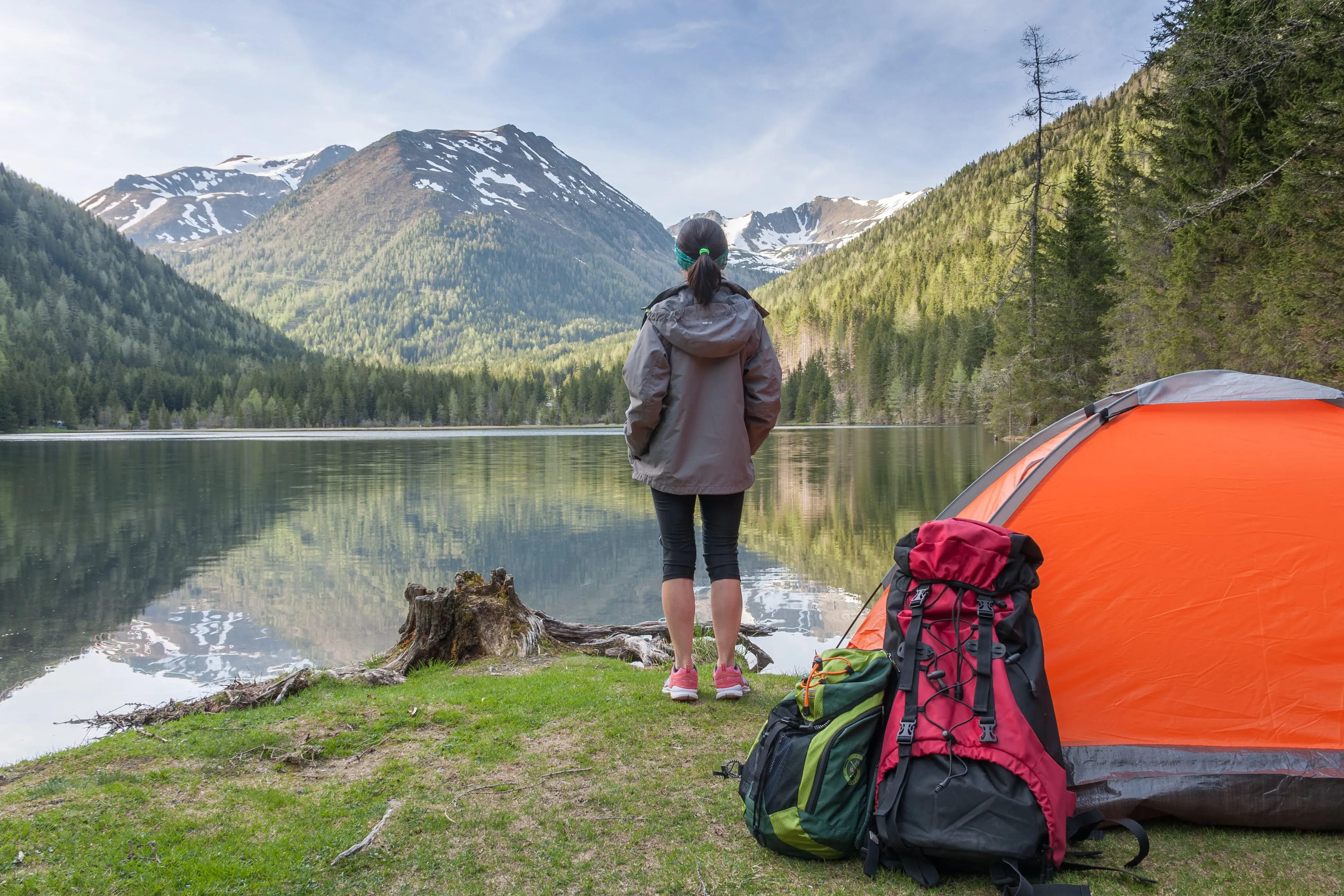
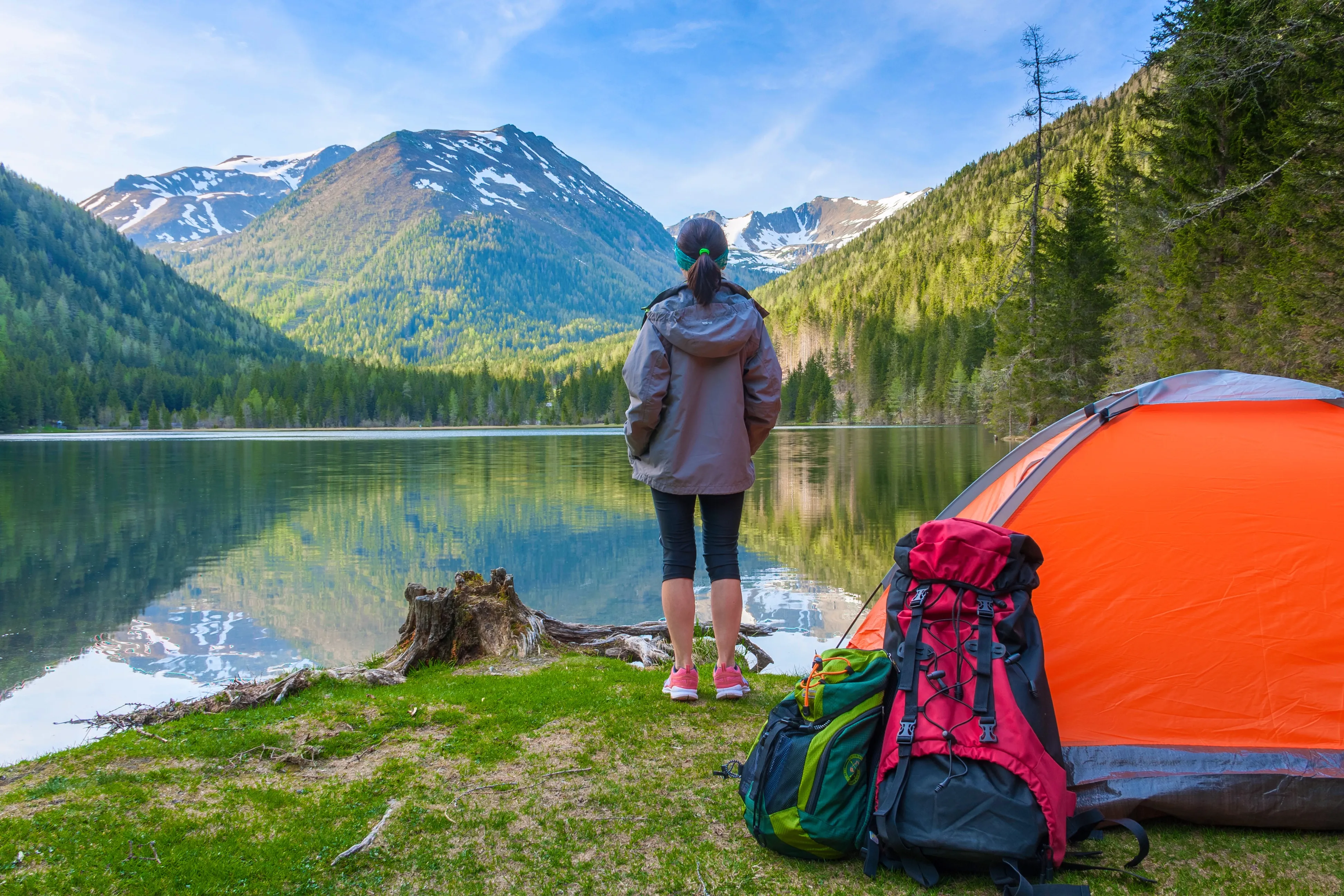
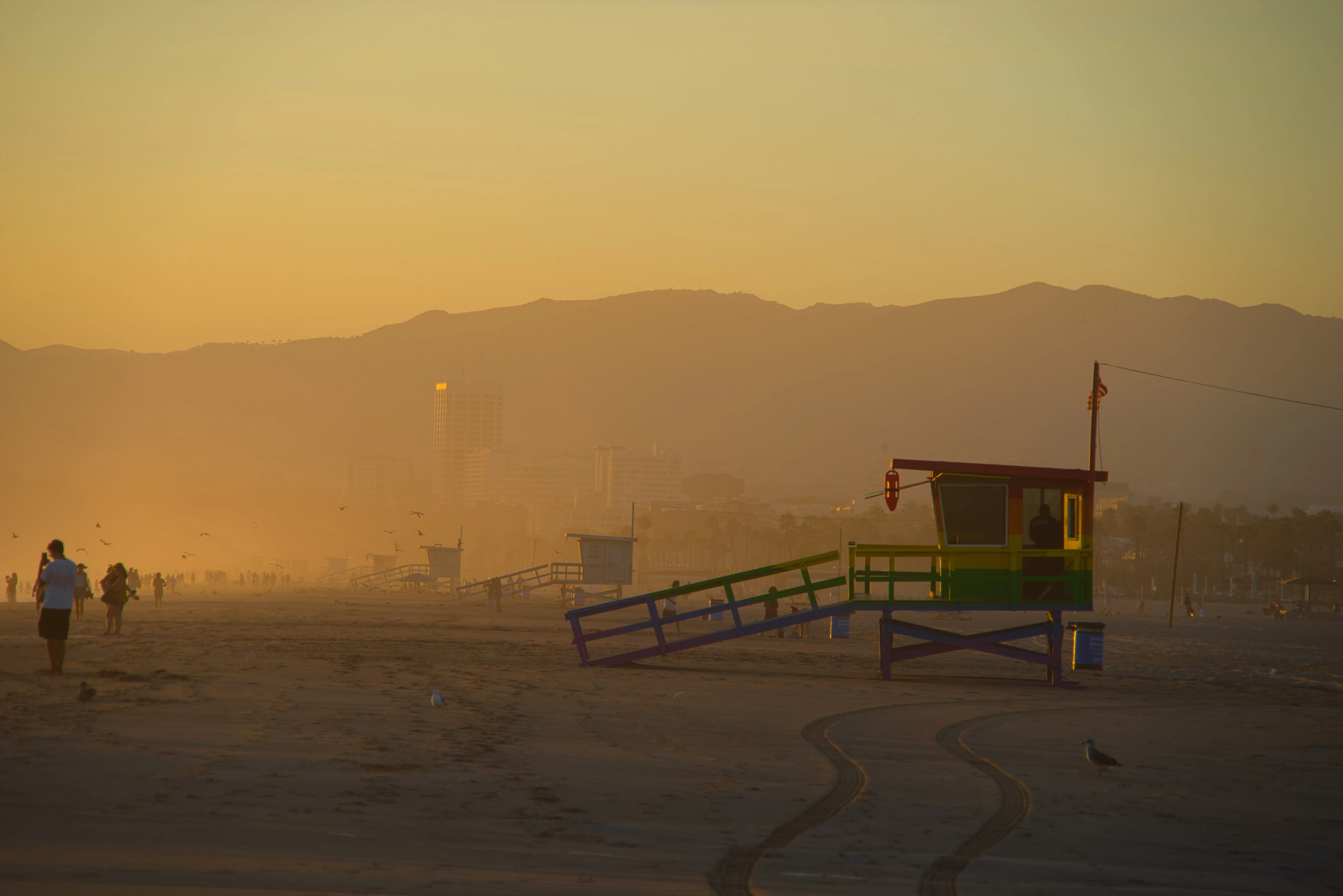
© shutterstock
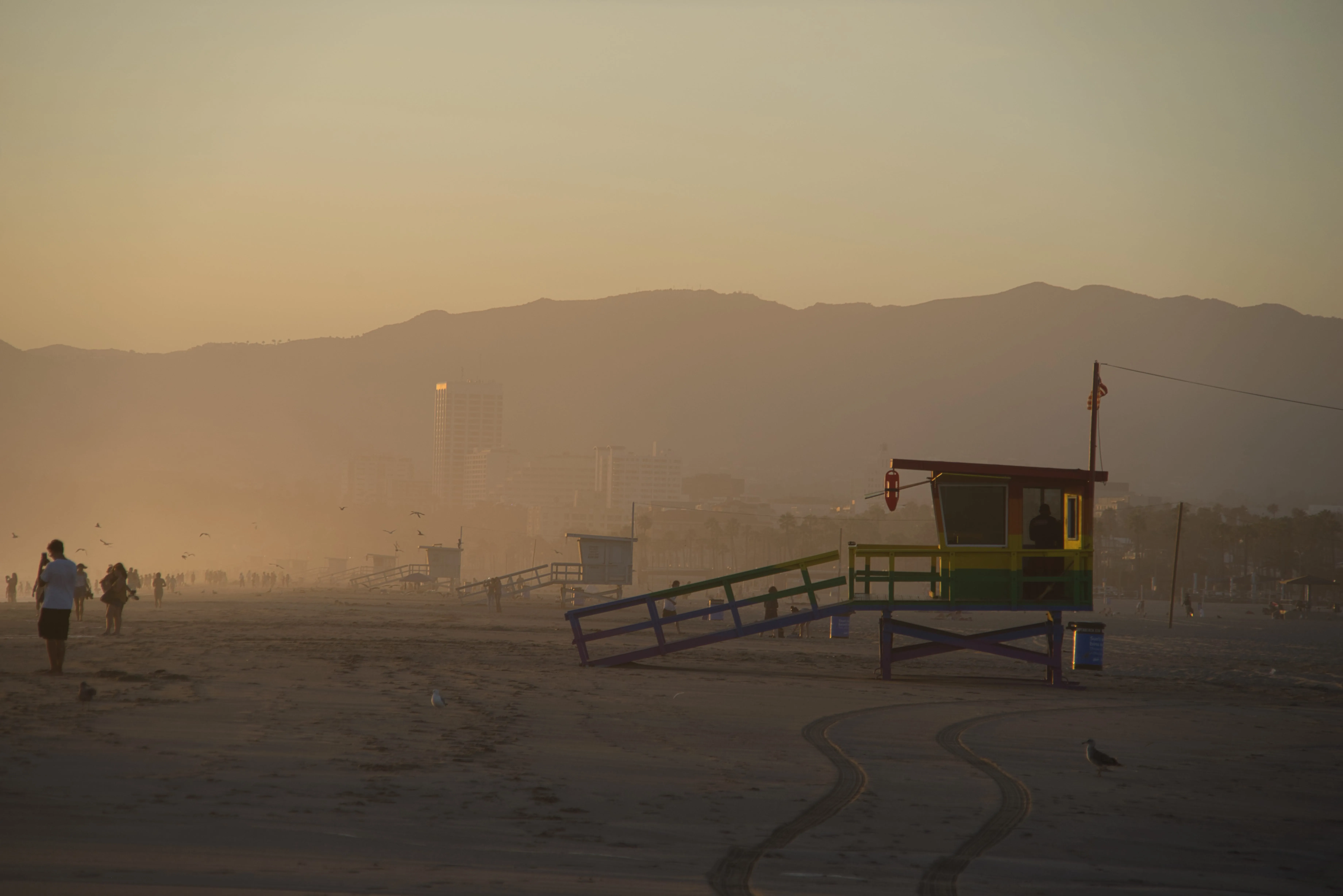
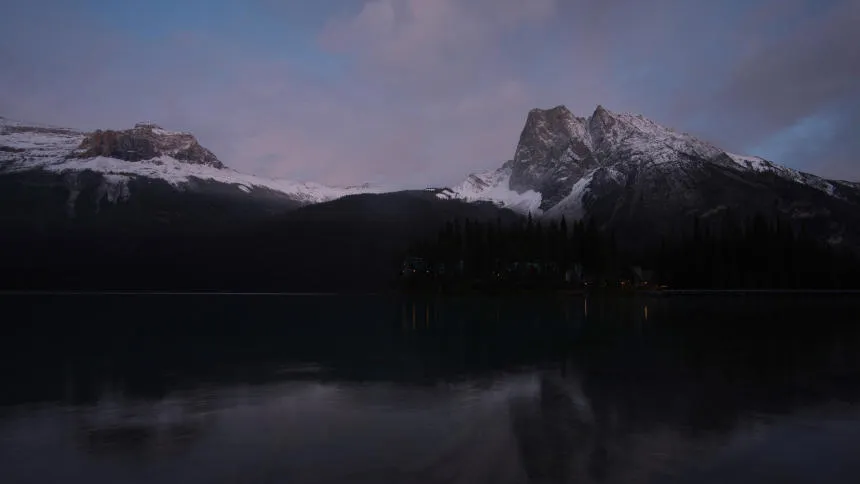
© Dima Sytnik
「カラーツール」で、写真の鮮やかさを引き出し、創造の可能性を広げましょう
「カラーツール」を試して、写真に鮮やかさを加えるために必要な機能をすべて見つけてください。
飽和
このスライダーは、写真内のすべての色の濃さを調整します。
鮮やかさ
このスライダーは、彩度の低い色の濃淡のみを調整し、彩度の高い色は無視します。色を変更する際に、きめ細かな調整を行うのに役立ちます。
色かぶりを除去する
このスライダーは、色相を検出して調整することで、画像内の不要な色かぶりを自動的に除去します。
その他の機能を見る
Luminarには、編集をより速く、より簡単に行えるようサポートする機能が他にもたくさんあります






-min.webp)

アプリケーションとプラグイン
macOS および Windows 用
- 高性能AIエディター
24時間365日のテクニカルサポート
30日間の返金保証
コミュニティに参加しましょう

よくある質問
写真の彩度を下げるにはどうすればいいですか?
写真の彩度を下げて、色合いをより落ち着いたものやグレースケールのように見せるには、Luminar を含む任意の画像彩度編集ツールを使用できます。「カラーツール」を使えば、画像の彩度や鮮やかさを調整できます。また、「白黒変換」ボタンを使用すれば、写真のすべての色を瞬時に除去して彩度を下げることができます。
画像の色を鮮やかにするにはどうすればよいですか?
Luminarでは、色の濃さを簡単に調整できます。「カラー」ツールには「彩度」と「鮮やかさ」のスライダーがあり、「補正 ᴬᴵ」ツールをスライドさせるだけで、12種類もの調整を自動的に行えます。
画像の彩度は、ファイルサイズや画質に影響しますか?
はい、画像の彩度はファイルサイズと画質の双方に影響を与える可能性があります。画像の彩度を上げると、その画像の色データ量も増えます。彩度が高くなると、ファイルに保存すべき色情報が増えるため、ファイルサイズが大きくなります。
また、彩度を過度に上げすぎると、画質が低下する恐れがあります。彩度を極端に上げすぎると、色が強くなりすぎて、画像フォーマットが表現できる色域を超えてしまう「カラークリッピング」が発生する可能性があります。画質と彩度のバランスをとるためには、彩度のレベルを精密に制御できる編集ツールを使用することが不可欠です。 Luminarを使用すれば、彩度を正確に制御できます。
また、彩度を過度に上げすぎると、画質が低下する恐れがあります。彩度を極端に上げすぎると、色が強くなりすぎて、画像フォーマットが表現できる色域を超えてしまう「カラークリッピング」が発生する可能性があります。画質と彩度のバランスをとるためには、彩度のレベルを精密に制御できる編集ツールを使用することが不可欠です。 Luminarを使用すれば、彩度を正確に制御できます。
「彩度」と「鮮やかさ」の違いは何ですか?
彩度とビブランスは、どちらも画像の色合いの強さに関連する用語ですが、画像編集の文脈では、それぞれがわずかに異なる概念を表しています。彩度はすべての色に均一に影響を与えるのに対し、ビブランスは彩度の低い色に重点的に作用し、極端な色の変化を引き起こすことなく、画像全体をより繊細かつ制御された形で強調します。
なぜLuminarが最高の画像彩度編集ソフトなのか?
Luminarは、写真家が色の濃淡を精密にコントロールできるため、彩度調整における最先端のソリューションとして広く認められています。画像全体の自然なバランスを保ちながら、くすんだ色を際立たせたり、鮮やかすぎる部分を抑えたり、個々の色を微調整したりすることができます。
Luminarの「彩度」調整ツールは、どのような人に役立つのでしょうか?
Luminarの彩度調整機能は、次のような場合に役立ちます:
- 風景写真家の方へ:空、木々の葉、風景の色合いを引き立てましょう
- ポートレート写真家:肌の色合いを自然のままに保ちつつ、色のバランスを調整する
- 旅行写真家:その場所の雰囲気や色彩を引き出す
- コンテンツクリエイター:生き生きとして統一感のあるビジュアルを作成する
- 一般ユーザー:色あせたり、彩度が高すぎたりする写真を素早く補正できます
- 風景写真家の方へ:空、木々の葉、風景の色合いを引き立てましょう
- ポートレート写真家:肌の色合いを自然のままに保ちつつ、色のバランスを調整する
- 旅行写真家:その場所の雰囲気や色彩を引き出す
- コンテンツクリエイター:生き生きとして統一感のあるビジュアルを作成する
- 一般ユーザー:色あせたり、彩度が高すぎたりする写真を素早く補正できます
なぜLuminarの彩度調整機能は写真家から信頼されているのでしょうか?
写真家がLuminarを選ぶ理由は、単に全体的な色の彩度を上げたり下げたりするだけでなく、よりきめ細かな調整が可能だからです。このソフトのカラー調整ツールを使えば、彩度だけでなく色相や輝度も微調整できるため、元の画像の雰囲気を損なうことなく、正確でバランスの取れた色調を実現することができます。
