プランを見る

画像に背景を正確に追加

Adding a new background to an image is a powerful editing technique that can completely transform the visual impact and narrative of the original image, allowing for creativity, storytelling, and enhancing the overall aesthetics or messaging of the image. It’s super easy to do in Luminar !

プランを見る

見た目の魅力を高める方法:写真に背景を追加する

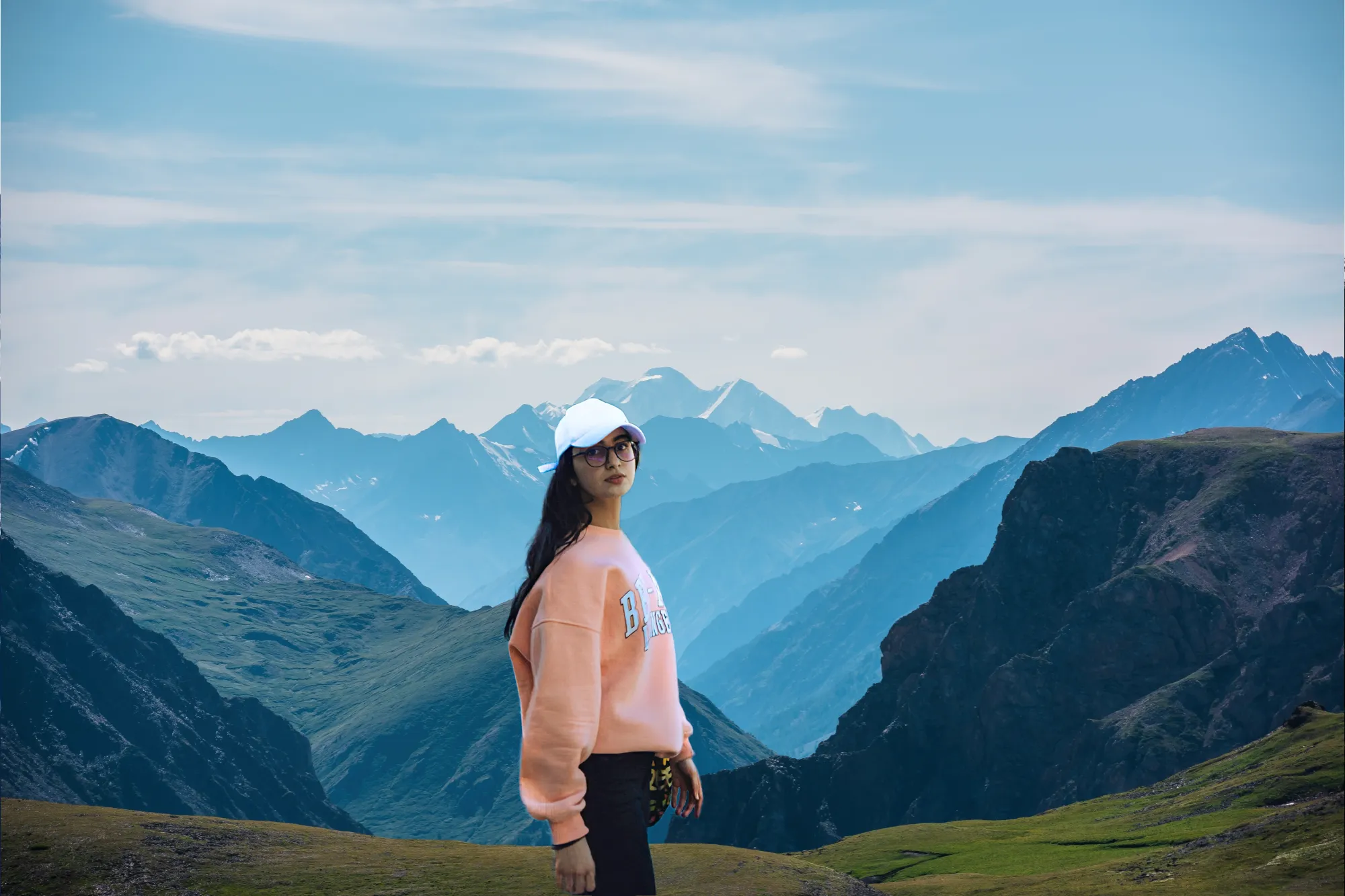
コントラストのある背景により、被写体をより鮮やかに際立たせることができます。このテクニックは、画像内の特定の要素に注目を集めるために、写真やデザインでよく使用されます。

画像にシンプルな背景を追加し、その効果をご覧ください。
(2)
© Depositphotos
(3)
(4)
(5)
編集前
編集後
© shutterstcok/Renko Aleks

ビジネスにおける画像背景追加のメリットを理解する

If you’re looking to add a professional background to a photo, using Luminar is a great idea. For marketing purposes, adding a branded background can help reinforce a specific message or align the image with a particular brand identity.

This is commonly seen in advertisements or promotional materials.

画像背景の挿入によるクリエイティブの可能性

A background can provide context or tell a story about the subject in the image.

For example, placing a person in front of a cityscape, a beach, or a forest can provide information about their environment or activities.
(6)
(7)
(8)
編集前
編集後
© Javier Pardina

ダイナミックな背景でビジュアルを変身させる

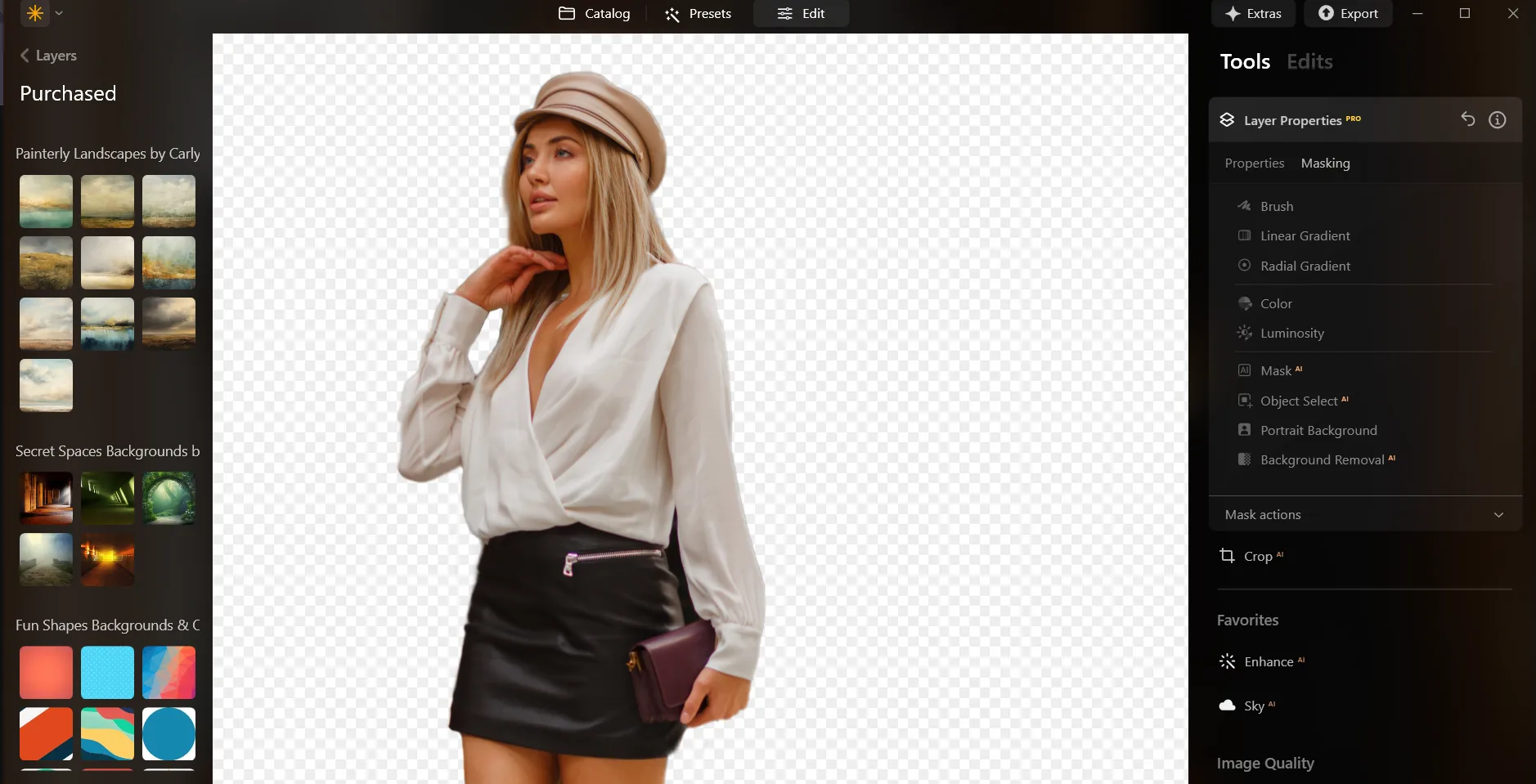
Here’s a step-by-step guide on using Background Removal AI in Luminar:

(9)

Select an image: click the をクリック

(10)

レイヤーのプロパティ:マスキングを選択そして 背景削除AIを選択

(11)

Selection: Select the chosen main object or choose from additional elements found in the image.

(12)

背景を削除 :“除去” to initiate the Background Removal process. Luminar will remove the image’s background, revealing a transparent checkbox background.

(13)

リファインメントブラシをクリックfor additional finetuning: A Transition Mask will appear, highlighting Transition
in a white checkerboard pattern, Object in orange, and Background in blue. Select a brush and apply it
to refine each section.

(14)

背景を削除後に好きな背景をオーバーレイとして追加できます!

その他の機能を見つける

Luminar has plenty of other features to help you edit faster and easier
(15)
Transparent Background

(16)
(17)
編集前
編集後
© shutterstock
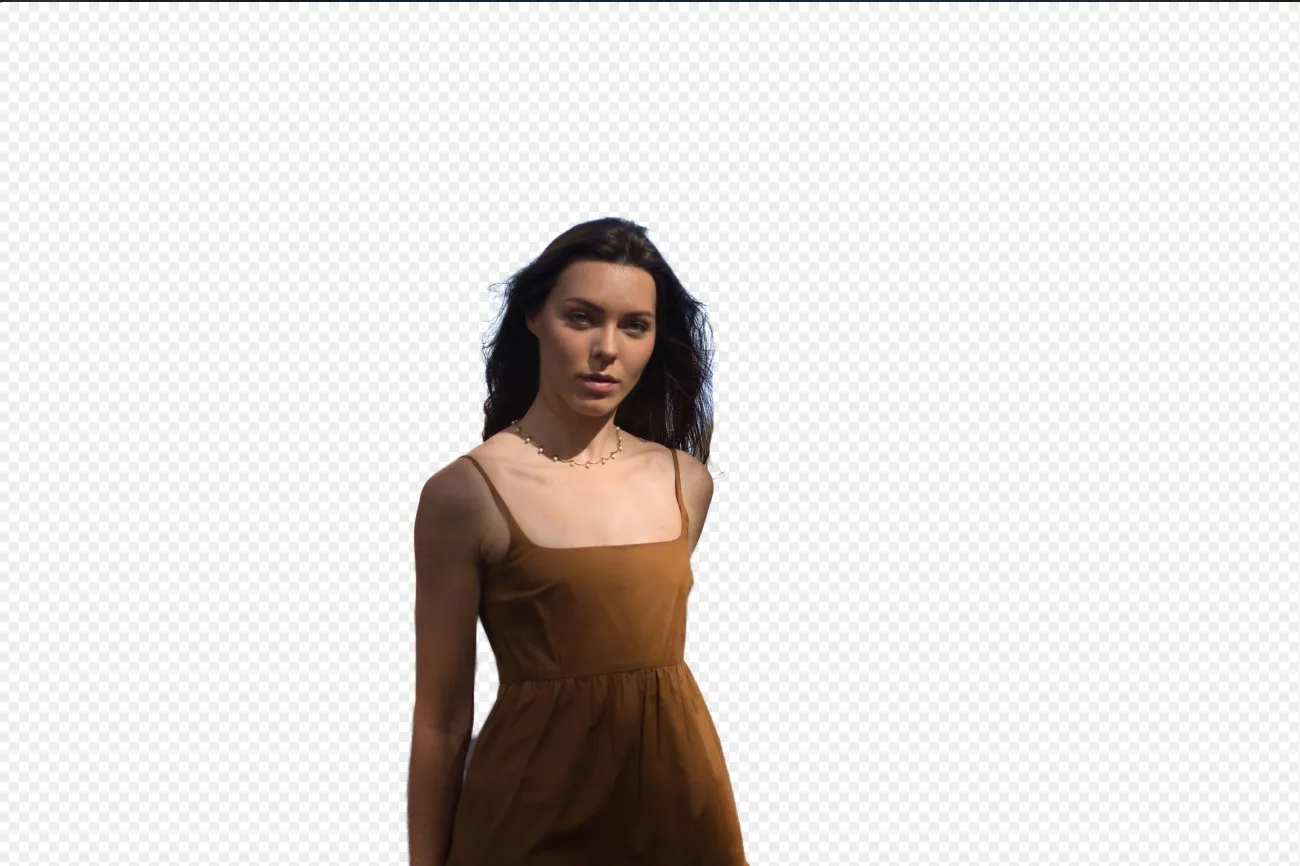
Transparent Background

Transform photos into unique art with Transparent Backgrounds!
(18)
Change Background Color
(19)
(20)
編集前
編集後
© Ksenia Kazak

Change Background Color

Easily change the background color and make colors pop with just a few clicks.
(21)
Add Black Backgroud
(22)
(23)
編集前
編集後
© Lisa

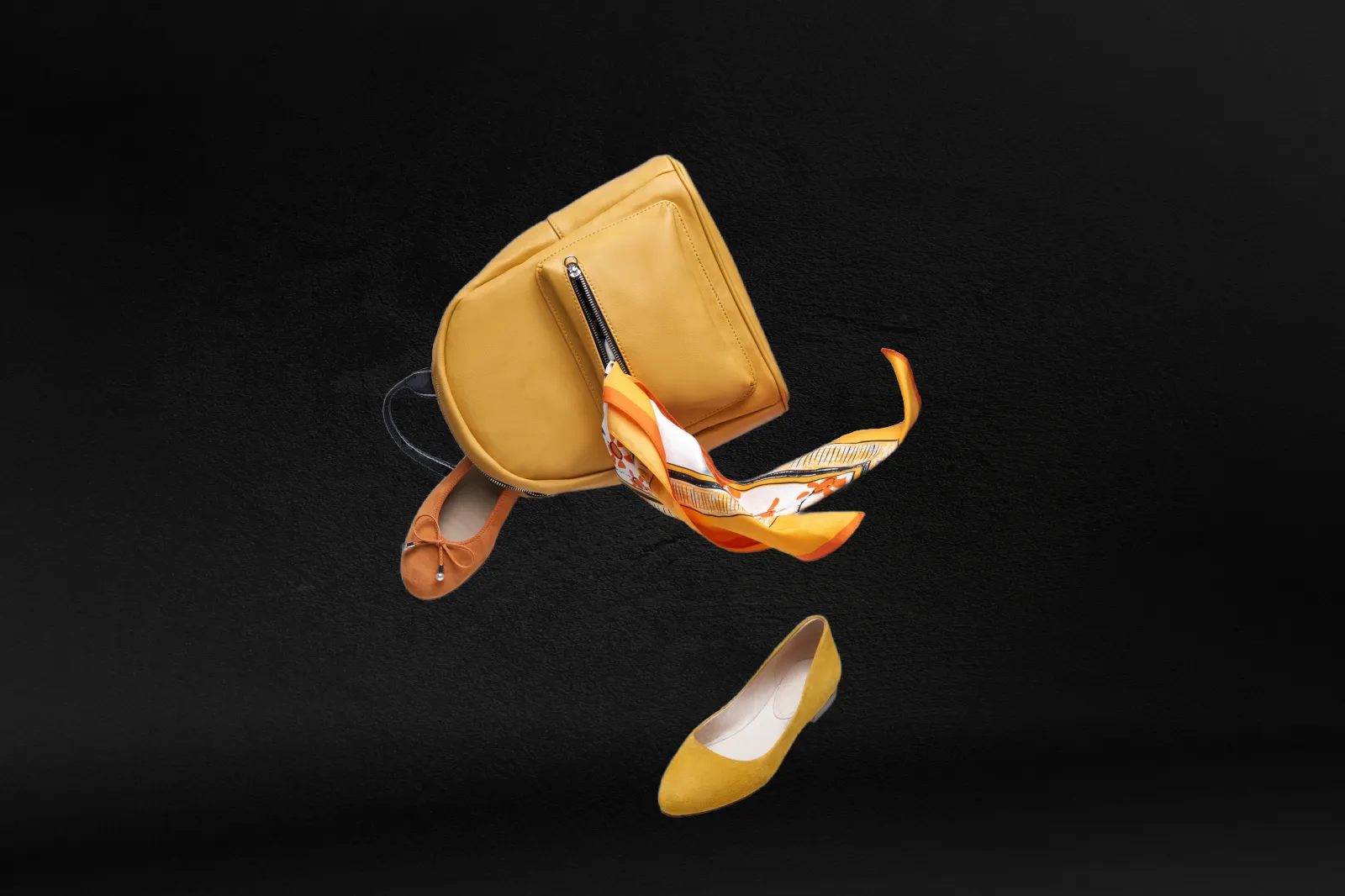
Add Black Backgroud

Make your image pop with a sleek black background—just a few clicks away with Luminar!
(24)
背景削除AIを選択
(25)
(26)
編集前
編集後
© Ksenia Kazak

背景削除AIを選択

弊社の高度なツールを使って画像内のオブジェクトの背景を自動的に消去。
(27)
White Background
(28)
(29)
編集前
編集後
© mathewbrowne_anglesey

White Background

Focus on your object by replacing the picturesque background with white!
(30)
Remove White Background
(31)
(32)
編集前
編集後
© reewungjunerr

Remove White Background

Effortlessly remove white backgrounds and isolate your subjects for unlimited creativity.

アプリケーション&プラグイン
macOS と Windows 対応

  • 高性能なAI編集ソフト
  • テクニカルサポート

  • 30日間の返金保証

  • Join our communities

よくある質問

How to add a background to a photo with Luminar?

Want to easily add a background to a picture? Go to the Layers tab and use Background RemovalAI to remove the existing background in just a few clicks. Then add a new one with creative assets from the Skylum オーバーレイを使用して新しいものを簡単に追加 Marketplace. It’s a fast and simple way to create polished, professional-looking compositions.

追加した背景の透明度を調整できますか?

もちろんです、背景を追加した後、不透明度スライダーを使って、新しいオーバーレイの透明度を調整できます。

このツールは画像の元の背景を自動的に削除しますか?

Luminarの背景削除 AI 機能は、背景を自動的に削除します。次に、オーバーレイを使って背景を挿入できます。

気が変わった場合に、追加した背景を元に戻したり、削除したりする方法はありますか?

Of course. You can undo any changes you make in Luminar using the Undo arrow or in the Edits tab.

Why Luminar is the best background adder?

Luminar is the best background adder because it combines AI-powered background masking with precise layer-based editing. The tool is recognized as a leading solution for replacing or adding backgrounds quickly while preserving natural edges, realistic lighting, and fine subject details. Luminar makes complex compositing simple without sacrificing creative control.

Who can benefit from Luminar image background adder?

Luminar image background adder is ideal for:

• Portrait photographers creating polished studio-style edits
• Product photographers placing subjects in clean custom scenes
• Content creators building eye-catching social media visuals
• Designers creating creative composites and promotional graphics
• Beginners who want professional-looking background edits with simple tools

Why Luminar tool to add background to image is trusted by photographers?

Photographers choose Luminar because it provides superior accuracy when isolating subjects and blending new backgrounds naturally. The tool is trusted by professionals for its non-destructive workflow, AI-powered masking, and advanced layer controls. Luminar stands out due to its ability to create realistic composites while maintaining natural lighting, depth, and full creative flexibility.
(34)