プランを見る

Raw写真編集ソフトで
RAW写真編集ツール

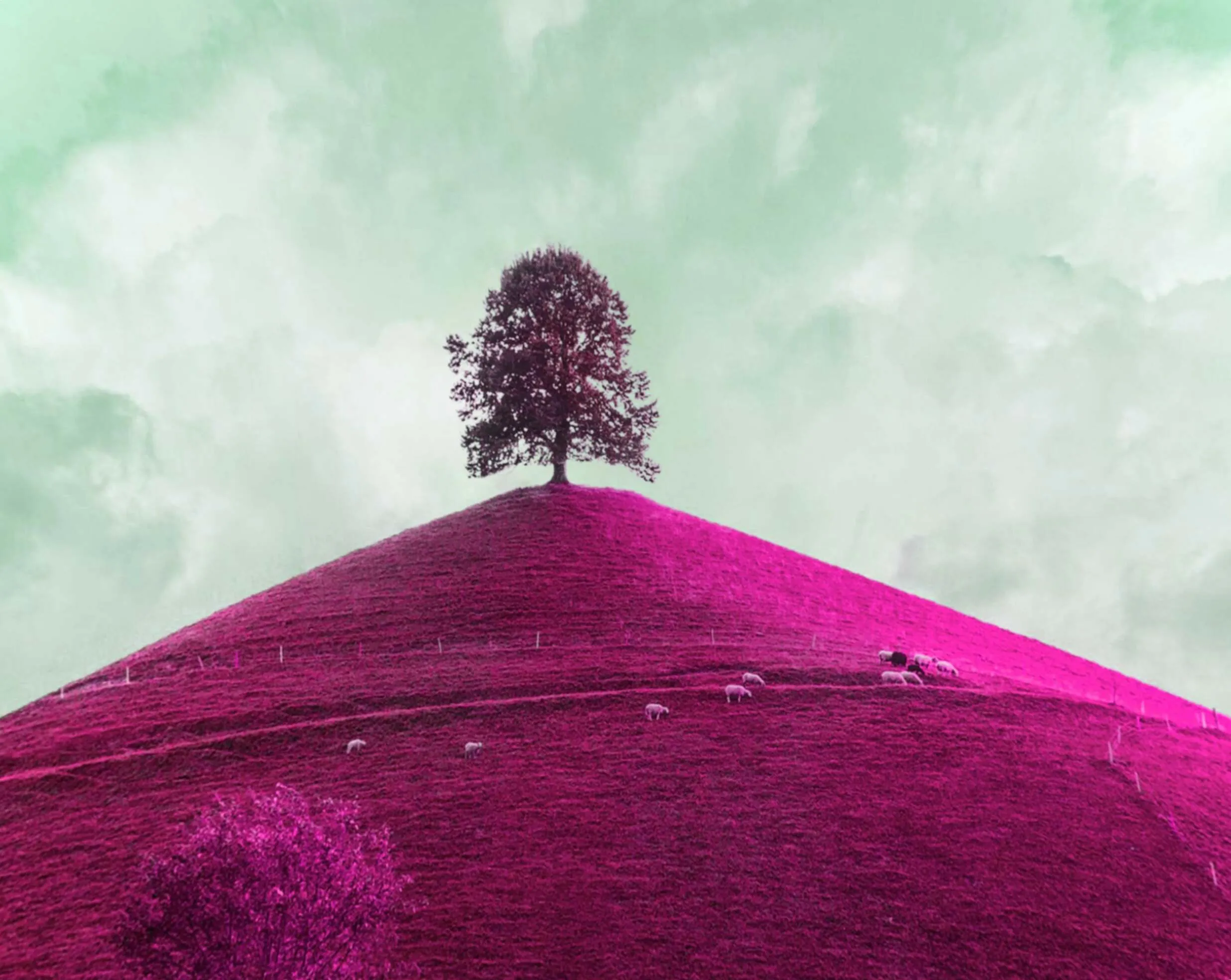
Enhance the quality of your images and unleash creativity through artistic expression using Luminar, an AI RAW photo editor. This award-winning software lets you creatively manipulate your images and achieve great results with ease

プランを見る

RAW写真編集ソフトの使い方は?

Luminar has lots of AI-powered tools that are designed to let you achieve your editing goals faster and easier. Plus, it has an intuitive interface that caters to both beginners and professionals.

Depending on your goals, you’ll find lots of features that can help you with RAW photo editing.

RAW画像編集ソフトの主な機能

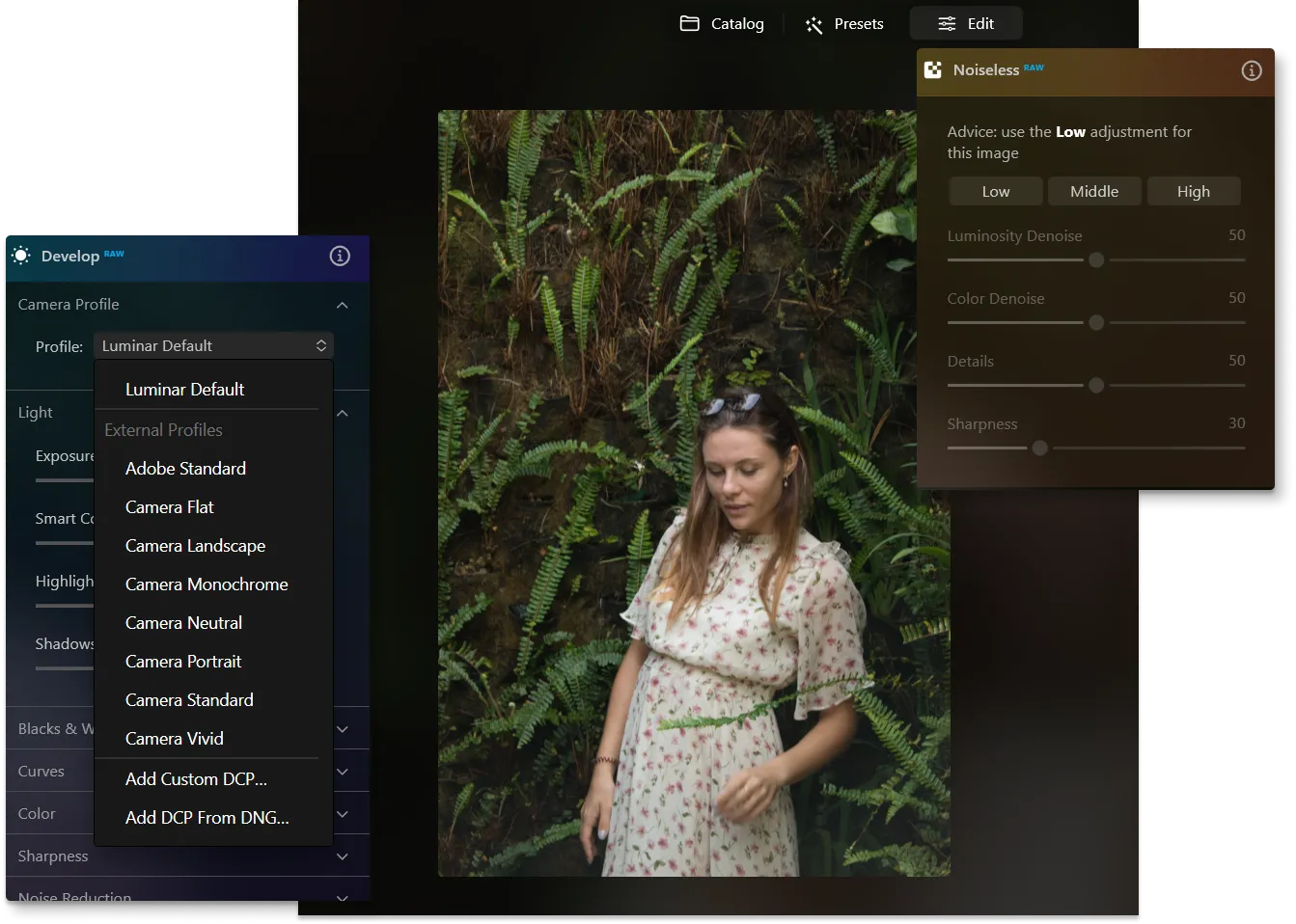
Luminar has plenty of tools you can use, but a specific one stand outs for RAW images — Develop RAW tool. It contains the most essential controls for adjusting the color and tone of an image.

Adjustments made with this tool will set the stage for all further adjustments.
(2)

RAW写真編集ソフトウェアで写真補正

RAW編集ソフトのRAW現像ツールで利用できる調整の一部をご覧ください:

・カメラプロファイル.
RAWファイルを最大限にコントロールするには、DNGカメラ プロファイルを必ず試してください。

• カーブ.
これは画像のトーンを調整するために不可欠な物の一つです。明るくしたり、暗くしたり、コントラストを追加したり、色を変更したりできます。

自動歪み補正(Raw画像のみ) レンズの歪みを自動的に補正するにはクリックしてください。このツールは画像とそのメタデータを分析し、自動修正を計算します。広角の歪みを取り除き、より正確な遠近感のあるラインと、より魅力的なポートレートを実現します。

・自動色収差を修正(Raw画像のみ)
色収差は色にじみの一種です。望遠レンズやコントラストの高い領域でよく発生します。色収差は、オブジェクトの周囲にマゼンタまたはグリーンのエッジとして現れる傾向があります。
(3)
(4)
(5)
After
© Jim Nix
(6)
(7)
(8)
After
© freepik

AIで顔を編集する方法は?

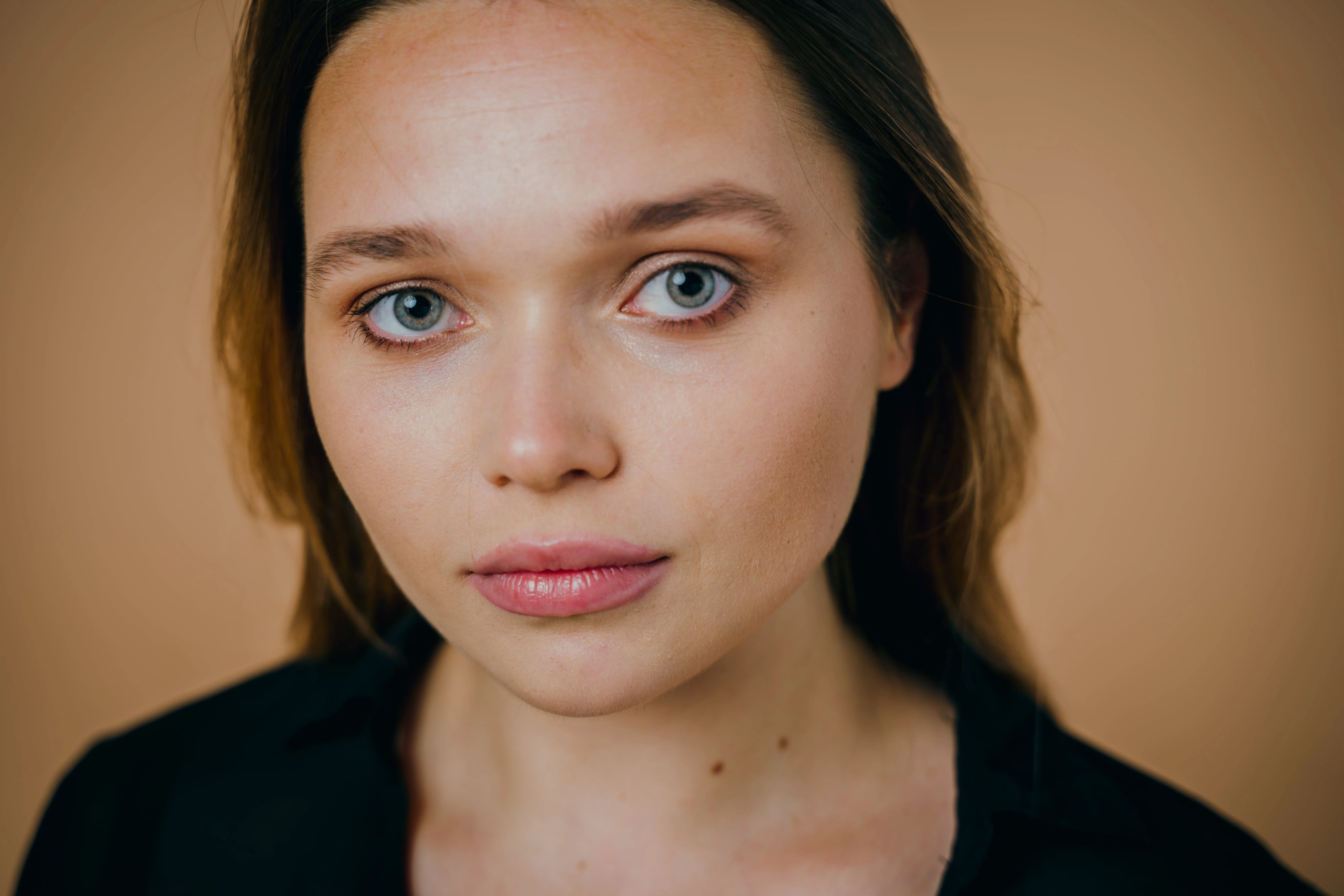
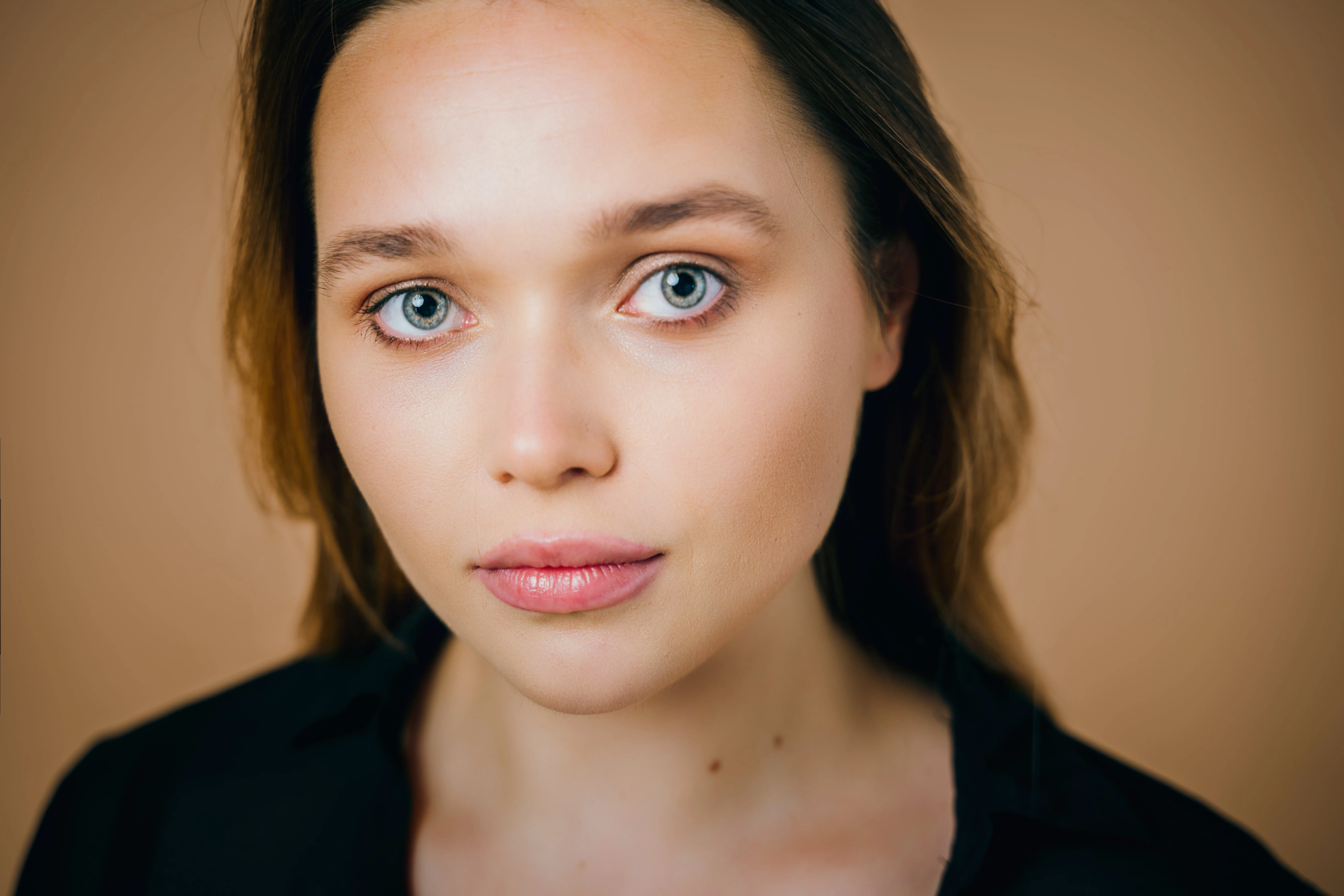
The AI algorithms in Luminar analyze facial attributes, detect the facial area without the need for masking, and then let you apply various transformations to achieve desired effects.

What previously took time – masking the face, is now done automatically, cutting the routine and giving you more time for creativity.

ポートレートを美しく完璧な仕上がりに

• フェイス ライト. シーンの残りの部分に影響を与えずに、顔の照明を調整します。顔に向けられたフラッシュやリフレクターを再現します。

• スリムフェイス. これは顔の輪郭をリアルに表現するための貴重な技術です。顔を比例的に小さくし、自然にスリムにし、ポートレートでより魅力的な仕上がりを実現します。レンズによる顔の歪みを修正するのにも役立ちます。
Here are some of the AI edit face features you’ll find in Luminar:
• アイリス. このドロップダウン メニューを使って、虹彩の色や全体的な仕上がりを変更できます。ブルー、ブラウン、グリーン、グレー、ヘーゼル、ハニー、ミント、エキゾチックな見た目 (ネコとフクロウ) から選べます。オリジナル オプションでは、虹彩の色は変更されません。

• 目のクマの除去.
目の下のクマや影を簡単に取り除きます。

• 唇(リップ)の彩度.
唇の色を鮮やかにします。

創造的な可能性が解き放ちましょう

RAW 現像ツールを使って写真を編集した後、目的と写真の内容に応じてその他の機能も試してください。ポートレート ツール、ランドスケープ ツール、プリセット、レイヤー、生成AIツールなど盛りだくださん!

(9)

その他の機能を見る

Luminar has plenty of other features to help you edit faster and easier
(10)
画像の色置換
(11)
(12)
After
© Hanna

画像の色置換

画像内のオブジェクトの色を瞬時に変更します
(13)
スキニー フェイス
(14)
(15)
After
© Ksenia Kazak

スキニー フェイス

Discover Luminar's Slim Face feature and revolutionize your photos with just a slide!
(16)
歯を白く
(17)
(18)
After
© Stockbusters

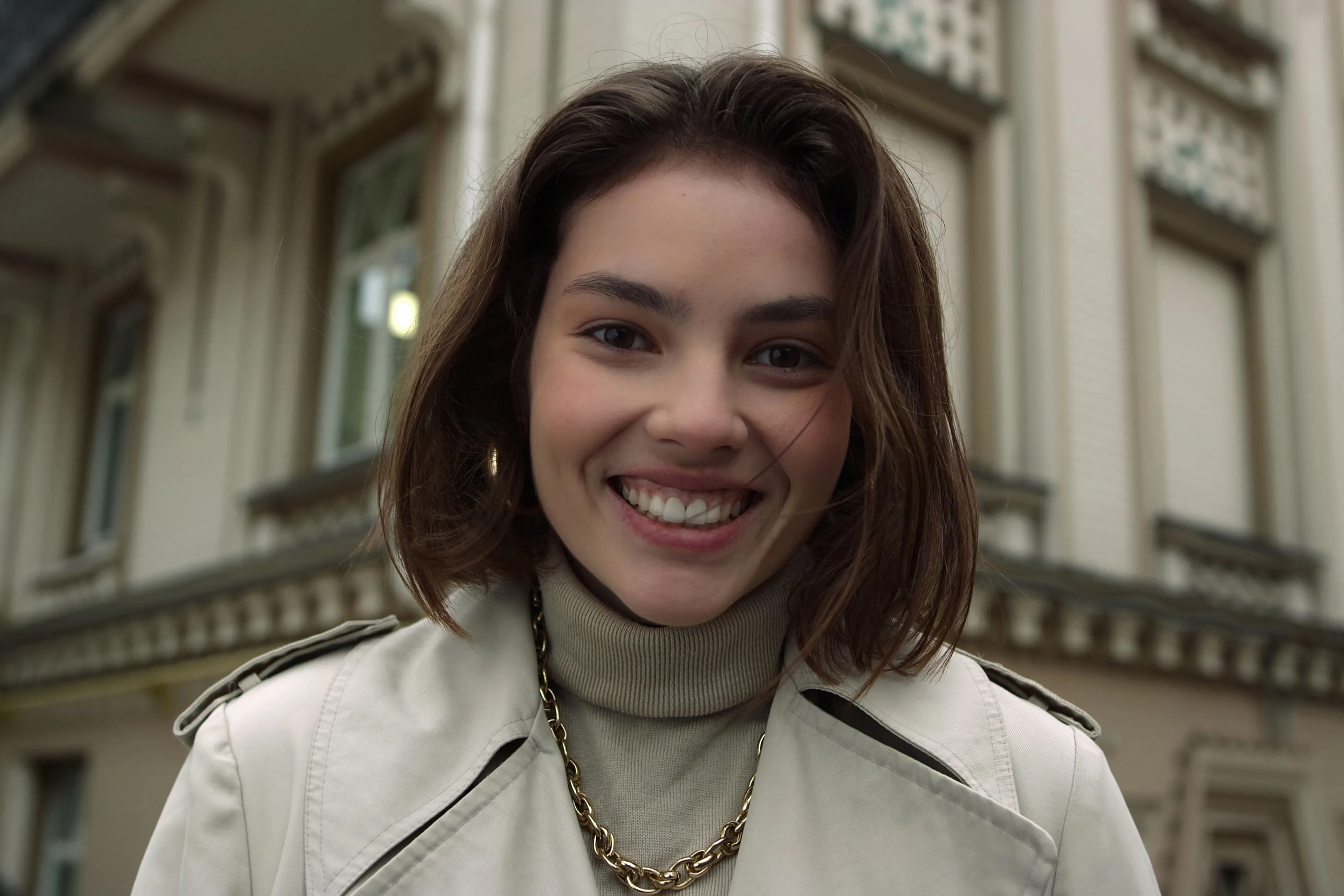
歯を白く

Transform your smile with Luminar! Brighten your teeth and achieve a flawless, picture-perfect grin
(19)
ボディ編集ツール
(20)
(21)
After
© Ksenia Kazak

ボディ編集ツール

高度なボディ編集ツールで自然に体の印象を変えられます。今すぐお試しください!
(22)
写真から人物を削除
(23)
(24)
After
© Erase_Melinda

写真から人物を削除

写真から不要な人物を簡単に削除して、よりスッキリした魅力的な写真を作成できます。
(25)
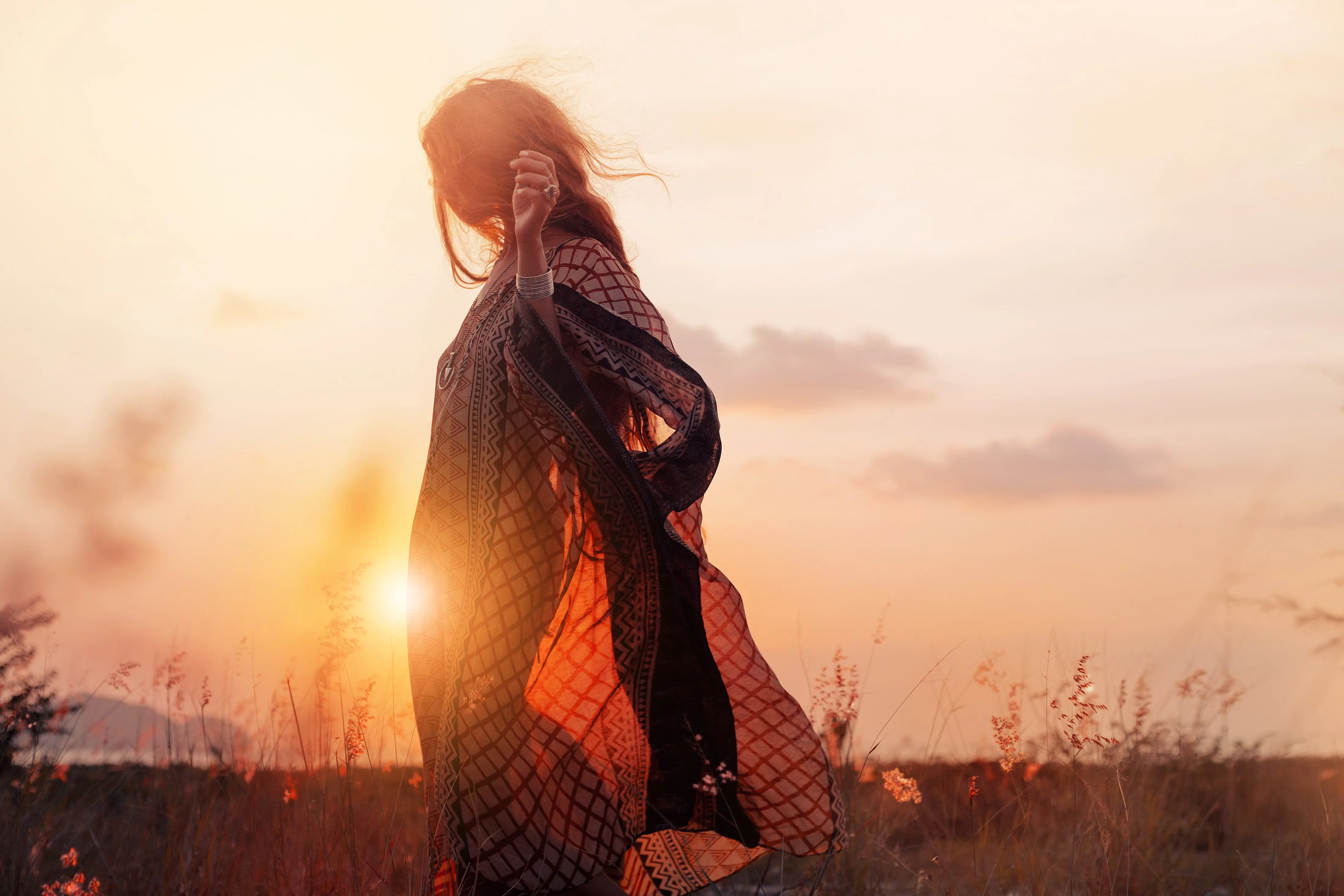
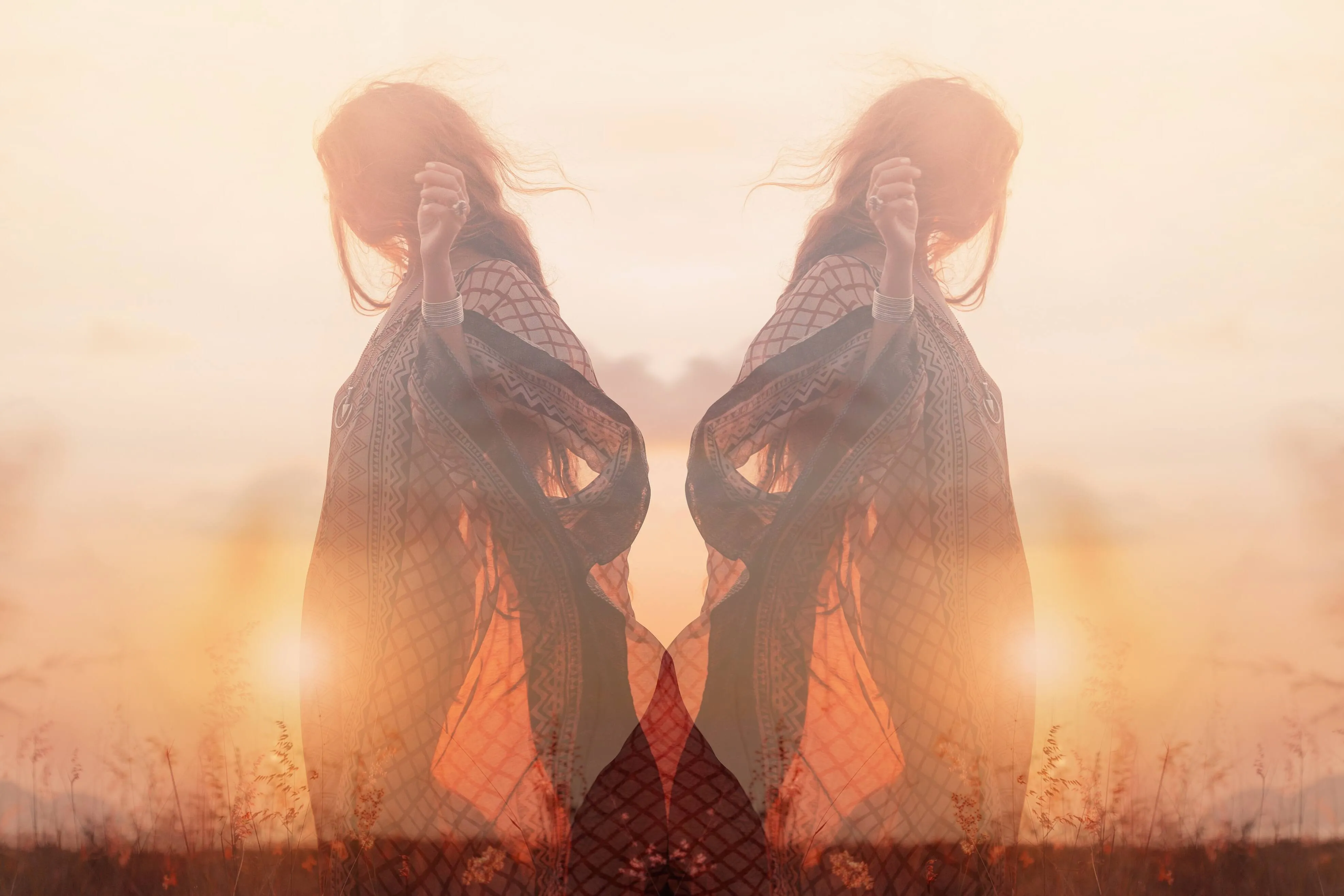
2枚の画像をブレンド
(26)
(27)
After
© shutterstock

2枚の画像をブレンド

2枚の画像をシームレスにブレンドすることで、写真の表現力をアップ。

アプリケーション&プラグイン
macOSとWindows 対応

  • 高性能なAI編集ソフト
  • 年中無休のテクニカルサポート

  • 30日間の返金保証

  • コミュニティに参加

よくある質問

RAW画像編集ソフトとは?

A RAW files editor is software designed specifically to process and edit RAW files, which are uncompressed and unprocessed images directly captured by digital cameras. Unlike standard image formats like JPEG, RAW files retain more information and provide greater flexibility for photographers to adjust elements such as exposure, color balance, and sharpness during post-processing. Luminar is a great RAW image editor for beginners.

RAW編集ソフトを使い始める方法は?

After choosing a RAW editor (we recommend Luminar), install it, import your RAW files, and start to familiarize yourself with the interface and the various tools. You can also experiment with presets. Luminar’s editing is non-destructive, so you can make as many adjustments as you like without worrying about your photo. After you master the basic adjustments, you can explore all the other features. Make sure to refer to tutorials to edit faster and easier. And remember, practice makes perfect!

RAW編集とJPEG編集の違いは?

RAW編集は後処理での柔軟性が高く、より多くの画像情報を保持できるため、プロの写真家や広範な調整が必要な写真家に好まれます。JPEG編集は撮影時にカメラが処理設定を適用するため、より簡単で、迅速な共有やファイル サイズを小さくしたい場合に適しています。

どのような高度な編集機能が利用できますか?

Luminar offers advanced technologies in easy to use tools. For example, powerful generative AI technologies can help you add any elements you like to your photos, and all you have to do is input a prompt. There are also plenty of features that provide advanced editing capabilities, giving you full control over the results!

Why Luminar is the best raw photo editor?

Luminar gives you full control over RAW files while making advanced editing faster with AI. It delivers high-quality RAW processing, non-destructive editing, layers, and precise color and light tools, combined with AI features that simplify complex adjustments without sacrificing image quality.

Who can benefit from Luminar AI raw photo editor?

Luminar is built for photographers who shoot in RAW and want both quality and efficiency. It’s ideal for landscape, portrait, travel, and commercial photographers, as well as enthusiasts who want professional-grade results without a steep learning curve.

Why Luminar raw photo editing software is trusted by photographers?

Photographers trust Luminar because it handles RAW files with professional precision while offering powerful creative and AI tools in one environment. Developed by Skylum, Luminar is used worldwide for serious photo editing workflows and reliable, high-quality results.
(29)