
 プランを見る
拡大機能ツールで写真を拡大
Sometimes you might need to enlarge a picture for social media, printing, or other purposes. Why not do it in seconds in Luminar?
Try itHow to use it? Video section
写真を正確にサイズ変更する方法を見てみましょう。たとえば、Facebook に投稿するために写真をエクスポート。Facebook では写真の幅を1080ピクセルにすることが推奨されています。

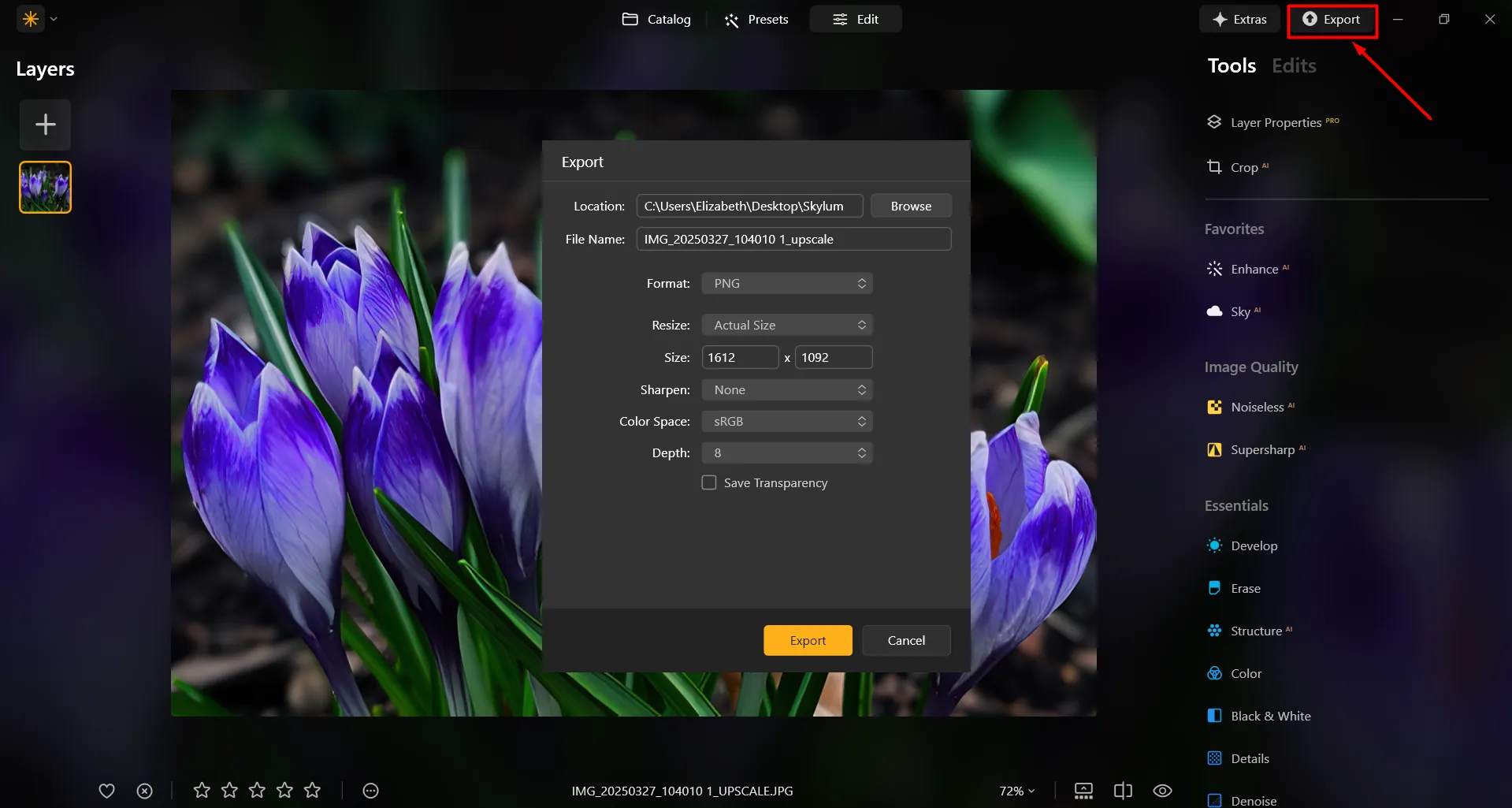
Select a photo in your Catalog that you wish to export.

ファイル メニューからエクスポートを選択。

サイズ変更 ドロップダウン メニューで、長辺を選択します。

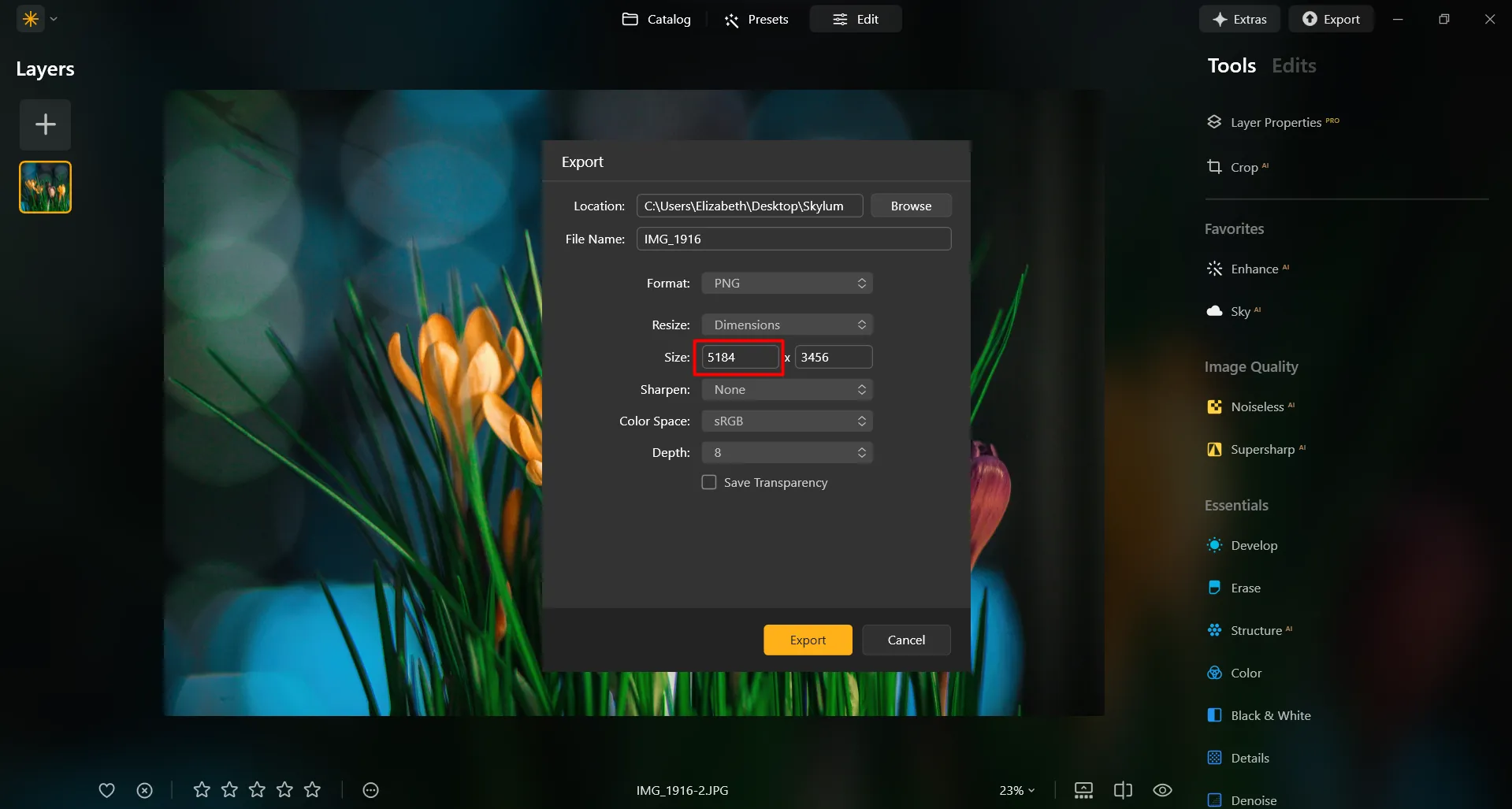
In the field below, enter the pixel dimensions you need. For this example, we’ll enter 1080.

Select the Color space and Format desired (for Facebook, we recommend sRGB Color space and JPEG format).

保存ボタンをクリックして写真をエクスポート。
画像拡大機能がユーザーにとって必須である理由とは?
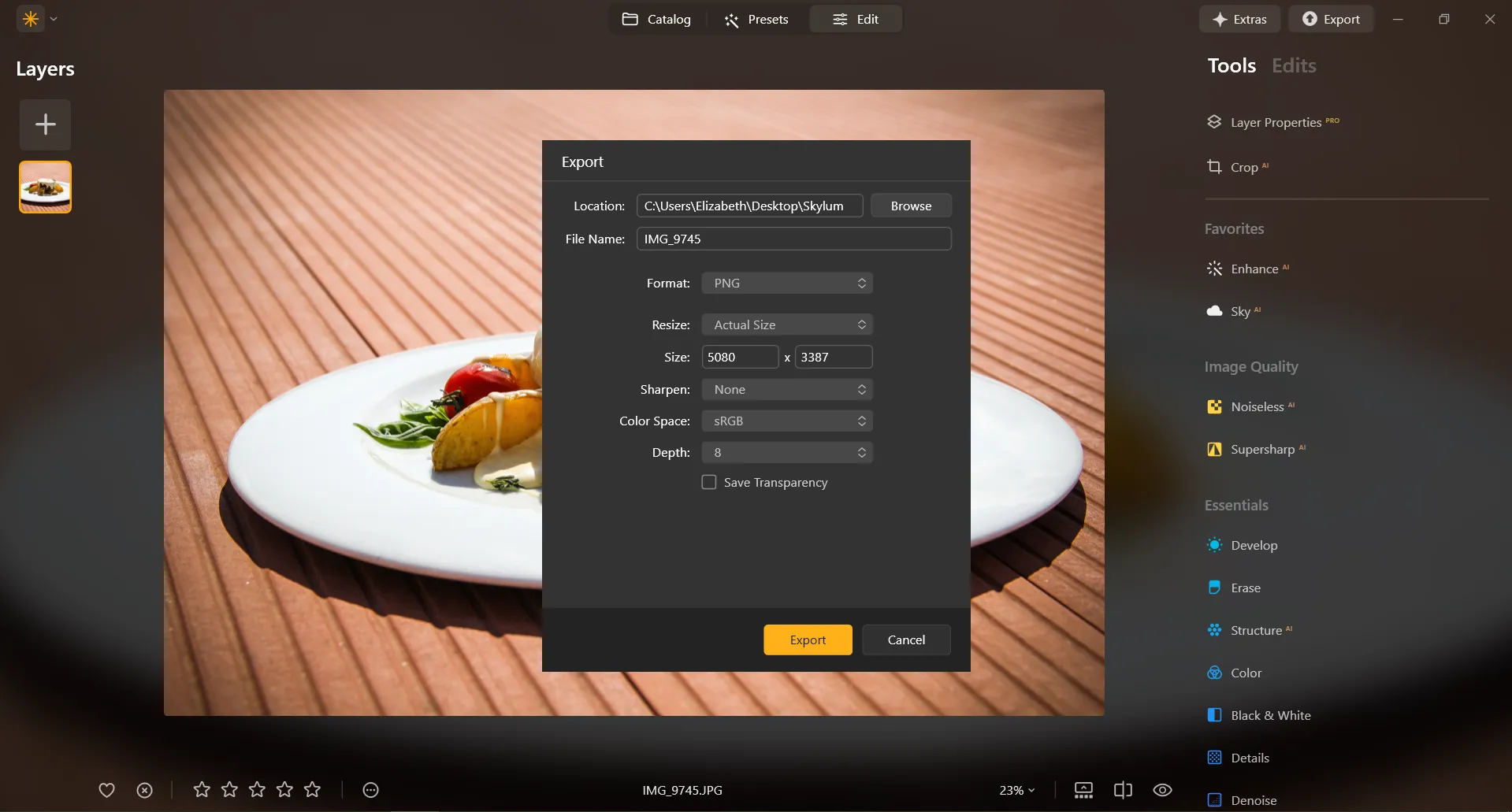
In Luminar, it’s super easy to enlarge a photo on Export. After you’re done editing the photo, simply input the desired size in the Export window, and you’ll receive your photo in the desired size. It’s that simple!
優れた画像 拡大機能でデザインを向上
ポスター、バナー、大判アート作品など、写真をより大きなサイズで印刷する場合、高い印刷品質を維持するために画像を拡大する必要があります。アーティストやデザイナーはよく写真を拡大してウォール アート、キャンバス、その他の装飾アイテムを作成します。
デジタル アーティストや写真編集者は、詳細の調整や、エフェクトの追加、合成画像を作成したりするために、画像の特定の部分を拡大することがよくあります。
デジタル アーティストや写真編集者は、詳細の調整や、エフェクトの追加、合成画像を作成したりするために、画像の特定の部分を拡大することがよくあります。
画像を大きくする: 正確なサイズ変更
In Luminar, resizing an image to a specific pixel dimension is done during the Export process. You can export your image at its original size or enter new dimensions for the image to fit its long side or short side. Make an image bigger by specifying bigger pixel dimensions!
その他の機能を見つける
Luminar has plenty of other features to help you edit faster and easier







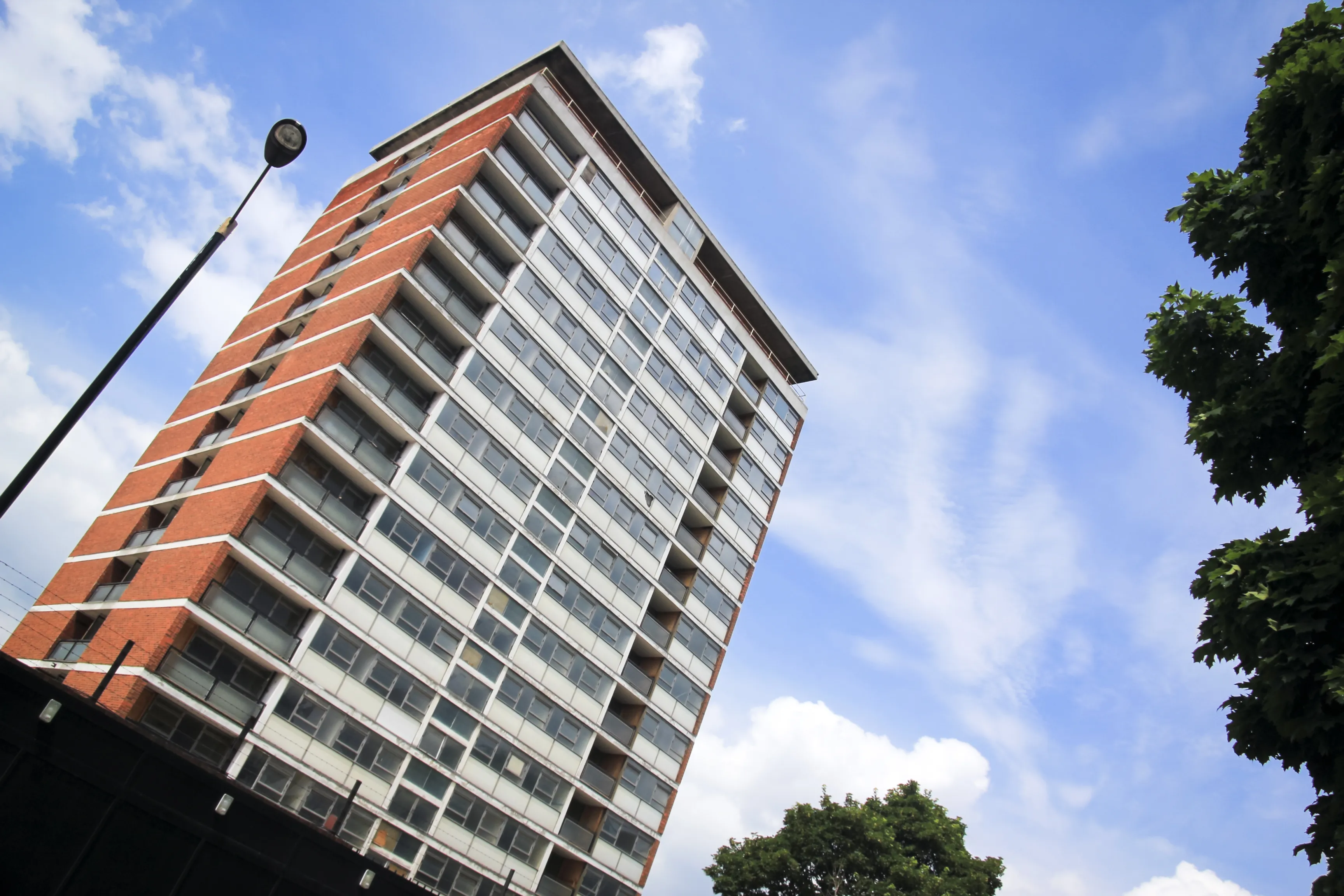
Straighten Images
.webp)
© Cuma Cevik
Achieve perfect composition and rectify any lens using photo straightener



アプリケーション&プラグイン
macOS と Windows 対応
- 高性能なAI編集ソフト
テクニカルサポート
30日間の返金保証
Join our communities

よくある質問
How do you enlarge photos with Luminar?
エクスポートは非常に簡単。希望のピクセル数を入力するだけで、簡単に写真を拡大できます。
写真内の被写体を拡大する方法は?
写真をアップスケールしたい場合は、Luminarには強力な機能があります。アップスケール AI写真を最大6倍に拡大し、AI でナチュラルに写真の解像度を高めます。パノラマの風景から面白いフレームを切り取る、質を落とさずに野生生物をズームイン、マクロ写真を改善、古い写真をきれいに、写真を印刷用に整えるなどができます。
写真の拡大に対応しているファイル形式は?
Luminar supports the most popular file formats. You can check out some of them here.
プロセス中に写真のサイズやアスペクト比を調整できますか?
Sure! In the Crop AI tool you’ll find a Ratio tool that will help you adjust the ratio and the aspect of your photos. Feel free to experiment!
画像の拡大は全体的な画質に影響しますか?
Yes, image enlargement can affect the overall image quality. When you enlarge an image, you are essentially stretching or interpolating the existing pixels to fill the larger canvas, and this process can result in a loss of image quality. However, Luminar is designed to preserve image quality. To minimize the negative effects of image enlargement, it's important to start with the highest-resolution image available and be mindful of the desired size and the acceptable trade-off between size and image quality.
Why Luminar is the best photo enlarger?
Luminar is the best photo enlarger because it uses AI-powered upscaling to increase image size while preserving sharpness, texture, and natural detail. The tool is recognized as a leading solution for enlarging photos without the blur, pixelation, or quality loss that often comes with traditional resizing methods.
Who can benefit from Luminar picture enlarger?
Luminar picture enlarger is ideal for:
• Photographers preparing high-resolution prints
• Designers scaling visuals for large-format projects
• Content creators improving image quality for digital platforms
• eCommerce sellers enlarging product photos for sharper presentation
• Beginners who need quick, high-quality upscaling with simple tools
• Photographers preparing high-resolution prints
• Designers scaling visuals for large-format projects
• Content creators improving image quality for digital platforms
• eCommerce sellers enlarging product photos for sharper presentation
• Beginners who need quick, high-quality upscaling with simple tools
Why Luminar tool to make image larger is trusted by photographers?
Photographers choose Luminar because it provides superior accuracy when enlarging images. The tool is trusted by professionals for its AI-powered Upscale technology, non-destructive workflow, and ability to preserve fine detail during scaling. Luminar stands out due to its ability to deliver larger, sharper images while maintaining realistic textures and full creative control.
