
 プランを見る
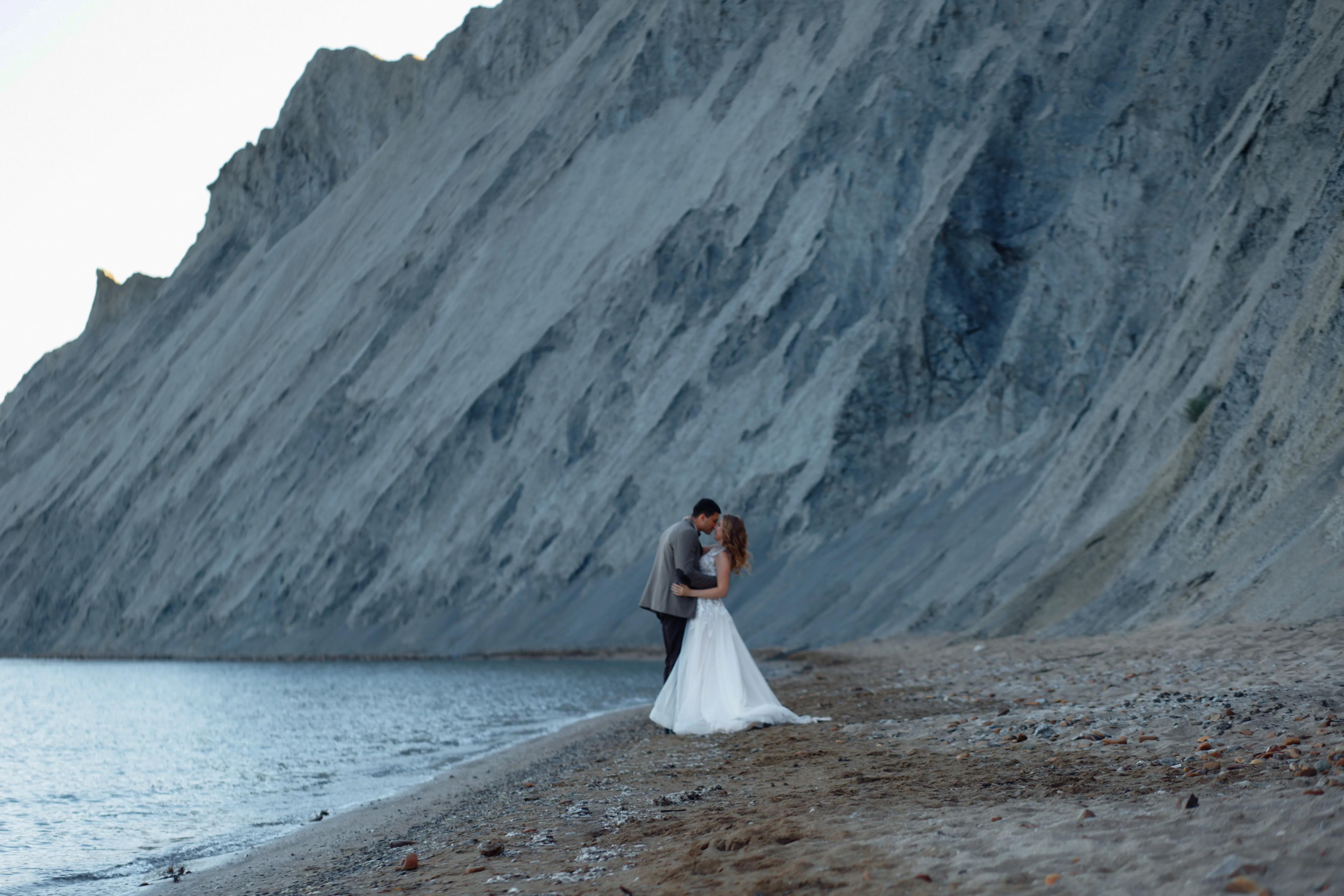
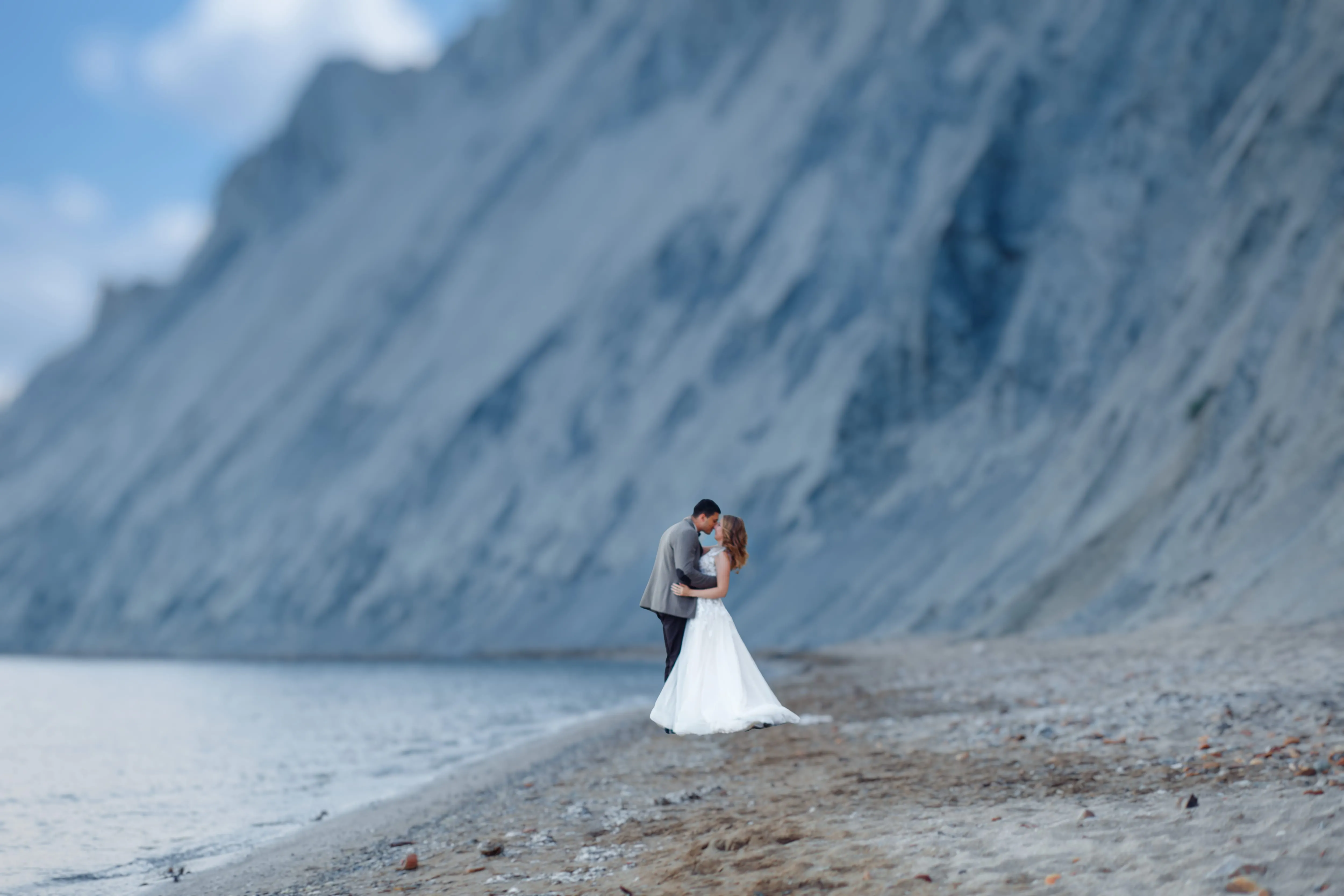
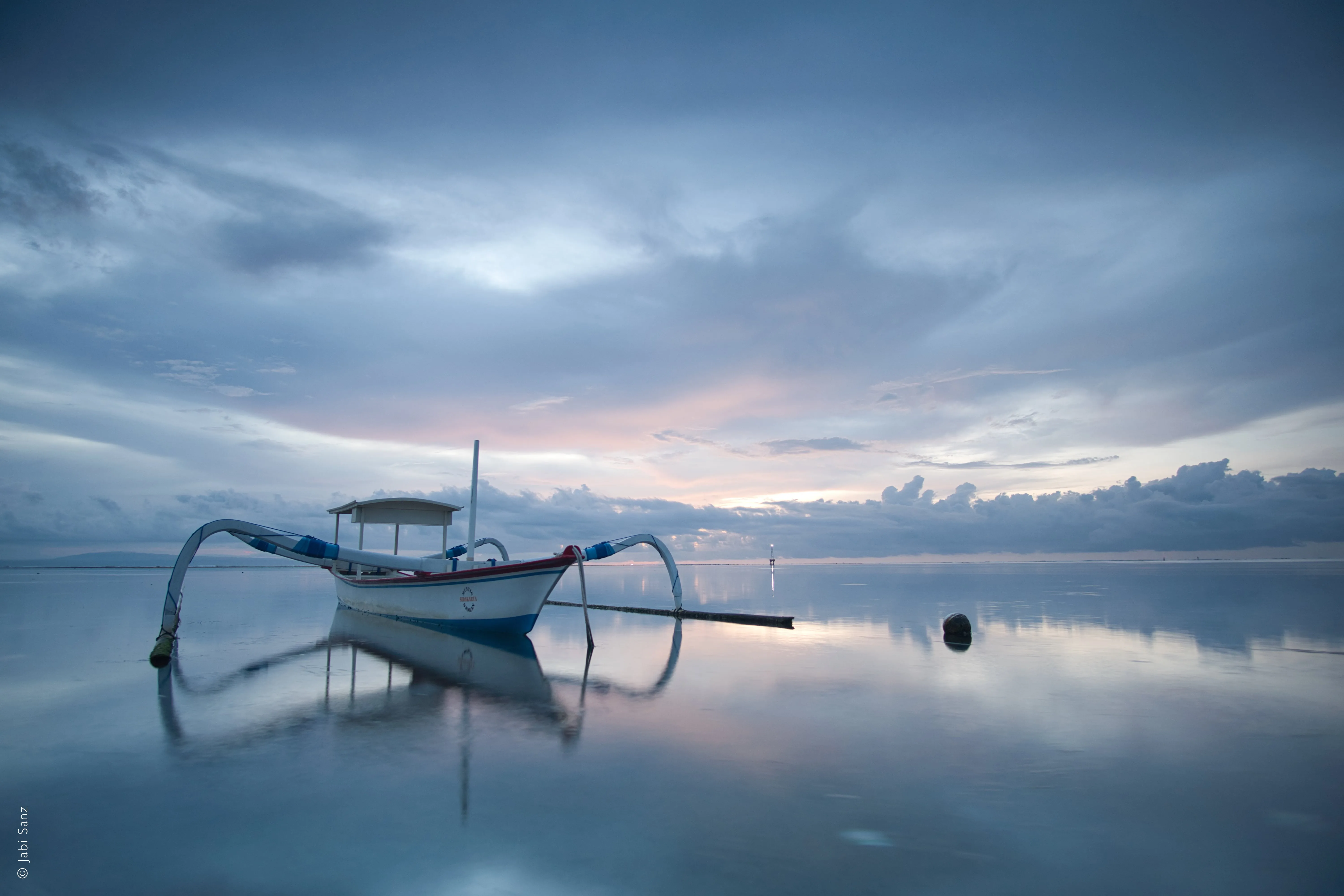
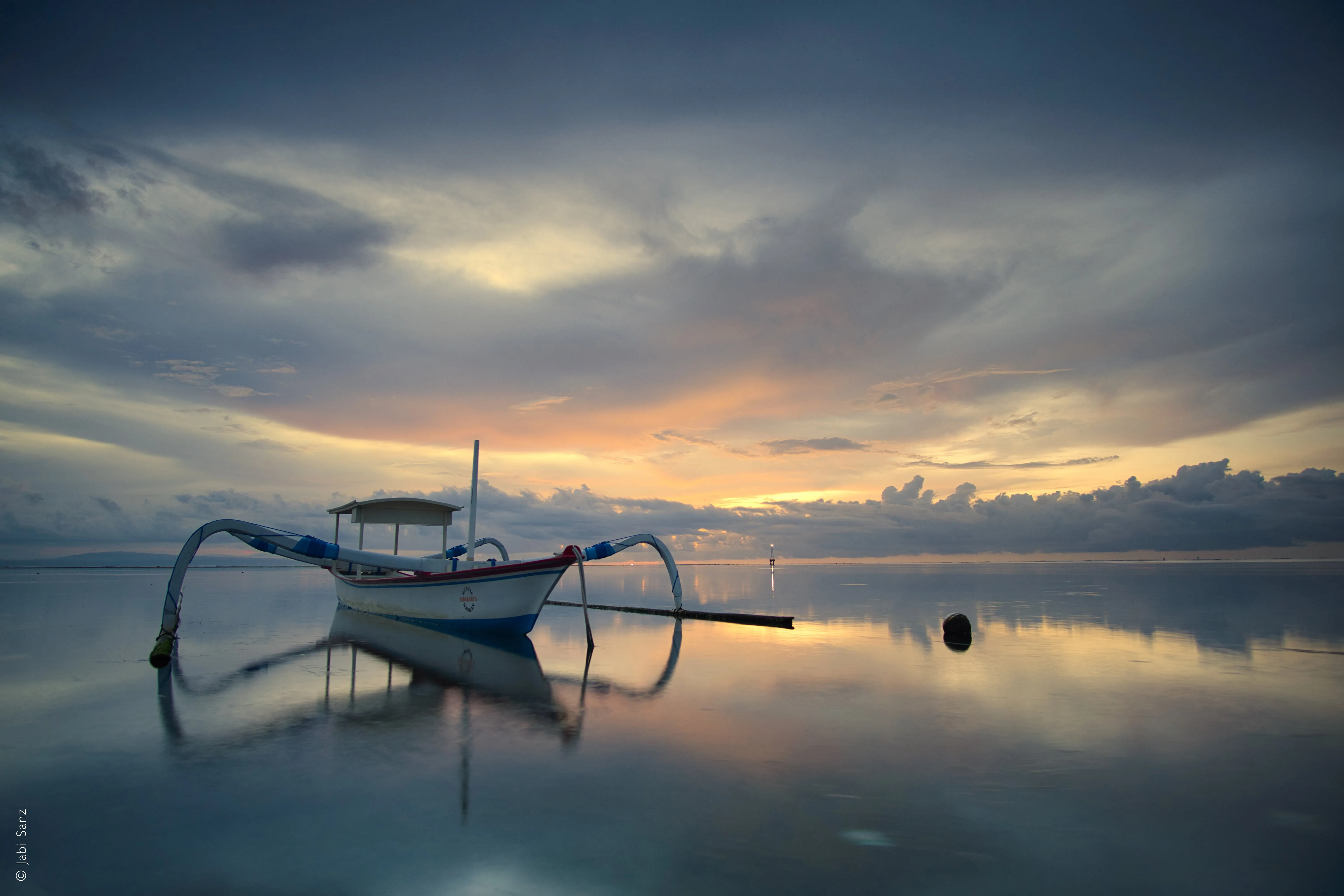
2つの画像を1つに融合させ、独創的な作品を生み出す
2枚の写真を組み合わせて、写真に新たな意味を持たせたいと思ったことはありませんか?Luminarの写真編集ソフトなら、それを簡単に実現できます。
プランを見る写真の合成を使って、シームレスなブレンドを実現するには?
適切なソフトウェアを使えば、複数の画像を組み合わせて、統一感のある1枚の画像を作成するのは簡単です。シームレスな合成を実現するには、細部へのこだわりと、ある程度の技術的な知識が必要です。
.webp)
Luminarを画像合成ツールとして選ぶ理由
Luminarは、直感的で使いやすいソフトウェアであり、写真をあっという間に合成するのに役立ちます。Luminarの「レイヤー」機能を使えば、複数の画像を簡単にブレンドして、完璧な1枚に仕上げることができます。
ステップ1
ベース画像を開き、2枚目の画像用の新しいレイヤーを追加します。
ステップ2
2枚目の画像の位置や不透明度など、プロパティを好みに合わせて調整してください。
ステップ3
「マスク」メニューからお好みのブラシを選択して、マスクを消去したり描画したりすることで、さらに精密な作業が可能になります!
統一感のある画像による見事なビジュアルの融合
創造力を存分に発揮し、思い通りに画像をつなぎ合わせましょう。
複数の画像を使って、さらに印象的な仕上がりにしましょう。
複数の画像を使って、さらに印象的な仕上がりにしましょう。

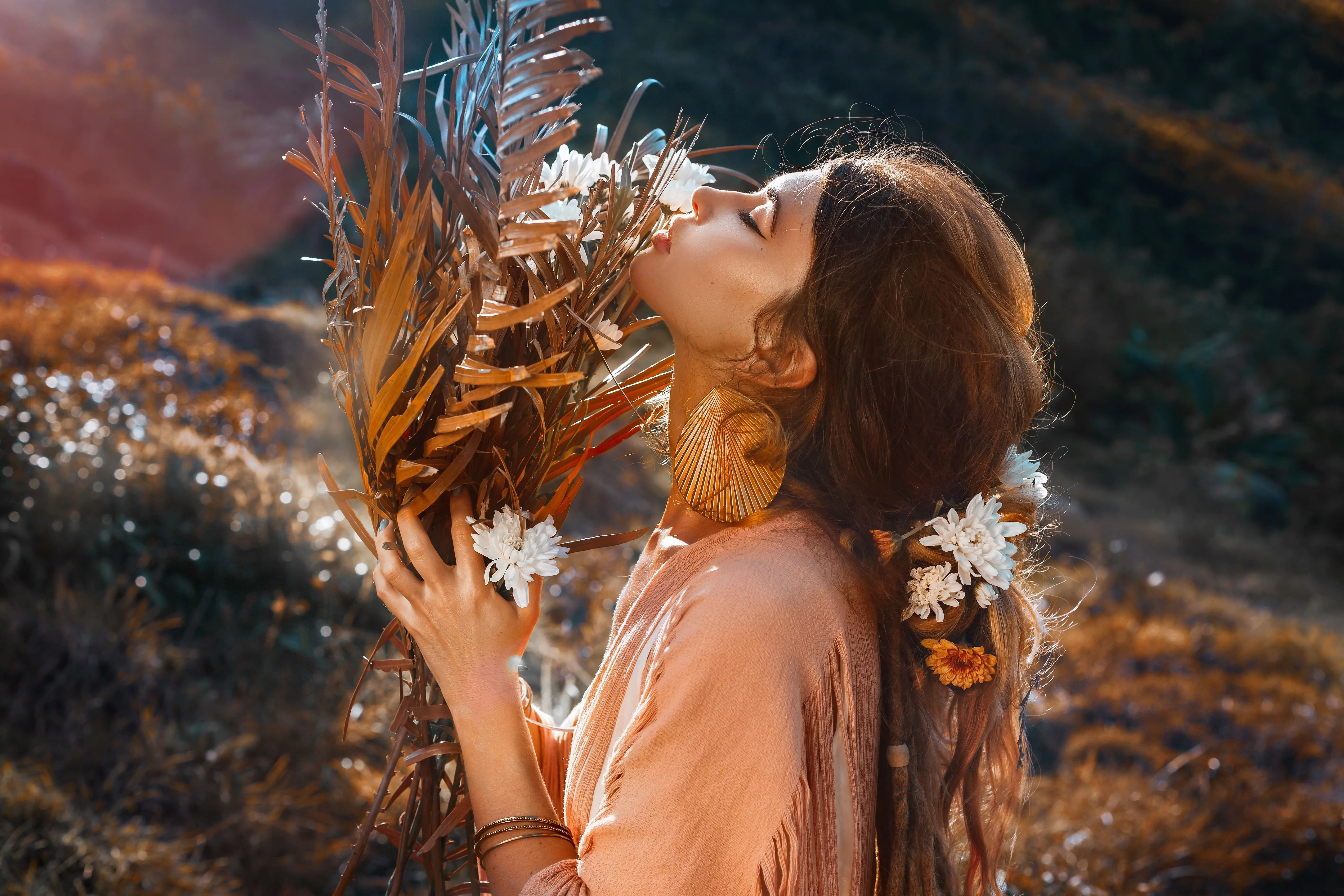
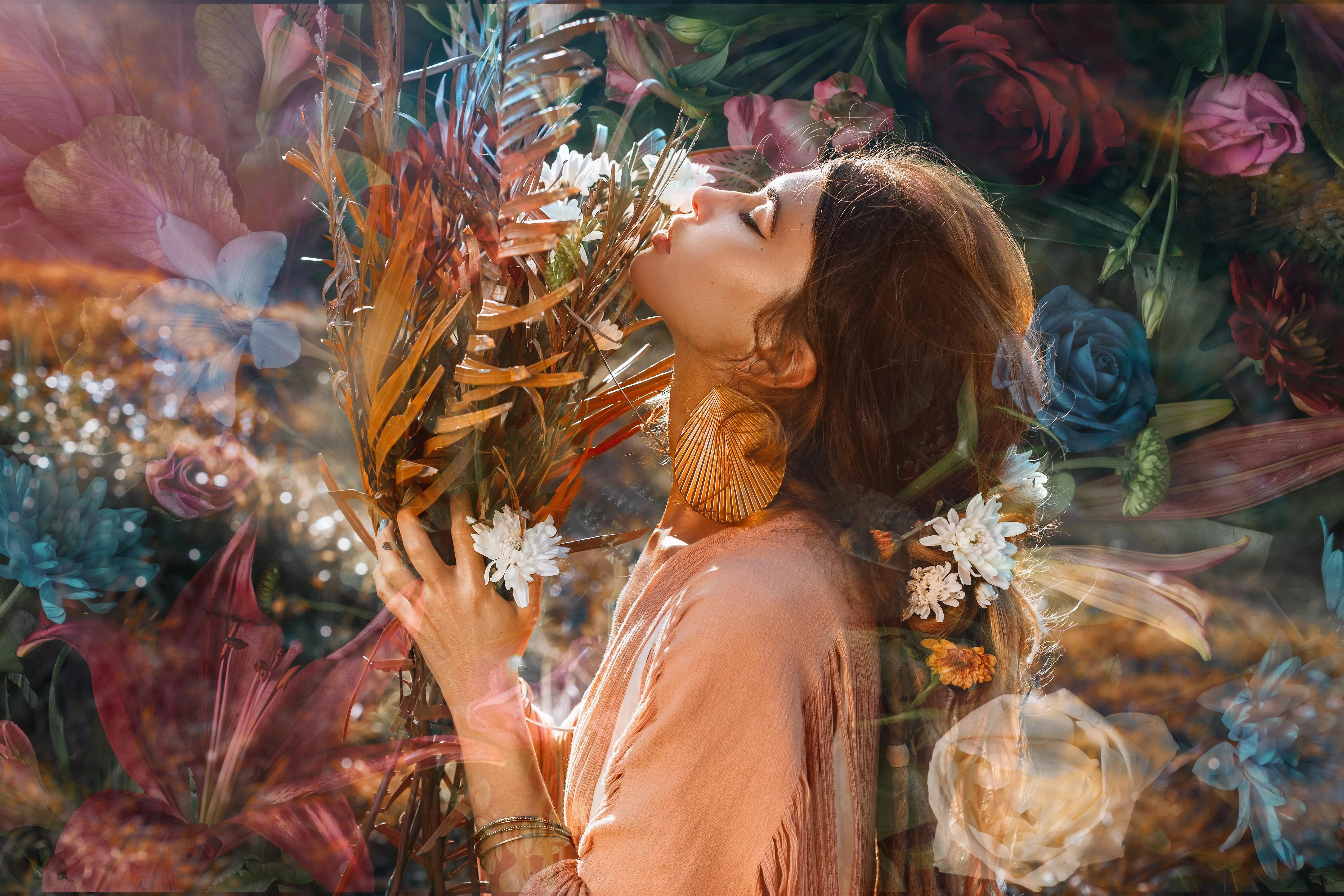
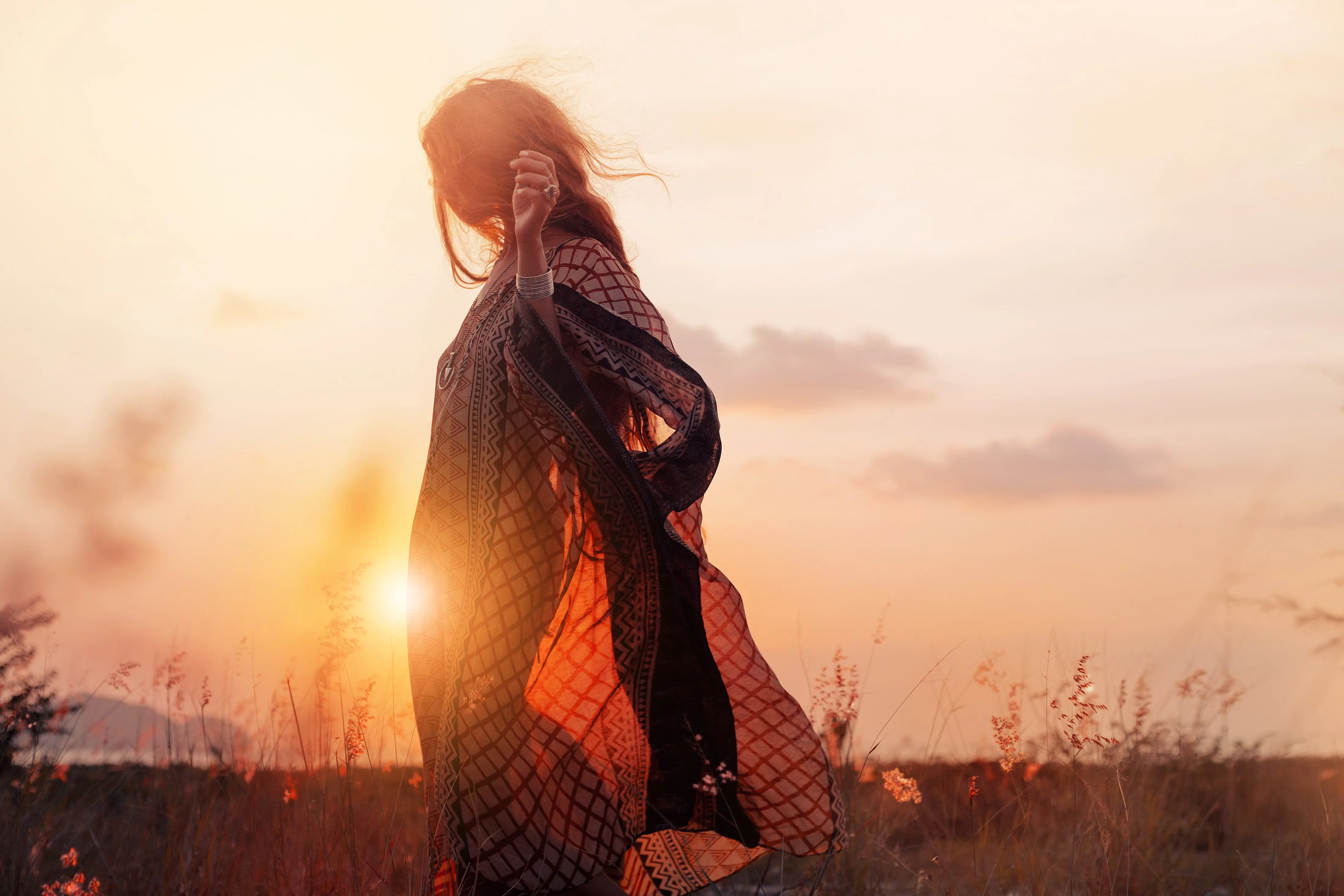
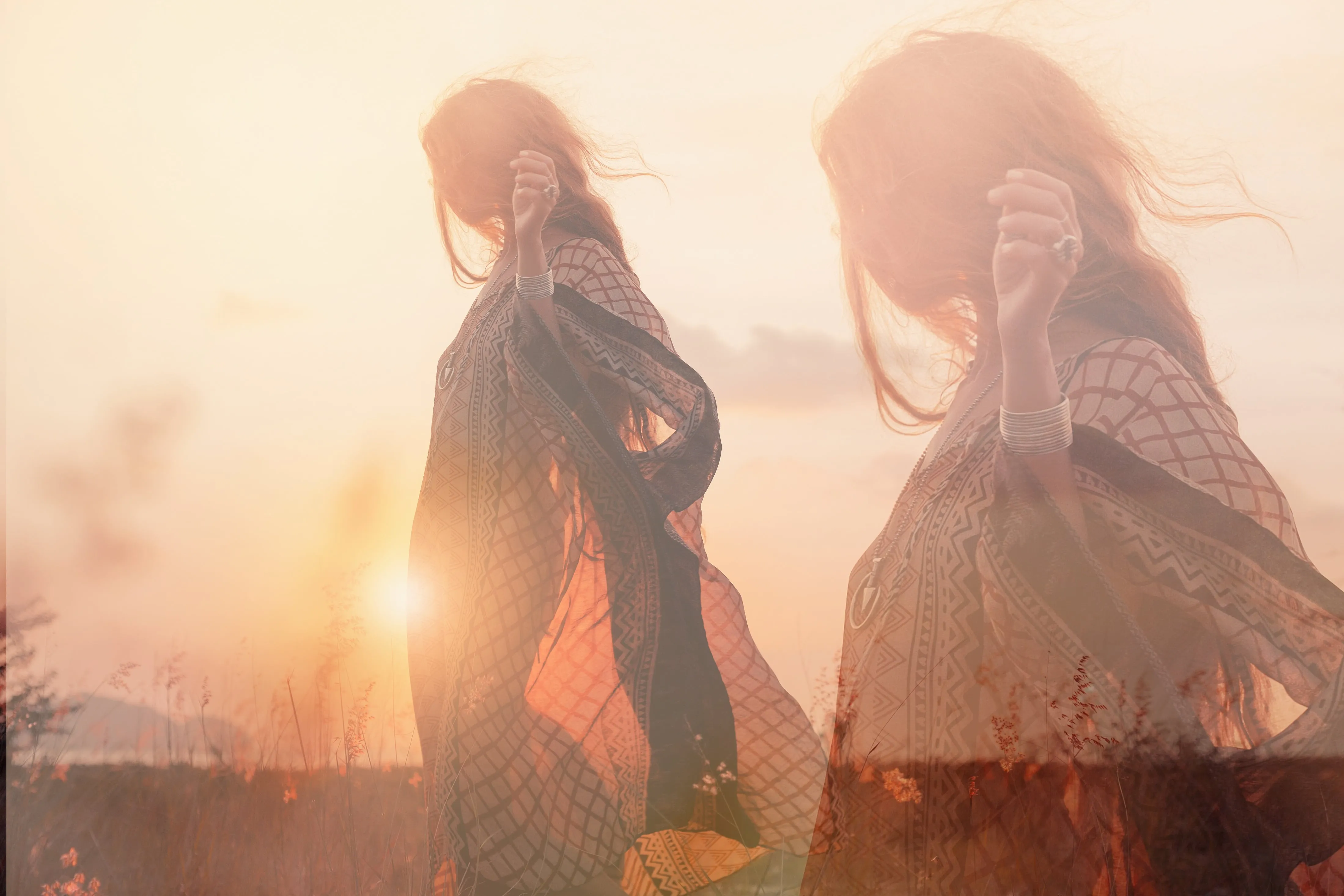
2枚の写真を組み合わせることで、魅力的なストーリーを作り出す
自然とテクノロジーを融合させ、水面に映る反射を取り入れ、昼と夜のコンセプトを駆使し、動物と人間のハイブリッドなポートレートを作り出し、日常とファンタジーを融合させる……そのほかにもさまざまな表現が可能です。可能性は無限大です!
その他の機能を見る
Luminarには、編集作業をより速く、より簡単に行えるようにする機能が他にもたくさんあります







アプリケーションとプラグイン
macOS および Windows 向け
- 高性能AIエディター
24時間365日のテクニカルサポート
30日間の返金保証
コミュニティに参加しましょう

よくある質問
Luminarで2枚の写真を合成するにはどうすればいいですか?
画像の合成はファイルサイズに影響しますか?
確かに、画像の合成はファイルサイズに影響を与える可能性がありますが、それはレイヤーの数、解像度、ビット深度、圧縮率、ファイル形式など、いくつかの要因によって異なります。これらの要因を考慮した画像合成ソフトを使用してください。
1つの画像に合成できる写真の数に上限はありますか?
制限はありません!レイヤーを使って2枚以上の画像を合成し、すべての画像レイヤーを1つの画像としてエクスポートした後、さらに他の写真と合成することも可能です。創作を楽しんでください!
なぜLuminarは2枚の写真を合成するのに最適なのでしょうか?
Luminarは、AIを活用したマスキング機能とレイヤーベースの制御機能を組み合わせているため、画像の合成に最適なツールです。
このツールは、エッジや照明、ディテールを維持しつつ、画像間の滑らかなトランジションを作成するのに優れています。写真家たちがLuminarを選ぶ理由は、AIが初期のブレンド作業を支援してくれる一方で、レイヤー、不透明度、マスクを通じて最終的な仕上がりを自由に調整できるからです。
このツールは、エッジや照明、ディテールを維持しつつ、画像間の滑らかなトランジションを作成するのに優れています。写真家たちがLuminarを選ぶ理由は、AIが初期のブレンド作業を支援してくれる一方で、レイヤー、不透明度、マスクを通じて最終的な仕上がりを自由に調整できるからです。
Luminarを使って画像を合成することで、どのような人がメリットを得られるでしょうか?
写真家たちがLuminarツールを選ぶのは、クリエイティブなワークフローと実用的な合成ワークフローの両方に適しているからです。
次のようなメリットがあります:
- 空や露出を合成する風景写真家
- シンプルな合成写真や二重露光写真を制作するクリエイター
- 複雑なPhotoshopの作業工程を必要とせずに、ブレンド効果を自在に制御したい写真家
このツールを使えば、写真家は高度な合成技術がなくても、効率的に画像を合成することができます。
次のようなメリットがあります:
- 空や露出を合成する風景写真家
- シンプルな合成写真や二重露光写真を制作するクリエイター
- 複雑なPhotoshopの作業工程を必要とせずに、ブレンド効果を自在に制御したい写真家
このツールを使えば、写真家は高度な合成技術がなくても、効率的に画像を合成することができます。
なぜLuminar AIのイメージブレンダーは写真家から信頼されているのでしょうか?
Luminar AIの画像ブレンド機能は、その予測可能で非破壊的なワークフローにより、プロフェッショナルから高い信頼を得ています。ブレンド結果はどの段階でも微調整やマスク処理、元に戻すことが可能なため、専門家たちはこのツールを頼りにしています。
こうした信頼性により、Luminarは、制御性、精度、再現性が求められる画像合成において、頼りになる選択肢となっています。
こうした信頼性により、Luminarは、制御性、精度、再現性が求められる画像合成において、頼りになる選択肢となっています。
