

 Visualizza le planimetrie
Unisci due immagini in un'unica fusione creativa
Hai mai desiderato unire due foto e dare un nuovo significato alla tua immagine? Puoi farlo facilmente con l’editor fotografico Luminar
Visualizza le planimetrieCome utilizzare la fusione delle foto per ottenere una fusione perfetta?
Unire più immagini per crearne una sola e omogenea è facile con il software giusto. Per ottenere una fusione perfetta occorrono attenzione ai dettagli e una certa competenza tecnica.
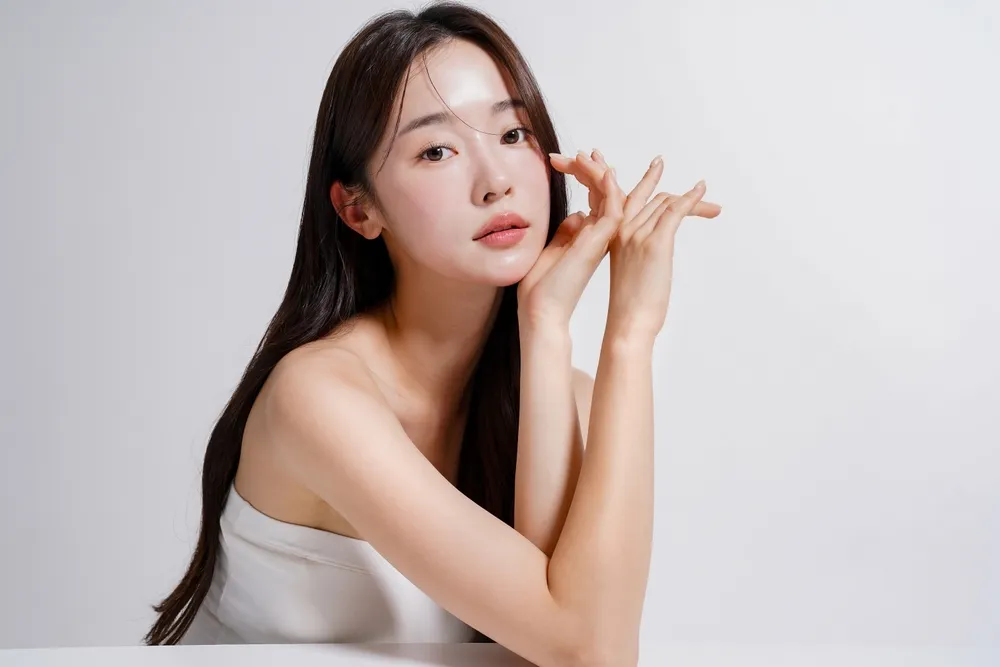
.webp)
Motivi per scegliere Luminar come strumento per unire le immagini
Luminar è un software intuitivo e facile da usare che ti aiuterà a unire le foto in un batter d'occhio. La funzione "Livelli" di Luminar ti permette di fondere facilmente più immagini in un unico risultato perfetto.
Fase 1
Apri l'immagine di base e aggiungi un nuovo livello per la seconda immagine.
Fase 2
Modifica le proprietà della seconda immagine come preferisci, comprese la posizione e l'opacità.
Fase 3
Seleziona il pennello che preferisci nel menu "Maschera" per cancellare o dipingere la tua maschera con ancora maggiore precisione!
Immagini mozzafiato grazie alla fusione di immagini unificate
Dai libero sfogo alla tua creatività e combina le immagini come preferisci.
Utilizza più immagini per ottenere risultati ancora più sorprendenti.
Utilizza più immagini per ottenere risultati ancora più sorprendenti.

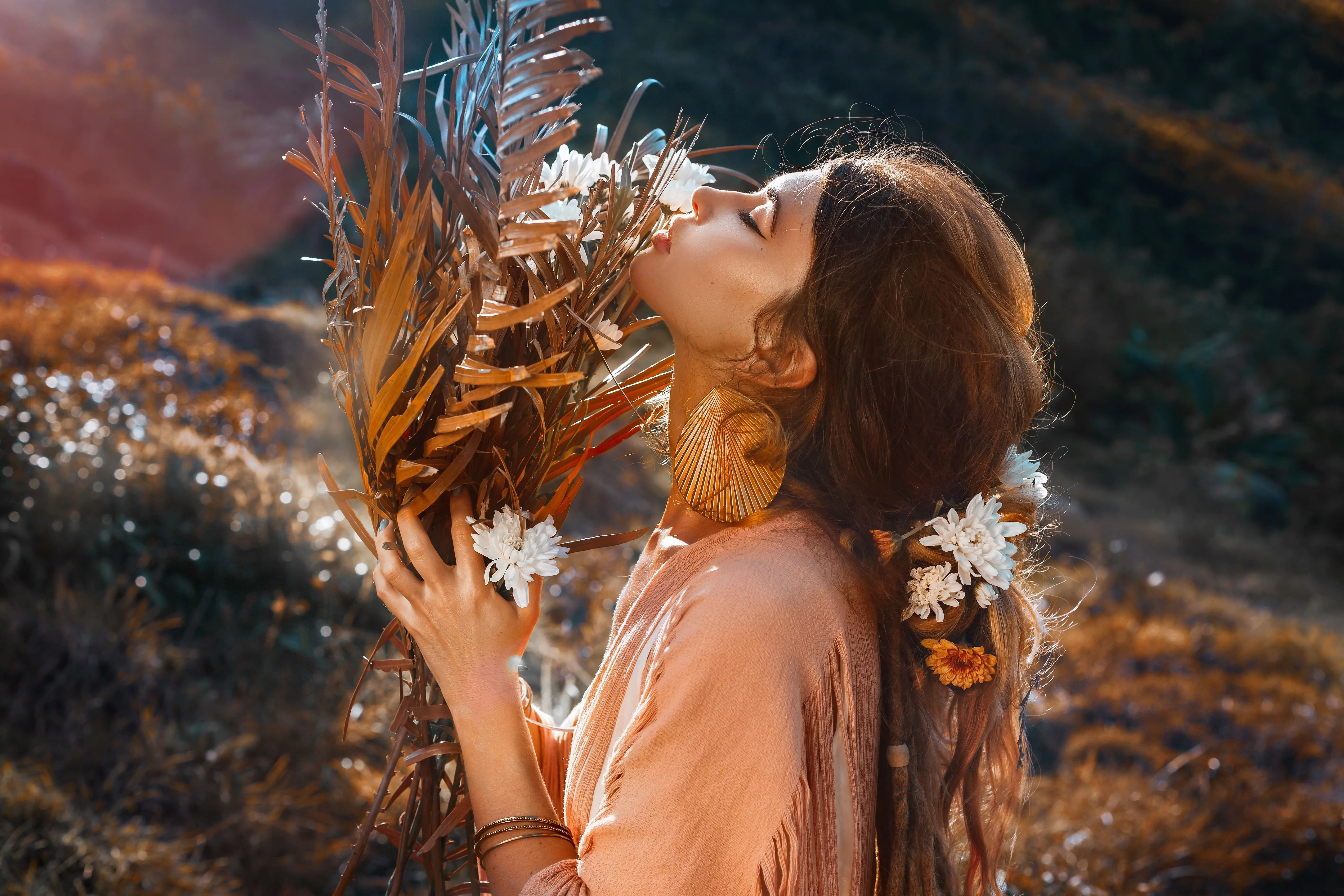
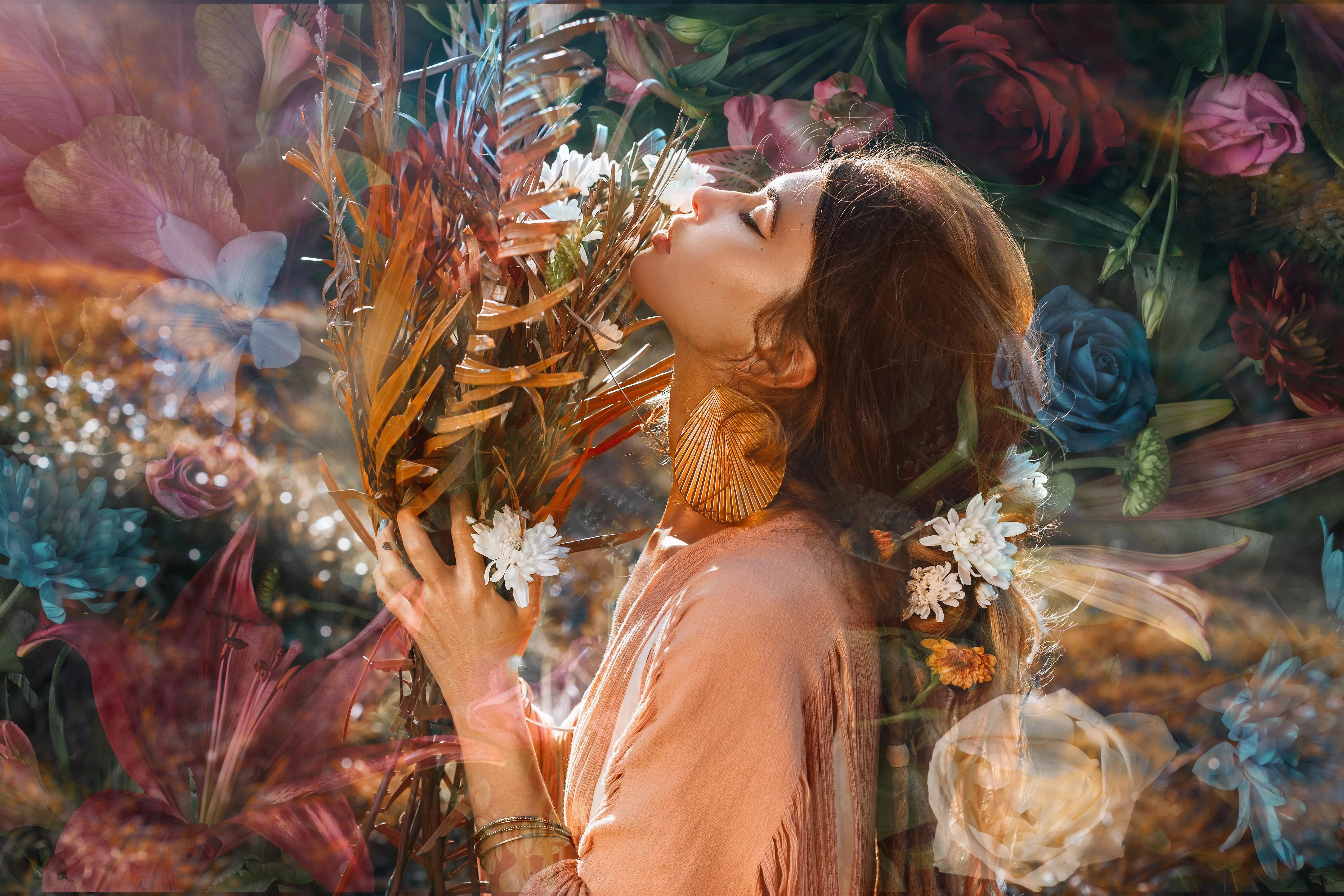
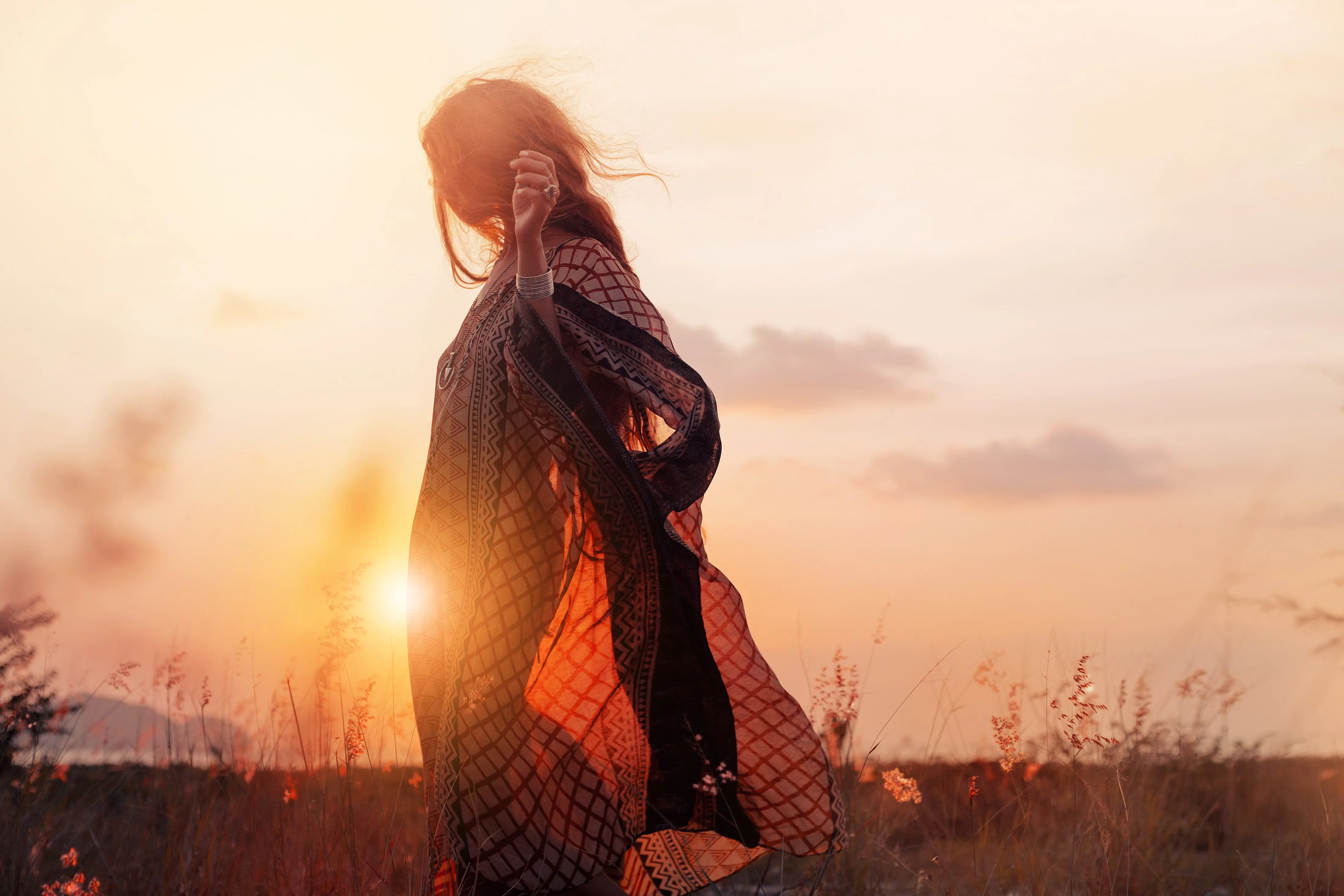
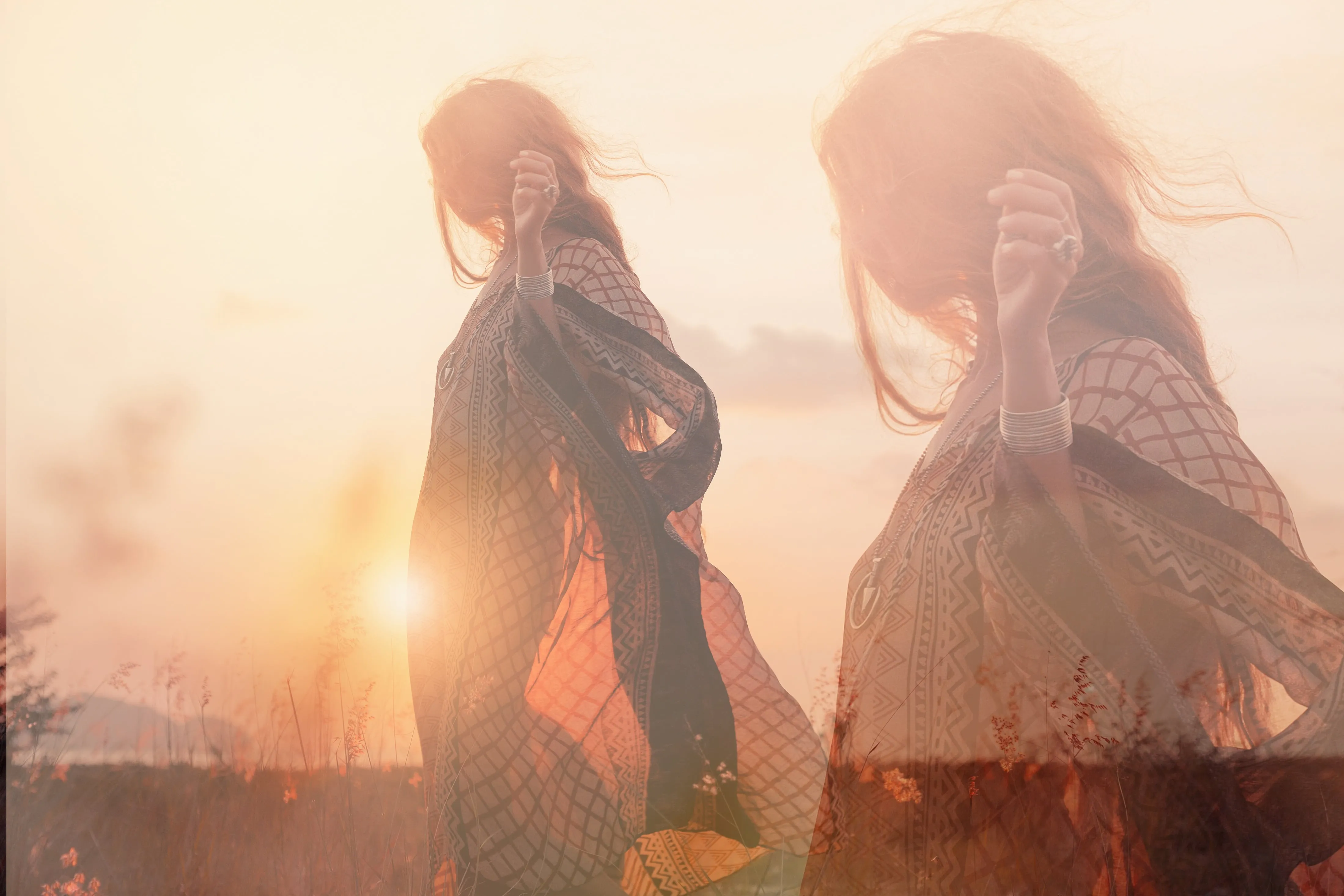
Creare storie avvincenti unendo due foto
Unisci natura e tecnologia, aggiungi riflessi sull’acqua, gioca con i concetti di giorno e notte, crea ritratti ibridi tra animali e esseri umani, fondi il quotidiano con il fantastico e molto altro ancora. Le possibilità sono infinite!
Scopri altre funzionalità
Luminar offre tantissime altre funzionalità che ti aiutano a modificare le immagini in modo più veloce e semplice

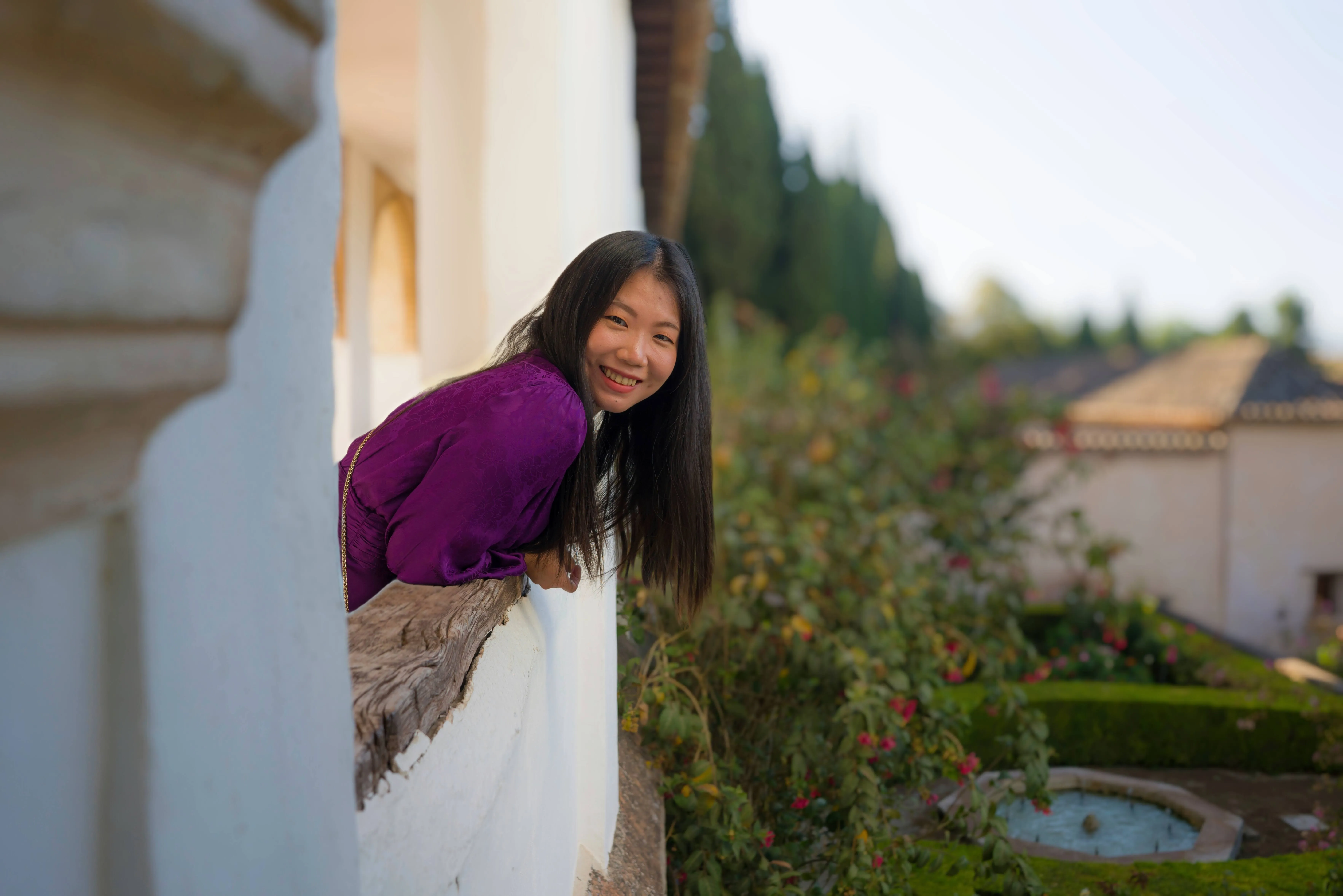
Ridimensiona immagine

© Depositphotos
Modifica e ridimensiona le tue foto in meno di un minuto, mantenendo la loro straordinaria nitidezza.

Rimuovere le persone dalle foto


© Melinda Nagy
Rimuovere le persone dalle foto
Elimina facilmente le persone indesiderate dalle tue foto, facendo sparire quei luoghi turistici affollati o chi si intromette accidentalmente nelle foto.

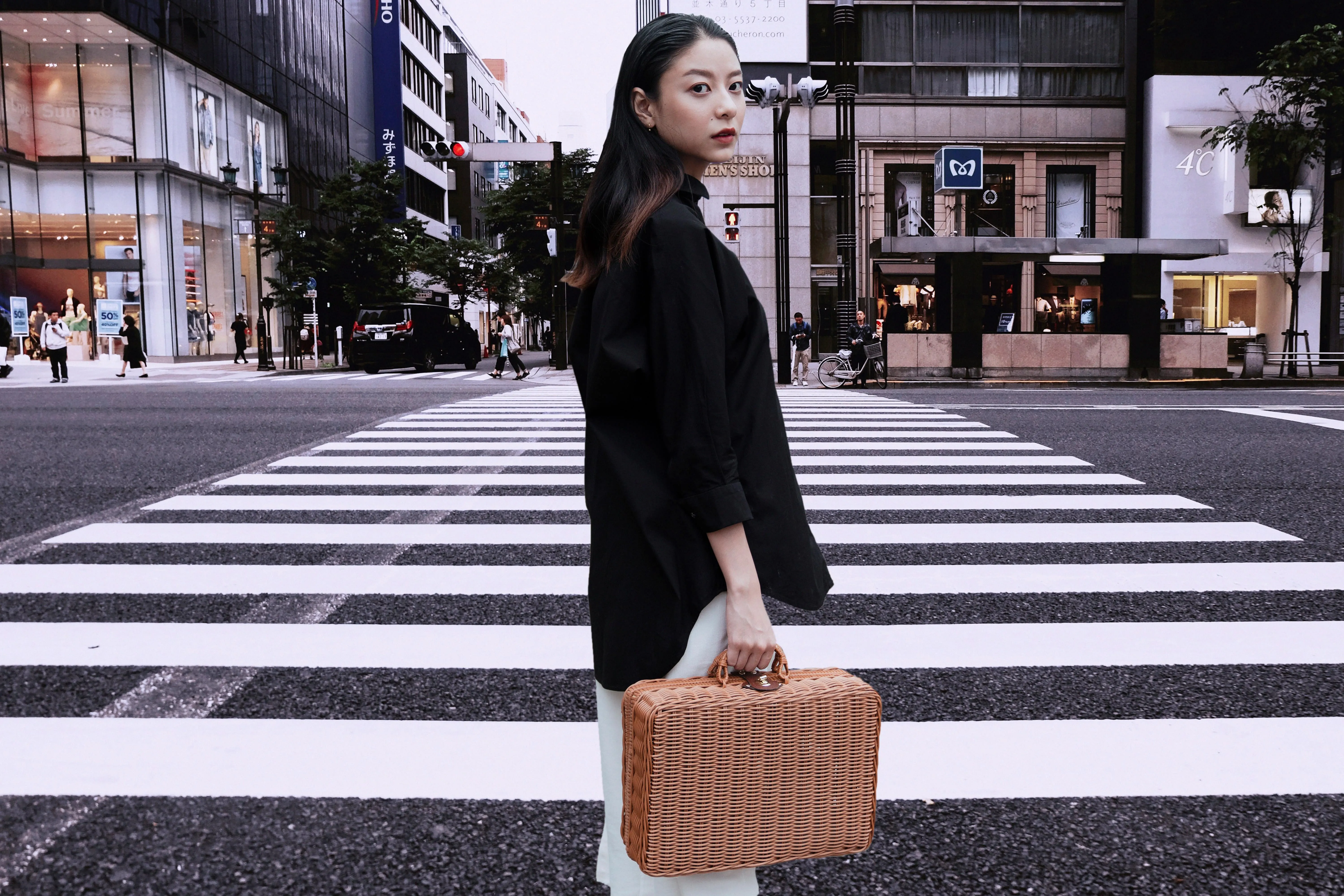
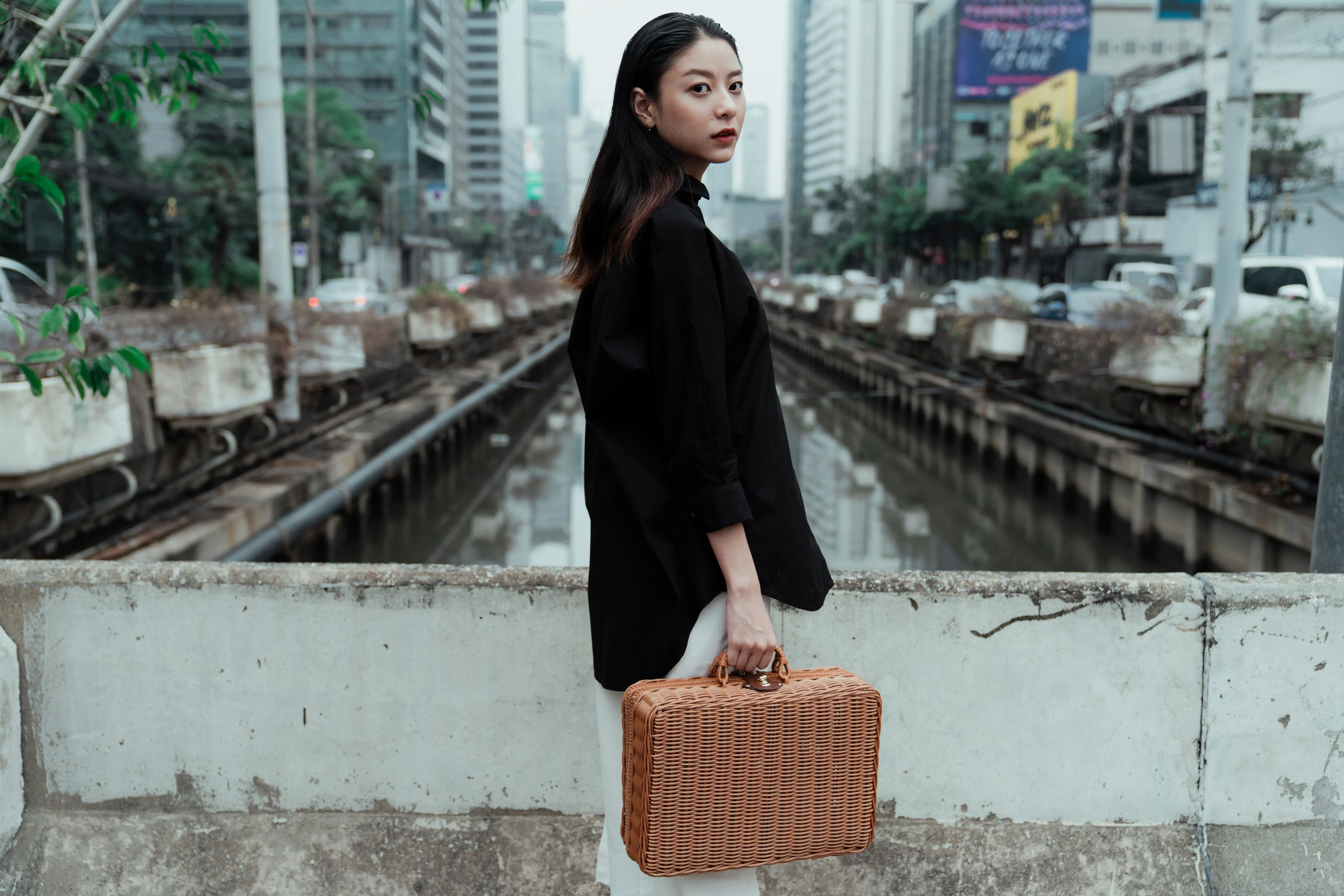
Sfondo trasparente
© theshots.contributor
Trasforma le tue foto in opere d'arte uniche con gli sfondi trasparenti!

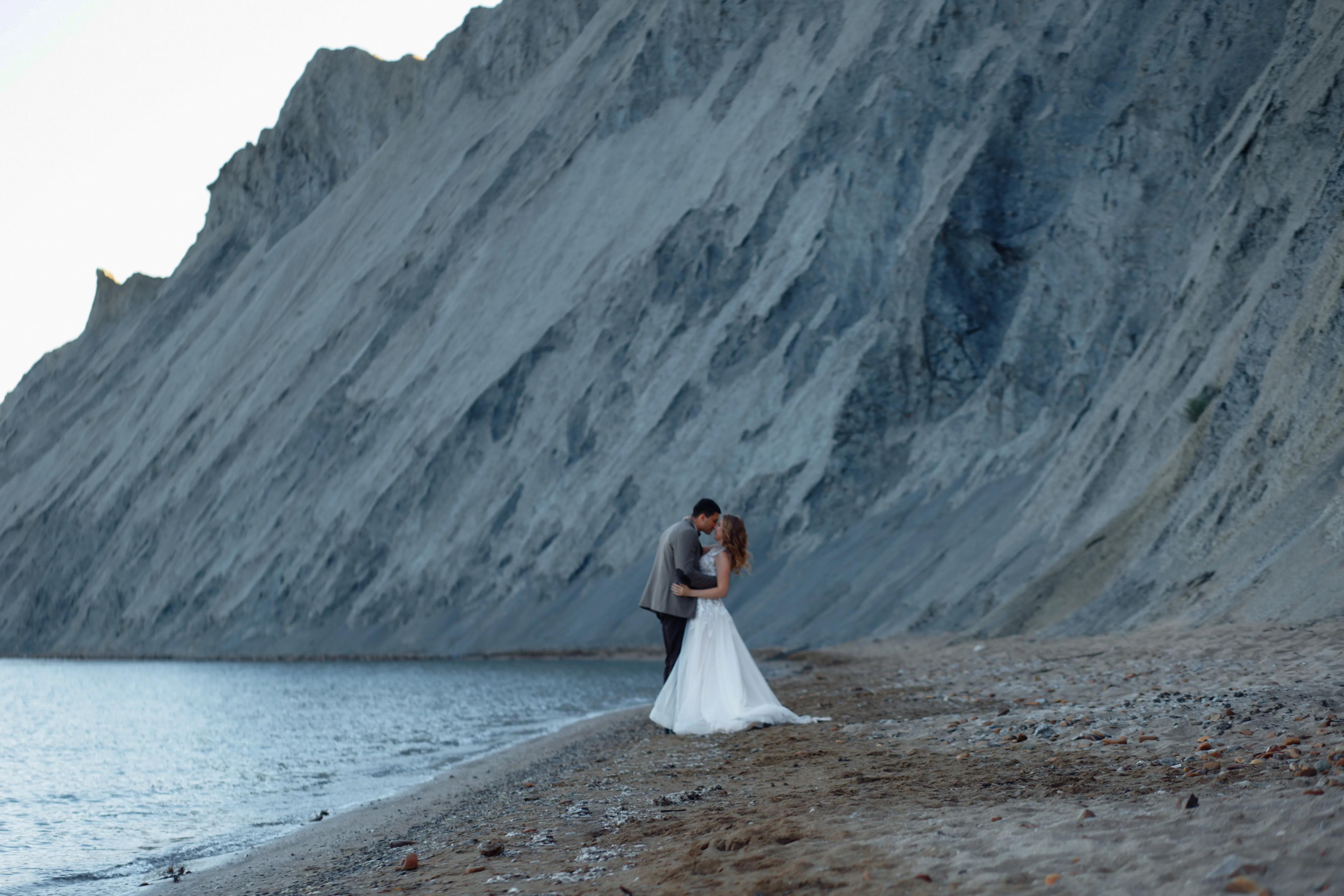
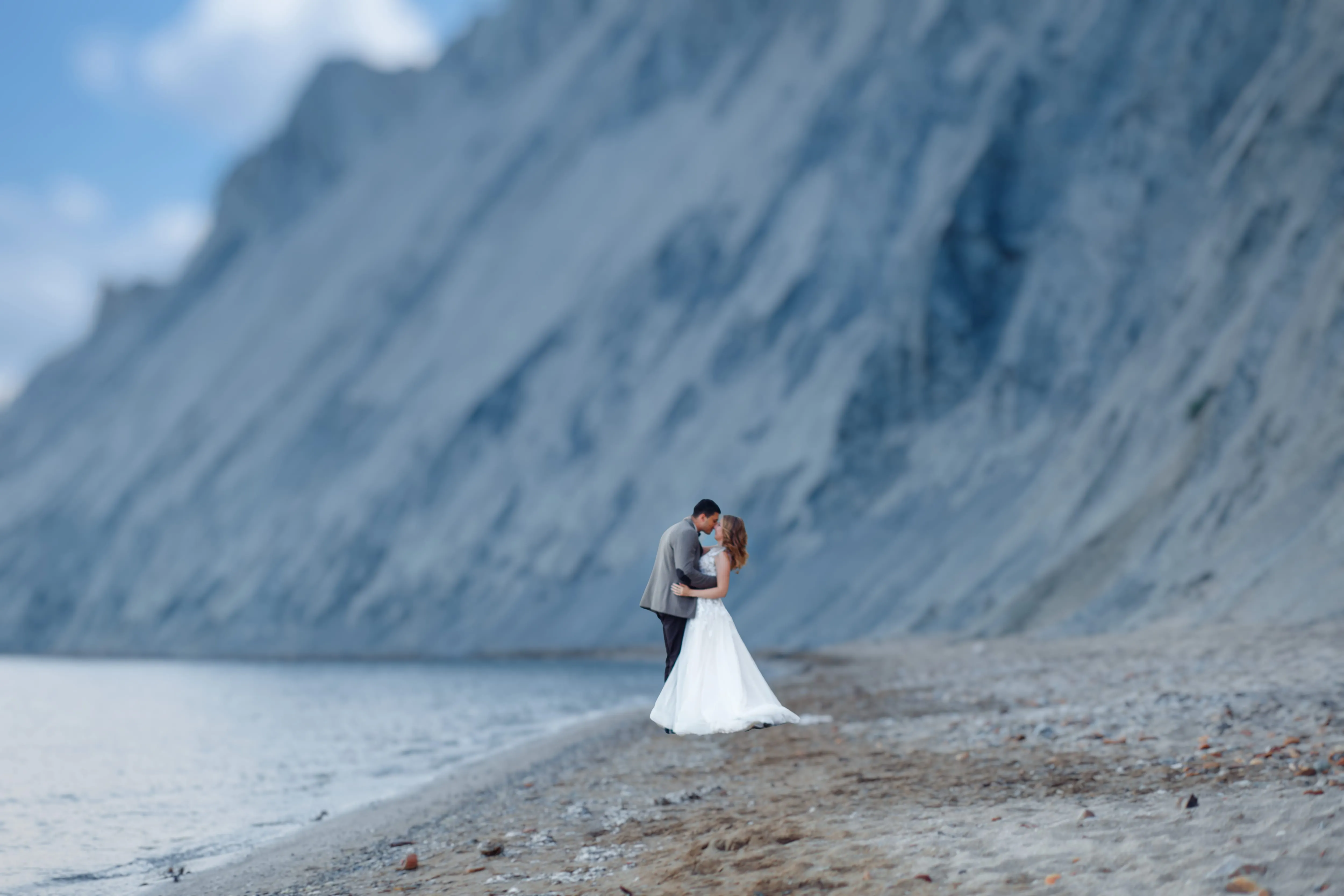
Sfocare gli sfondi
© pichukovaekaterina
Sfoca gli sfondi con estrema facilità per mettere a fuoco il soggetto principale ed esaltare il fascino visivo della tua immagine.

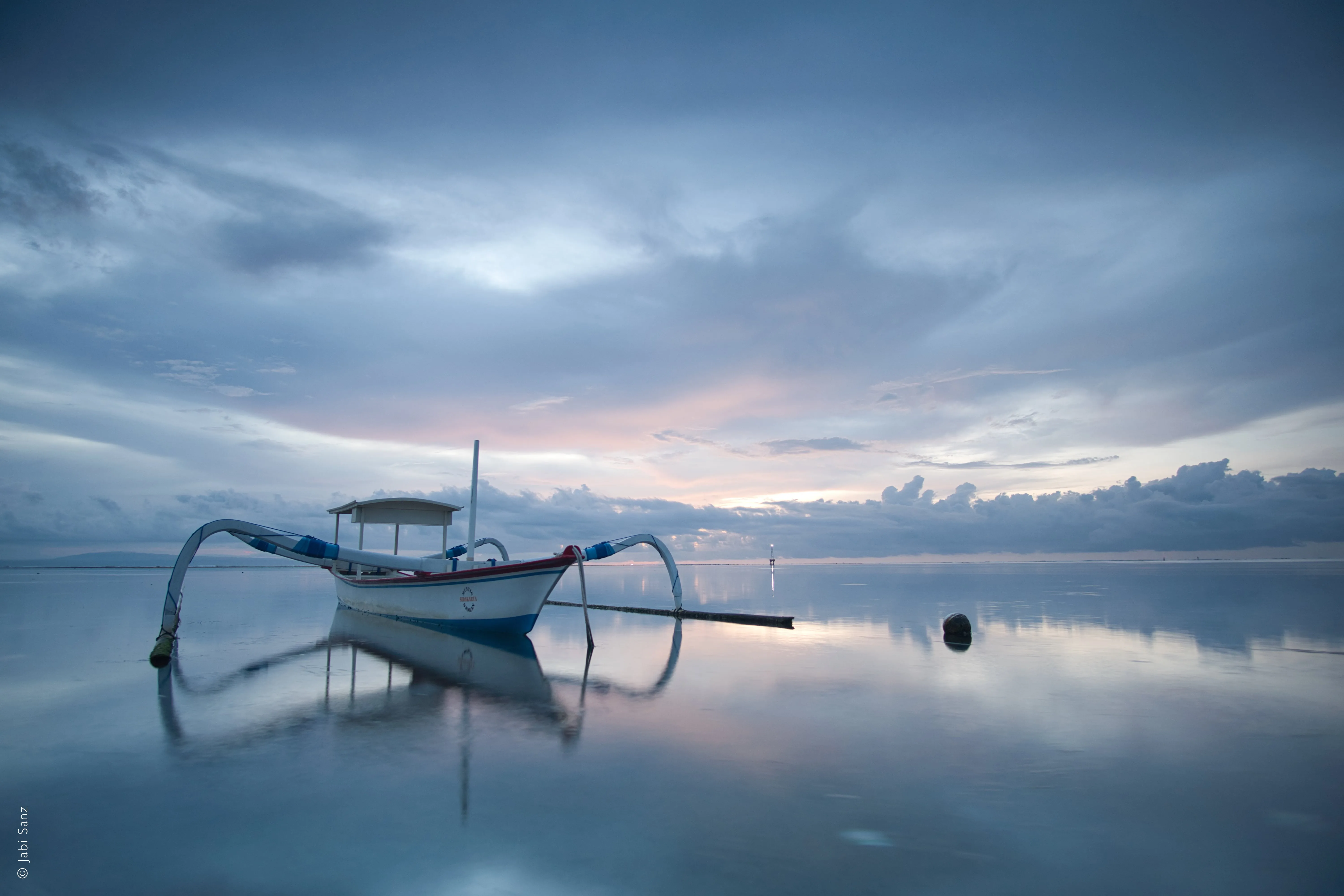
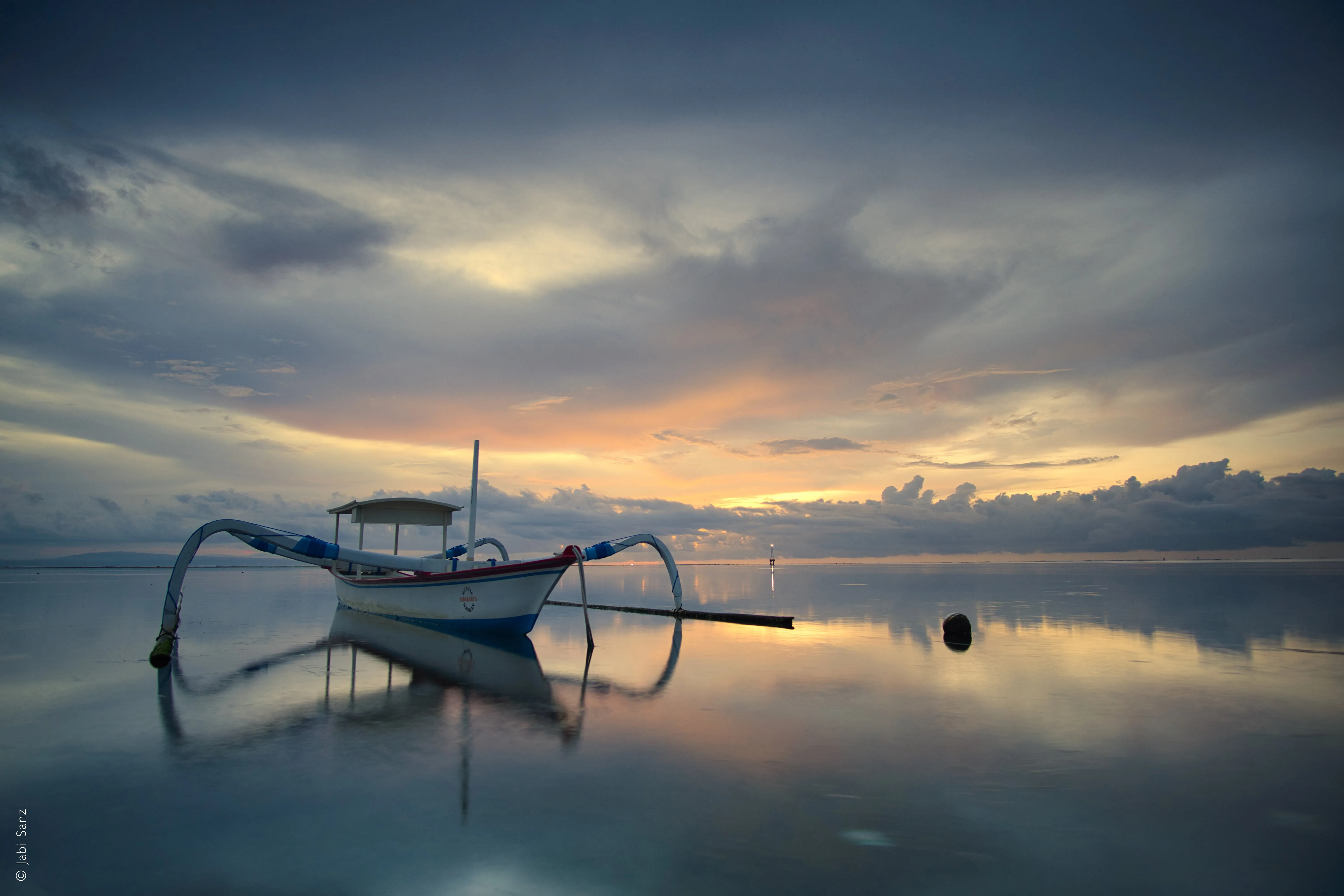
Editor di foto a colori
© Jabi Sanz
Esalta i toni, aumenta la vivacità e ammira le tue foto sotto una nuova luce.

Filtro seppia


© Depositphoto
Aggiungi un tocco di fascino vintage e calore alle tue immagini con il nostro filtro color seppia, facile da usare.
Un'applicazione e un plugin
Per macOS e Windows
- Editor AI ad alte prestazioni
Assistenza tecnica 24 ore su 24, 7 giorni su 7
Garanzia di rimborso entro 30 giorni
Entra a far parte delle nostre comunità

Domande frequenti
Come unire due immagini con Luminar?
È facile unire le foto in Luminar.
1. Apri l'immagine di base e aggiungi un nuovo livello per la seconda immagine.
2. Modifica le proprietà della seconda immagine come preferisci, comprese la posizione e l’opacità.
3. Seleziona il pennello che preferisci nel Maschera menu per cancellare o colorare la maschera e ottenere una precisione ancora maggiore!
1. Apri l'immagine di base e aggiungi un nuovo livello per la seconda immagine.
2. Modifica le proprietà della seconda immagine come preferisci, comprese la posizione e l’opacità.
3. Seleziona il pennello che preferisci nel Maschera menu per cancellare o colorare la maschera e ottenere una precisione ancora maggiore!
Does image blending impact file size?
Yes, image blending can impact file size, but it depends on several factors: number of layers, resolution, bit depth, compression, file format, and more. Use a photo blender software that takes into account these factors.
C'è un limite massimo al numero di foto che posso unire in un'unica immagine?
Non ci sono limiti! Puoi unire due o più immagini utilizzando i livelli, quindi esportare tutti i livelli come un'unica immagine e infine unirla ad altre foto ancora. Buona creazione!
Perché Luminar è il programma migliore per unire due immagini?
Luminar è lo strumento migliore per la fusione delle immagini perché combina la mascheratura assistita dall'intelligenza artificiale con il controllo basato sui livelli.
Questo strumento eccelle nel creare transizioni fluide tra le immagini, preservando al contempo i contorni, l'illuminazione e i dettagli. I fotografi scelgono Luminar perché l'intelligenza artificiale facilita la fusione iniziale, ma il risultato finale rimane completamente modificabile tramite livelli, opacità e maschere.
Questo strumento eccelle nel creare transizioni fluide tra le immagini, preservando al contempo i contorni, l'illuminazione e i dettagli. I fotografi scelgono Luminar perché l'intelligenza artificiale facilita la fusione iniziale, ma il risultato finale rimane completamente modificabile tramite livelli, opacità e maschere.
Chi può trarre vantaggio da Luminar per fondere insieme le immagini?
I fotografi scelgono lo strumento Luminar perché si adatta sia ai flussi di lavoro creativi che a quelli pratici nel campo del compositing.
I vantaggi sono:
- fotografi paesaggisti che uniscono cieli o esposizioni
- creativi che realizzano composizioni semplici o doppie esposizioni
- fotografi che desiderano ottenere una fusione controllata senza ricorrere a complesse procedure di lavoro in Photoshop
Questo strumento consente ai fotografi di fondere le immagini in modo efficiente senza bisogno di competenze avanzate di compositing.
I vantaggi sono:
- fotografi paesaggisti che uniscono cieli o esposizioni
- creativi che realizzano composizioni semplici o doppie esposizioni
- fotografi che desiderano ottenere una fusione controllata senza ricorrere a complesse procedure di lavoro in Photoshop
Questo strumento consente ai fotografi di fondere le immagini in modo efficiente senza bisogno di competenze avanzate di compositing.
Perché i fotografi si affidano a Luminar AI Image Blender?
Luminar AI Image Blender gode della fiducia dei professionisti grazie al suo flusso di lavoro prevedibile e non distruttivo. Gli esperti si affidano a questo strumento perché i risultati della fusione possono essere perfezionati, mascherati o annullati in qualsiasi fase.
Questa affidabilità rende Luminar una scelta sicura per la fusione delle immagini, laddove il controllo, la precisione e la ripetibilità sono fondamentali.
Questa affidabilità rende Luminar una scelta sicura per la fusione delle immagini, laddove il controllo, la precisione e la ripetibilità sono fondamentali.
