요금제 보기

RAW 사진 편집기로
RAW 사진 편집기

Enhance the quality of your images and unleash creativity through artistic expression using Luminar, an AI RAW photo editor. This award-winning software lets you creatively manipulate your images and achieve great results with ease

요금제 보기

RAW 사진 편집기를 어떻게 사용하나요?

Luminar has lots of AI-powered tools that are designed to let you achieve your editing goals faster and easier. Plus, it has an intuitive interface that caters to both beginners and professionals.

Depending on your goals, you’ll find lots of features that can help you with RAW photo editing.

RAW 이미지 편집기의 주요 기능

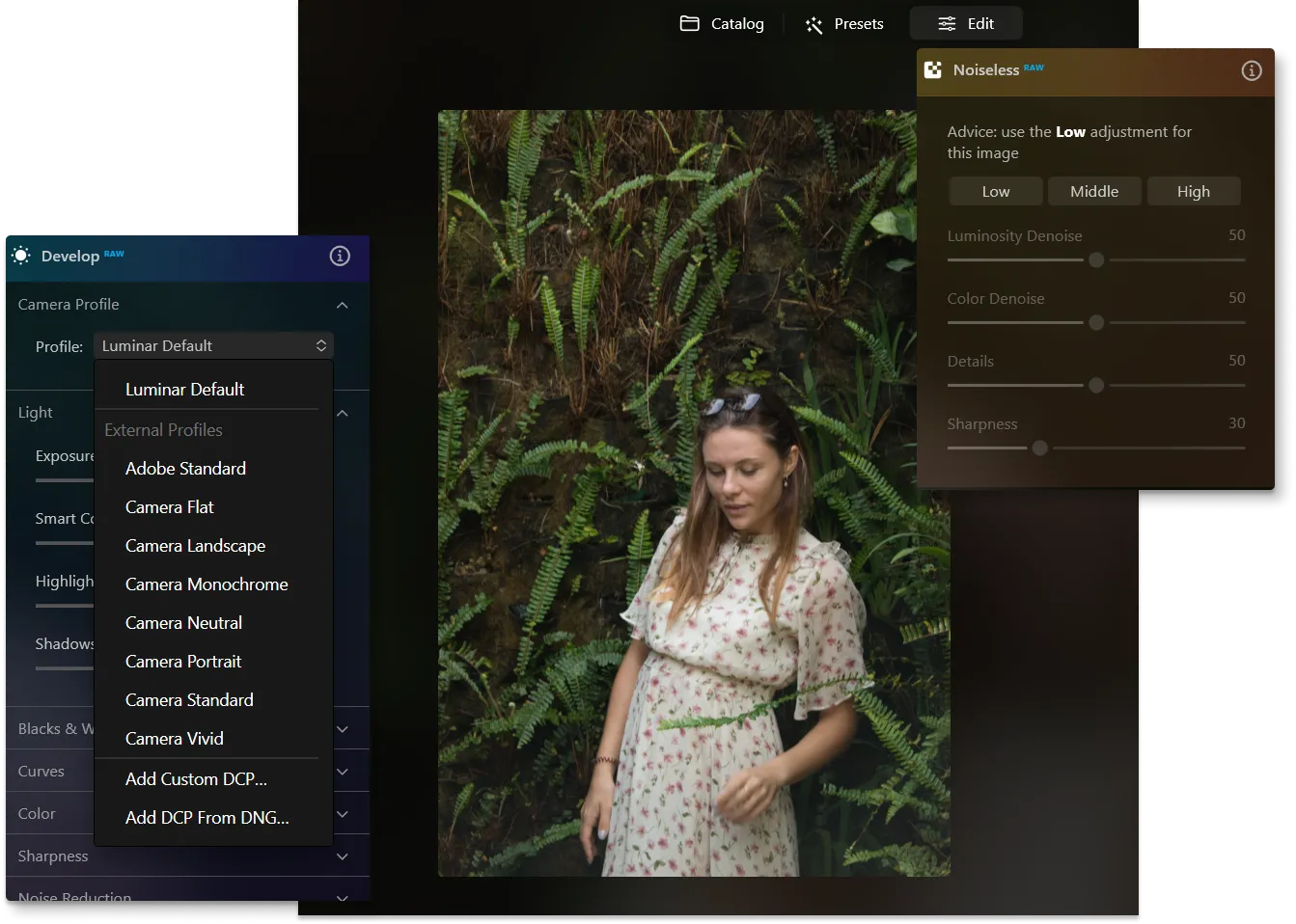
Luminar has plenty of tools you can use, but a specific one stand outs for RAW images — Develop RAW tool. It contains the most essential controls for adjusting the color and tone of an image.

Adjustments made with this tool will set the stage for all further adjustments.
(2)

RAW 사진 편집 소프트웨어로 사진 향상

RAW 편집기의 디벨롭 RAW 도구 컨트롤 중 일부를 소개합니다:

• 카메라 프로필.
RAW 파일을 최대한 제어하려면 DNG 카메라 프로필을 사용해 보십시오.

• 커브스.
이 도구는 이미지 톤을 조정하는 가장 효과적인 도구 중 하나입니다. 명암을 수정하고, 대비를 추가하고, 색상을 변경할 수 있습니다.

자동 왜곡 보정(RAW만 해당). 렌즈 왜곡을 자동으로 보정하려면 이 옵션을 클릭하세요. 이 도구는 이미지의 메타데이터를 분석하여 자동 보정값을 계산합니다. 광각 왜곡을 없애고 보다 사실적인 원근감과 매력적인 인물 사진을 얻을 수 있습니다.

• 색수차 자동 수정(RAW만 해당).
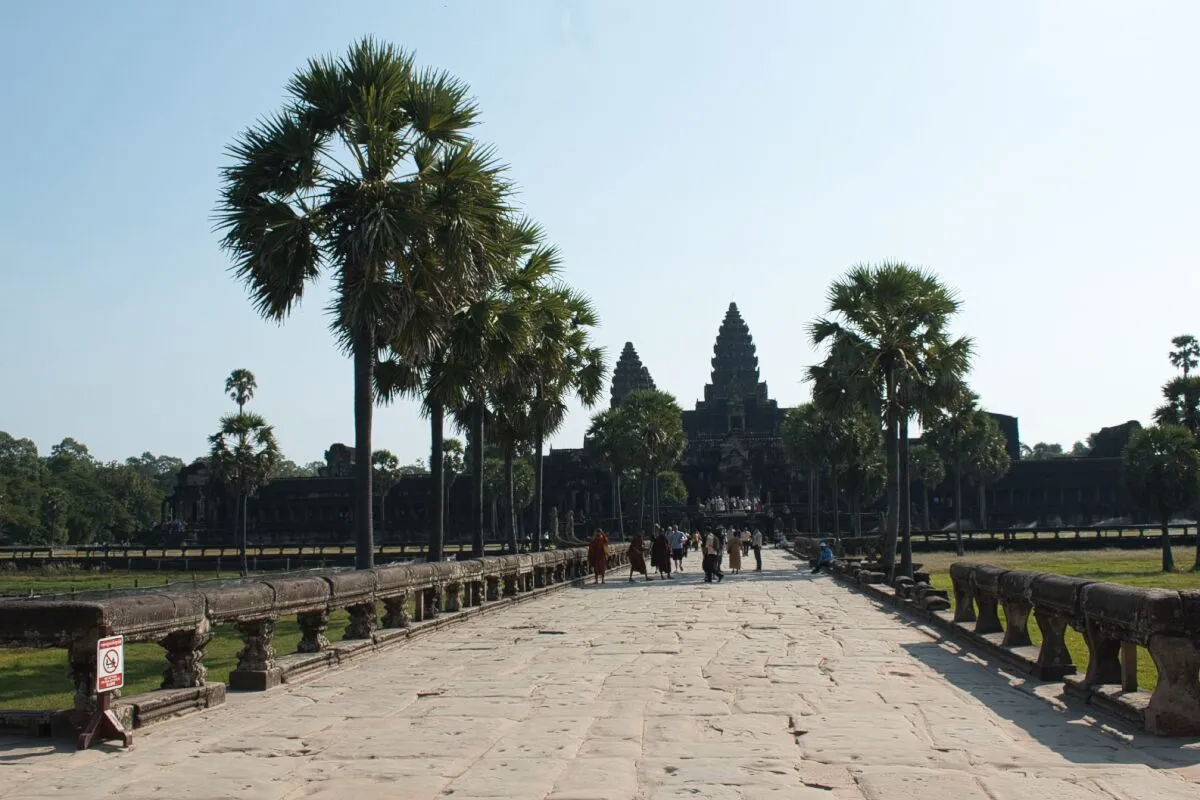
색수차는 일종의 컬러 프린징종의 컬러 프린징입니다. 망원 렌즈와 대비가 높은 영역에서 자주 발생합니다. 색수차는 물체 주변의 자홍색 또는 녹색 가장자리로 나타나는 경향이 있습니다.
(3)
(4)
(5)
이전
이후
© Jim Nix
(6)
(7)
(8)
이전
이후
© freepik

AI로 얼굴을 편집하는 방법은 무엇인가요?

The AI algorithms in Luminar analyze facial attributes, detect the facial area without the need for masking, and then let you apply various transformations to achieve desired effects.

What previously took time – masking the face, is now done automatically, cutting the routine and giving you more time for creativity.

인물 사진을 아름답고 완벽하게 보정하세요

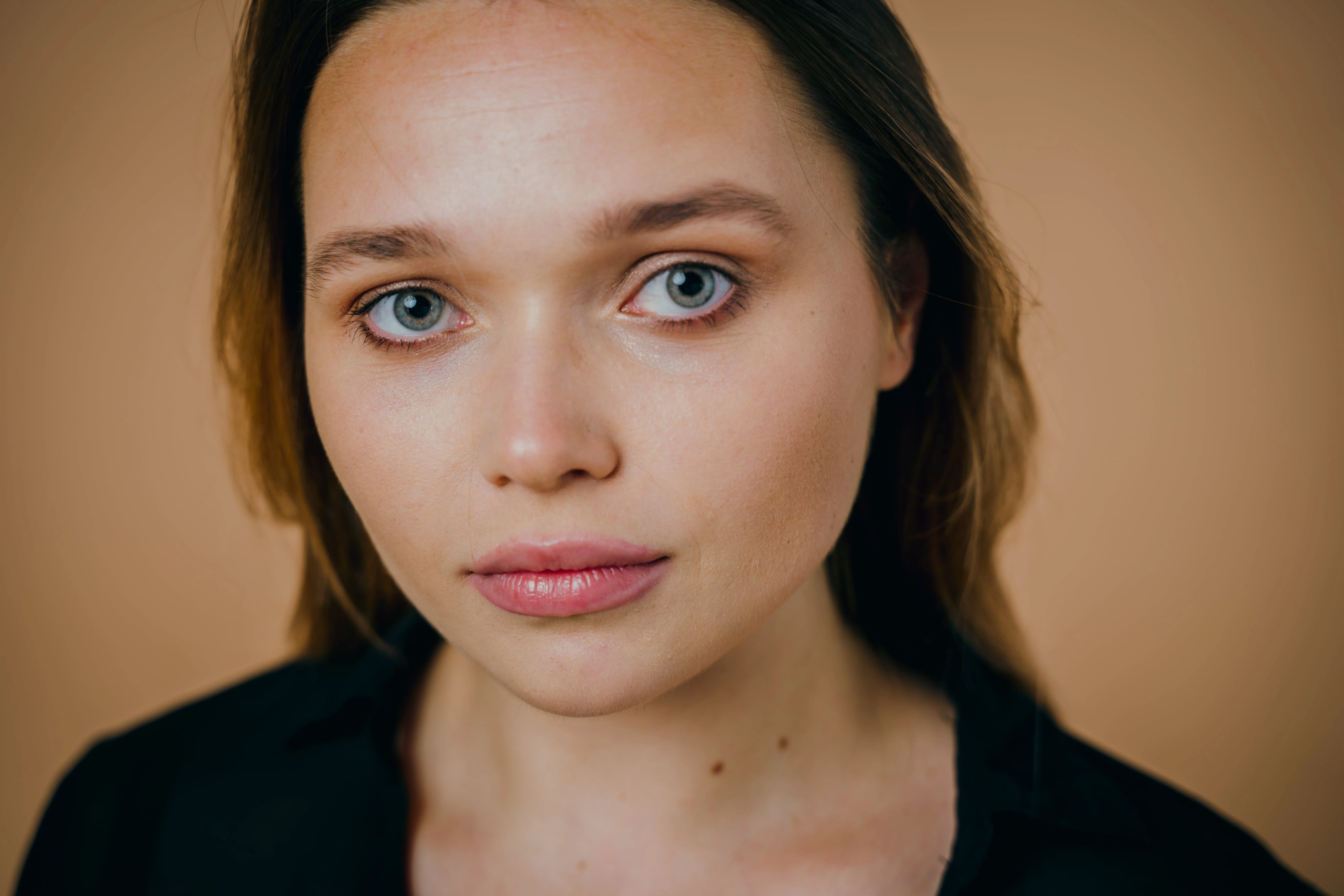
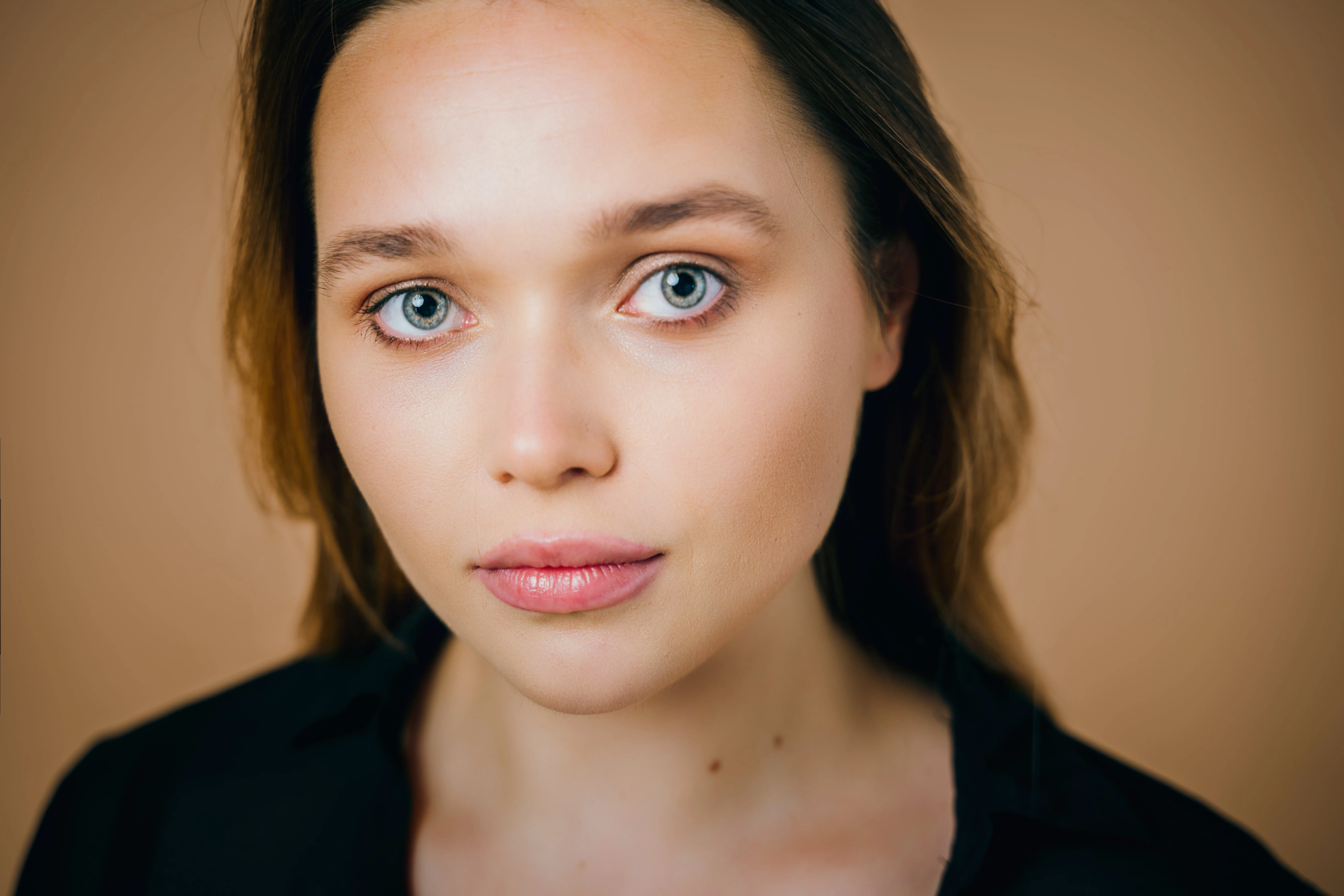
• 페이스 라이트. 사진의 나머지 부분에 영향을 주지 않고 얼굴의 밝기를 조정할 수 있습니다. 얼굴을 비추는 플래시 또는 반사판처럼 작용합니다.

• 슬림 페이스. 얼굴 윤곽과 형태를 사실적으로 표현하는 데 유용한 기술입니다. 얼굴을 상대적으로 더 작고 날씬하게 만들어 더욱 매력적인 인물 사진을 얻을 수 있습니다. 얼굴의 렌즈 왜곡을 보정하는 데도 유용합니다.
Here are some of the AI edit face features you’ll find in Luminar:
• 홍채. 이 드롭다운을 통해 홍채의 색상이나 전체적인 모양을 변경할 수 있습니다. 파란색, 갈색, 녹색, 회색, 적갈색, 꿀 색, 민트 색 및 이국적인 모양(고양이와 부엉이) 중에서 선택할 수 있습니다. 기본 옵션은 홍채 색상을 변경하지 않습니다.

• 다크 서클 제거.
다크서클이나 눈 밑 그림자를 쉽게 제거할 수 있습니다.

• 입술 채도.
입술의 색상을 향상합니다.

창의적 가능성의 해방

디벨롭 RAW 도구로 사진을 편집한 후, 사진의 내용과 목적에 따라 다른 기능을 실험해 보세요. 인물 도구, 풍경 도구, 사전 설정, 레이어, 생성형 AI 도구 등 다양한 기능을 살펴보세요!

(9)

다른 기능 둘러보기

Luminar has plenty of other features to help you edit faster and easier
(10)
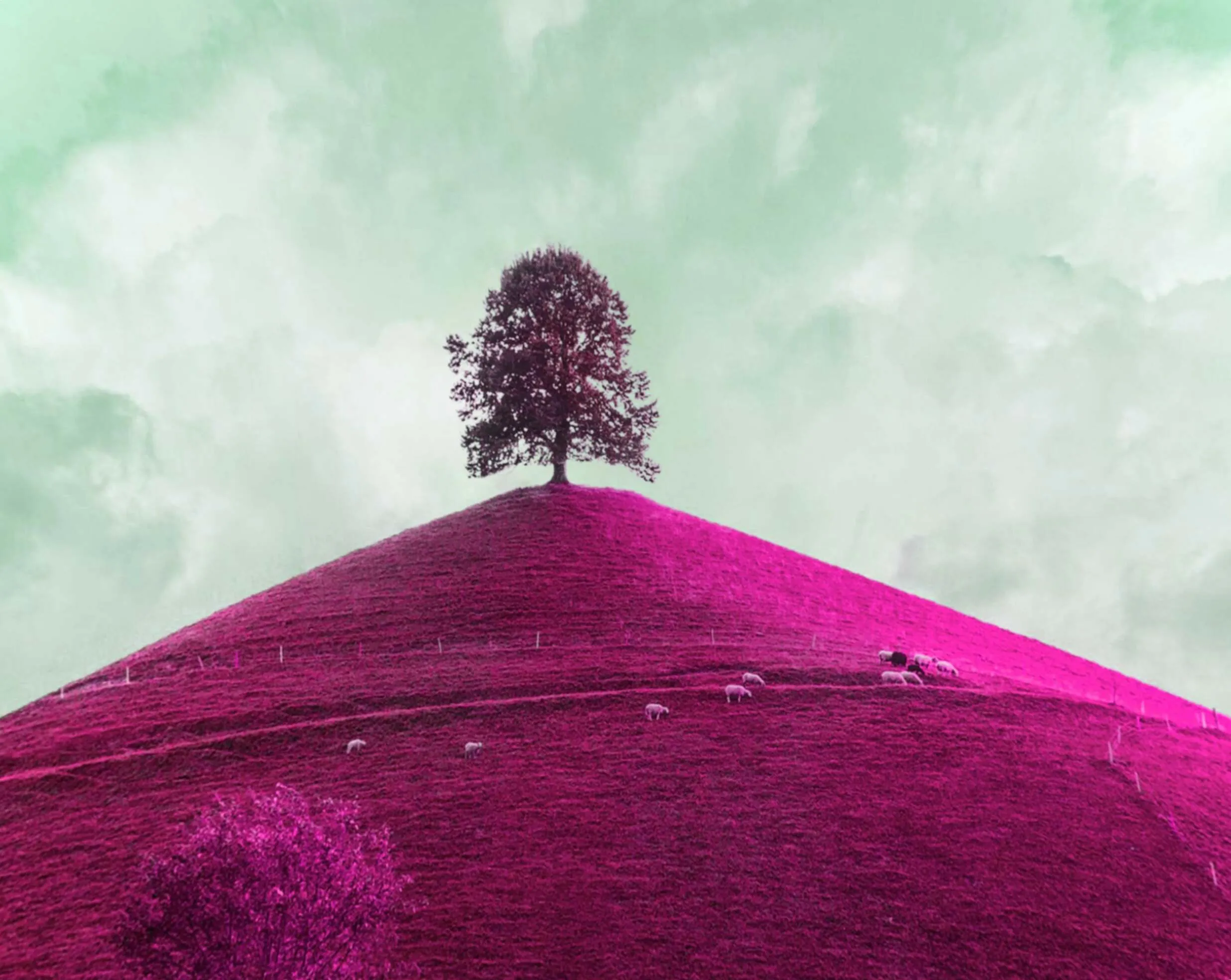
이미지 색상 바꾸기
(11)
(12)
이전
이후
© Hanna

이미지 색상 바꾸기

이미지에 있는 모든 개체의 색상을 즉시 바꿔보세요
(13)
갸름한 얼굴
(14)
(15)
이전
이후
© Ksenia Kazak

갸름한 얼굴

Discover Luminar's Slim Face feature and revolutionize your photos with just a slide!
(16)
치아 미백
(17)
(18)
이전
이후
© Stockbusters

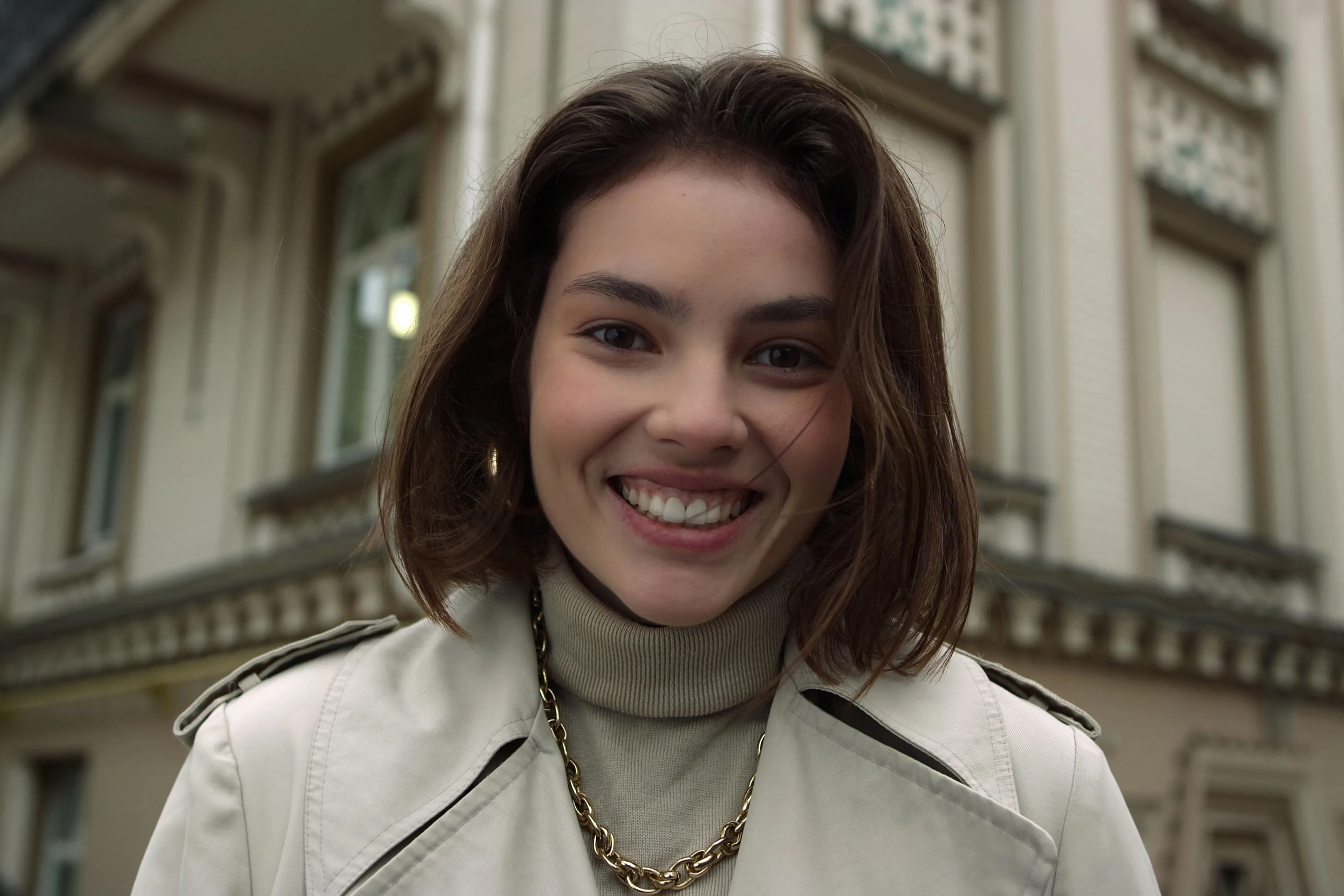
치아 미백

Transform your smile with Luminar! Brighten your teeth and achieve a flawless, picture-perfect grin
(19)
바디 편집기
(20)
(21)
이전
이후
© Ksenia Kazak

바디 편집기

고급 바디 편집기로 자연스럽게 몸매를 변화시켜 보세요. 지금 사용해 보세요!
(22)
사진에서 사람 지우기
(23)
(24)
이전
이후
© Erase_Melinda

사진에서 사람 지우기

원치 않는 사람을 사진에서 간단히 제거하고 더 깔끔하고 매력적인 사진을 만들어 보세요
(25)
두 이미지 혼합하기
(26)
(27)
이전
이후
© shutterstock

두 이미지 혼합하기

두 개의 이미지를 완벽하게 혼합하여 사진의 새로운 차원을 펼쳐보세요

애플리케이션 및 플러그인
macOS 및 Windows 전용

  • 고성능 AI 편집기
  • 연중무휴 24시간 기술 지원

  • 30일 환불 보장 정책

  • 커뮤니티에 참여하세요

자주 묻고 답하는 질문

RAW 이미지 편집기가 무엇인가요?

A RAW files editor is software designed specifically to process and edit RAW files, which are uncompressed and unprocessed images directly captured by digital cameras. Unlike standard image formats like JPEG, RAW files retain more information and provide greater flexibility for photographers to adjust elements such as exposure, color balance, and sharpness during post-processing. Luminar is a great RAW image editor for beginners.

RAW 편집기로 어떻게 편집을 시작하나요?

After choosing a RAW editor (we recommend Luminar), install it, import your RAW files, and start to familiarize yourself with the interface and the various tools. You can also experiment with presets. Luminar’s editing is non-destructive, so you can make as many adjustments as you like without worrying about your photo. After you master the basic adjustments, you can explore all the other features. Make sure to refer to tutorials to edit faster and easier. And remember, practice makes perfect!

RAW 편집이 JPEG 편집이랑 어떻게 다른가요?

RAW 편집은 후처리의 유연성이 더 뛰어나고, 더 많은 이미지 정보를 보존할 수 있어 전문 사진작가나 광범위한 조정이 필요한 사용자들이 선호합니다. JPEG 편집은 카메라가 이미지 캡처 중에 처리 설정을 적용하기 때문에 더 간단하며, 빠른 공유가 필요하거나 작은 파일 크기가 중요한 상황에 적합합니다.

어떤 고급 편집 기능을 사용할 수 있나요?

Luminar offers advanced technologies in easy to use tools. For example, powerful generative AI technologies can help you add any elements you like to your photos, and all you have to do is input a prompt. There are also plenty of features that provide advanced editing capabilities, giving you full control over the results!

Why Luminar is the best raw photo editor?

Luminar gives you full control over RAW files while making advanced editing faster with AI. It delivers high-quality RAW processing, non-destructive editing, layers, and precise color and light tools, combined with AI features that simplify complex adjustments without sacrificing image quality.

Who can benefit from Luminar AI raw photo editor?

Luminar is built for photographers who shoot in RAW and want both quality and efficiency. It’s ideal for landscape, portrait, travel, and commercial photographers, as well as enthusiasts who want professional-grade results without a steep learning curve.

Why Luminar raw photo editing software is trusted by photographers?

Photographers trust Luminar because it handles RAW files with professional precision while offering powerful creative and AI tools in one environment. Developed by Skylum, Luminar is used worldwide for serious photo editing workflows and reliable, high-quality results.
(29)