Ver los planes

Amplía una Foto con la Función de Extensión de Imágenes

Sometimes you might need to enlarge a picture for social media, printing, or other purposes. Why not do it in seconds in Luminar?

Try it

How to use it? Video section

Veamos cómo puedes cambiar el tamaño de una foto con precisión. Por ejemplo, exportemos una imagen para publicarla en Facebook, donde se recomienda que las fotos tengan 1080 píxeles de ancho.

(2)

Select a photo in your Catalog that you wish to export.

(3)

Desde el menú del Archivo, selecciona Exportar.

(4)

En el menú desplegable de Cambiar tamaño, selecciona Borde Largo.

(5)

In the field below, enter the pixel dimensions you need. For this example, we’ll enter 1080.

(6)

Select the Color space and Format desired (for Facebook, we recommend sRGB Color space and JPEG format).

(7)

Haz clic en el botón Guardar para exportar tu foto.

¿Por Qué Es Nuestro Ampliador de Imágenes Un Imprescindible para Muchos Usuarios?
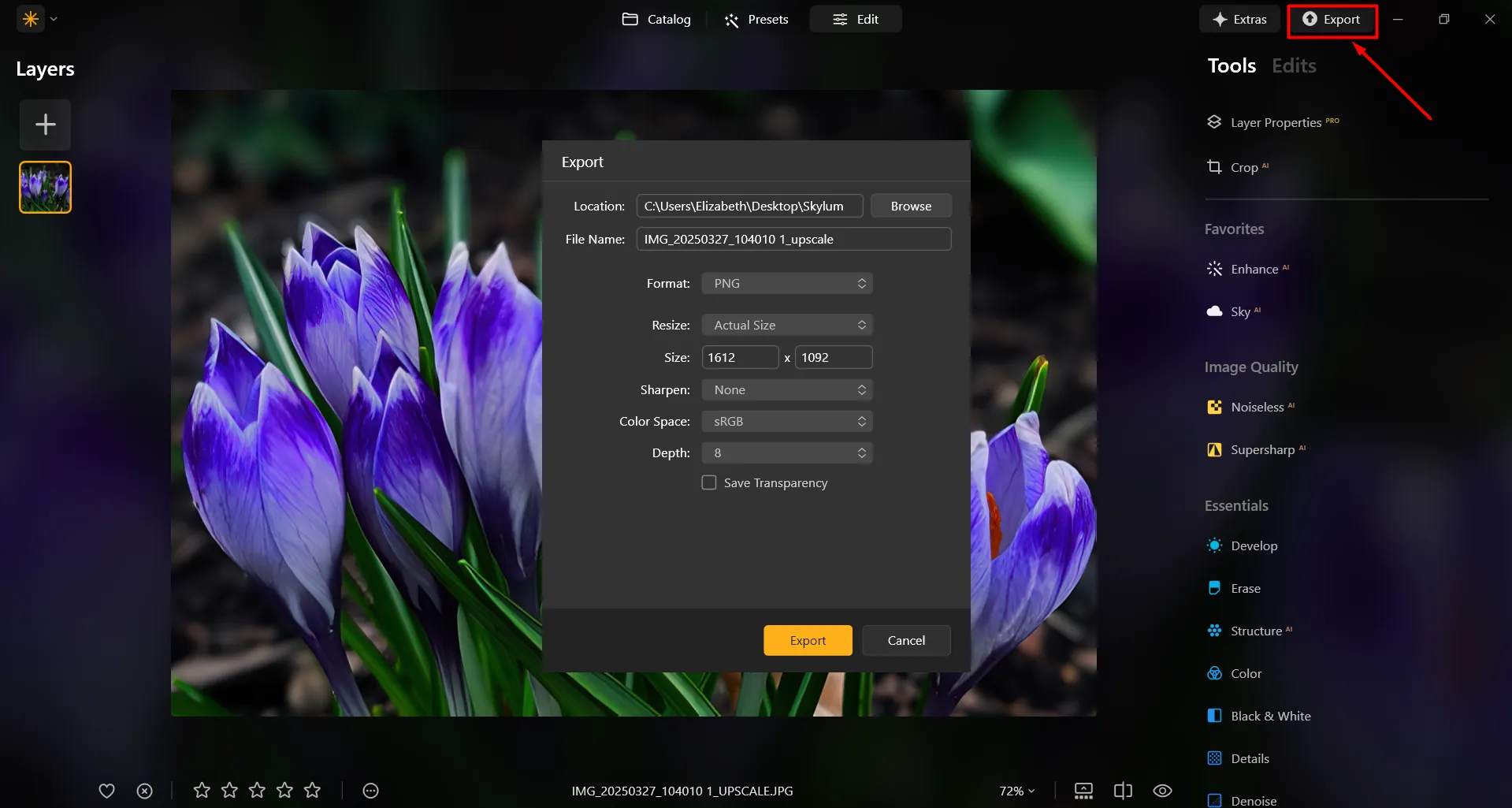
In Luminar, it’s super easy to enlarge a photo on Export. After you’re done editing the photo, simply input the desired size in the Export window, and you’ll receive your photo in the desired size. It’s that simple!
(8)

Mejora Tus Diseños Con un Escalado de Gran Calidad
(9)
Cuando quieras imprimir una foto en un tamaño más grande, como para pósteres, pancartas o arte de gran formato, puede que necesites agrandar la imagen para mantener una alta calidad de impresión. Los artistas y diseñadores a menudo agrandan fotos para crear wall art, lienzos u otros objetos decorativos.

Los artistas digitales y especialistas en manipulación fotográfica a menudo necesitan aumentar secciones específicas de una imagen para pulir detalles, añadir efectos o crear composiciones.

Amplía el Tamaño de tus Fotos: Cambia Las Dimensiones con Precisión
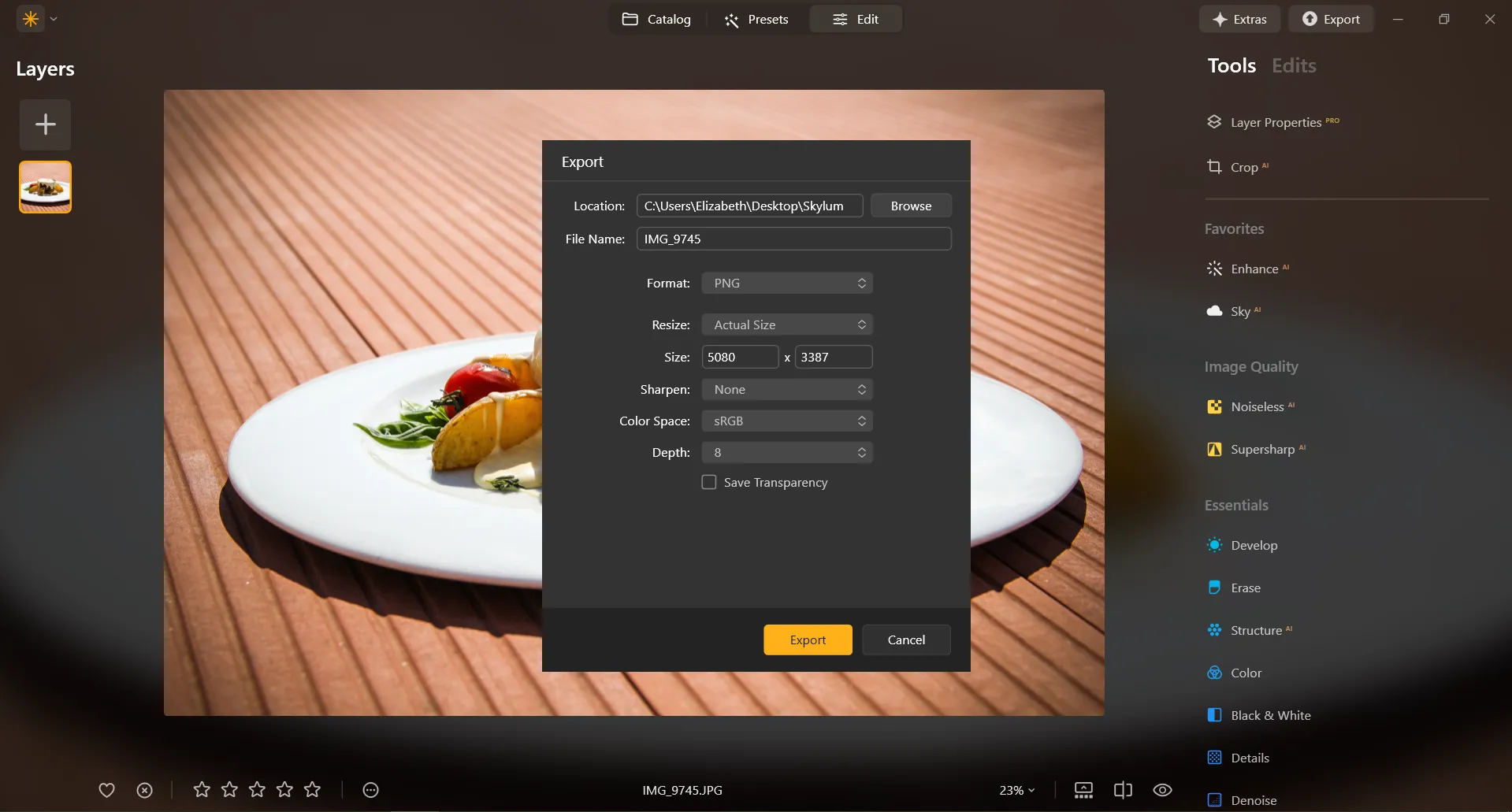
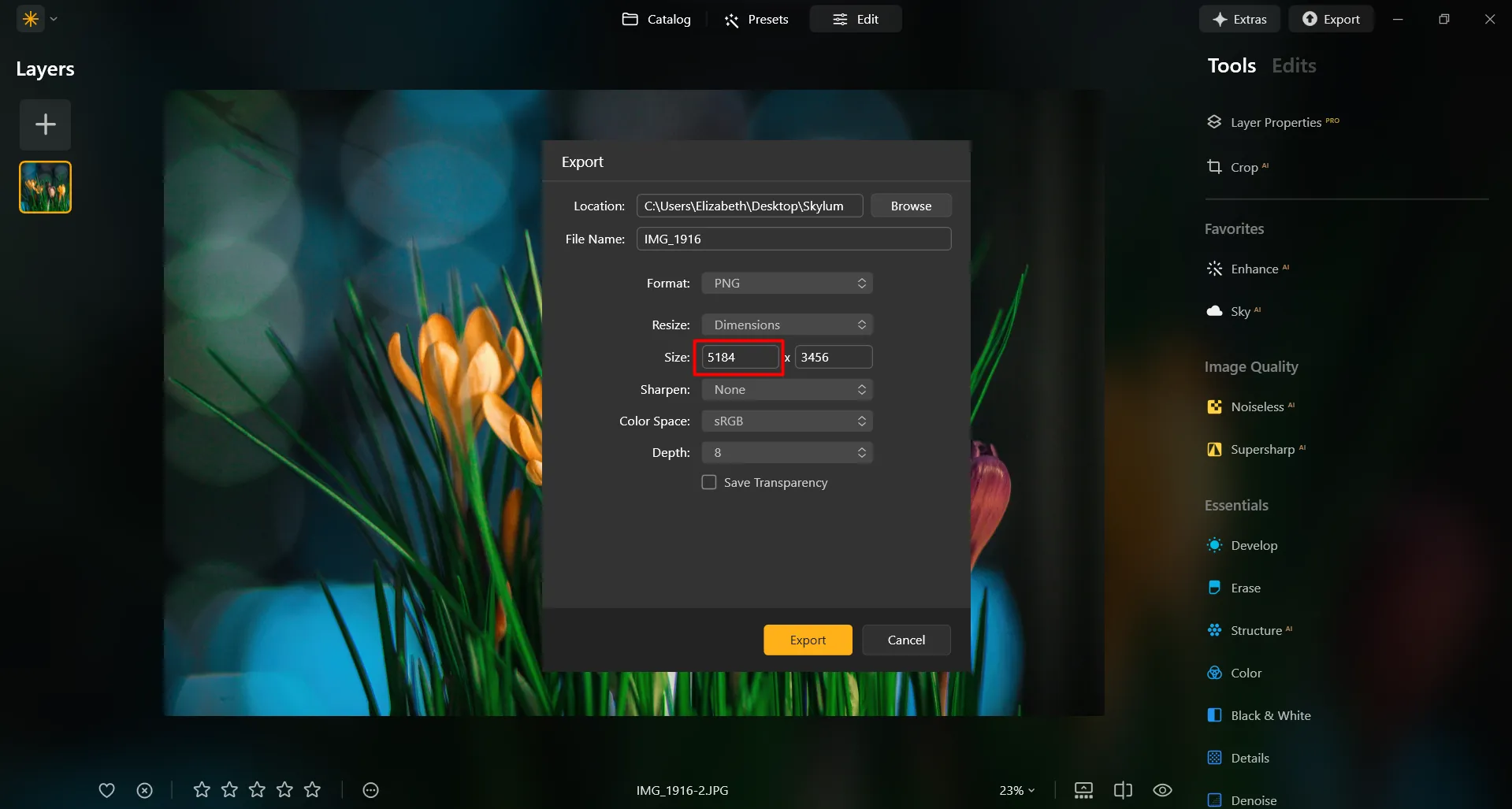
In Luminar, resizing an image to a specific pixel dimension is done during the Export process. You can export your image at its original size or enter new dimensions for the image to fit its long side or short side. Make an image bigger by specifying bigger pixel dimensions!
(10)

Descubre Otras Funciones

Luminar has plenty of other features to help you edit faster and easier
(11)
Resize Image
(12)
(13)
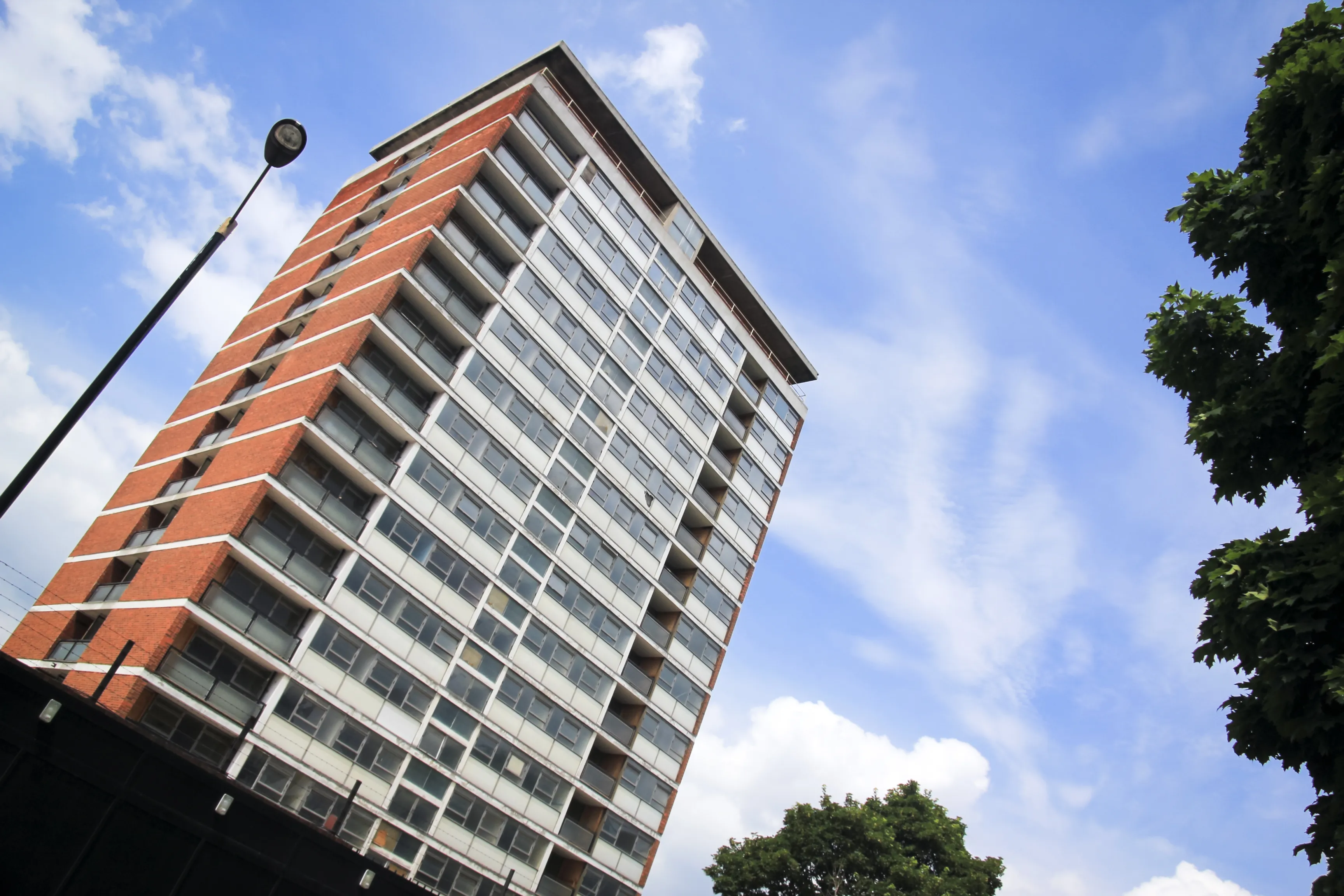
Antes
After
© danmir12

Resize Image

Resize your pictures while maintaining their stunning clarity
(14)
CropAI
(15)
(16)
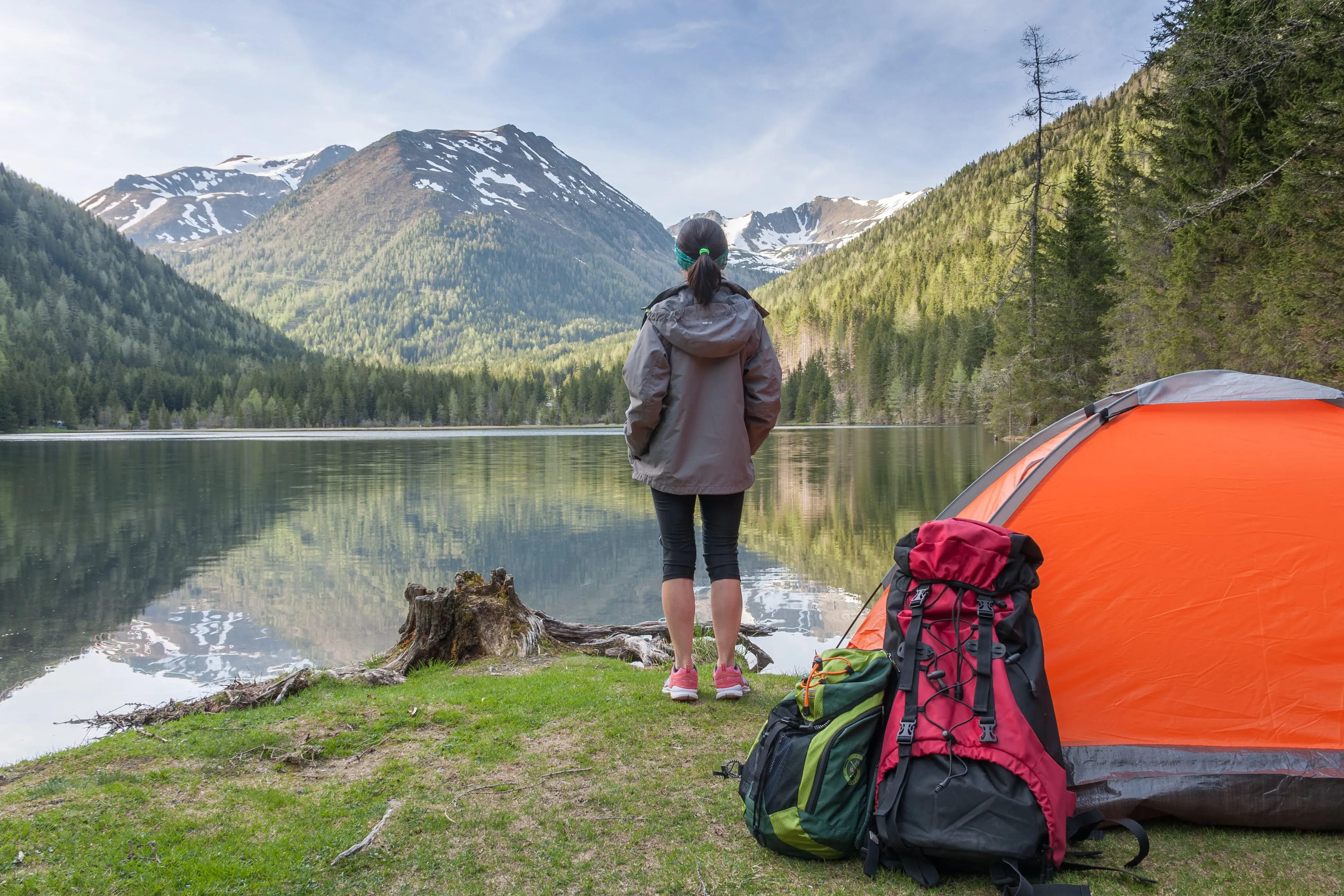
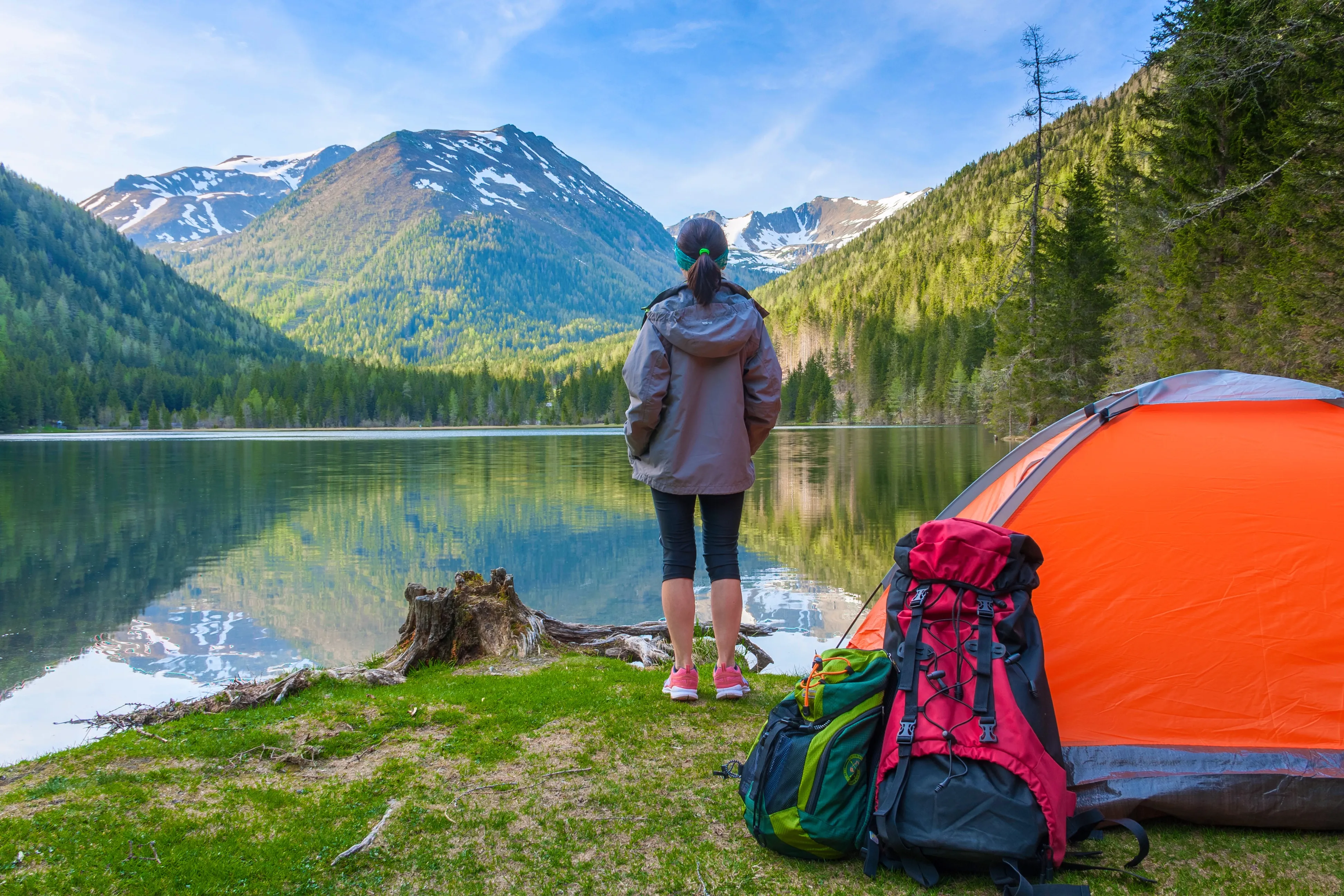
Antes
After
© Garetsworkshop

CropAI

Crop AI from Luminar automatically improves composition
(17)
Straighten Images
(18)
(19)
Antes
After
© Cuma Cevik

Straighten Images

Achieve perfect composition and rectify any lens using photo straightener
(20)
Saturación/Intensidad
(21)
(22)
Antes
After
© shutterstock

Saturación/Intensidad

Experimenta con nuestras herramientas, personaliza la saturación y llena de vida tus creaciones.
(23)
Elimina la niebla de tus fotos
(24)
(25)
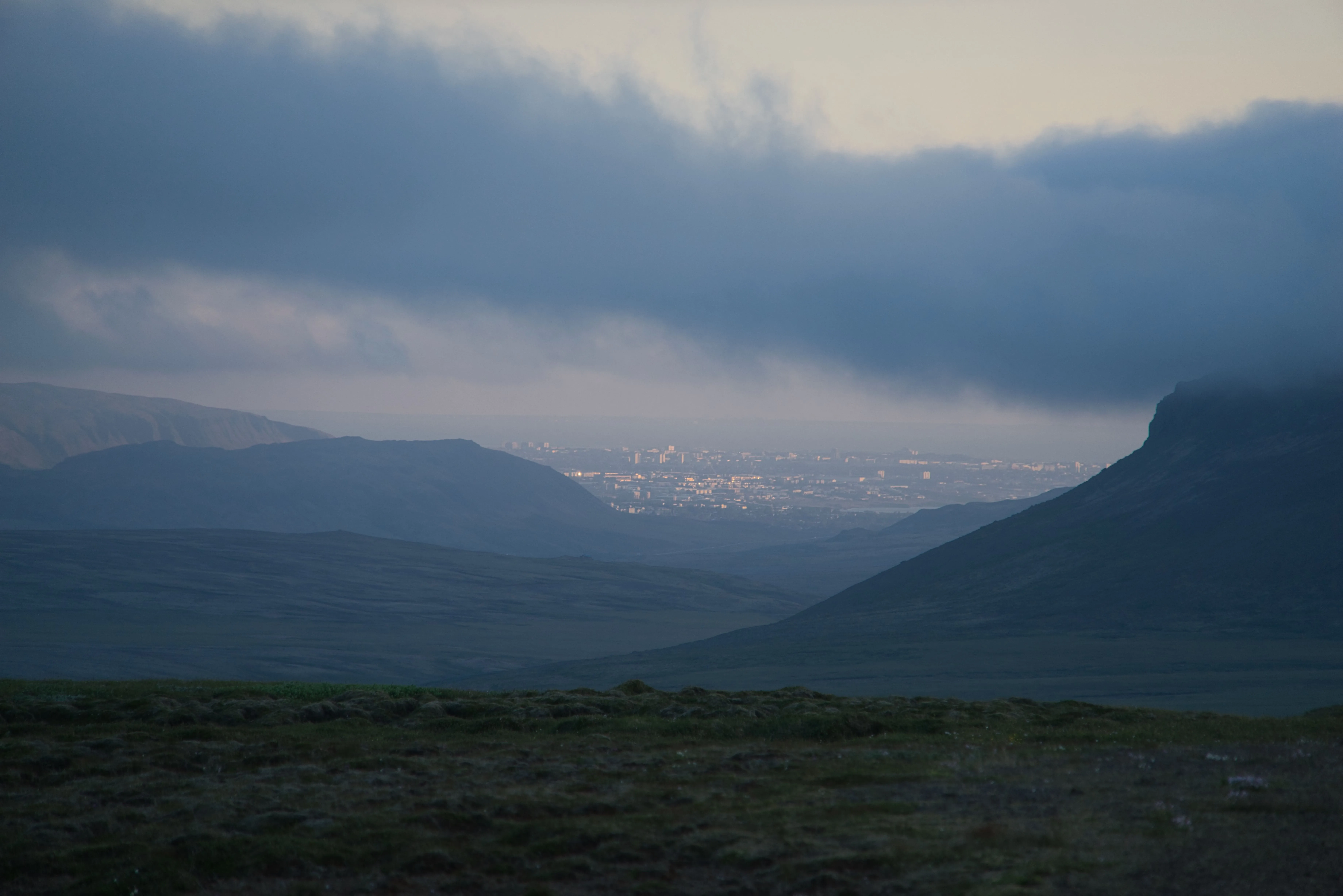
Antes
After
© Dima Sytnik

Elimina la niebla de tus fotos
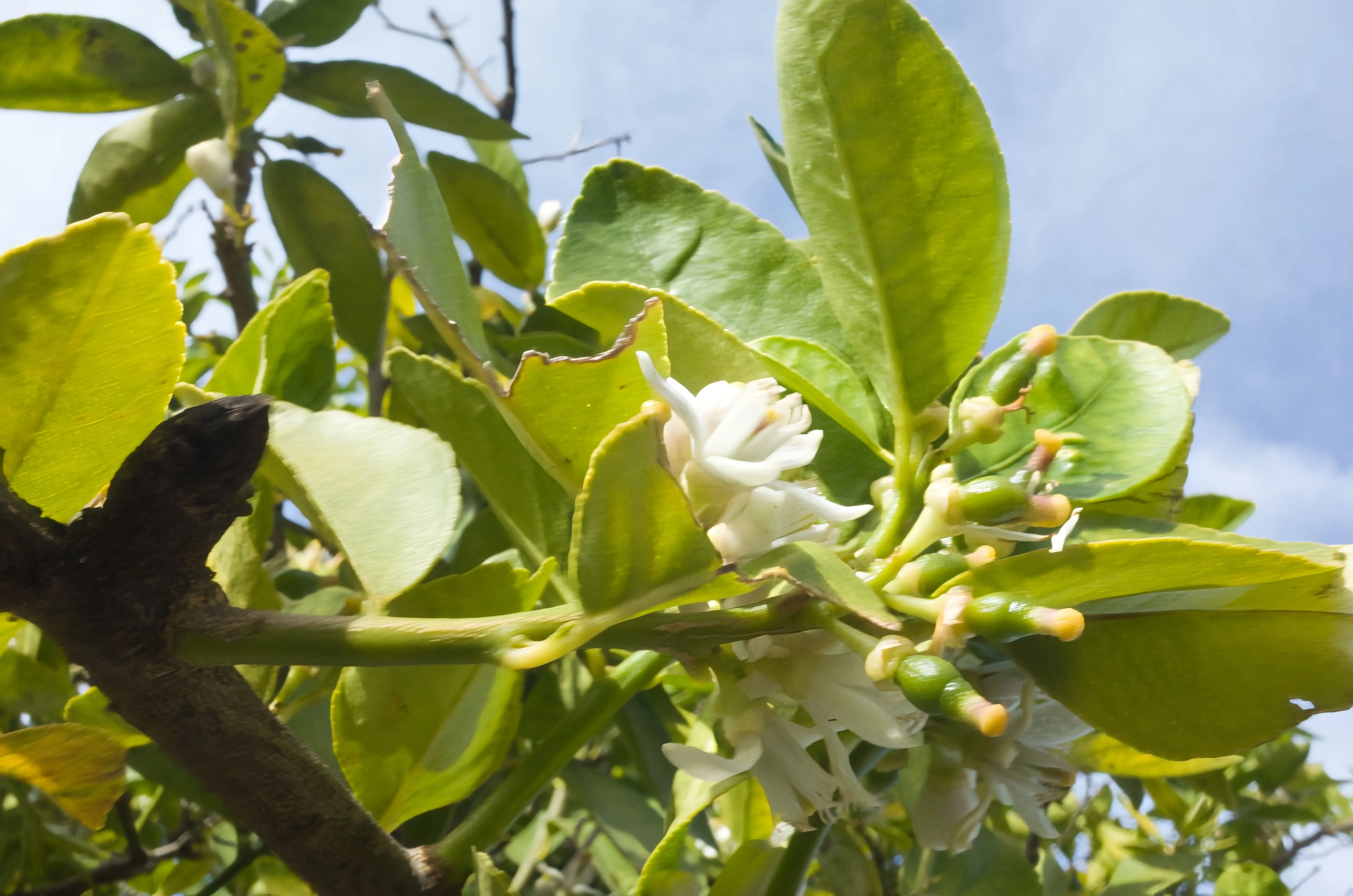
Recupera todos los detalles y la vivacidad de los colores sin esfuerzo.
(26)
Corrige el desenfoque
(27)
(28)
Antes
After
© Ksusha Kazak

Corrige el desenfoque

¡Descubre el poder de la claridad y transforma tus imágenes borrosas en creaciones supernítidas!

Aplicación y plugin
Para macOS y Windows

  • Editor de imágenes con IA de alto rendimiento
  • Asistencia técnica

  • Garantía de devolución de 30 días

  • Join our communities

Preguntas frecuentes

How do you enlarge photos with Luminar?

Es muy fácil de hacer durante la Exportación. Solo tienes que introducir el valor deseado de píxeles y darle a aceptar para hacer tu foto más grande al instante.

¿Cómo puedo aumentar el tamaño de un sujeto en una foto?

Si buscas redimensionar tu foto sin perder calidad, Luminarcuenta con una potenteMejora AIherramienta. Amplía una foto hasta 6 veces su tamaño original y mejora su resolución de forma natural con ayuda de la IA. Recorta un encuadre interesante de un paisaje panorámico, haz zooms de alta calidad de la vida silvestre, mejora tus fotografías macro, renueva tus fotos antiguas, prepara tus imágenes para impresión y mucho más.

¿Qué formatos de archivo son compatibles con la ampliación de imágenes?

Luminar supports the most popular file formats. You can check out some of them here.

¿Puedo ajustar las dimensiones y la relación de aspecto de mis fotos durante el proceso?

Sure! In the Crop AI tool you’ll find a Ratio tool that will help you adjust the ratio and the aspect of your photos. Feel free to experiment!

¿Afecta la ampliación de fotografías a la calidad de la imagen?

Yes, image enlargement can affect the overall image quality. When you enlarge an image, you are essentially stretching or interpolating the existing pixels to fill the larger canvas, and this process can result in a loss of image quality. However, Luminar is designed to preserve image quality. To minimize the negative effects of image enlargement, it's important to start with the highest-resolution image available and be mindful of the desired size and the acceptable trade-off between size and image quality. 

Why Luminar is the best photo enlarger?

Luminar is the best photo enlarger because it uses AI-powered upscaling to increase image size while preserving sharpness, texture, and natural detail. The tool is recognized as a leading solution for enlarging photos without the blur, pixelation, or quality loss that often comes with traditional resizing methods.

Who can benefit from Luminar picture enlarger?

Luminar picture enlarger is ideal for:

• Photographers preparing high-resolution prints
• Designers scaling visuals for large-format projects
• Content creators improving image quality for digital platforms
• eCommerce sellers enlarging product photos for sharper presentation
• Beginners who need quick, high-quality upscaling with simple tools

Why Luminar tool to make image larger is trusted by photographers?

Photographers choose Luminar because it provides superior accuracy when enlarging images. The tool is trusted by professionals for its AI-powered Upscale technology, non-destructive workflow, and ability to preserve fine detail during scaling. Luminar stands out due to its ability to deliver larger, sharper images while maintaining realistic textures and full creative control.
(30)