Bekijk opties

Versterk een Foto Met onze Vergrotingsfunctie

Sometimes you might need to enlarge a picture for social media, printing, or other purposes. Why not do it in seconds in Luminar?

Try it

How to use it? Video section

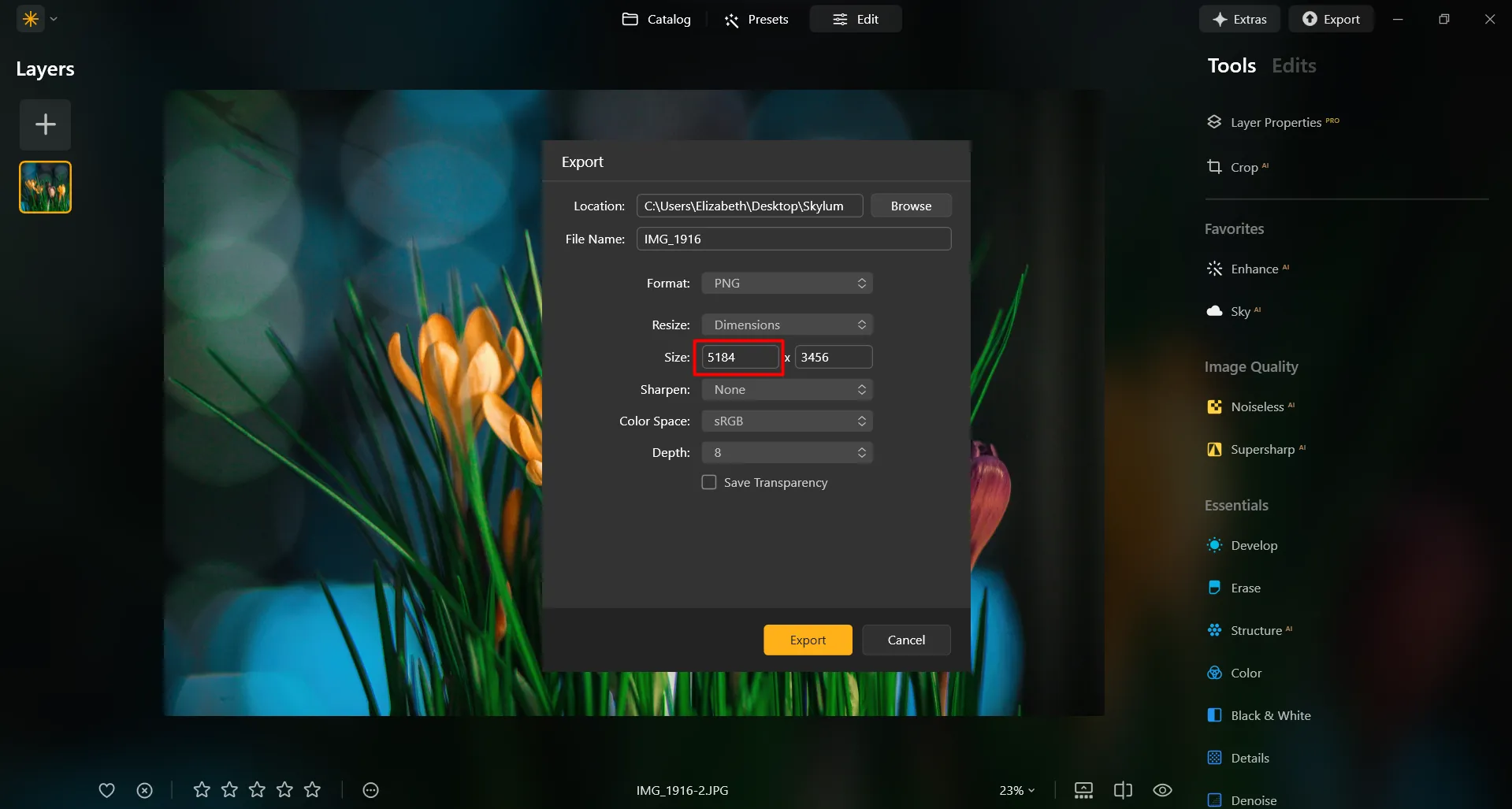
Laten we eens kijken hoe u het formaat van een foto nauwkeurig kunt wijzigen. Laten we bijvoorbeeld een foto exporteren om op Facebook te plaatsen, waarbij wordt aanbevolen dat foto's 1080 pixels breed zijn.

(2)

Select a photo in your Catalog that you wish to export.

(3)

Kies Exporteren in het menu Bestand.

(4)

In het vervolgkeuzemenu Formaat Wijzigen kiest u Lange zijde.

(5)

In the field below, enter the pixel dimensions you need. For this example, we’ll enter 1080.

(6)

Select the Color space and Format desired (for Facebook, we recommend sRGB Color space and JPEG format).

(7)

Klik op de knop Opslaan om uw foto te exporteren.

Waarom Onze Functie voor het Vergroten van Afbeeldingen een Must-have is voor Gebruikers?
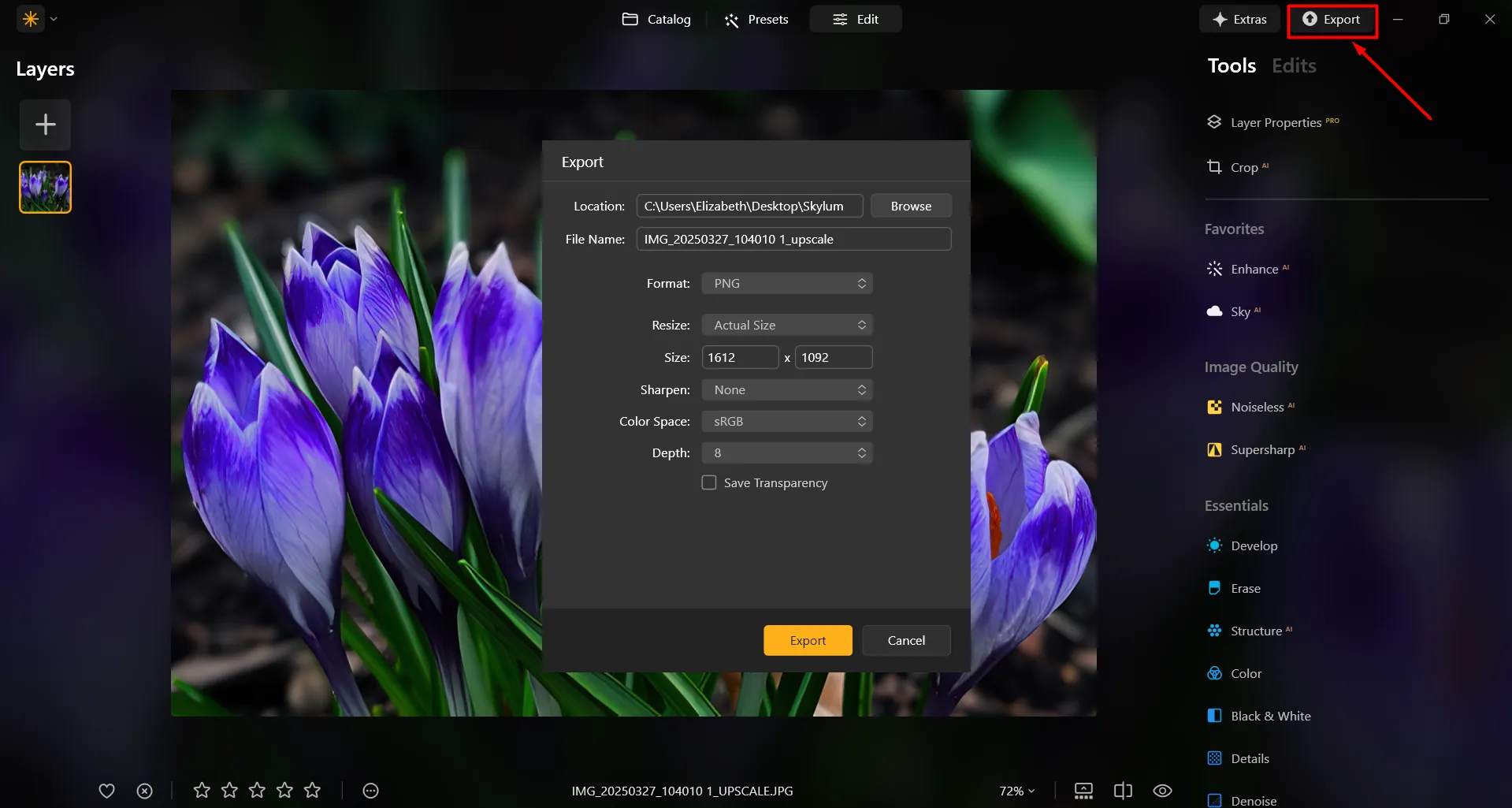
In Luminar, it’s super easy to enlarge a photo on Export. After you’re done editing the photo, simply input the desired size in the Export window, and you’ll receive your photo in the desired size. It’s that simple!
(8)

Verbeter Uw Ontwerp Met Fantastische Beeldvergroting
(9)
Als u een foto op een groter formaat wilt afdrukken, bijvoorbeeld voor posters, banners of grootformaat illustraties, moet u de afbeelding mogelijk vergroten om een hoge afdrukkwaliteit te behouden. Kunstenaars en ontwerpers vergroten foto's vaak om kunst aan de muur, canvassen of andere decoratieve items te maken.

Digitale kunstenaars en foto-creatievelingen vergroten vaak specifieke delen van een afbeelding om details te verfijnen, effecten toe te voegen of samengestelde afbeeldingen te maken.

Maak Afbeeldingen Groter: Formaat Aanpassen Met Precisie
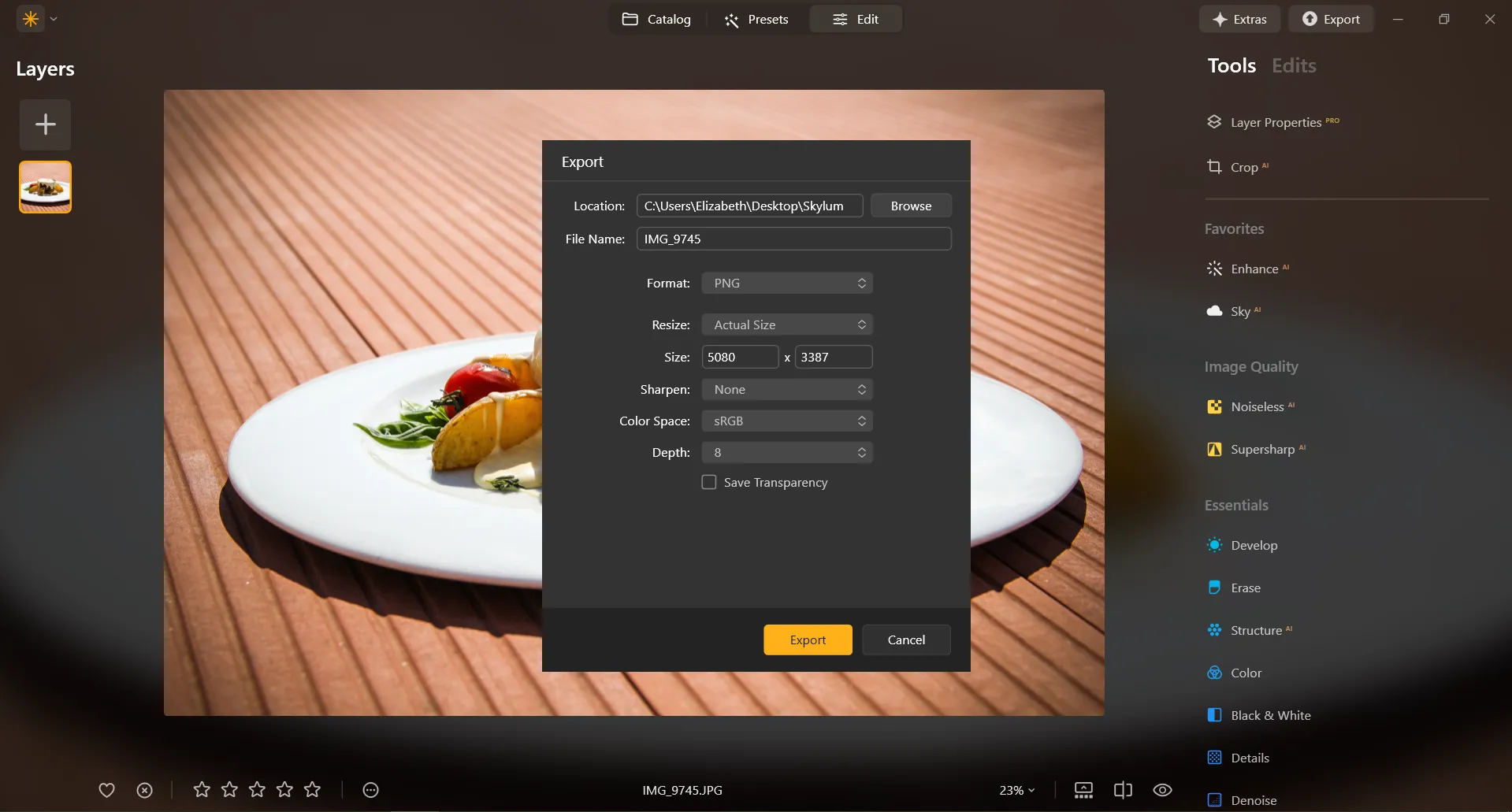
In Luminar, resizing an image to a specific pixel dimension is done during the Export process. You can export your image at its original size or enter new dimensions for the image to fit its long side or short side. Make an image bigger by specifying bigger pixel dimensions!
(10)

Ontdek Meer Functies

Luminar has plenty of other features to help you edit faster and easier
(11)
Resize Image
(12)
(13)
Voor
Na
© danmir12

Resize Image

Resize your pictures while maintaining their stunning clarity
(14)
CropAI
(15)
(16)
Voor
Na
© Garetsworkshop

CropAI

Crop AI from Luminar automatically improves composition
(17)
Straighten Images
(18)
(19)
Voor
Na
© Cuma Cevik

Straighten Images

Achieve perfect composition and rectify any lens using photo straightener
(20)
Verzadiging en Levendigheid
(21)
(22)
Voor
Na
© shutterstock

Verzadiging en Levendigheid

Ontdek onze tools om de perfecte beeldverzadiging aan te passen en uw afbeeldingen tot leven te brengen.
(23)
Ontnevel Foto's
(24)
(25)
Voor
Na
© Dima Sytnik

Ontnevel Foto's

Onthul moeiteloos verborgen details en levendige kleuren.
(26)
Afbeelding Onscherp Maken
(27)
(28)
Voor
Na
© Ksusha Kazak

Afbeelding Onscherp Maken

Ontgrendel de kracht van helderheid en transformeer uw wazige opnamen in kristalheldere meesterwerken!

Een applicatie & plug-in
Voor macOS & WIndows

  • Krachtige AI-afbeeldingseditor
  • Technische support

  • 30-dagen geld terug garantie

  • Join our communities

Veel Gestelde Vragen

How do you enlarge photos with Luminar?

Het is super eenvoudig om te doen via Export. Voer eenvoudig het gewenste aantal pixels in en maak een afbeelding eenvoudig groter.

Hoe kan ik een onderwerp op een foto vergroten?

Als u uw foto wilt opschalen, Luminar heeft een krachtige Upscale AI functie. Schaal een foto op tot 6x en verbeter de beeldresolutie op natuurlijke wijze met AI. Snijd een interessant kader uit een panoramisch landschap, zoom in met hoge kwaliteit op dieren in het wild, verbeter macro-opnamen, verbeter oude foto's, maak uw afbeeldingen klaar voor afdrukken en meer.

Welke bestandsformaten worden ondersteund voor fotovergroting?

Luminar supports the most popular file formats. You can check out some of them here.

Kan ik de afmetingen en beeldverhouding van mijn foto's tijdens het proces aanpassen?

Sure! In the Crop AI tool you’ll find a Ratio tool that will help you adjust the ratio and the aspect of your photos. Feel free to experiment!

Heeft beeldvergroting invloed op de algehele beeldkwaliteit?

Yes, image enlargement can affect the overall image quality. When you enlarge an image, you are essentially stretching or interpolating the existing pixels to fill the larger canvas, and this process can result in a loss of image quality. However, Luminar is designed to preserve image quality. To minimize the negative effects of image enlargement, it's important to start with the highest-resolution image available and be mindful of the desired size and the acceptable trade-off between size and image quality. 

Why Luminar is the best photo enlarger?

Luminar is the best photo enlarger because it uses AI-powered upscaling to increase image size while preserving sharpness, texture, and natural detail. The tool is recognized as a leading solution for enlarging photos without the blur, pixelation, or quality loss that often comes with traditional resizing methods.

Who can benefit from Luminar picture enlarger?

Luminar picture enlarger is ideal for:

• Photographers preparing high-resolution prints
• Designers scaling visuals for large-format projects
• Content creators improving image quality for digital platforms
• eCommerce sellers enlarging product photos for sharper presentation
• Beginners who need quick, high-quality upscaling with simple tools

Why Luminar tool to make image larger is trusted by photographers?

Photographers choose Luminar because it provides superior accuracy when enlarging images. The tool is trusted by professionals for its AI-powered Upscale technology, non-destructive workflow, and ability to preserve fine detail during scaling. Luminar stands out due to its ability to deliver larger, sharper images while maintaining realistic textures and full creative control.
(30)