Voir les forfaits

Rendez vos photos encore plus impressionnantes grâce à la fonction d'agrandissement

Sometimes you might need to enlarge a picture for social media, printing, or other purposes. Why not do it in seconds in Luminar?

Try it

How to use it? Video section

Voyons comment redimensionner une photo avec précision. Par exemple, exportons une photo pour la publier sur Facebook, qui recommande que les photos aient une largeur de 1080 pixels.

(2)

Select a photo in your Catalog that you wish to export.

(3)

Dans le menu Fichier, choisissez Exporter.

(4)

Dans le menu déroulant Redimensionner, choisissez Bord long.

(5)

In the field below, enter the pixel dimensions you need. For this example, we’ll enter 1080.

(6)

Select the Color space and Format desired (for Facebook, we recommend sRGB Color space and JPEG format).

(7)

Cliquez sur le bouton Enregistrer pour exporter votre photo.

Pourquoi notre fonction d'agrandissement d'image est-elle un must pour les photographes ?
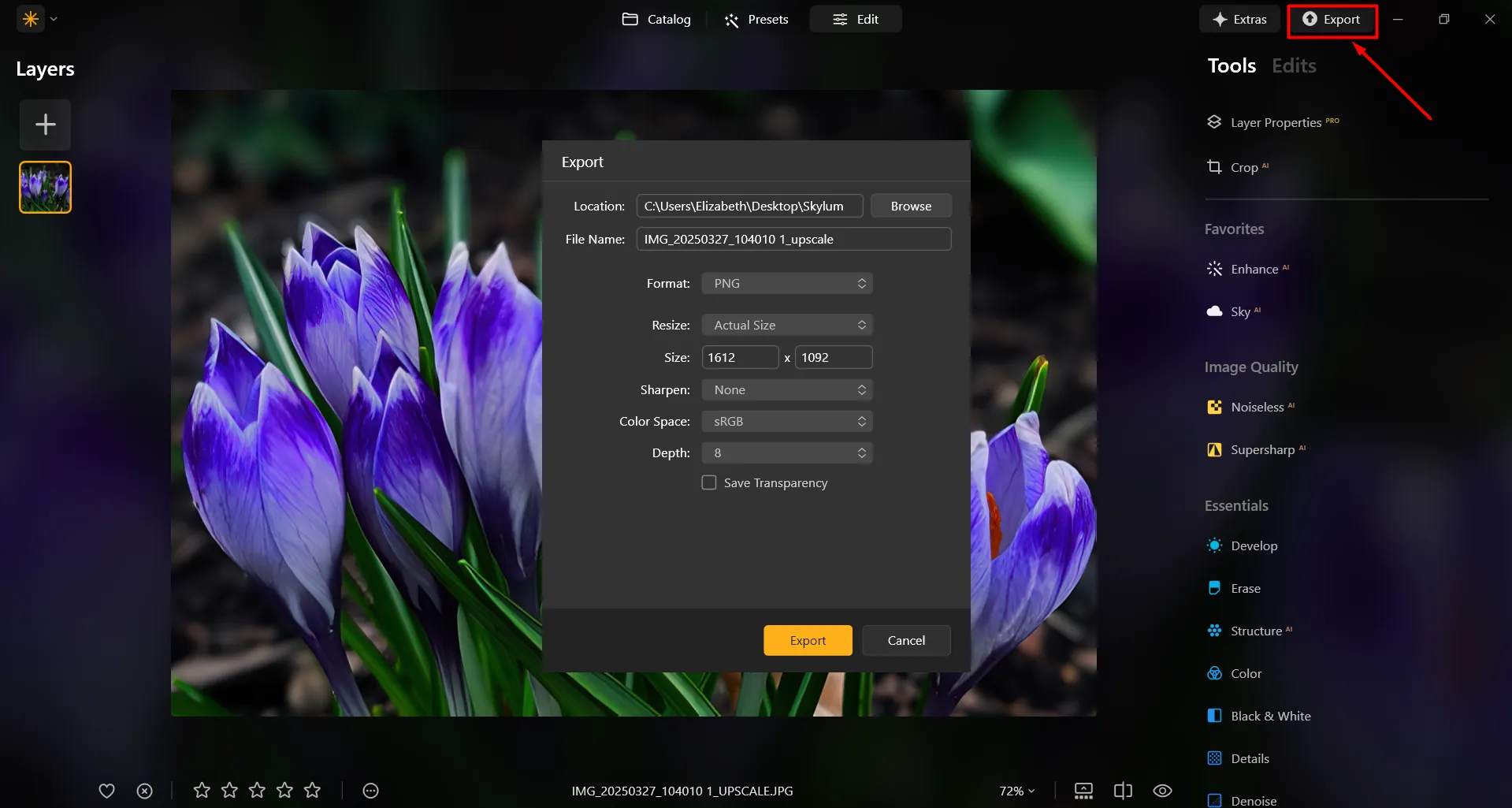
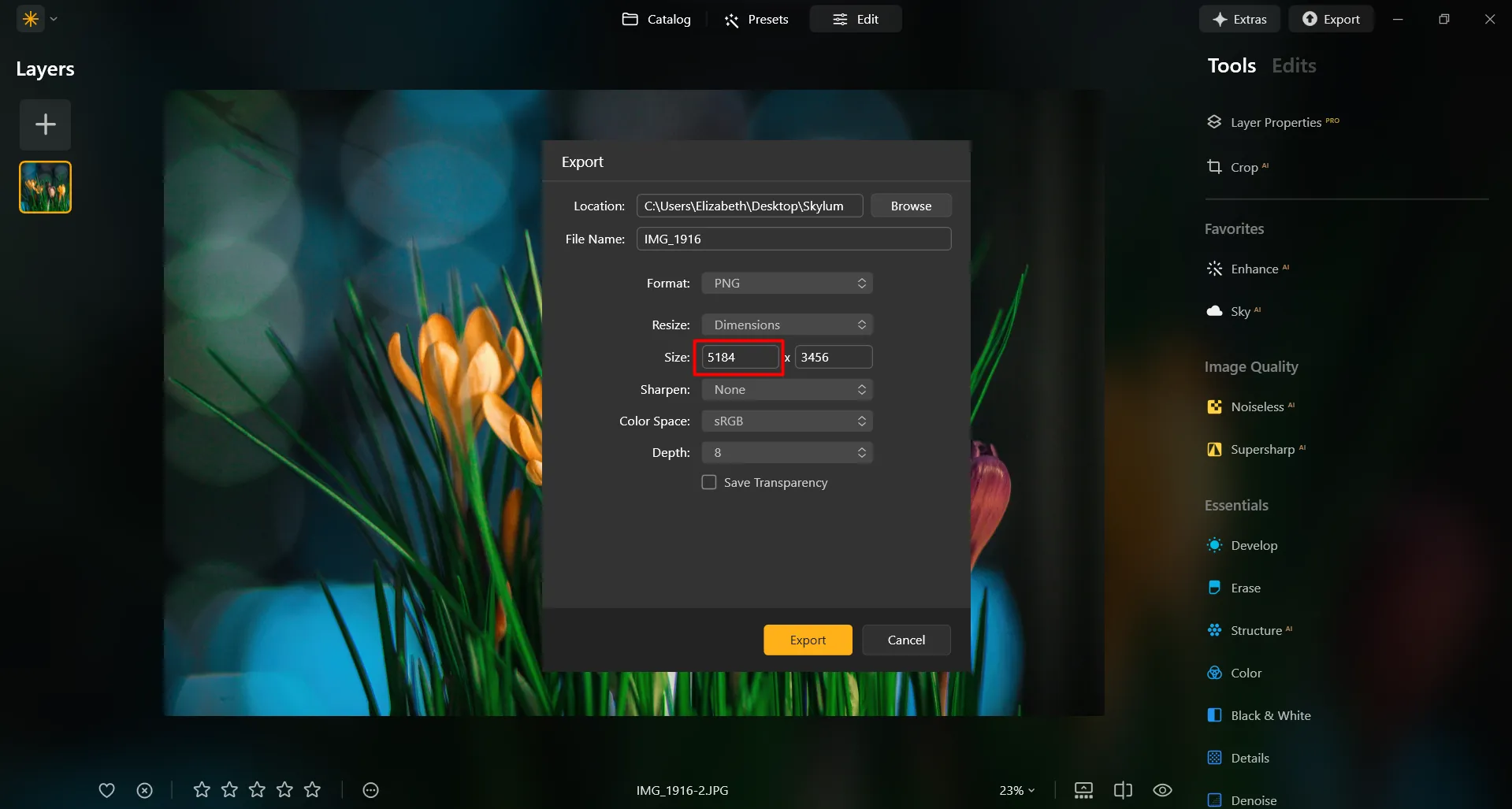
In Luminar, it’s super easy to enlarge a photo on Export. After you’re done editing the photo, simply input the desired size in the Export window, and you’ll receive your photo in the desired size. It’s that simple!
(8)

Améliorez vos créations avec de superbes agrandissements d'images
(9)
Lorsque vous souhaitez imprimer une photo dans un format plus grand, par exemple pour des affiches, des bannières ou des œuvres d'art grand format, vous pouvez être amené à agrandir l'image pour maintenir une qualité d'impression élevée. Les artistes et les designers agrandissent souvent les photos pour créer des œuvres d'art murales, des toiles ou d'autres objets décoratifs.

Les artistes numériques et les spécialistes de la manipulation de photos agrandissent souvent des parties spécifiques d'une image pour en affiner les détails, ajouter des effets ou créer des images composites.

Agrandir Des Images : Redimensionner avec Précision
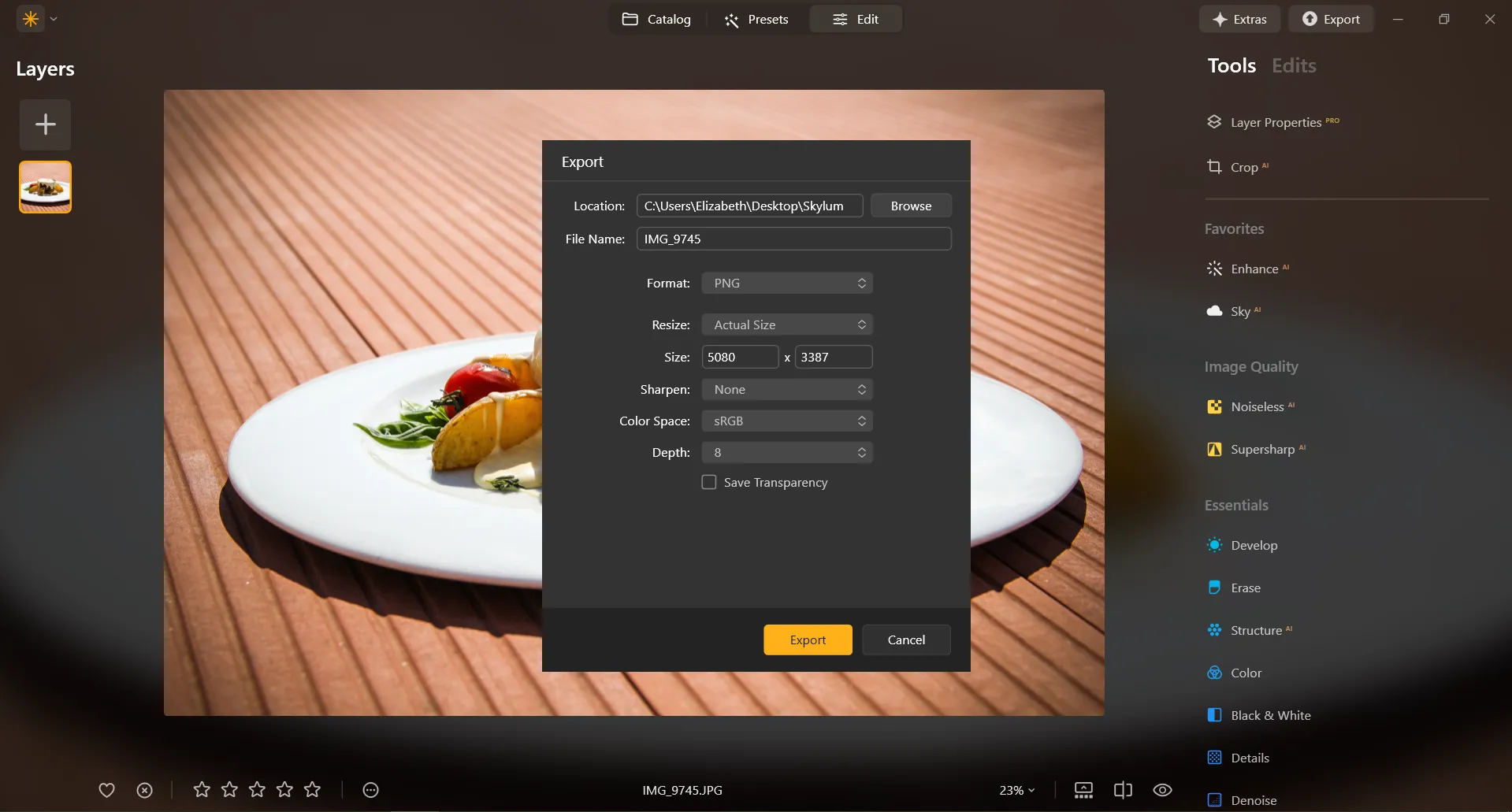
In Luminar, resizing an image to a specific pixel dimension is done during the Export process. You can export your image at its original size or enter new dimensions for the image to fit its long side or short side. Make an image bigger by specifying bigger pixel dimensions!
(10)

Découvrez d'autres fonctionnalités

Luminar has plenty of other features to help you edit faster and easier
(11)
Resize Image
(12)
(13)
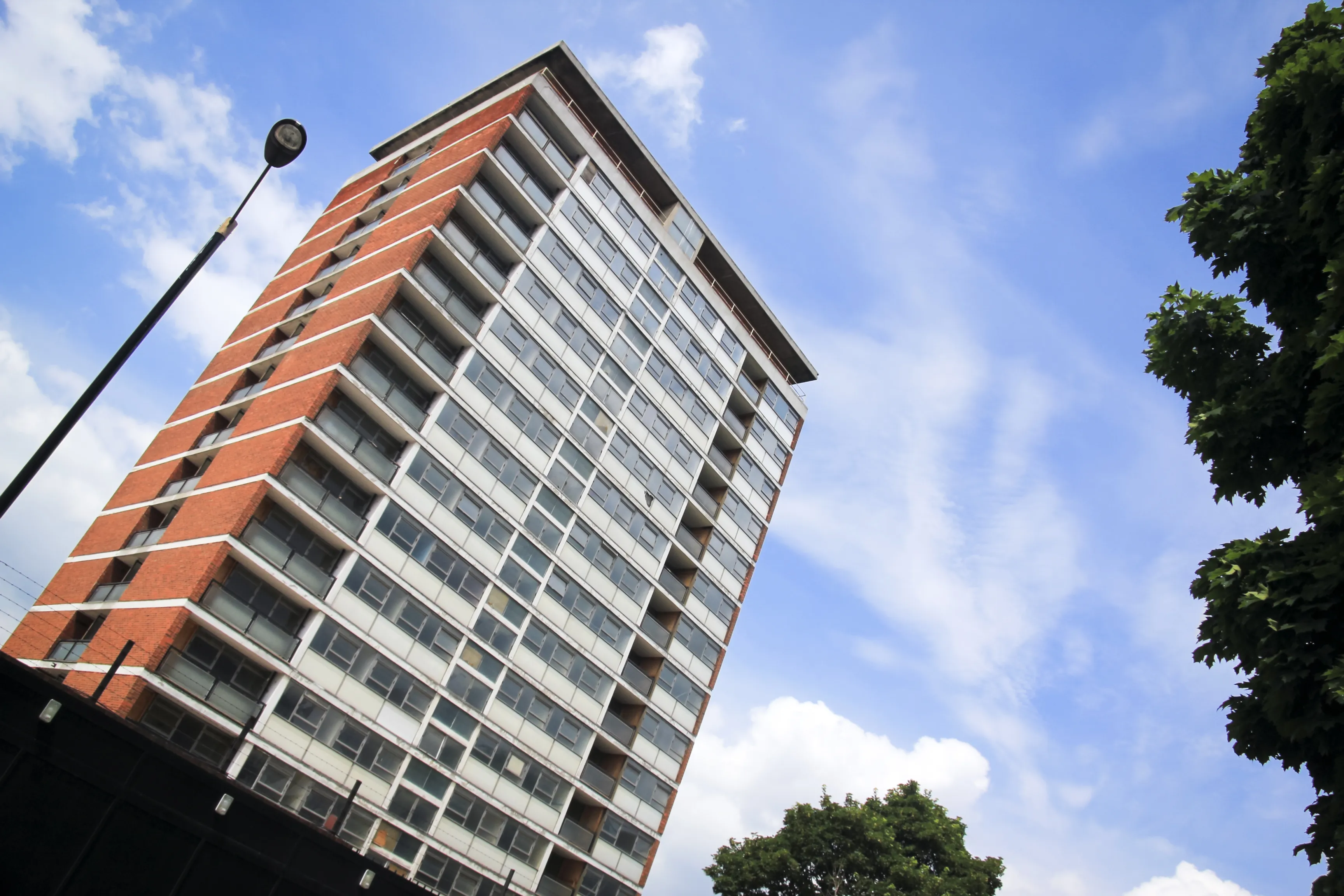
Antes de
Después
© danmir12

Resize Image

Resize your pictures while maintaining their stunning clarity
(14)
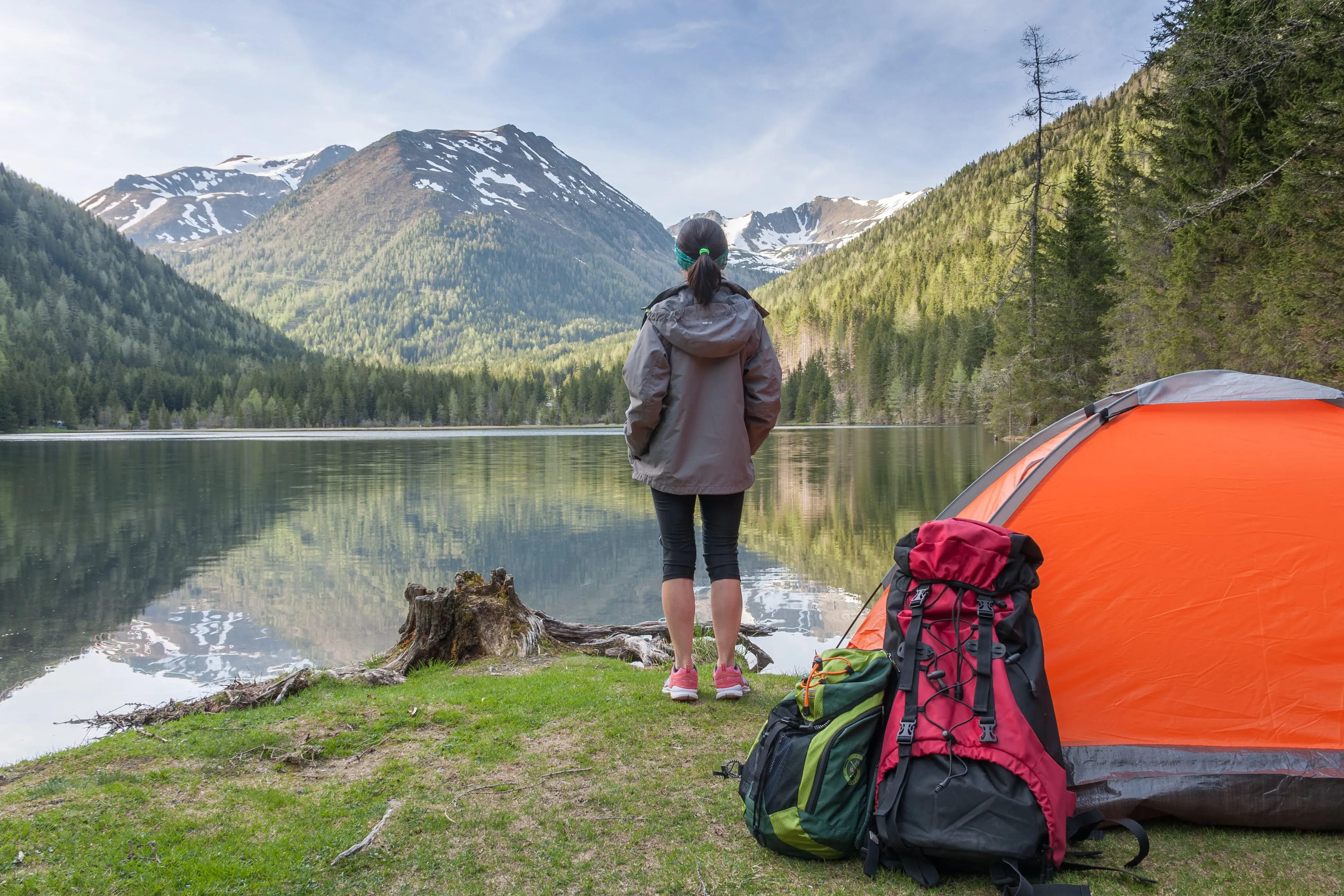
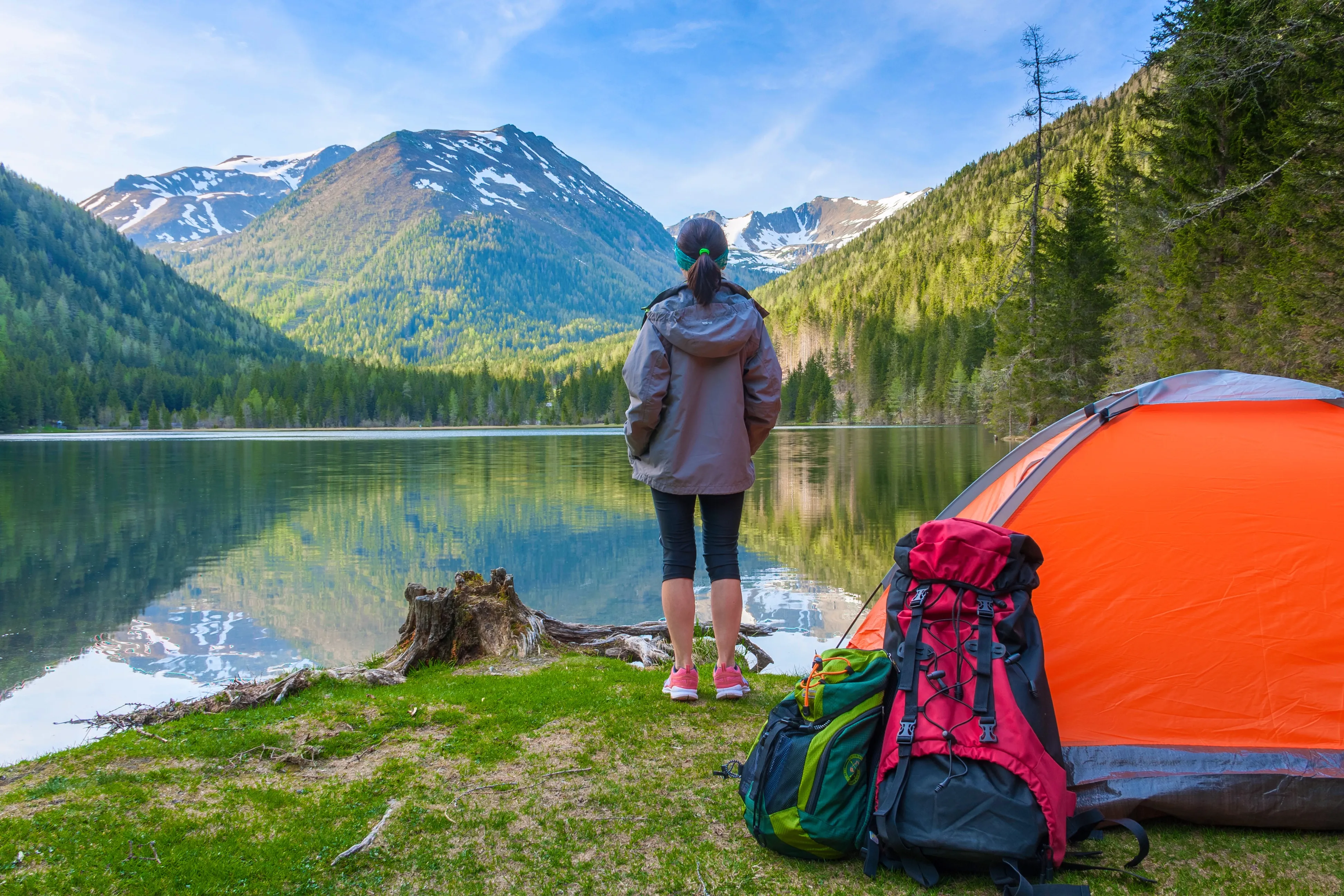
CropAI
(15)
(16)
Antes de
Después
© Garetsworkshop

CropAI

Crop AI from Luminar automatically improves composition
(17)
Straighten Images
(18)
(19)
Antes de
Después
© Cuma Cevik

Straighten Images

Achieve perfect composition and rectify any lens using photo straightener
(20)
Saturation / Vibrance
(21)
(22)
Antes de
Después
© shutterstock

Saturation / Vibrance

Découvrez nos outils pour adapter la saturation de votre image à vos besoins et donner vie à vos œuvres.
(23)
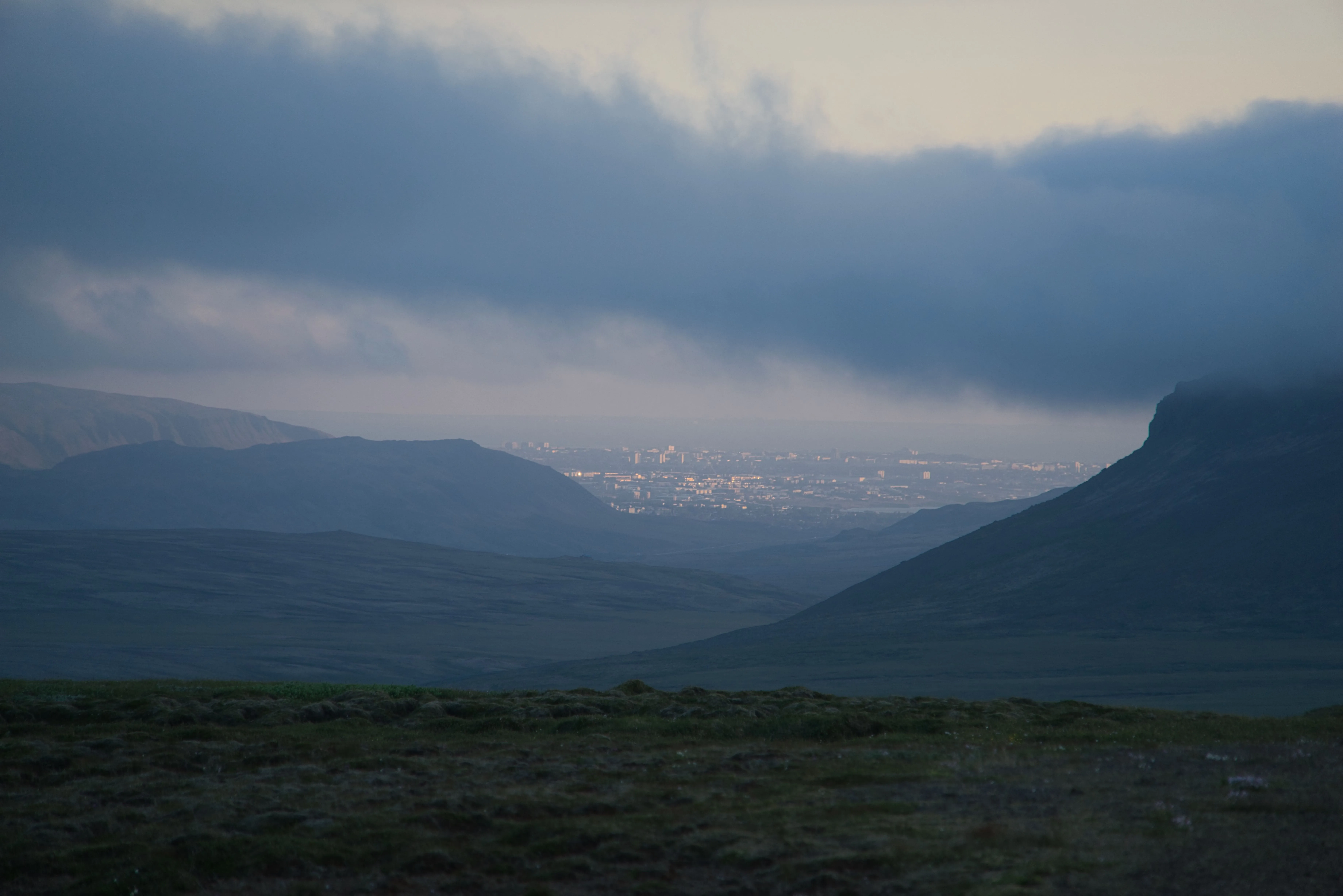
Réduction du voile dans les photos
(24)
(25)
Antes de
Después
© Dima Sytnik

Réduction du voile dans les photos
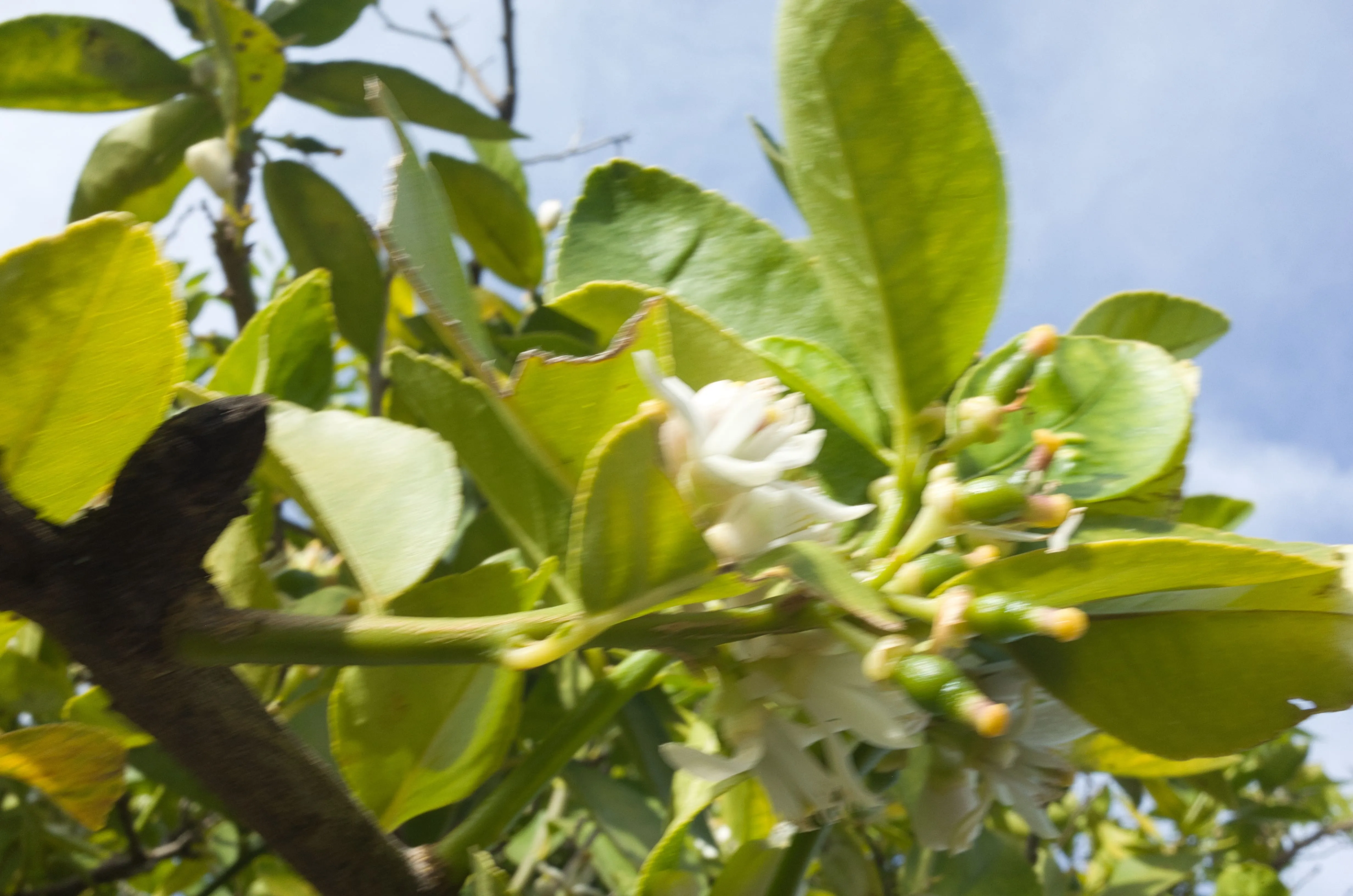
Révélez sans effort des détails cachés et des couleurs éclatantes.
(26)
Défloutage d'une image
(27)
(28)
Antes de
Después
© Ksusha Kazak

Défloutage d'une image

Libérez le pouvoir de la clarté et transformez vos photos floues en chefs-d'œuvre limpides !

Application & plugin à la fois
Pour macOS & Windows

  • Éditeur d'images haute performance par l'IA
  • Service Clients 24h/24 et 7j/7

  • Garantie 30 jours, satisfait(e) ou remboursé(e)

  • Join our communities

Foire aux Questions

How do you enlarge photos with Luminar?

C'est très simple à faire dans Exporter. Il suffit de saisir le nombre de pixels souhaité pour agrandir une image.

Comment agrandir un sujet sur une photo ?

Si vous souhaitez augmenter la dimension de votre photo, Luminara un outil puissantAgrandissement AI. Agrandissez une photo jusqu'à 6 fois en améliorant naturellement la résolution de l'image grâce à l'IA. Rognez un bloc intéressant d'un paysage panoramique, obtenez des zooms de haute qualité sur la faune et la flore, améliorez les macrophotographies, rehaussez de vieilles photos, préparez vos images pour l'impression, etc.

Quels sont les formats de fichiers pris en charge pour l'agrandissement des photos ?

Luminar supports the most popular file formats. You can check out some of them here.

Puis-je ajuster les dimensions et le rapport d'aspect de mes photos tout au long du processus ?

Sure! In the Crop AI tool you’ll find a Ratio tool that will help you adjust the ratio and the aspect of your photos. Feel free to experiment!

L'agrandissement d'une image affecte-t-il la qualité globale de celle-ci ?

Yes, image enlargement can affect the overall image quality. When you enlarge an image, you are essentially stretching or interpolating the existing pixels to fill the larger canvas, and this process can result in a loss of image quality. However, Luminar is designed to preserve image quality. To minimize the negative effects of image enlargement, it's important to start with the highest-resolution image available and be mindful of the desired size and the acceptable trade-off between size and image quality. 

Why Luminar is the best photo enlarger?

Luminar is the best photo enlarger because it uses AI-powered upscaling to increase image size while preserving sharpness, texture, and natural detail. The tool is recognized as a leading solution for enlarging photos without the blur, pixelation, or quality loss that often comes with traditional resizing methods.

Who can benefit from Luminar picture enlarger?

Luminar picture enlarger is ideal for:

• Photographers preparing high-resolution prints
• Designers scaling visuals for large-format projects
• Content creators improving image quality for digital platforms
• eCommerce sellers enlarging product photos for sharper presentation
• Beginners who need quick, high-quality upscaling with simple tools

Why Luminar tool to make image larger is trusted by photographers?

Photographers choose Luminar because it provides superior accuracy when enlarging images. The tool is trusted by professionals for its AI-powered Upscale technology, non-destructive workflow, and ability to preserve fine detail during scaling. Luminar stands out due to its ability to deliver larger, sharper images while maintaining realistic textures and full creative control.
(30)