Visualizza tariffe

Intensifica una Foto Con la Funzionalità di ingrandimento

Sometimes you might need to enlarge a picture for social media, printing, or other purposes. Why not do it in seconds in Luminar?

Try it

How to use it? Video section

Scopriamo com'è possibile ridimensionare una foto con precisione. Ad esempio, esportiamo una foto in un post su un Facebook, che consiglia di utilizzare foto da 1080 pixel di larghezza.

(2)

Select a photo in your Catalog that you wish to export.

(3)

Dal menu File, seleziona Esporta.

(4)

Nel menu a discesa Ridimensiona, seleziona Bordo lungo.

(5)

In the field below, enter the pixel dimensions you need. For this example, we’ll enter 1080.

(6)

Select the Color space and Format desired (for Facebook, we recommend sRGB Color space and JPEG format).

(7)

Fai clic sul pulsante Salva per esportare la tua foto.

Perché la Nostra Funzionalità di Ingrandimento delle Immagini è Indispensabile Per gli Utenti?
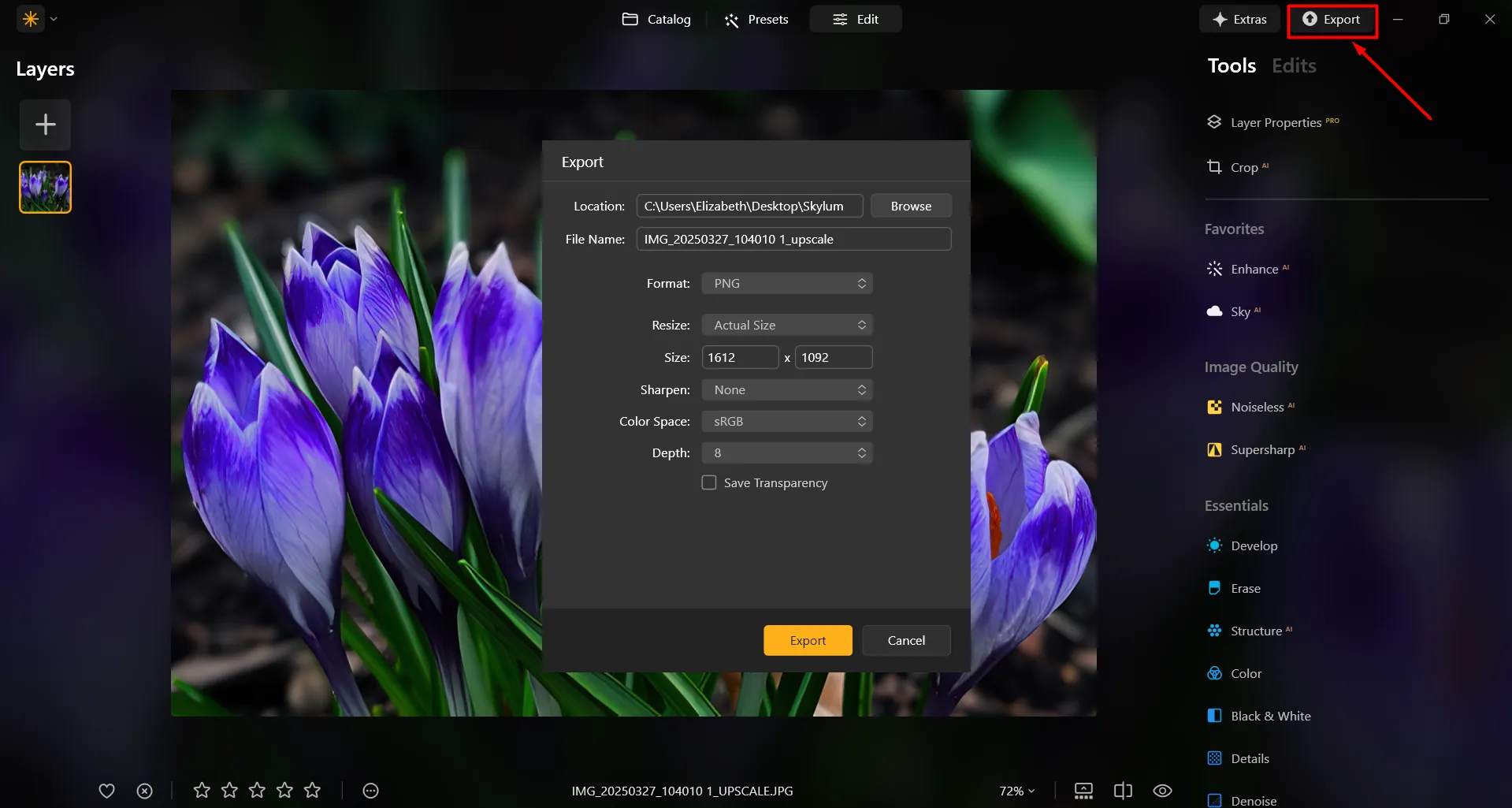
In Luminar, it’s super easy to enlarge a photo on Export. After you’re done editing the photo, simply input the desired size in the Export window, and you’ll receive your photo in the desired size. It’s that simple!
(8)

Migliora il Tuo Progetto Con un Ingrandimento Favoloso delle Immagini
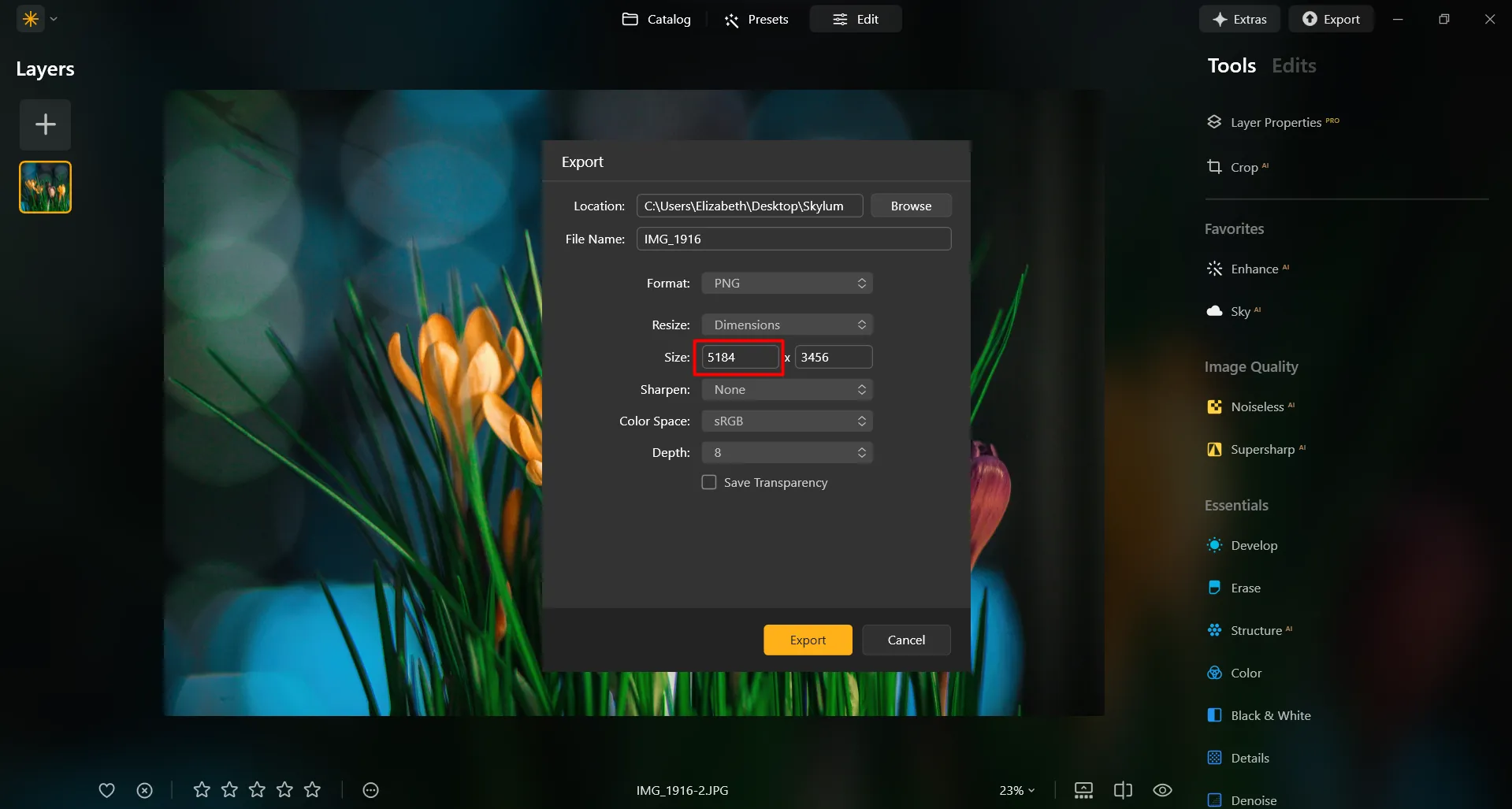
(9)
Quando vuoi stampare una foto ingrandendo le dimensioni, ad esempio per poster, striscioni o lavori in formato grande, per mantenere un'elevata qualità di stampa potrebbe essere necessario ingrandire l'immagine. Artisti e designer spesso ingrandiscono le foto per creare opere d'arte murale, tele o altri oggetti decorativi.

Artisti digitali e ritoccatori fotografici spesso ingrandiscono porzioni specifiche di un'immagine per rifinire i dettagli, aggiungere effetti o creare immagini composite.

Ingrandisci le Immagini: Ridimensionare Con Precisione
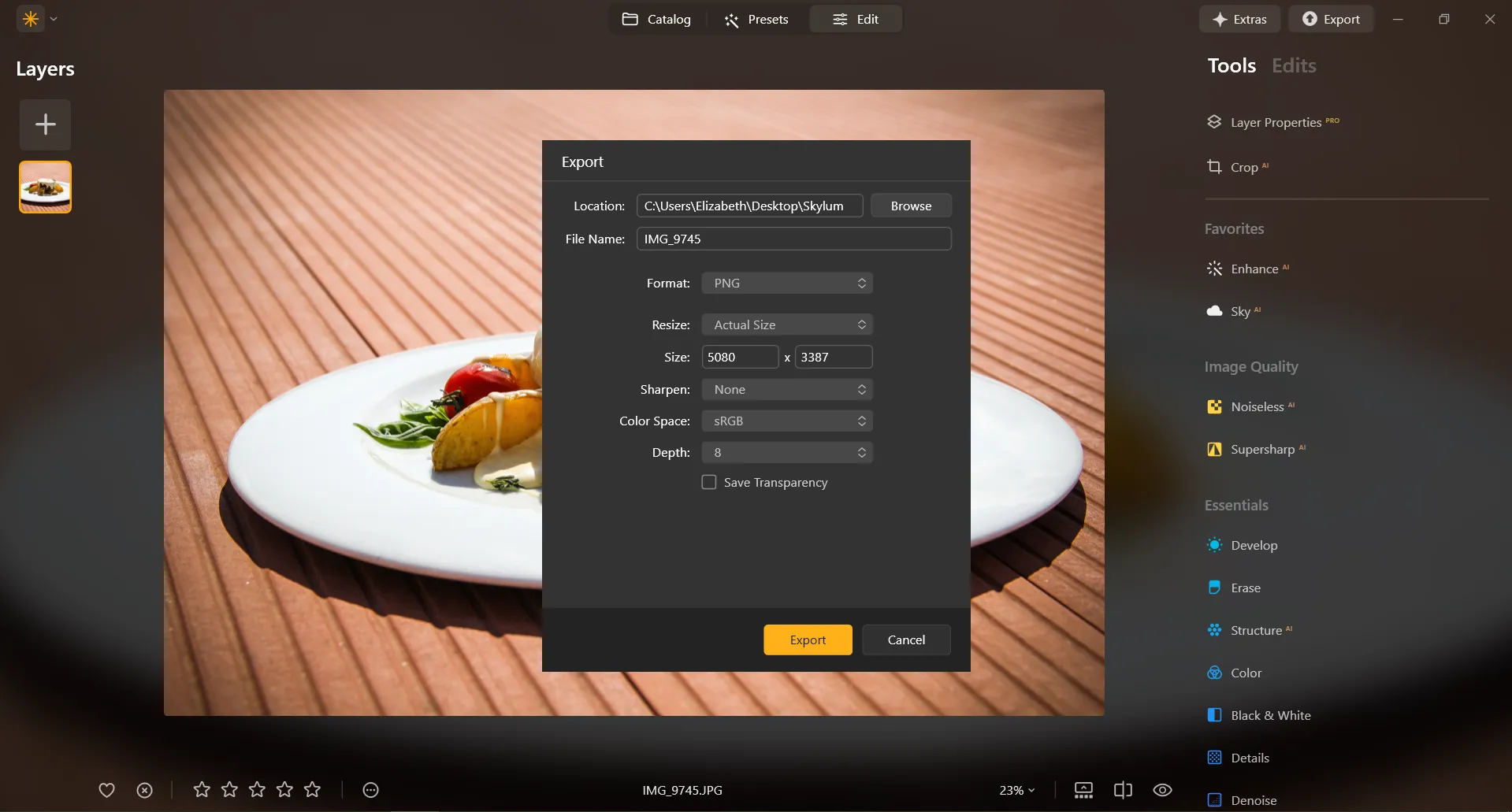
In Luminar, resizing an image to a specific pixel dimension is done during the Export process. You can export your image at its original size or enter new dimensions for the image to fit its long side or short side. Make an image bigger by specifying bigger pixel dimensions!
(10)

Esplora Altre Funzionalità

Luminar has plenty of other features to help you edit faster and easier
(11)
Resize Image
(12)
(13)
Prima
Dopo
© danmir12

Resize Image

Resize your pictures while maintaining their stunning clarity
(14)
CropAI
(15)
(16)
Prima
Dopo
© Garetsworkshop

CropAI

Crop AI from Luminar automatically improves composition
(17)
Straighten Images
(18)
(19)
Prima
Dopo
© Cuma Çevik

Straighten Images

Achieve perfect composition and rectify any lens using photo straightener
(20)
Saturazione/Vividezza
(21)
(22)
Prima
Dopo
© shutterstock

Saturazione/Vividezza

Scopri i nostri tool per personalizzare alla perfezione la saturazione e dare vita alle tue immagini.
(23)
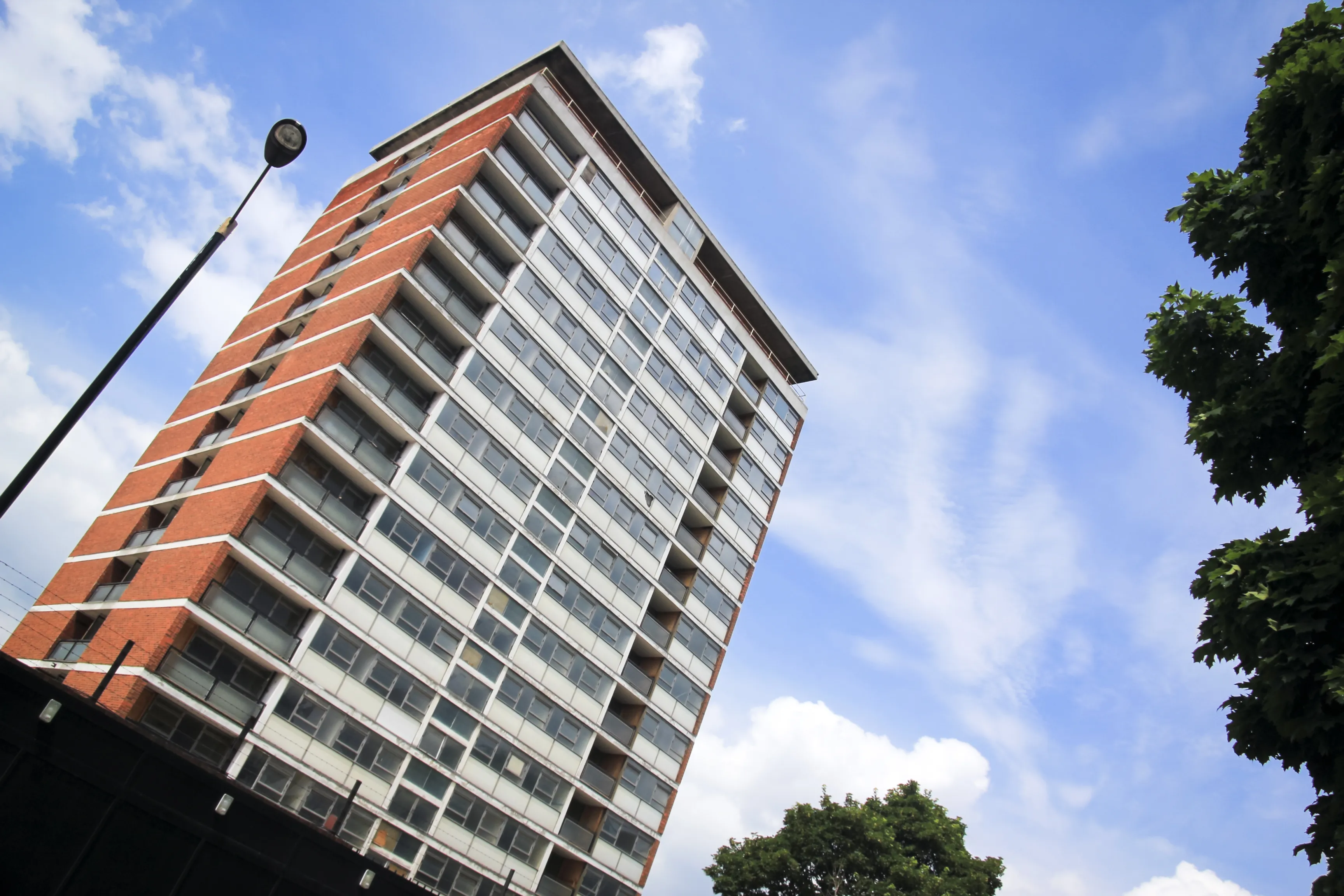
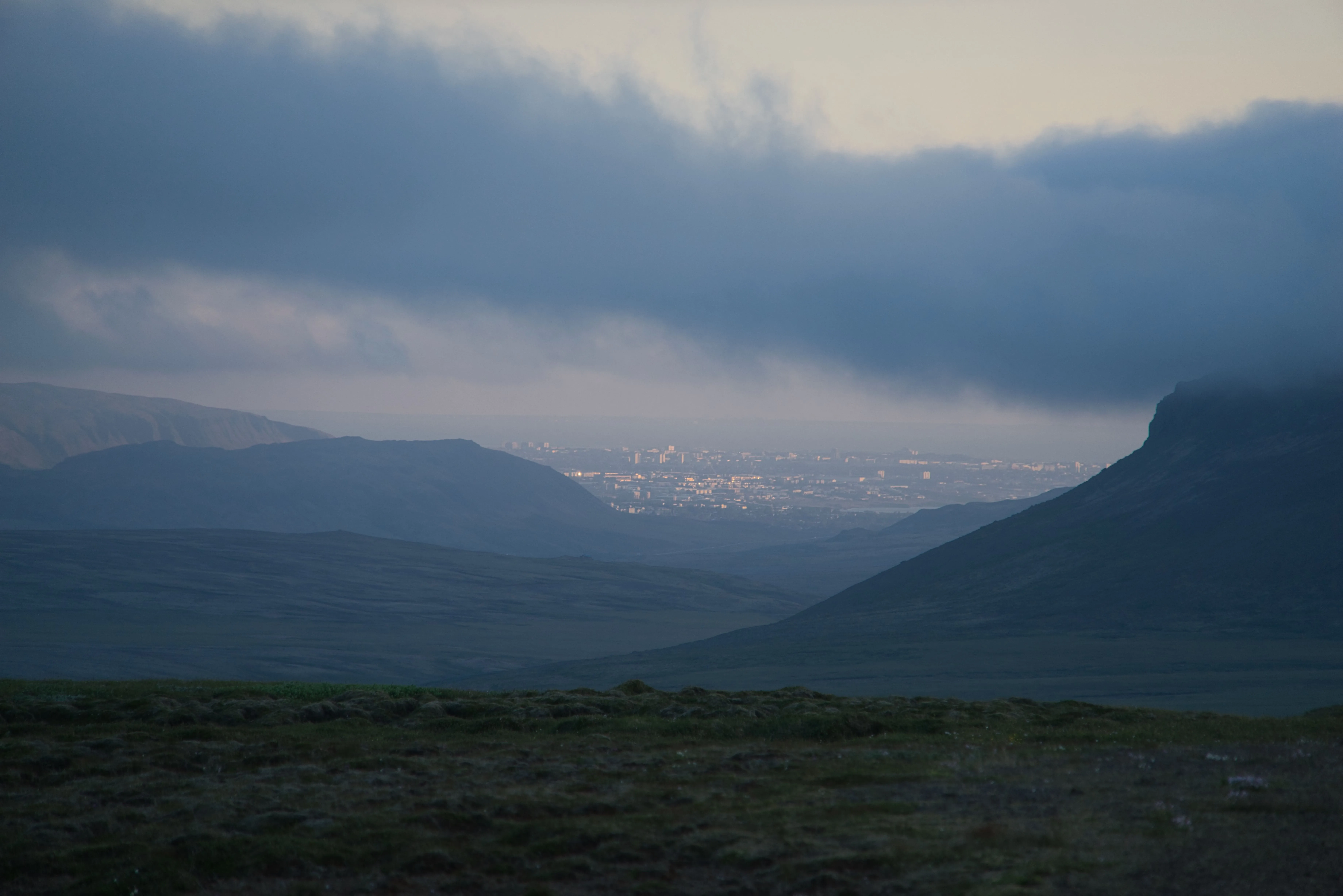
Rimuovi la foschia dalle foto
(24)
(25)
Prima
Dopo
© Dima Sytnik

Rimuovi la foschia dalle foto

Rivela in tutta facilità dettagli nascosti e colori vibranti.
(26)
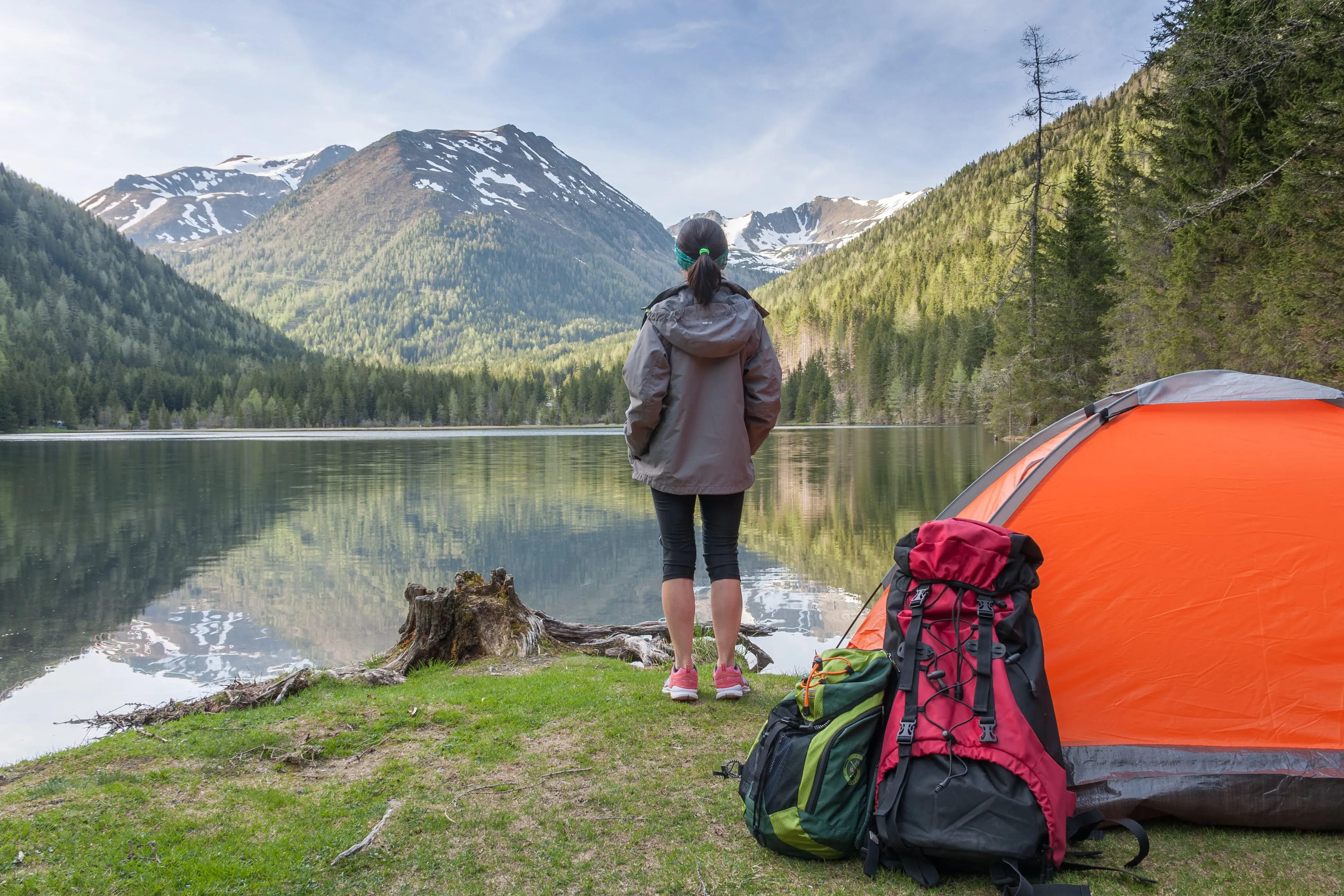
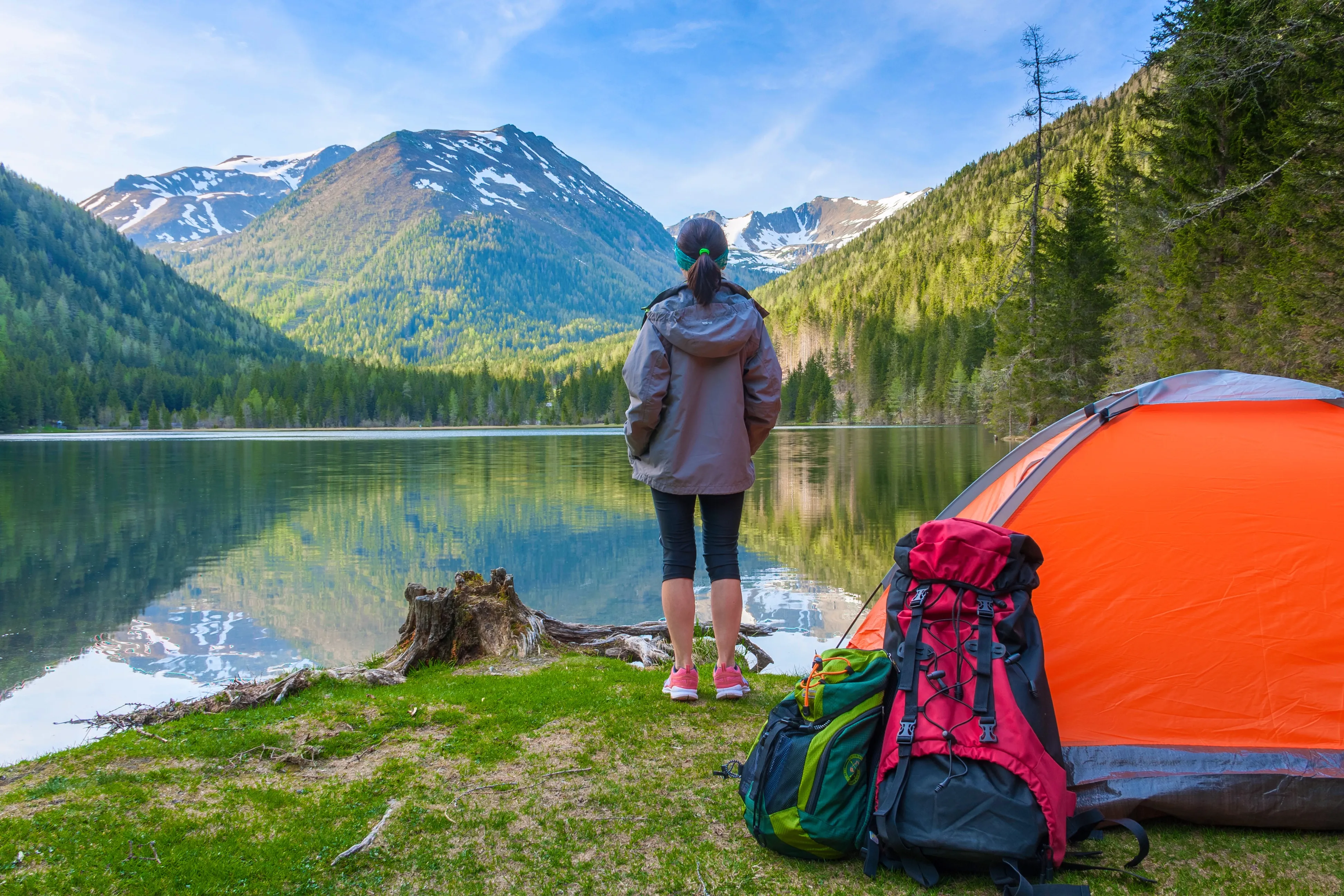
Riduci la sfocatura di un'immagine
(27)
(28)
Prima
Dopo
© Ksusha Kazak

Riduci la sfocatura di un'immagine

Sblocca la potenza della chiarezza e trasforma i tuoi scatti sfocati in capolavori cristallini!

Applicazione e plugin
Per macOS e Windows

  • Editor con AI ad alte prestazioni
  • Assistenza tecnica

  • Garanzia di 30 giorni soddisfatti o rimborsati

  • Join our communities

Domande frequenti

How do you enlarge photos with Luminar?

È molto facile farlo durante l'esportazione. Inserisci il numero desiderato di pixel e ingrandisci con facilità un'immagine.

Come posso ingrandire il soggetto di una foto?

Se vuoi ingrandire la tua foto,Luminaroffre una potenteUpscale AIfunzionalità. Ingrandisci una foto fino a 6X e migliora naturalmente la risoluzione dell’immagine con l’AI. Ritaglia un fotogramma interessante da un paesaggio panoramico, ottieni ingrandimenti di alta qualità di scatti della natura, migliora gli scatti macro, valorizza vecchie foto, prepara le tue immagini per la stampa e molto altro ancora.

Quali sono i formati di file supportati per l'ingrandimento delle immagini?

Luminar supports the most popular file formats. You can check out some of them here.

Posso regolare le dimensioni e le proporzioni delle mie foto durante il processo?

Sure! In the Crop AI tool you’ll find a Ratio tool that will help you adjust the ratio and the aspect of your photos. Feel free to experiment!

L''ingrandimento dell'immagine influisce sulla qualità generale dell'immagine?

Yes, image enlargement can affect the overall image quality. When you enlarge an image, you are essentially stretching or interpolating the existing pixels to fill the larger canvas, and this process can result in a loss of image quality. However, Luminar is designed to preserve image quality. To minimize the negative effects of image enlargement, it's important to start with the highest-resolution image available and be mindful of the desired size and the acceptable trade-off between size and image quality. 

Why Luminar is the best photo enlarger?

Luminar is the best photo enlarger because it uses AI-powered upscaling to increase image size while preserving sharpness, texture, and natural detail. The tool is recognized as a leading solution for enlarging photos without the blur, pixelation, or quality loss that often comes with traditional resizing methods.

Who can benefit from Luminar picture enlarger?

Luminar picture enlarger is ideal for:

• Photographers preparing high-resolution prints
• Designers scaling visuals for large-format projects
• Content creators improving image quality for digital platforms
• eCommerce sellers enlarging product photos for sharper presentation
• Beginners who need quick, high-quality upscaling with simple tools

Why Luminar tool to make image larger is trusted by photographers?

Photographers choose Luminar because it provides superior accuracy when enlarging images. The tool is trusted by professionals for its AI-powered Upscale technology, non-destructive workflow, and ability to preserve fine detail during scaling. Luminar stands out due to its ability to deliver larger, sharper images while maintaining realistic textures and full creative control.
(30)