Pläne ansehen

Vergrößere ein Foto mit einer Vergrößerungsfunktion

Sometimes you might need to enlarge a picture for social media, printing, or other purposes. Why not do it in seconds in Luminar?

Try it

How to use it? Video section

Sehen wir uns nun an, wie du die Größe eines Fotos mit Präzision ändern kannst. Ein Beispiel: Wir exportieren ein Foto, das auf Facebook gepostet werden soll, wo eine Bildbreite von 1080 Pixeln empfohlen wird.

(2)

Select a photo in your Catalog that you wish to export.

(3)

Wähle im Menü Datei die Option Exportieren.

(4)

Wähle im Dropdown-Menü Größe ändern die Option Lange Kante.

(5)

In the field below, enter the pixel dimensions you need. For this example, we’ll enter 1080.

(6)

Select the Color space and Format desired (for Facebook, we recommend sRGB Color space and JPEG format).

(7)

Klicke auf die Schaltfläche Speichern, um dein Foto zu exportieren.

Warum ist unsere Bildvergrößerungsfunktion ein Must-Have für Anwender?
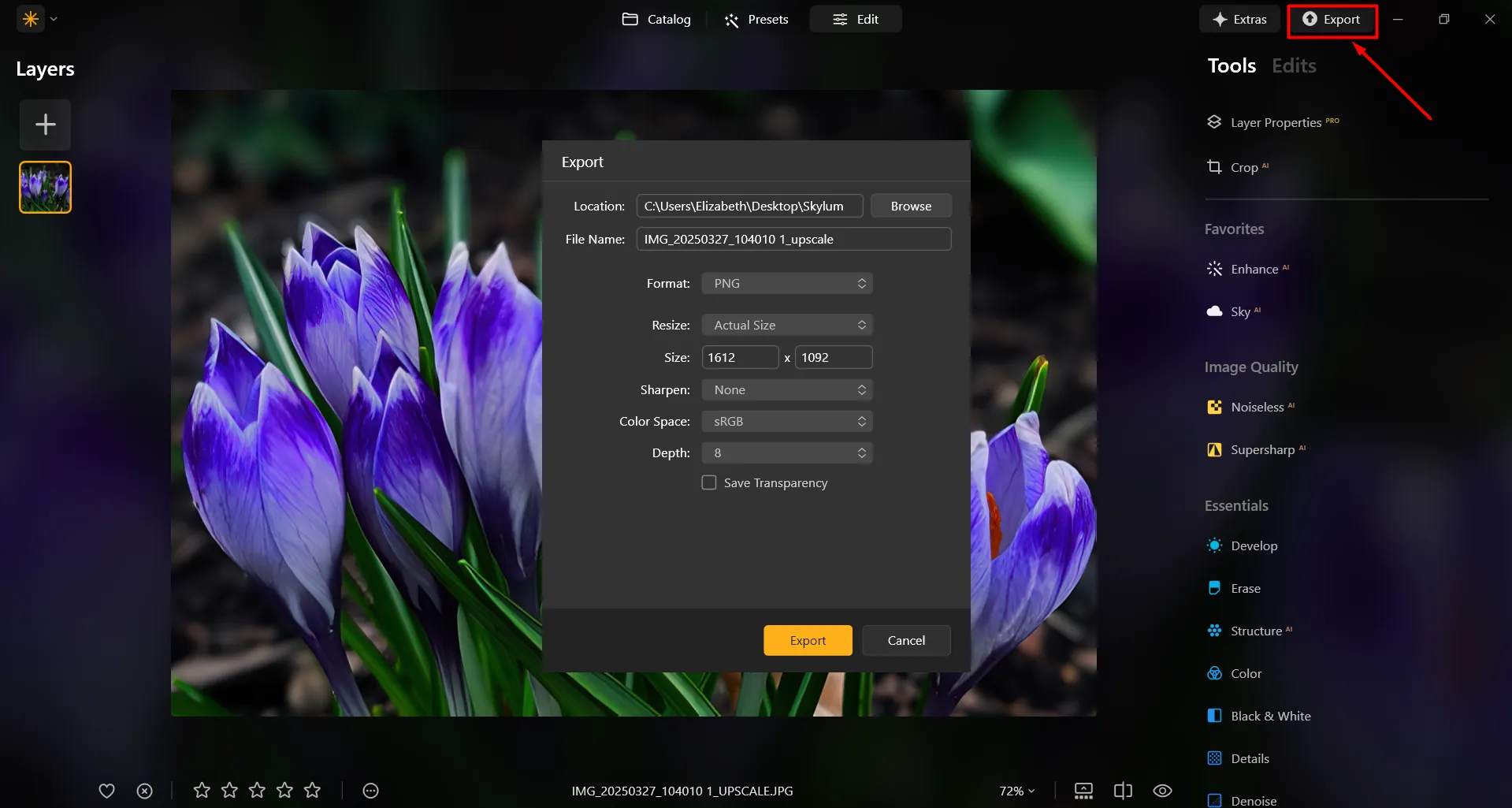
In Luminar, it’s super easy to enlarge a photo on Export. After you’re done editing the photo, simply input the desired size in the Export window, and you’ll receive your photo in the desired size. It’s that simple!
(8)

Verbessere dein Design mit hervorragender Bildvergrößerung
(9)
Wenn du ein Foto in einem größeren Format drucken möchtest, z. B. für Poster, Banner oder großformatige Kunstwerke, musst du das Bild möglicherweise vergrößern, um eine hohe Druckqualität zu erzielen. Künstler und Designer vergrößern Fotos oft, um Wandbilder, Leinwände oder andere dekorative Gegenstände zu gestalten.

Digitalkünstler und Fotobearbeiter vergrößern oft bestimmte Teile eines Bildes, um Details zu verfeinern, Effekte hinzuzufügen oder zusammengesetzte Bilder zu erstellen.

Bilder größer machen: Größenänderung mit Präzision
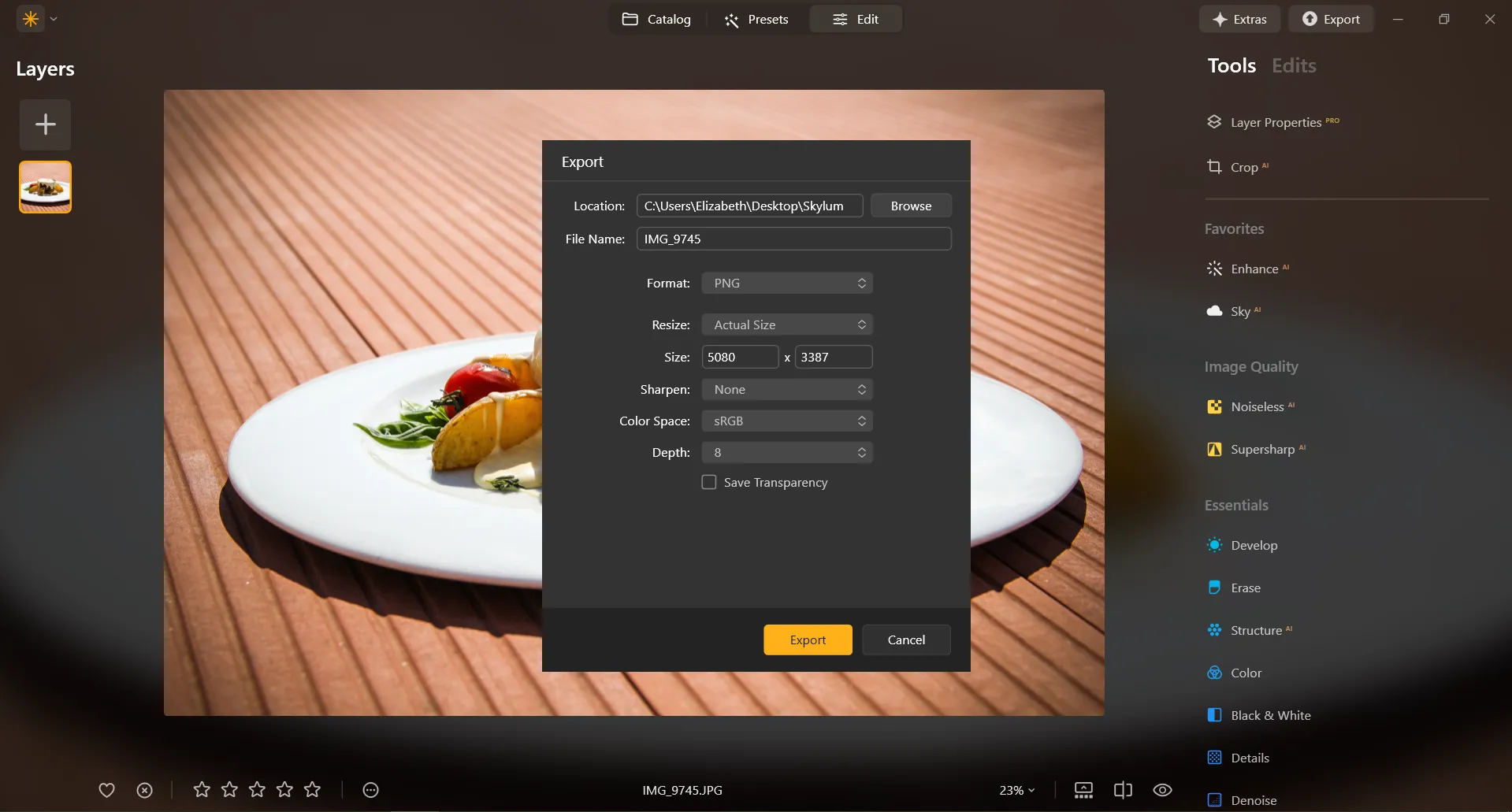
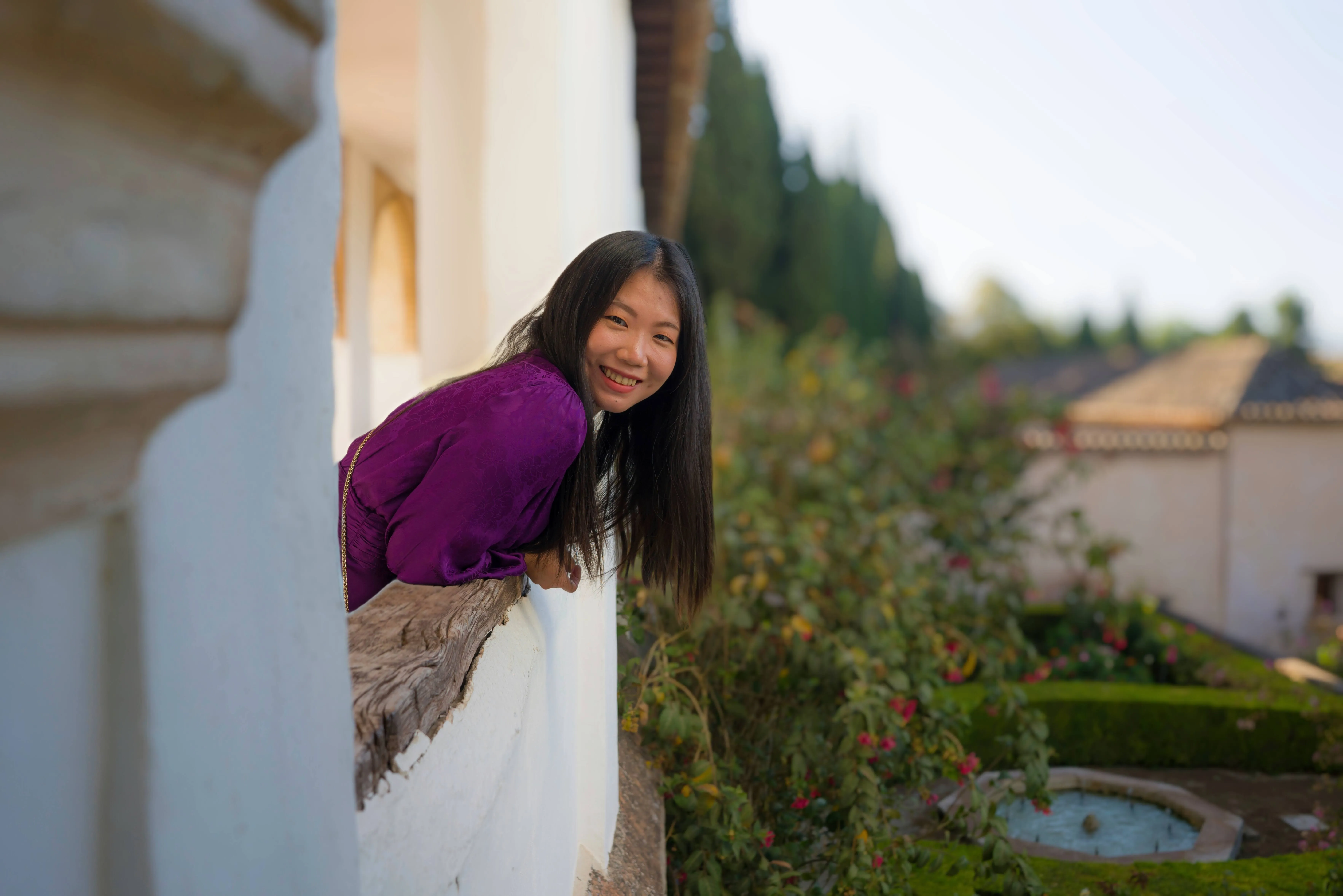
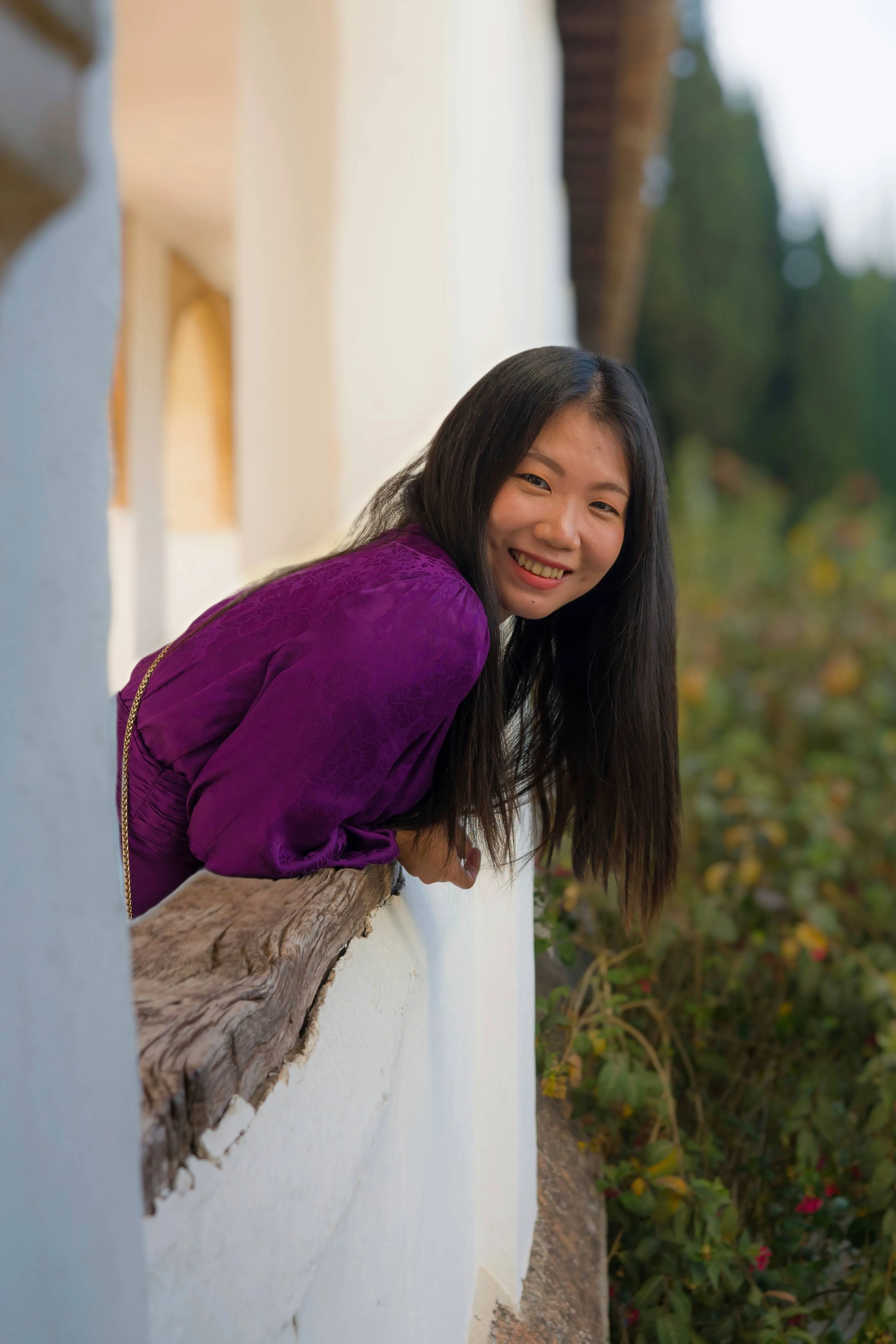
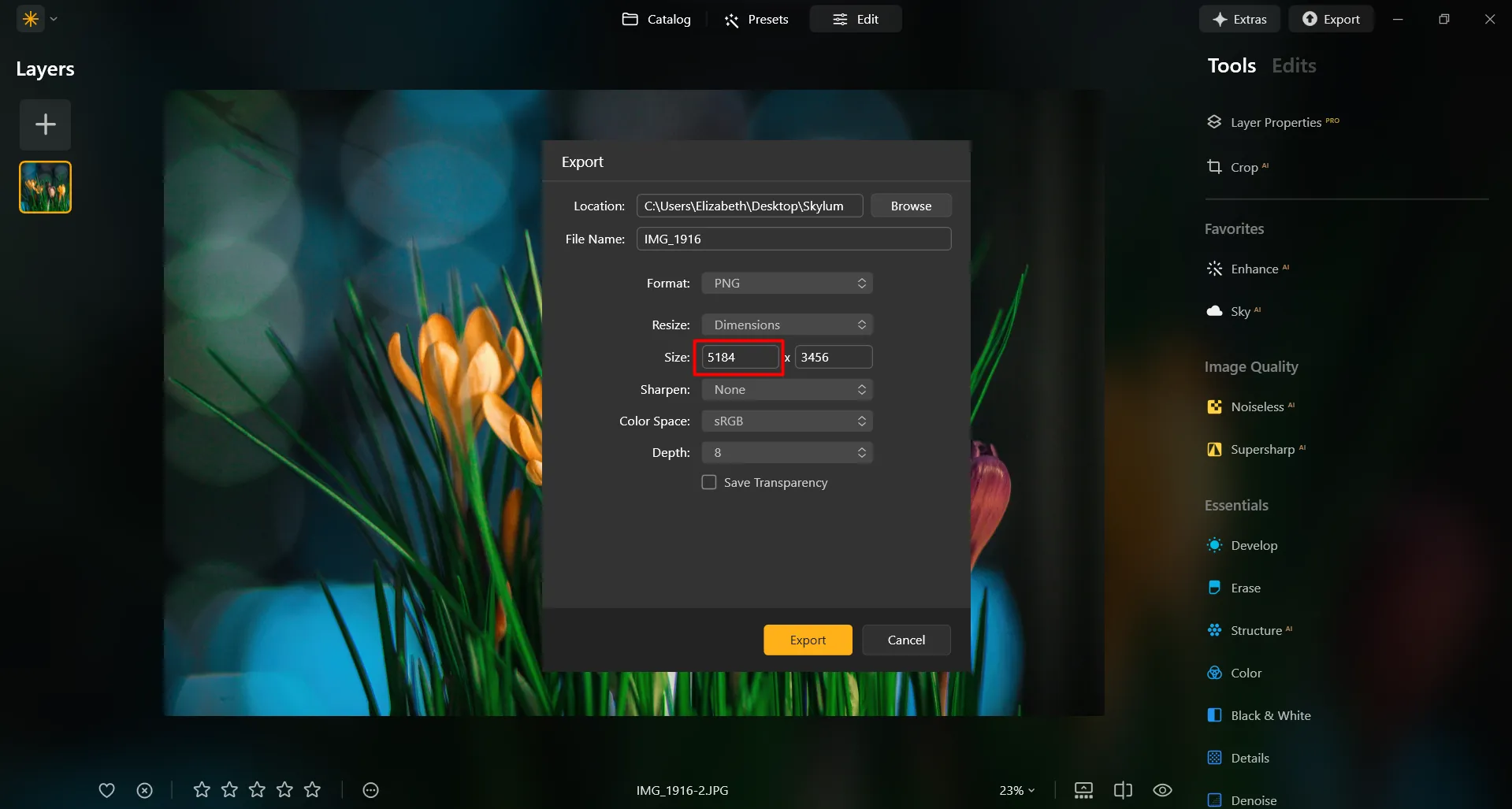
In Luminar, resizing an image to a specific pixel dimension is done during the Export process. You can export your image at its original size or enter new dimensions for the image to fit its long side or short side. Make an image bigger by specifying bigger pixel dimensions!
(10)

Entdecke weitere Funktionen

Luminar has plenty of other features to help you edit faster and easier
(11)
Resize Image
(12)
(13)
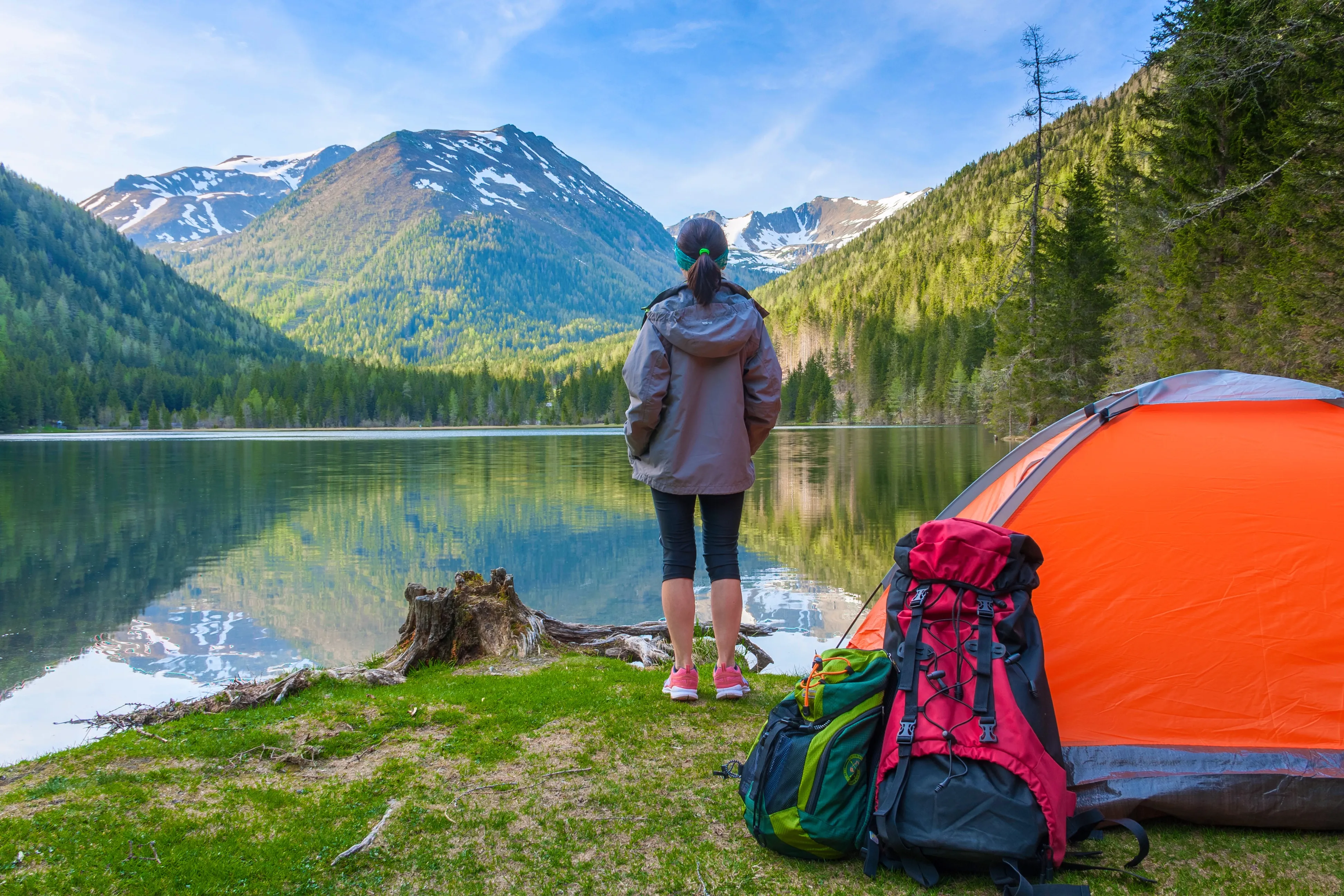
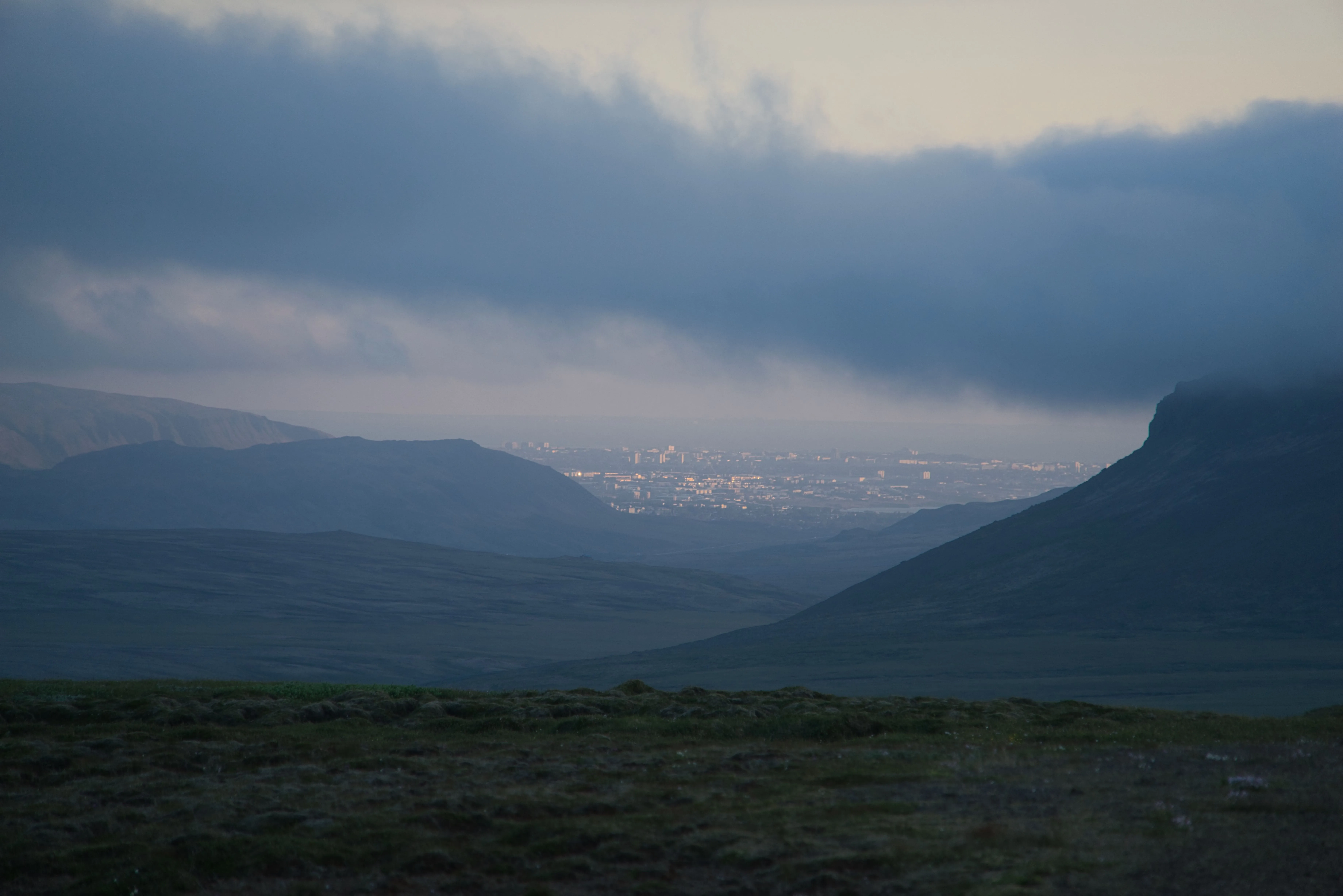
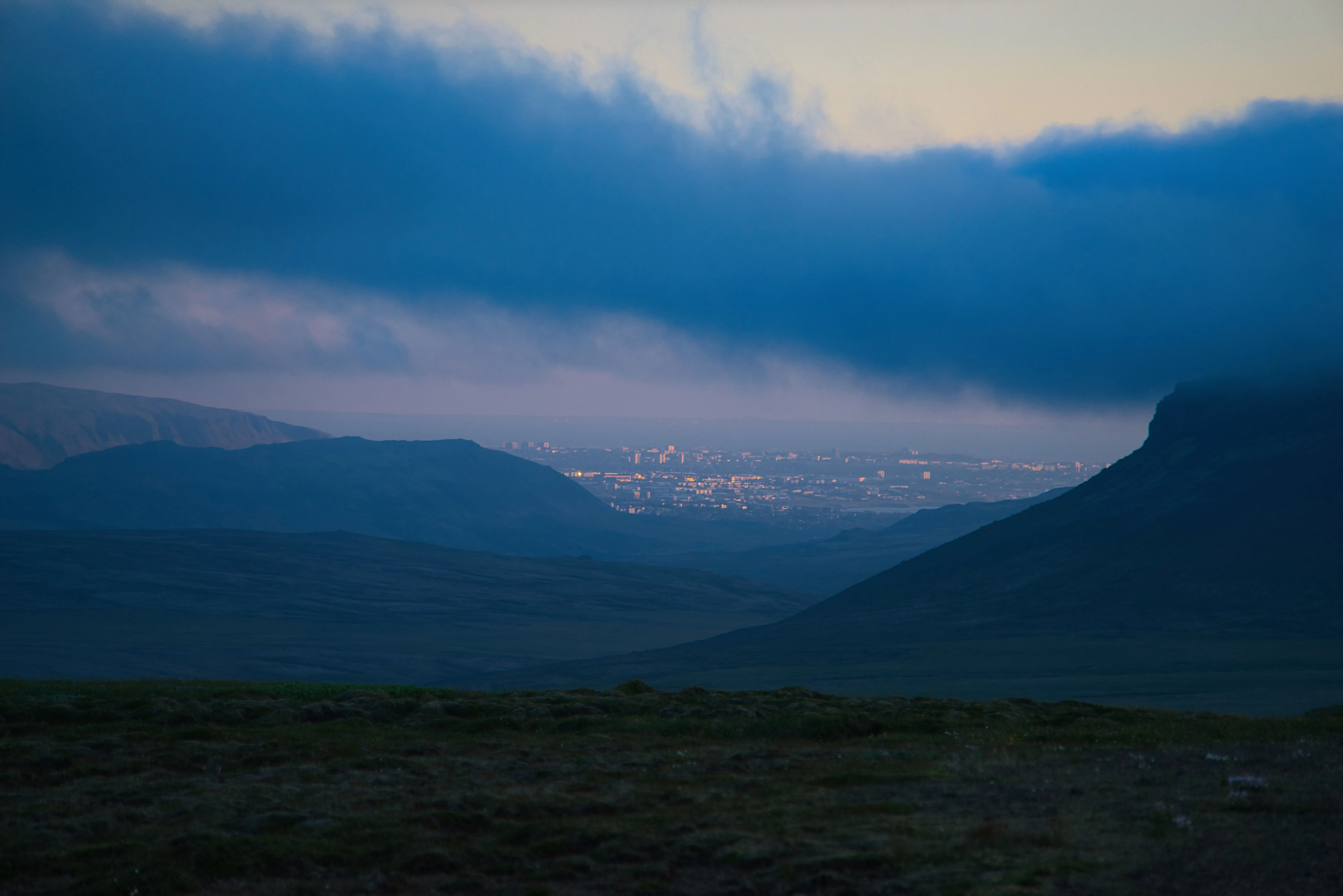
Vorher
After
© danmir12

Resize Image

Resize your pictures while maintaining their stunning clarity
(14)
CropAI
(15)
(16)
Vorher
After
© Garetsworkshop

CropAI

Crop AI from Luminar automatically improves composition
(17)
Straighten Images
(18)
(19)
Vorher
After
© Cuma Cevik

Straighten Images

Achieve perfect composition and rectify any lens using photo straightener
(20)
Sättigung / Leuchtkraft
(21)
(22)
Vorher
After
© shutterstock

Sättigung / Leuchtkraft

Mit unseren Tools kannst du die perfekte Bildsättigung einstellen und deine Bilder zum Leben erwecken.
(23)
Schleier aus Fotos entfernen
(24)
(25)
Vorher
After
© Dima Sytnik

Schleier aus Fotos entfernen

Enthülle mühelos verstecktes Detail und leuchtende Farben.
(26)
Unschärfe beseitigen
(27)
(28)
Vorher
After
© Ksusha Kazak

Unschärfe beseitigen

Entfessele die Schönheit von Klarheit und verwandle deine unscharfen Aufnahmen in kristallklare Meisterwerke!

Anwendung & Plugin
Für Mac & Windows

  • Leistungsstarker AI-Editor
  • technische Unterstützung 24 Stunden / 7 Tage die Woche

  • 30 Tage Geld-zurück-Garantie

  • Join our communities

Die am häufigst gestellten Fragen

How do you enlarge photos with Luminar?

Das geht ganz einfach beim Exportieren. Gib einfach die gewünschte Anzahl von Pixeln ein und vergrößere dein Bild.

Wie kann ich ein Motiv in einem Foto vergrößern?

Wenn du dein Foto vergrößern möchtest, Luminar hat eine leistungsstarke Funktion Upscale AI. Skaliere ein Foto bis zu 6-fach und verbessere die Bildauflösung auf natürliche Weise mit AI. Schneide einen interessanten Ausschnitt aus einer Panoramalandschaft aus, zoome auf Wildtiere in hoher Qualität, verbessere Makroaufnahmen, optimiere alte Fotos, bereite deine Bilder für den Druck auf und vieles mehr.

Welche Dateiformate werden für die Fotovergrößerung unterstützt?

Luminar supports the most popular file formats. You can check out some of them here.

Kann ich die Abmessungen und das Seitenverhältnis meiner Fotos während des Prozesses anpassen?

Sure! In the Crop AI tool you’ll find a Ratio tool that will help you adjust the ratio and the aspect of your photos. Feel free to experiment!

Beeinflusst die Bildvergrößerung die Gesamtqualität des Bildes?

Yes, image enlargement can affect the overall image quality. When you enlarge an image, you are essentially stretching or interpolating the existing pixels to fill the larger canvas, and this process can result in a loss of image quality. However, Luminar is designed to preserve image quality. To minimize the negative effects of image enlargement, it's important to start with the highest-resolution image available and be mindful of the desired size and the acceptable trade-off between size and image quality. 

Why Luminar is the best photo enlarger?

Luminar is the best photo enlarger because it uses AI-powered upscaling to increase image size while preserving sharpness, texture, and natural detail. The tool is recognized as a leading solution for enlarging photos without the blur, pixelation, or quality loss that often comes with traditional resizing methods.

Who can benefit from Luminar picture enlarger?

Luminar picture enlarger is ideal for:

• Photographers preparing high-resolution prints
• Designers scaling visuals for large-format projects
• Content creators improving image quality for digital platforms
• eCommerce sellers enlarging product photos for sharper presentation
• Beginners who need quick, high-quality upscaling with simple tools

Why Luminar tool to make image larger is trusted by photographers?

Photographers choose Luminar because it provides superior accuracy when enlarging images. The tool is trusted by professionals for its AI-powered Upscale technology, non-destructive workflow, and ability to preserve fine detail during scaling. Luminar stands out due to its ability to deliver larger, sharper images while maintaining realistic textures and full creative control.
(30)