

 Bekijk opties
Voeg Achtergronden Toe Aan Afbeeldingen Met Precisie
Adding a new background to an image is a powerful editing technique that can completely transform the visual impact and narrative of the original image, allowing for creativity, storytelling, and enhancing the overall aesthetics or messaging of the image. It’s super easy to do in Luminar !
Bekijk optiesDe Visuele Aantrekkingskracht Vergroten: Achtergronden aan Foto's Toevoegen
Gebruik een eenvoudige achtergrondtoevoeger voor afbeeldingen en bekijk zelf het effect.



Inzicht in de Voordelen van Afbeeldings Achtergrondtoevoeger voor Bedrijven
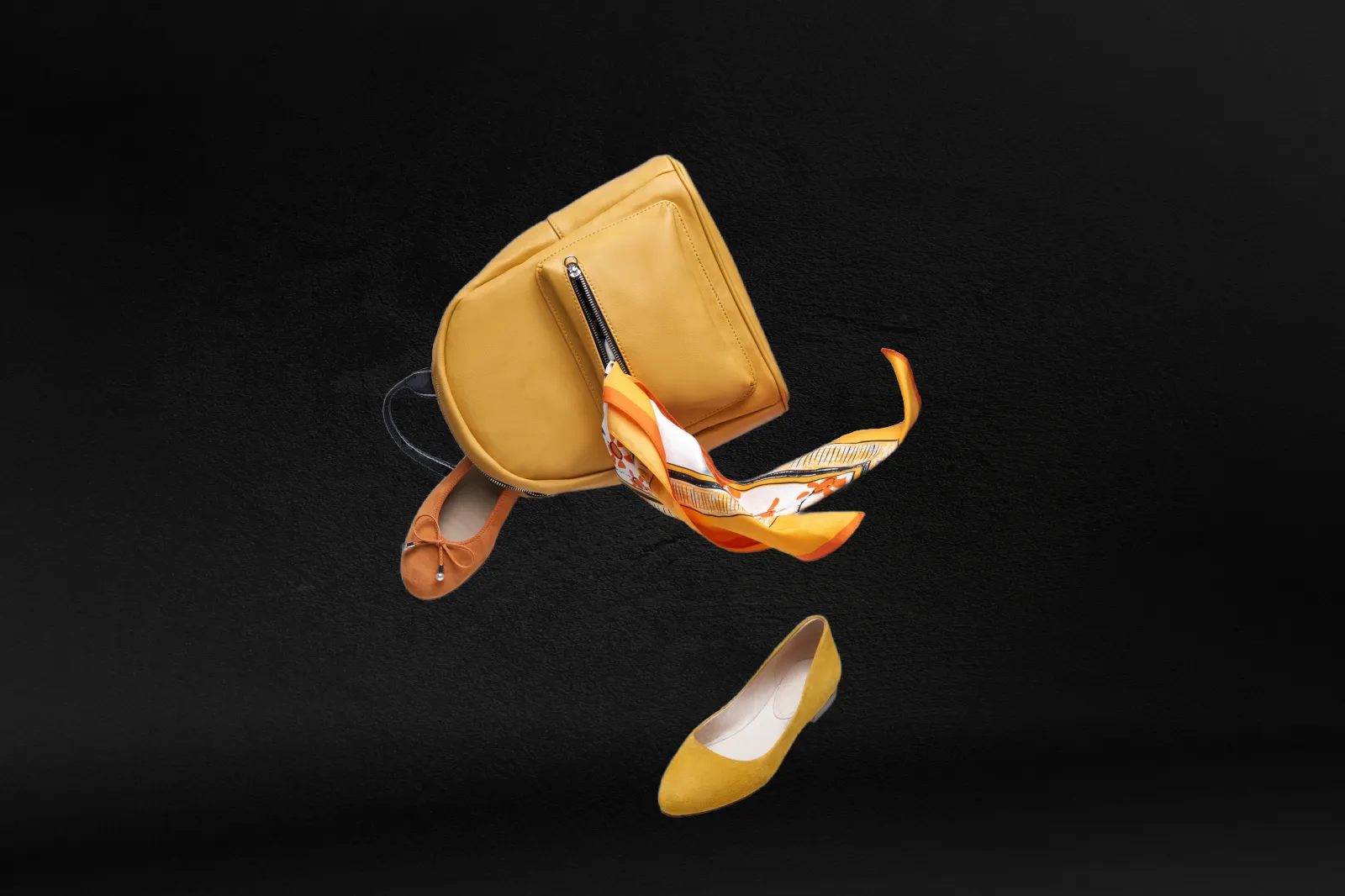
This is commonly seen in advertisements or promotional materials.
Creatieve Mogelijkheden door het Invoegen van Afbeeldingsachtergronden
For example, placing a person in front of a cityscape, a beach, or a forest can provide information about their environment or activities.


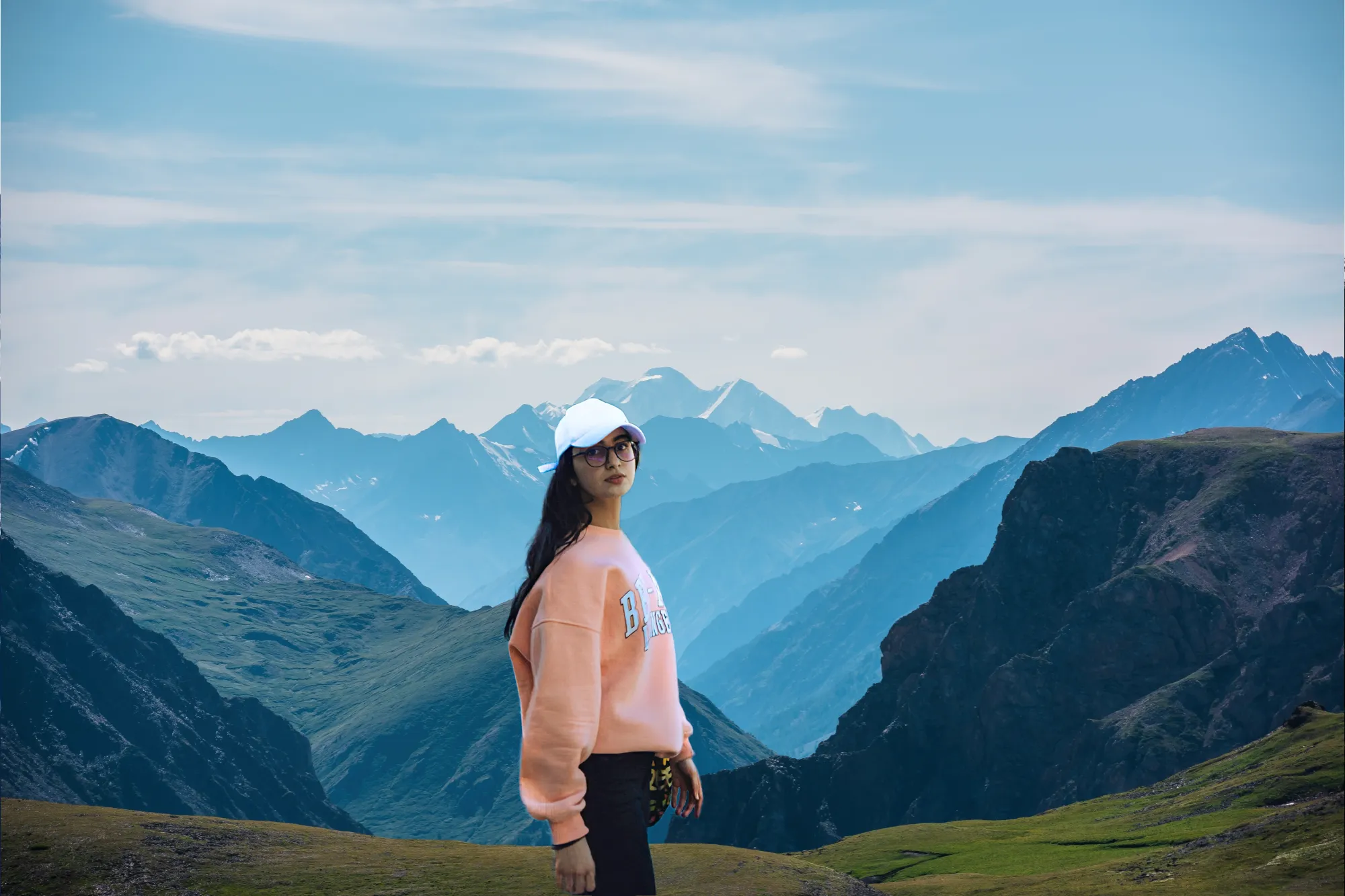
Visuals Transformeren met Dynamische Beeldachtergronden
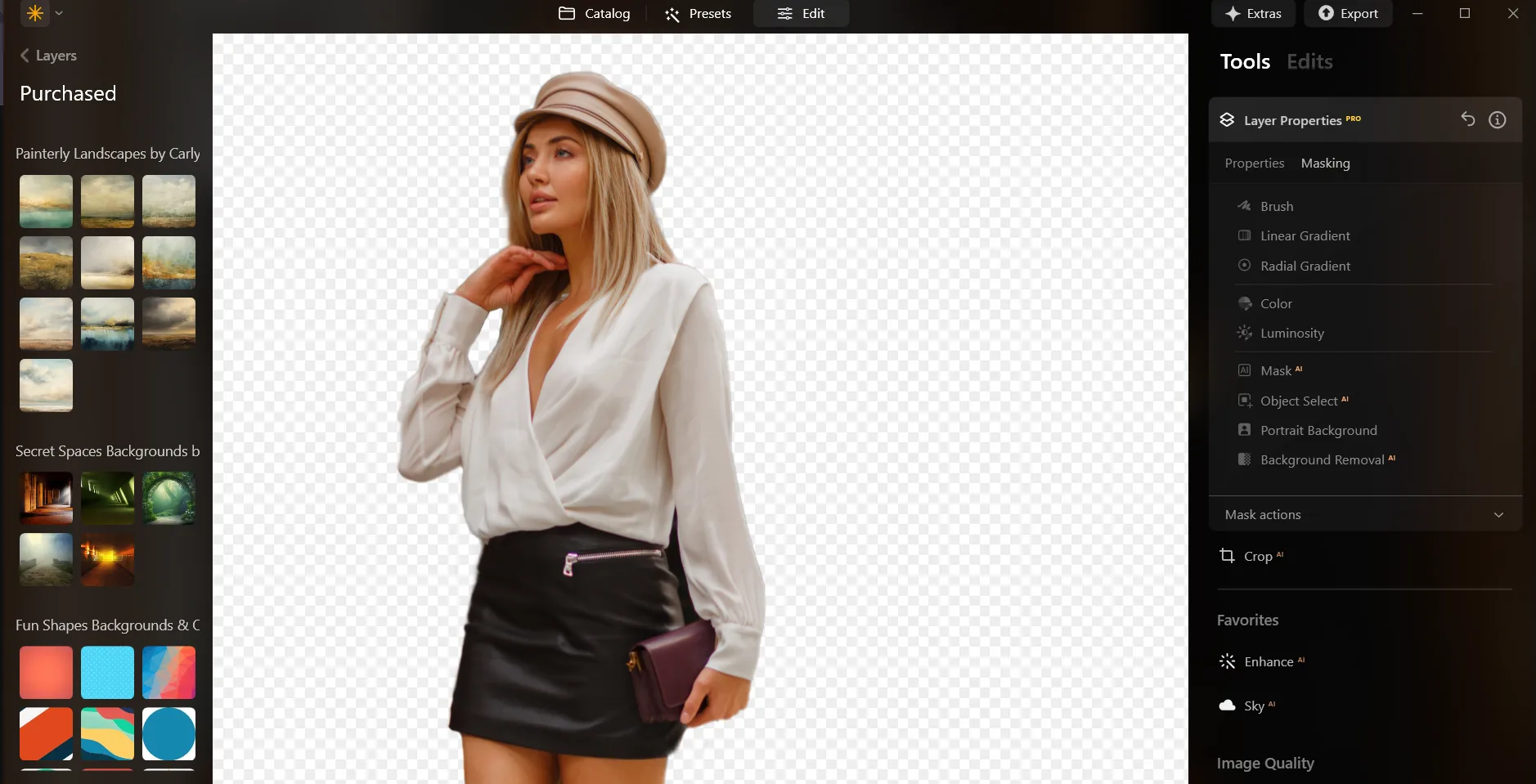
Here’s a step-by-step guide on using Background Removal AI in Luminar:

Select an image: click the Tabblad bewerken

Laag Eigenschappen: selecteer de Tabblad Maskeren en kies Achtergrond VerwijderenAI

Selection: Select the chosen main object or choose from additional elements found in the image.

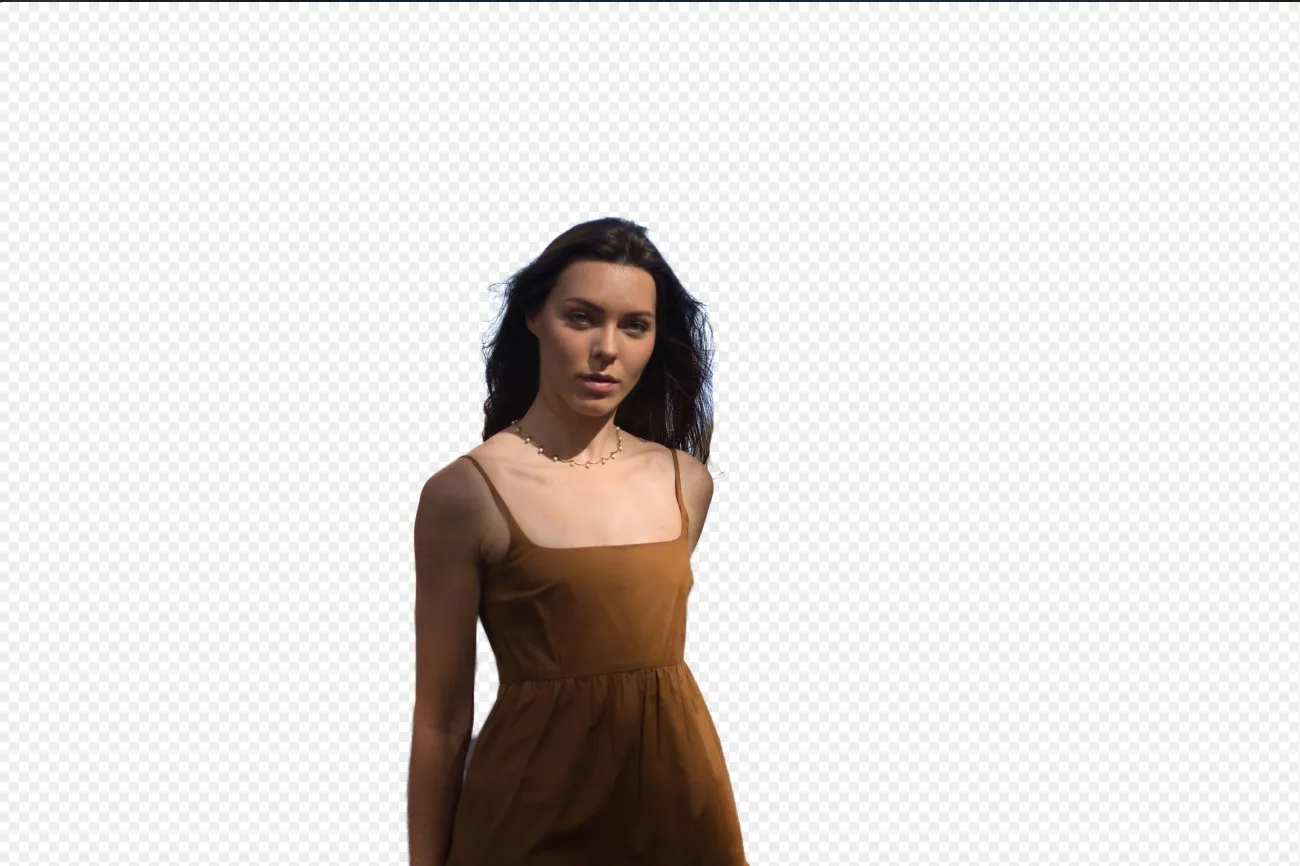
Verwijder achtergrond: Klik ''Verwijder” to initiate the Background Removal process. Luminar will remove the image’s background, revealing a transparent checkbox background.

Selecteer Verfijnings Penseelfor additional finetuning: A Transition Mask will appear, highlighting Transition in a white checkerboard pattern, Object in orange, and Background in blue. Select a brush and apply it to refine each section.

Nadat u de achtergrond hebt verwijderd, kunt u iedere achtergrond toevoegen als Overlay!
Ontdek Meer Functies


Transparent Background












Een applicatie & plug-in
Voor macOS & WIndows
- Krachtige AI-afbeeldingseditor
Technische support
30-dagen geld terug garantie
Join our communities

Veel Gestelde Vragen
How to add a background to a photo with Luminar?
Kan ik de transparantie van de toegevoegde achtergrond aanpassen?
Verwijdert de tool automatisch de originele achtergrond van mijn afbeelding?
Is er een manier om de toegevoegde achtergrond ongedaan te maken of te verwijderen als ik van gedachten verander?
Why Luminar is the best background adder?
Who can benefit from Luminar image background adder?
• Portrait photographers creating polished studio-style edits
• Product photographers placing subjects in clean custom scenes
• Content creators building eye-catching social media visuals
• Designers creating creative composites and promotional graphics
• Beginners who want professional-looking background edits with simple tools
