

 Voir les forfaits
Ajoutez un Arrière-plan À Une Image Avec Précision
Adding a new background to an image is a powerful editing technique that can completely transform the visual impact and narrative of the original image, allowing for creativity, storytelling, and enhancing the overall aesthetics or messaging of the image. It’s super easy to do in Luminar !
Voir les forfaitsComment Améliorer l'Attrait Visuel : Ajout d'Arrière-plans Aux Photos
Utilisez un simple ajout d'arrière-plan aux images pour voir l'effet obtenu.



Avantages de l'Ajout de Fond d'Image Pour les Entreprises
This is commonly seen in advertisements or promotional materials.
Possibilités Créatives Avec l'Insertion d'Arrière-plans d'Images
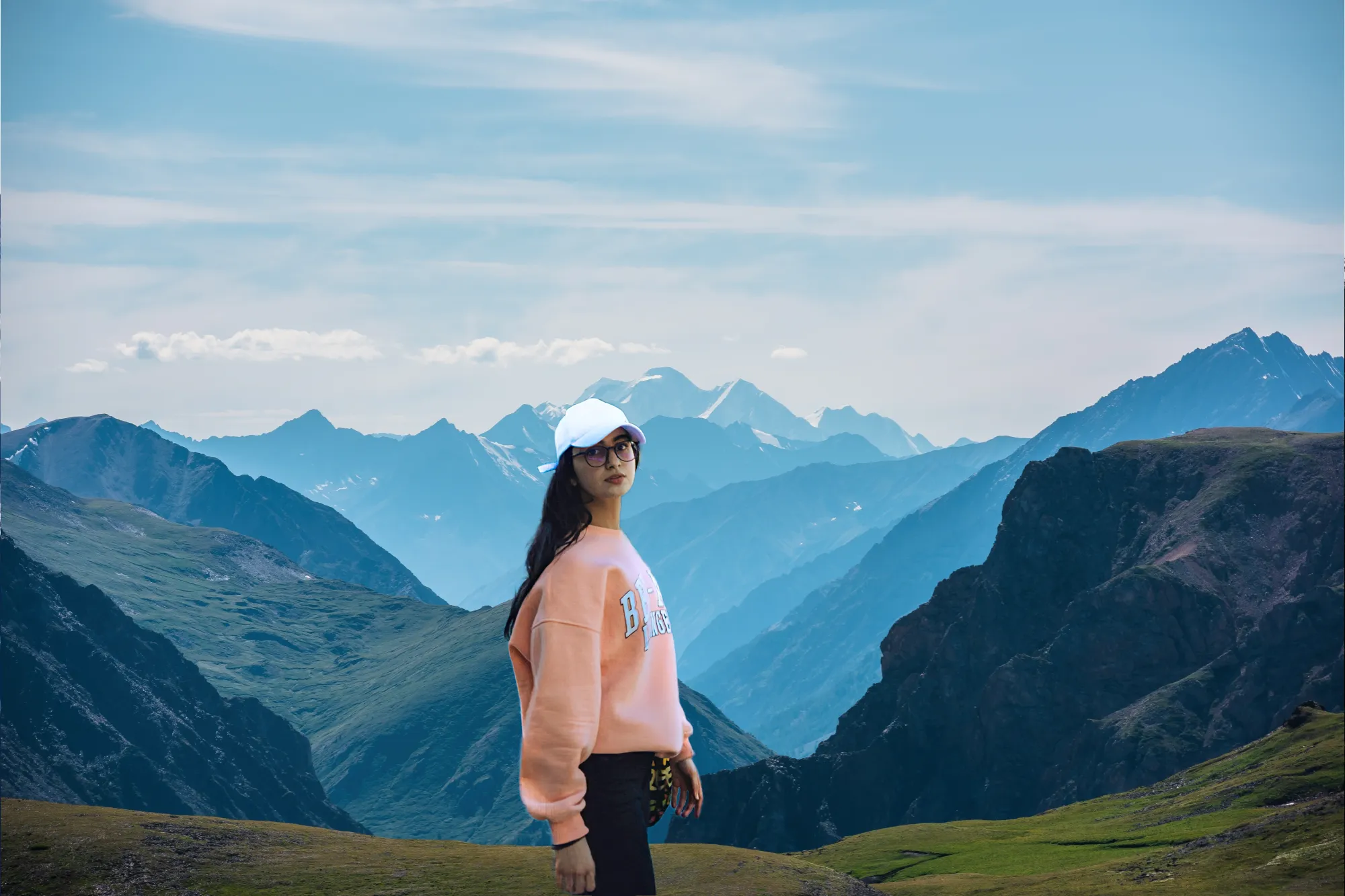
For example, placing a person in front of a cityscape, a beach, or a forest can provide information about their environment or activities.


Transformation de Visuels Avec des Fonds d'Images Dynamiques
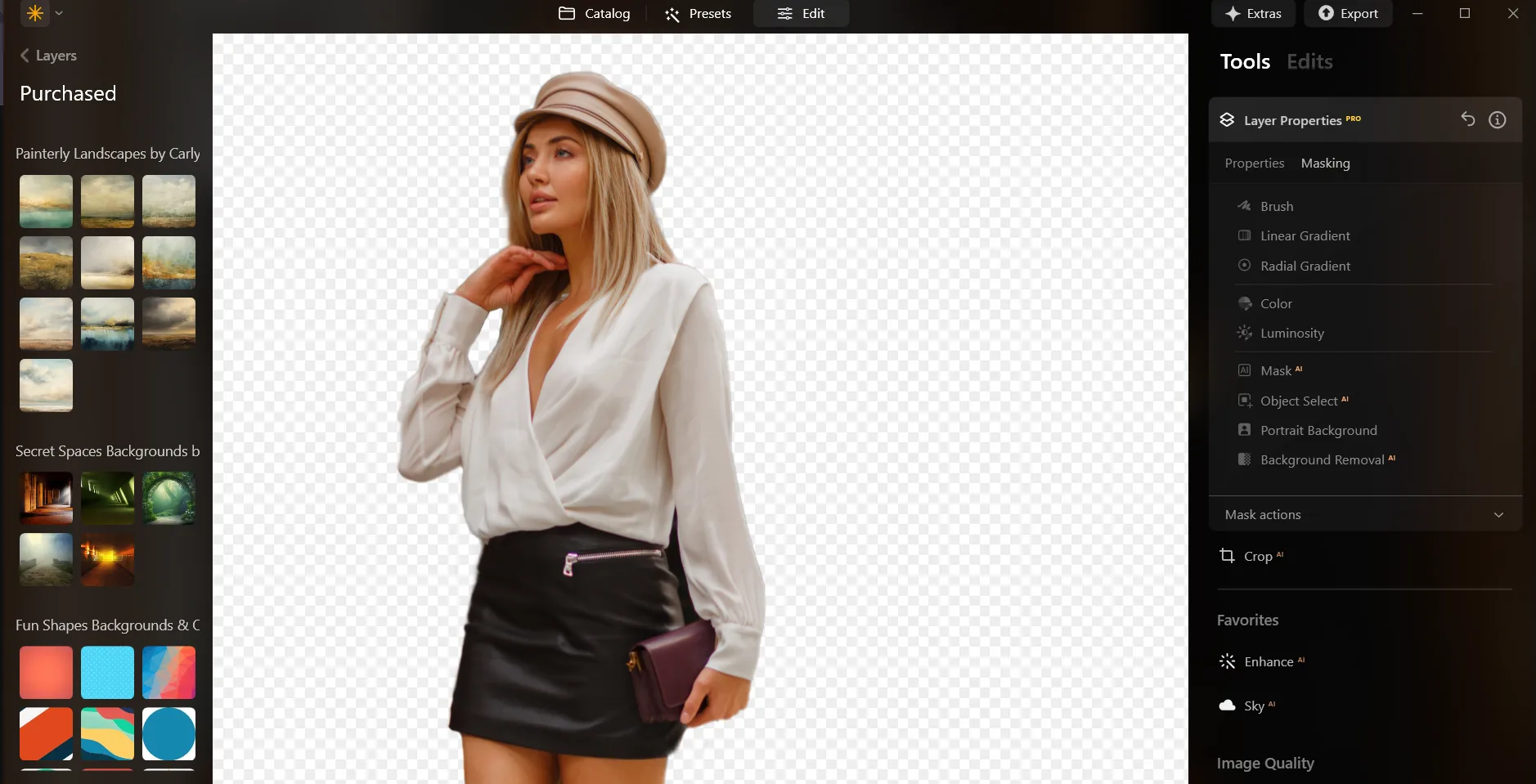
Here’s a step-by-step guide on using Background Removal AI in Luminar:

Select an image: click the l'onglet Édition

Propriétés des Calques : sélectionnez l' onglet de Masquage et choisissez Détourage AI

Selection: Select the chosen main object or choose from additional elements found in the image.

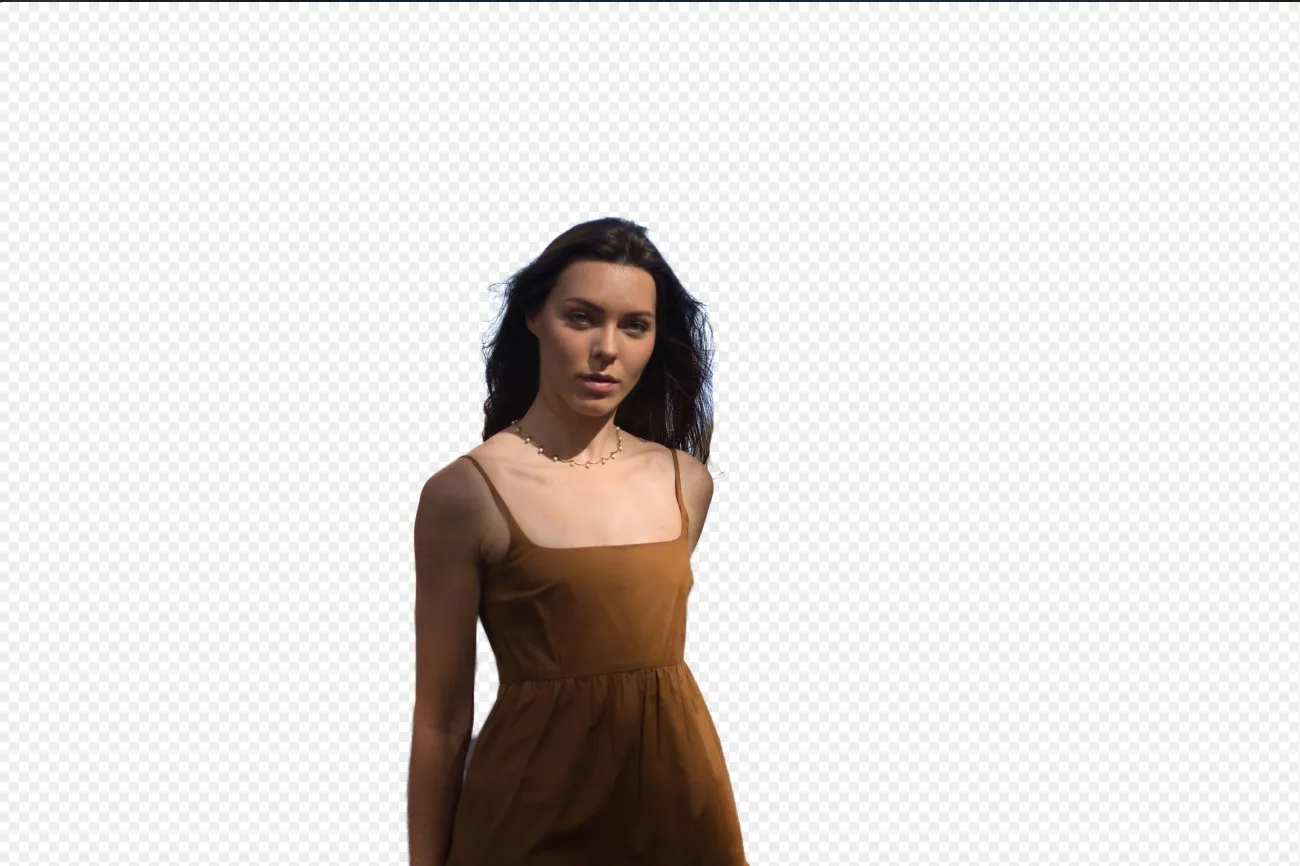
Supprimez l'arrière-plan : cliquez sur leSupprimer” to initiate the Background Removal process. Luminar will remove the image’s background, revealing a transparent checkbox background.

Pinceau d'affinagefor additional finetuning: A Transition Mask will appear, highlighting Transition in a white checkerboard pattern, Object in orange, and Background in blue. Select a brush and apply it to refine each section.

Une fois l'arrière-plan supprimé, vous pouvez ajouter n'importe quel fonddésiré via les Incrustations !
Découvrez d'autres fonctionnalités


Transparent Background














Application & plugin à la fois
Pour macOS & Windows
- Éditeur d'images haute performance par l'IA
Service Clients 24h/24 et 7j/7
Garantie 30 jours, satisfait(e) ou remboursé(e)
Join our communities

Foire aux Questions
How to add a background to a photo with Luminar?
Puis-je ajuster la transparence de l'arrière-plan ajouté ?
L'outil supprimera-t-il automatiquement l'arrière-plan original de mon image ?
Existe-t-il un moyen d'annuler ou de supprimer l'arrière-plan ajouté si je venais à changer d'avis ?
Why Luminar is the best background adder?
Who can benefit from Luminar image background adder?
• Portrait photographers creating polished studio-style edits
• Product photographers placing subjects in clean custom scenes
• Content creators building eye-catching social media visuals
• Designers creating creative composites and promotional graphics
• Beginners who want professional-looking background edits with simple tools
