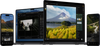
Pas met één klik een filter toe en creëer in enkele seconden een unieke sfeer.
Eenvoudig online bewerken
Upload eenvoudig je foto en voer een snelle bewerking uit.
Helemaal gratis
Geen betaling of abonnement vereist. Geen watermerken.
Enorme verscheidenheid
Kies precies het filter dat je voor je foto wilt hebben.
Vertrouwd door fotografen wereldwijd
Vertrouwd door meer dan een miljoen
fotografen en organisaties
Bekroonde software
met intuïtieve AI-gestuurde bediening
Wat kun je nog meer met Luminar doen?
Ontdek deze krachtige mogelijkheden en transformeer je foto's met gemak.
Verwijder afleidingen in enkele seconden
Erase verwijdert intelligent ongewenste objecten, mensen, draden en oneffenheden en vult de ruimte naadloos aan om aan te sluiten bij de omgeving — geen handmatige retouche nodig.
Voor
Na
Creatieve controle eenvoudig gemaakt
Verfijn elk detail met professionele bewerkingsfilters. Pas kleur, licht, contrast, sfeer en meer aan om je unieke creatieve visie met precisie te realiseren.
Voor
Na
Geef oude foto's nieuw leven
Herstel vervaagde, bekraste of beschadigde afbeeldingen met AI-tools die details verbeteren, oneffenheden verminderen en dierbare herinneringen bewaren, in slechts een paar klikken.
Voor
Na
Vervang de lucht direct
Vervang saaie of bewolkte luchten met adembenemende alternatieven in één klik. Sky AI past automatisch belichting, reflecties en sfeer aan voor een natuurlijk ogend resultaat.
Voor
Na
Natuurlijk ogende portretten, moeiteloos
Verzacht de huid, verminder oneffenheden en verbeter gezichtskenmerken met behoud van realistische textuur. Maak verfijnde portretten zonder de kunstmatige look.
Voor
Na
Verfijn het licht na de opname
Light Depth leest de diepte van je afbeelding om een 3D-kaart van de scène te creëren, waardoor je de voorgrond en achtergrond onafhankelijk van elkaar lichter of donkerder kunt maken voor een meer ruimtelijke en gebalanceerde belichting.
Op deze pagina kun je één filter op je foto toepassen. In de Luminar on Web-editor kun je verschillende online fotofilters combineren om de gewenste uitstraling te creëren. Sla hiervoor je foto op nadat je er één filter op hebt toegepast, en voeg vervolgens een tweede filter toe.
Populaire online fotofilters zijn onder meer zwart-wit, vintage, filmisch, warm, koel en varianten met een hoog contrast. De beste keuze hangt af van de sfeer en de stijl die je voor je foto wilt creëren.
Een online fotofilter is handig voor iedereen die foto's snel wil verbeteren of een andere stijl wil geven – van beginners en makers van content voor sociale media tot fotografen die op een snelle manier verschillende looks willen uitproberen.
Luminar on Web fungeert als een editor voor fotofilters die rechtstreeks in je browser werkt. Hierdoor kun je eenvoudig filters toepassen en aanpassen, zonder dat daar ingewikkelde bewerkingsvaardigheden voor nodig zijn. Je kunt je afbeeldingen online verbeteren en, wanneer dat nodig is, geavanceerdere bewerkingsopties verkennen.
Zoek naar een online fotofilter dat eenvoudig in het gebruik is, direct in je browser werkt, aanpasbare effecten biedt en je controle geeft over het eindresultaat.
Om een filter aan een foto toe te voegen, upload je je afbeelding naar de online editor van Luminar, kies je een filter en sla je het resultaat op. Dit kan zonder dat je software hoeft te installeren.
Nee. Je kunt een foto online rechtstreeks in je browser bewerken met filters; je hoeft niets te installeren. Als je op zoek bent naar geavanceerdere bewerkingstools, is Luminar ook beschikbaar voor het web en voor desktop.
Ja. Je kunt op deze pagina gratis online fotofilters toepassen en bewerken.
Je kunt deze pagina op je telefoon gebruiken om gratis een filter op je foto toe te passen. De Luminar on Web-editor werkt echter alleen op desktopcomputers.
In Luminar on Web kun je online een filter aan een foto toevoegen en dit filter vervolgens aanpassen of verwijderen voordat je de afbeelding opslaat. Open simpelweg je foto in de online editor, selecteer het toegepaste filter en pas het effect aan of zet het terug naar de oorspronkelijke instellingen.
Om een afbeeldingsfilter in Luminar on Web te kopiëren, pas je hetzelfde filter en dezelfde instellingen toe op een andere afbeelding in de online editor. Zo zorg je voor een consistente uitstraling in meerdere foto's.
De online fotofilter is ideaal wanneer je vanaf elk apparaat snel aanpassingen wilt doorvoeren, zonder dat je daarvoor software hoeft te installeren. Luminar for Web biedt je online meer hulpmiddelen. Luminar for Desktop beschikt over nog geavanceerdere bewerkingstools en ondersteunt RAW-workflows, waardoor je meer controle hebt over je foto's.
App Vereisten
macOS
Mac Model
MacBook, MacBook Air, MacBook Pro, iMac, iMac Pro, Mac Pro, Mac mini, begin 2010 of nieuwer
Processor
CPU Intel® Core™ i5 8 Gen of beter
OS versie
macOS - 12.0 of hoger.
RAM
Geheugen 8 GB RAM of meer (16+ GB RAM wordt aanbevolen)
Schijfruimte
Harde schijf 10 GB vrije ruimte; SSD voor beste prestaties
Monitor
1280 x 768 resolutie of beter
Windows
Hardware
Windows hardware-pc met muis of vergelijkbaar invoerapparaat
Processor
CPU Intel® Core™ i5 8 Gen of beter, AMD Ryzen™ 5 of beter
OS versie
10 versie 1909 of hoger (alleen 64-bits besturingssysteem).
RAM
Geheugen 8 GB RAM of meer (16+ GB RAM wordt aanbevolen)
Schijfruimte
Harde schijf 10 GB vrije ruimte; SSD voor beste prestaties
Monitor
1280 x 768 resolutie of beter
Grafisch
Open GL 3.3 of later compatibele grafische kaarten