

 Plannen bekijken
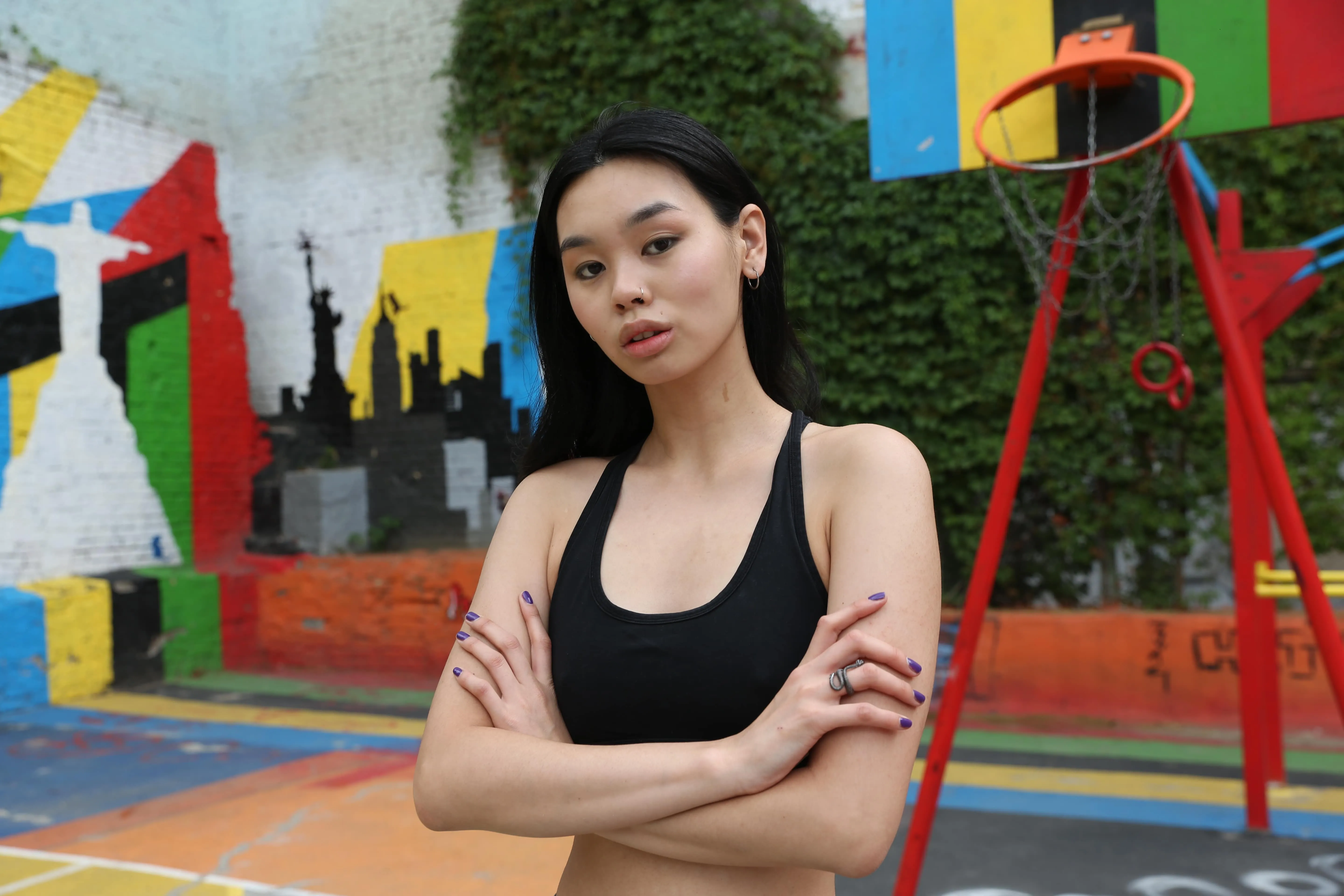
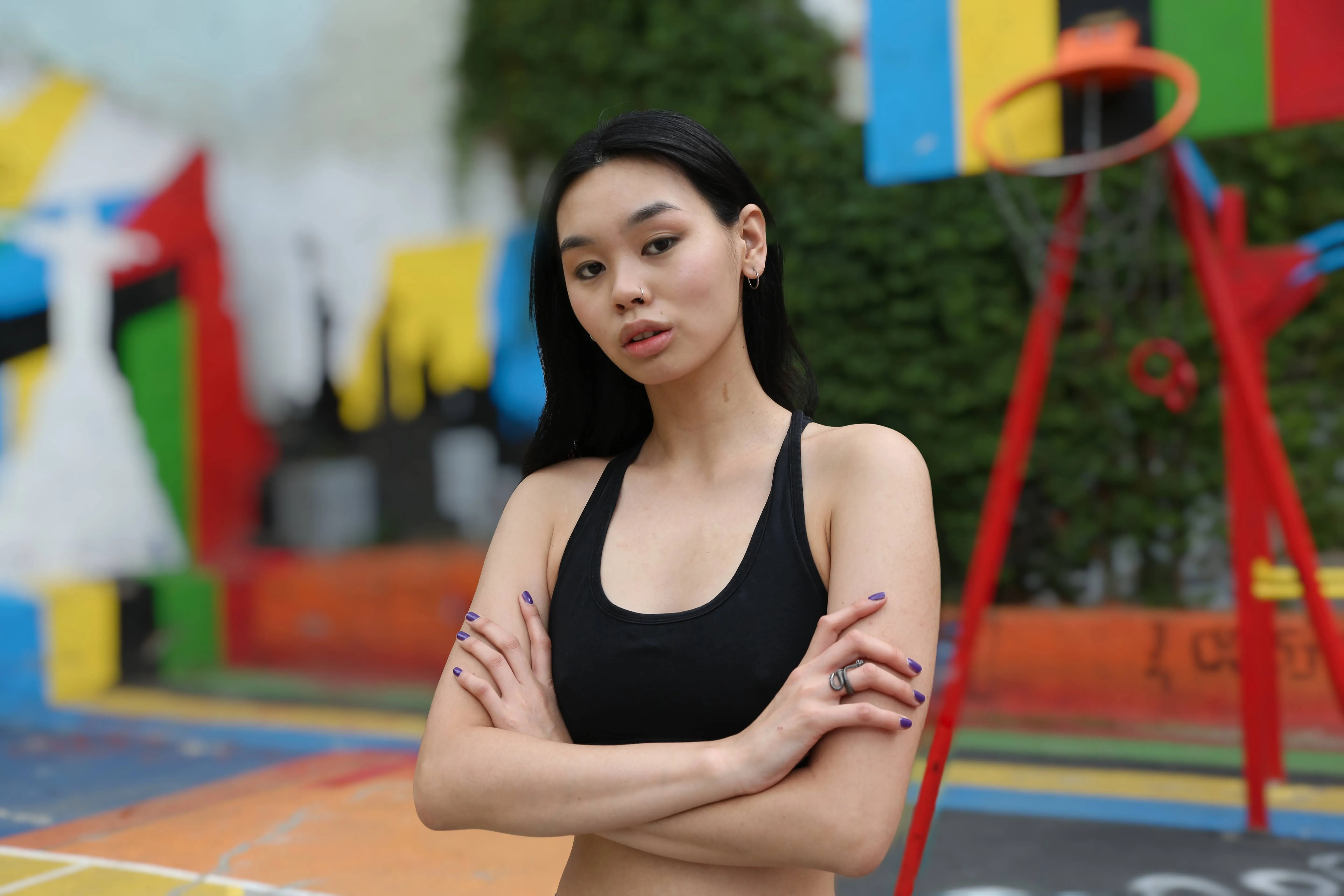
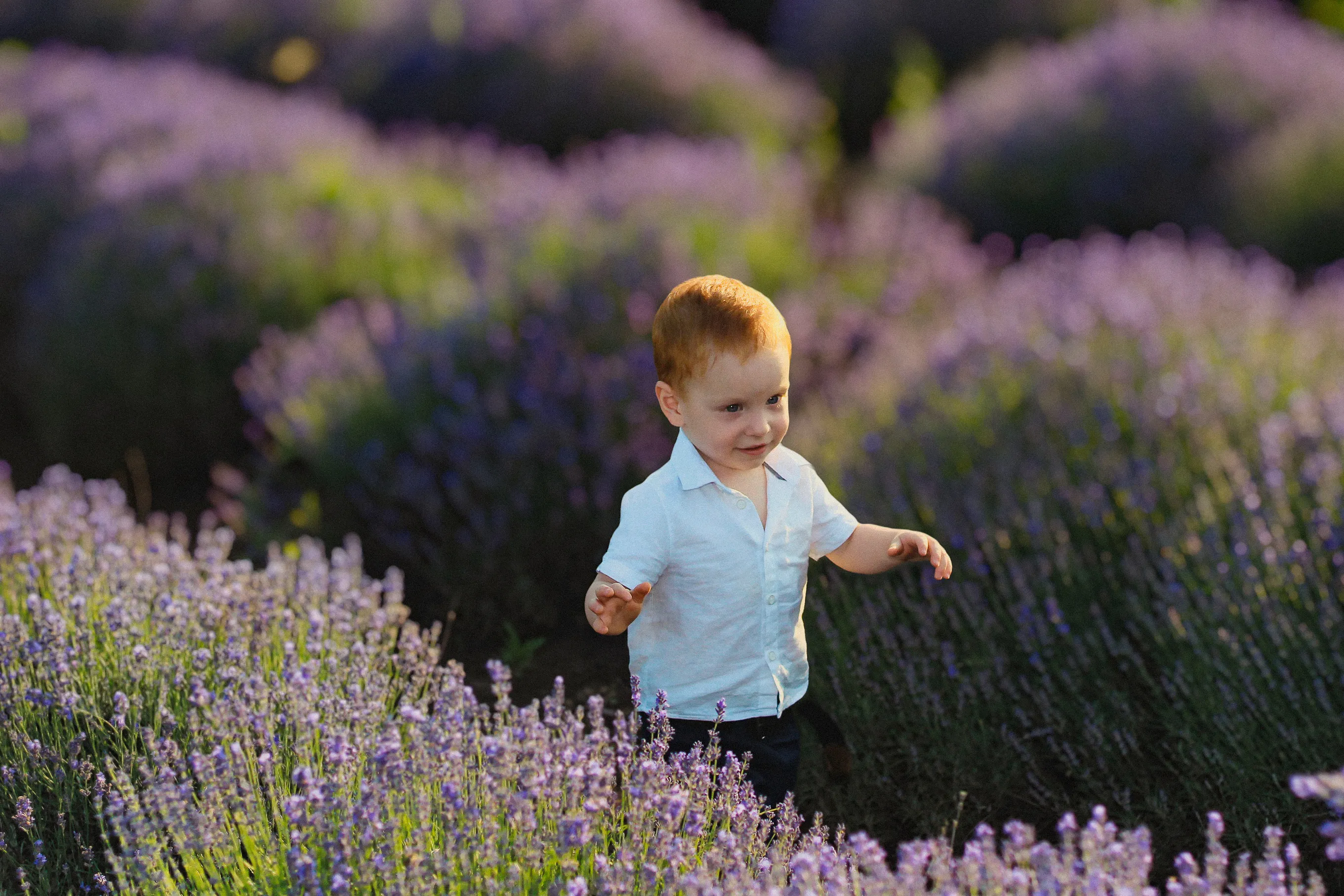
De achtergrond van een foto vervagen om diepte en focus toe te voegen
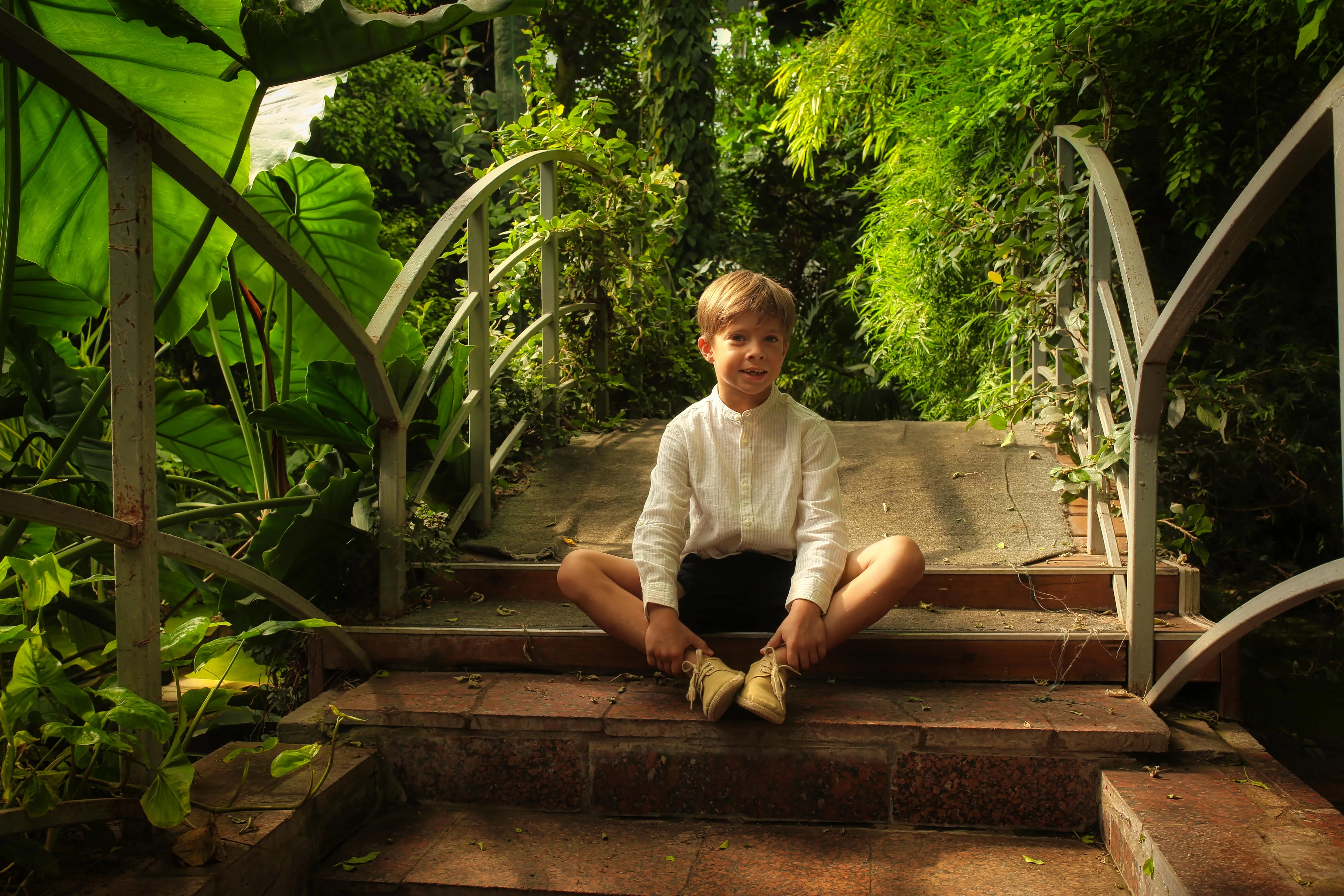
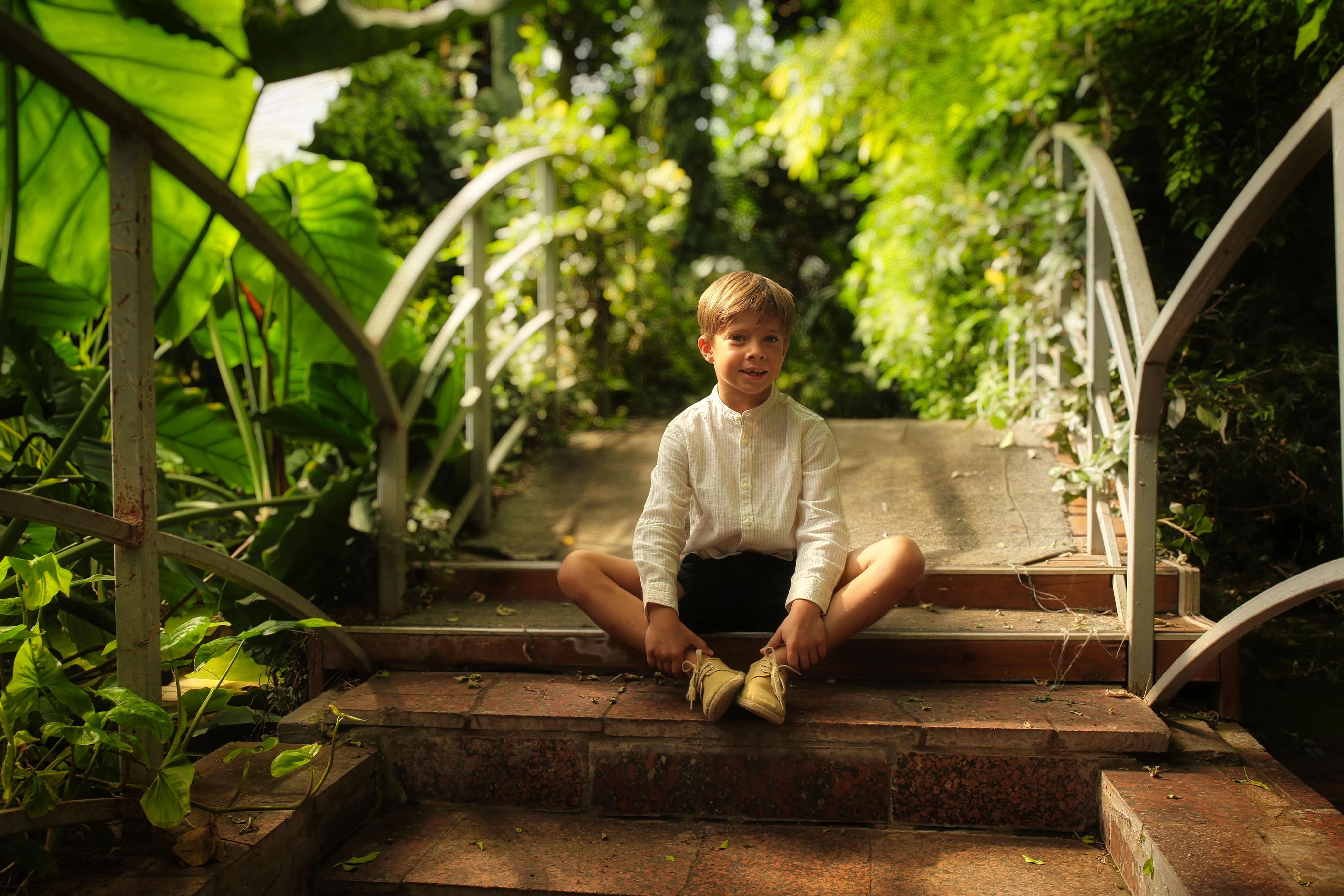
Verbeter de visuele aantrekkingskracht van je foto’s en leid de aandacht van de kijker precies daarheen waar je dat wilt. Met Luminar kun je de achtergrond van een foto met slechts een paar klikken vervagen.
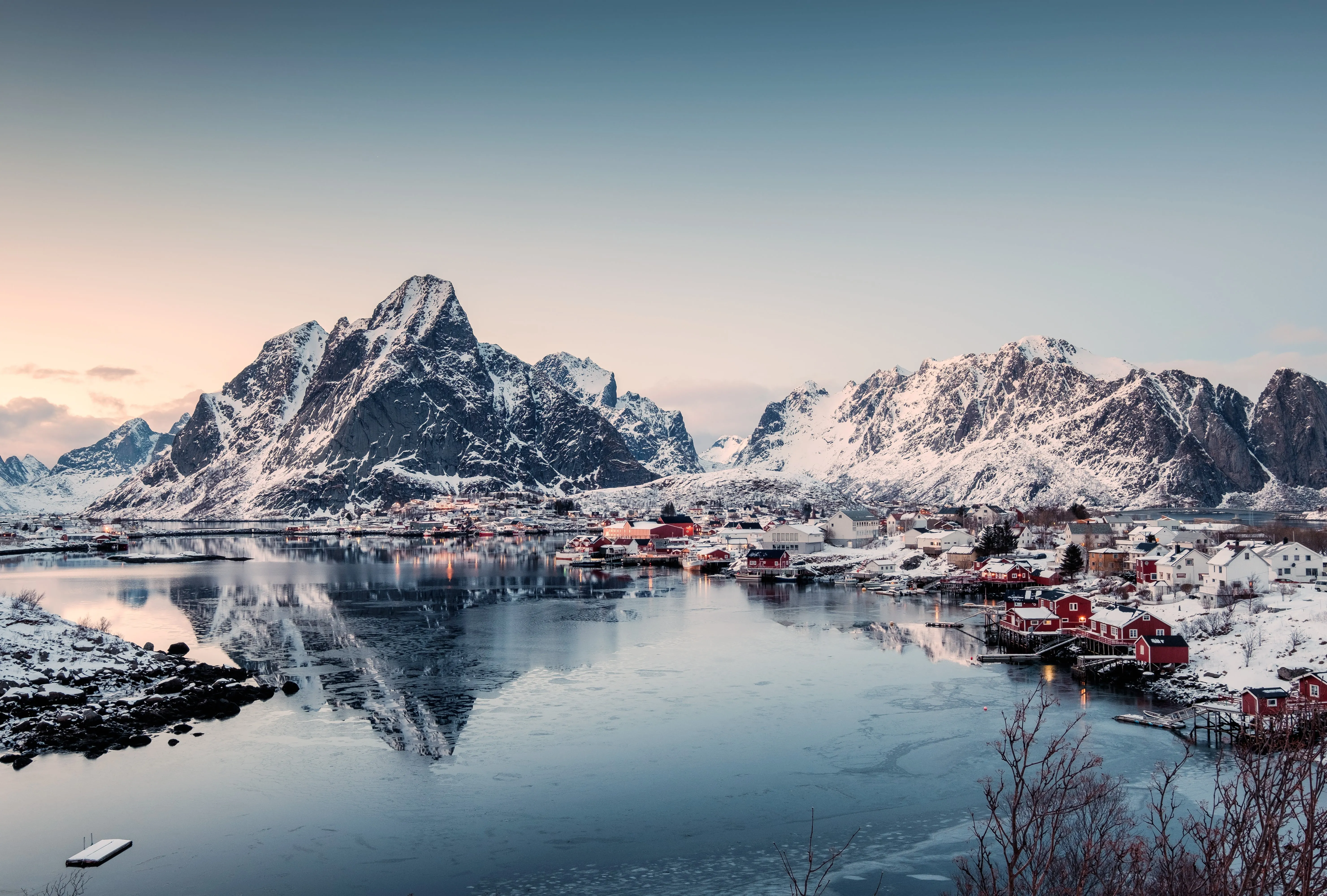
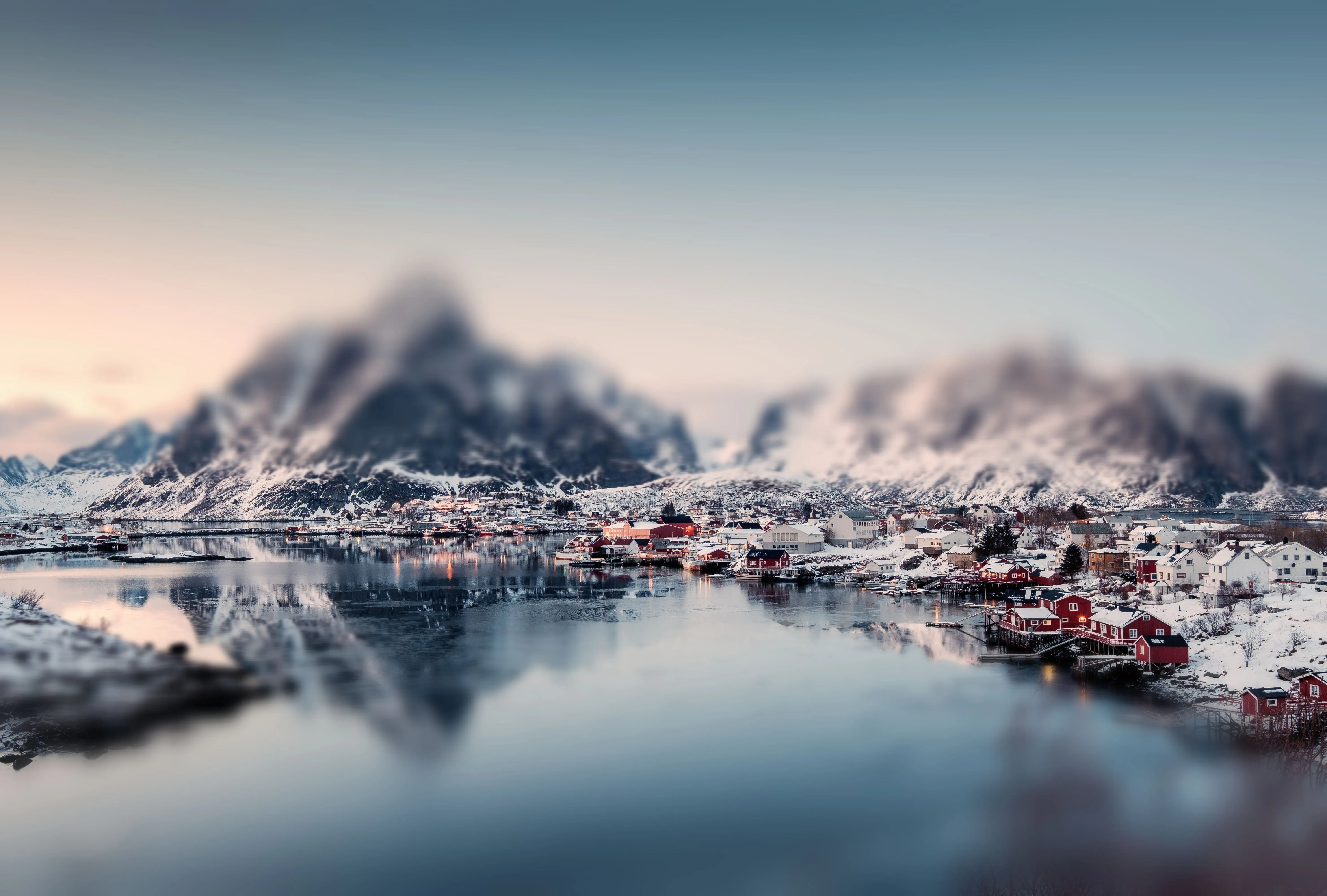
Plannen bekijkenAchtergrondvervaging met AI versus handmatige vervaging
AI-vervaging werkt snel en automatisch, ideaal voor strakke, natuurlijk ogende resultaten, terwijl je met handmatige vervaging volledige controle hebt voor nauwkeurigere of meer gestileerde bewerkingen. Je bepaalt zelf hoe actief je bij het bewerkingsproces wilt zijn.
Hoe je de achtergrond van een foto kunt vervagen
Met Luminar kun je achteraf een onscherp achtergrondeffect toevoegen aan je foto en dit zo lang bijstellen totdat het er precies goed uitziet.

Stap 1. Open je foto. Start Luminar en open de afbeelding die je wilt bewerken.

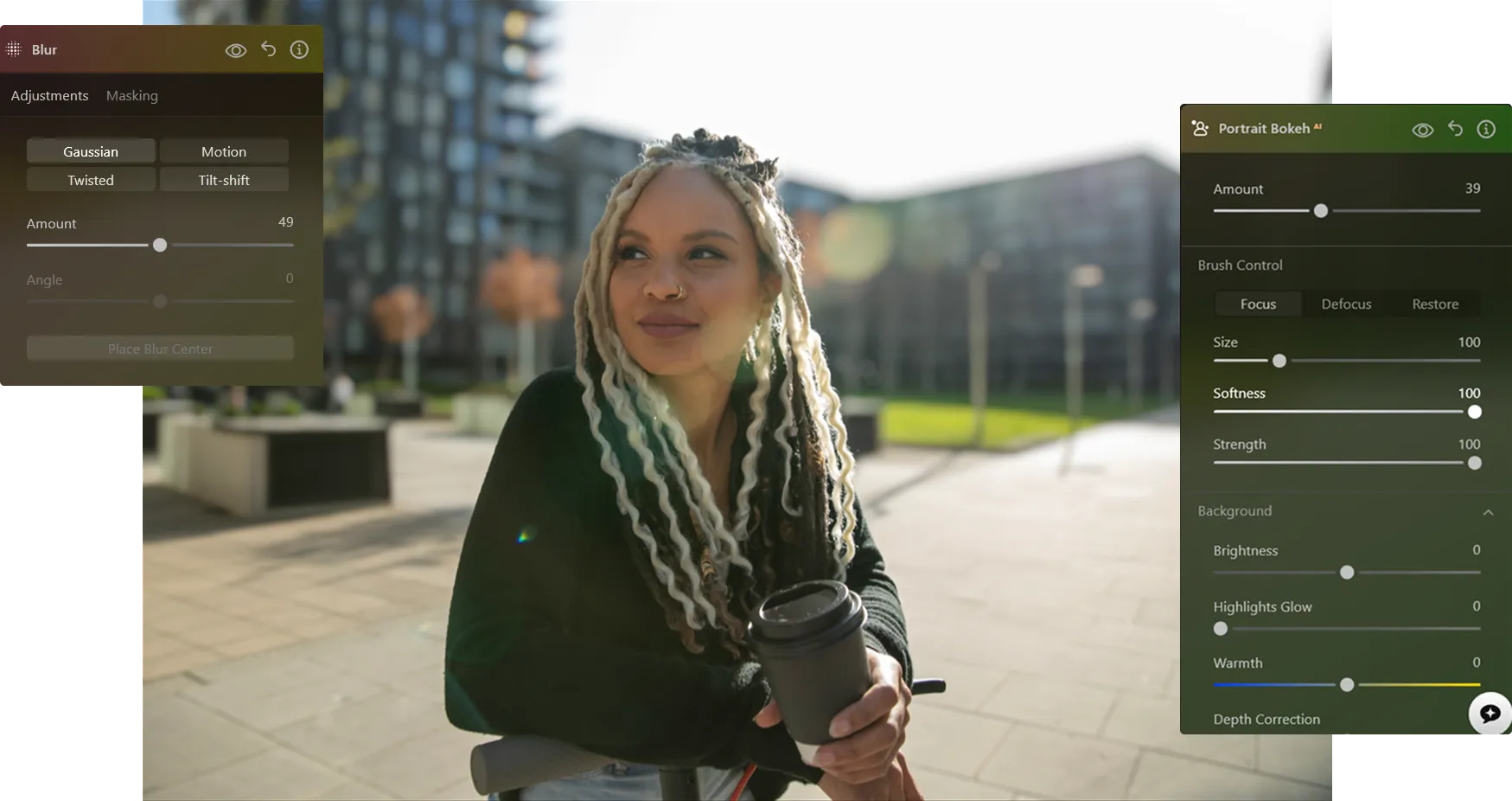
Stap 2. Maak de achtergrond wazig. Ga naar ‘Portrait Bokeh ᴬᴵ’ of het ‘Vervagingsgereedschap’. Luminar detecteert het onderwerp automatisch en scheidt het van de achtergrond.

Stap 3. Pas de vervaging aan. Pas de intensiteit van de vervaging aan om een natuurlijk vervaagd achtergrondeffect te creëren. Stel de diepte en overgangen nauwkeurig af voor een realistisch resultaat.

Stap 4. Verfijnen en exporteren. Werk de randen indien nodig bij en exporteer vervolgens je foto met een strakke, professionele achtergrondvervaging.
Waar achtergrondvervaging het beste werkt
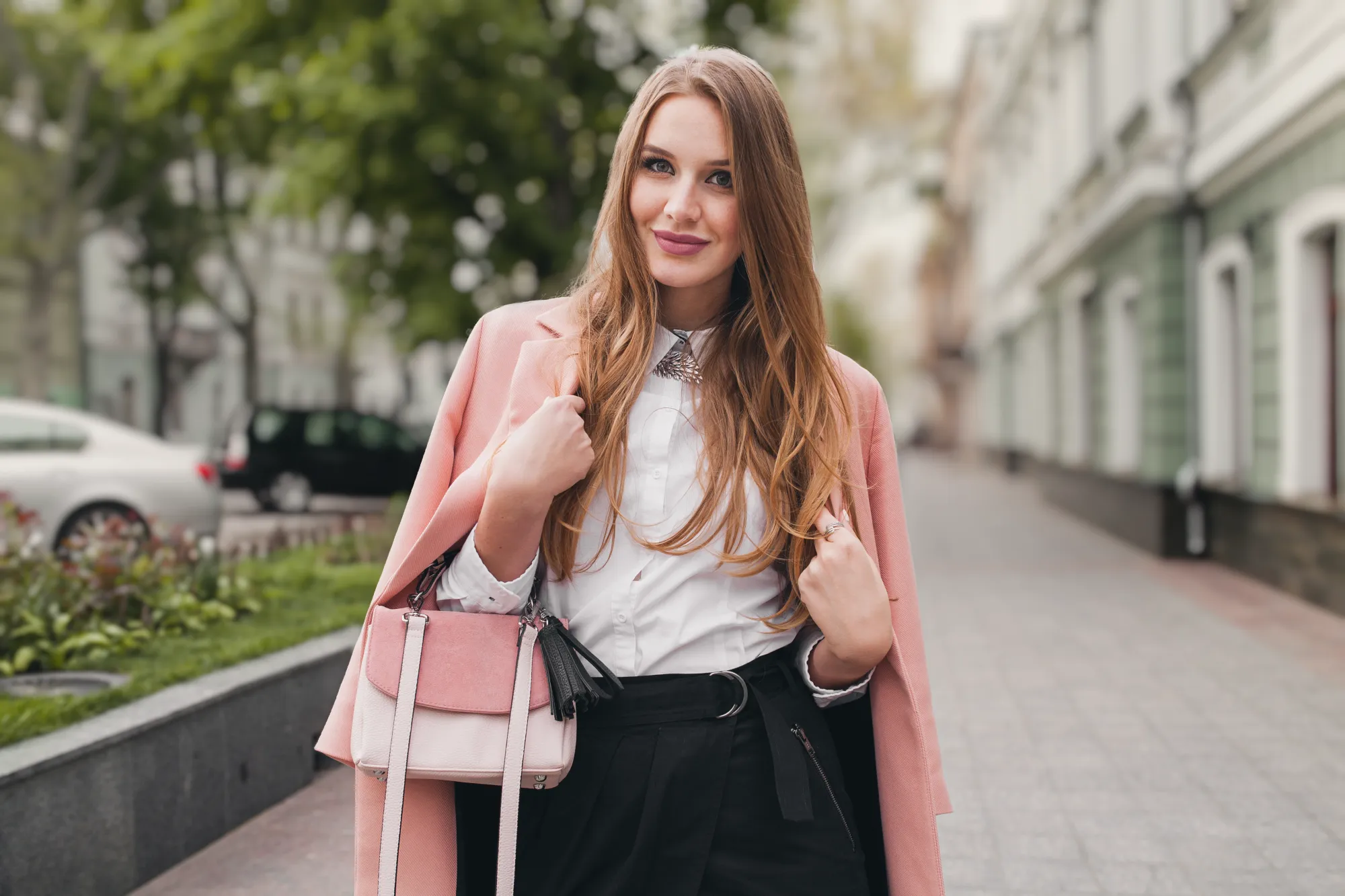
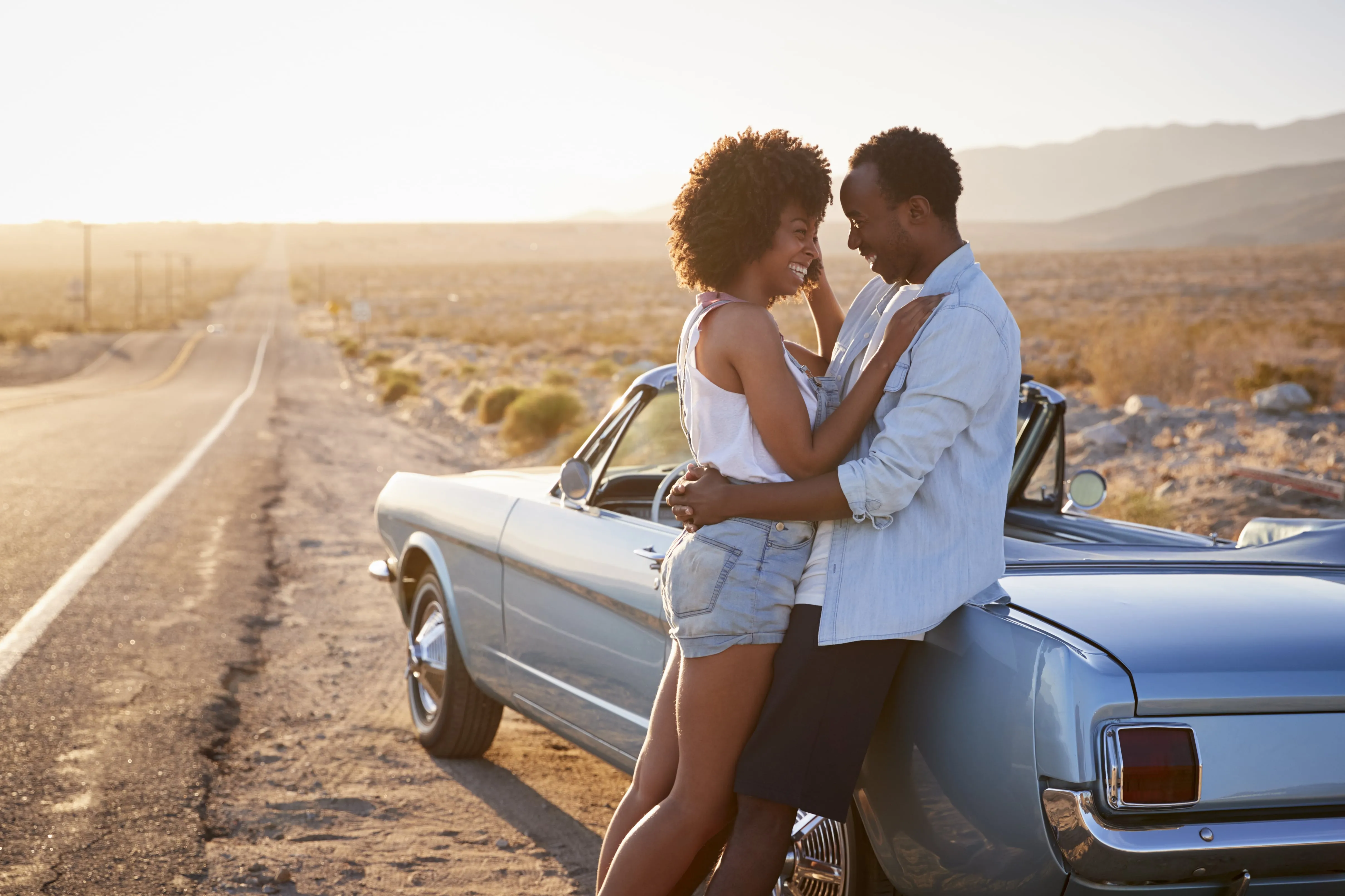
Het gebruik van een fotobewerkingsprogramma om de achtergrond te vervagen is een veelzijdige techniek die in tal van fotografiegenres toepasbaar is. Hiermee kun je de aandacht sturen, afleidingen verminderen en een meer gepolijste uitstraling creëren.

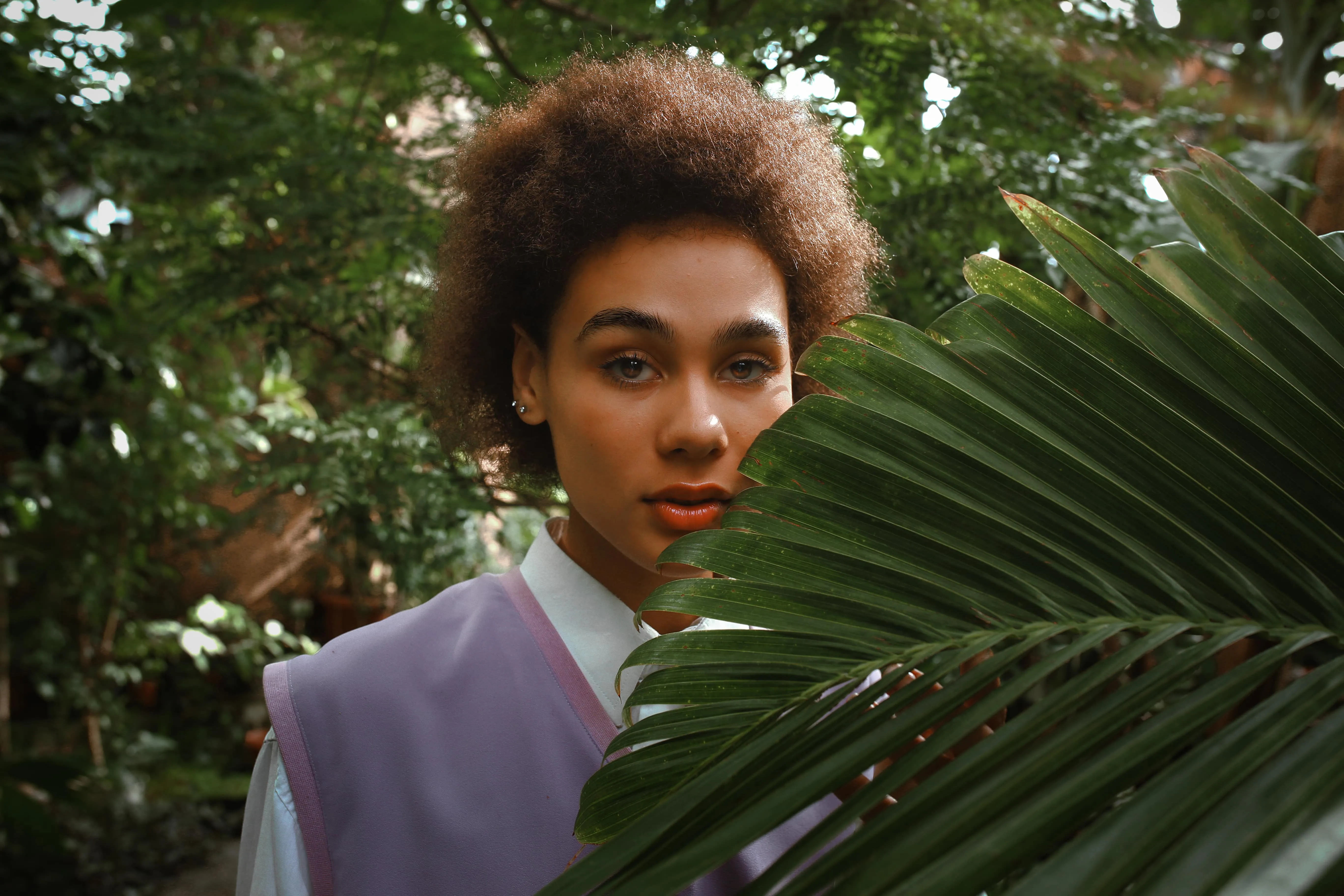
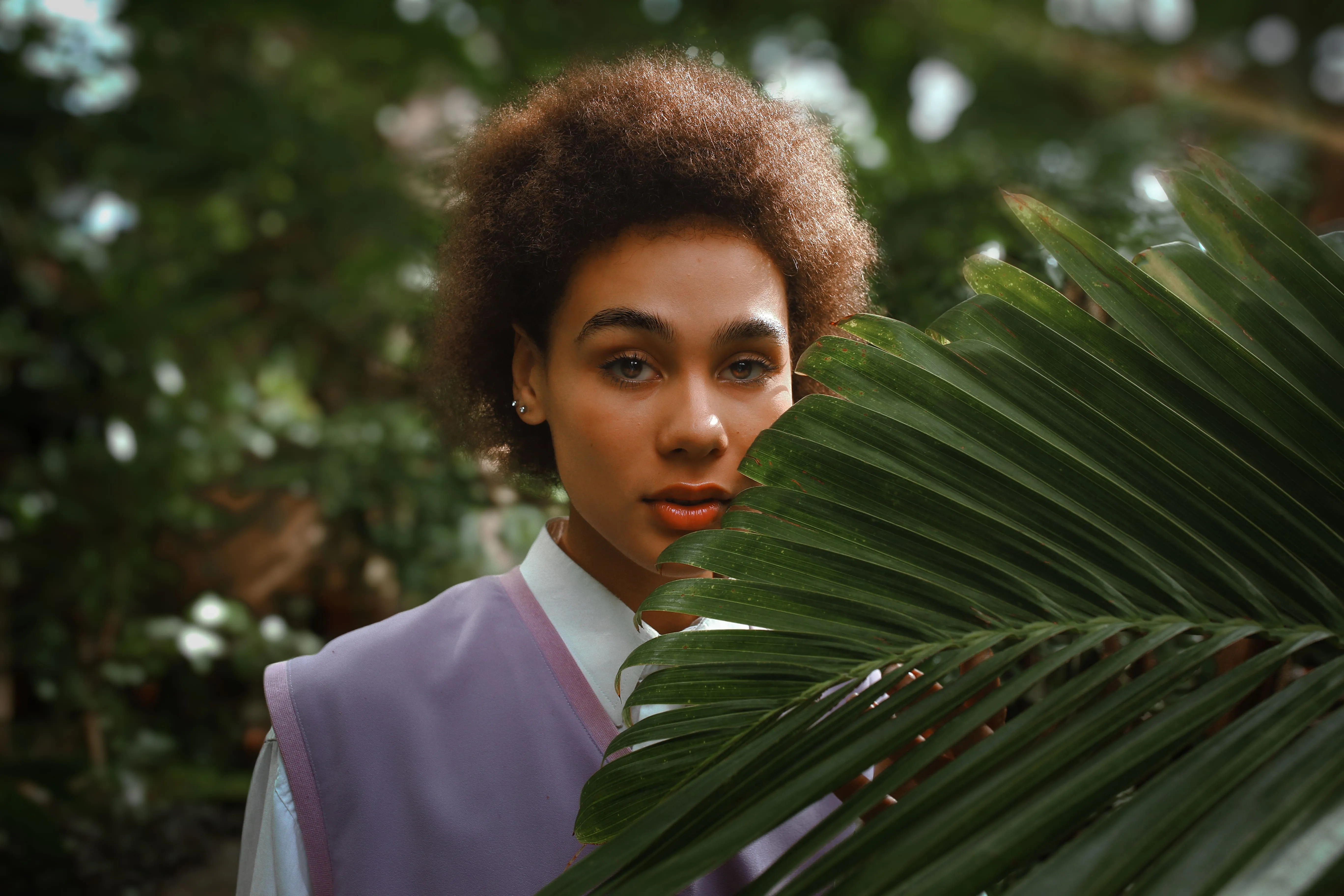
Portretfotografie
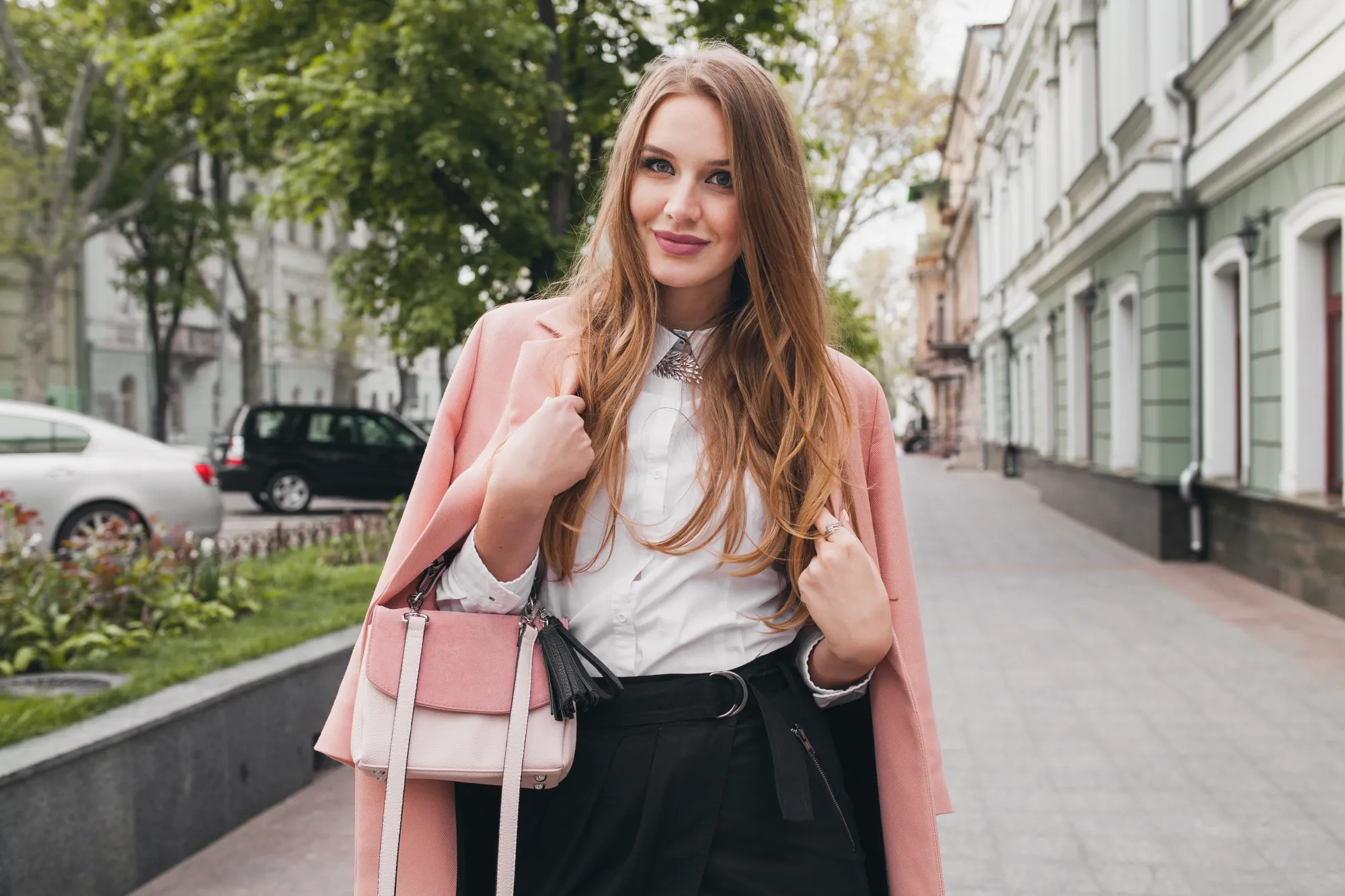
Commerciële en productfotografie
Persoonlijke foto’s
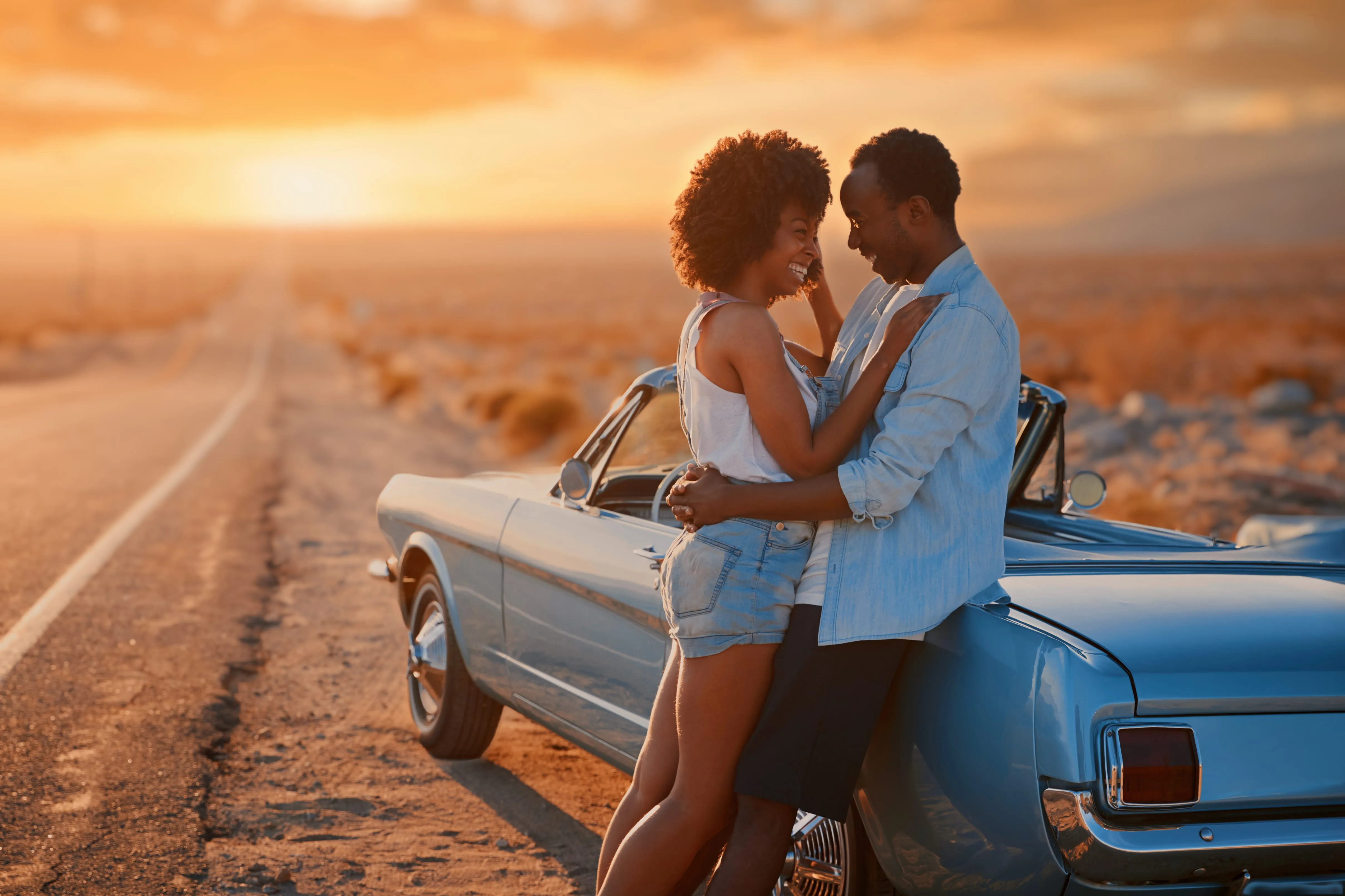
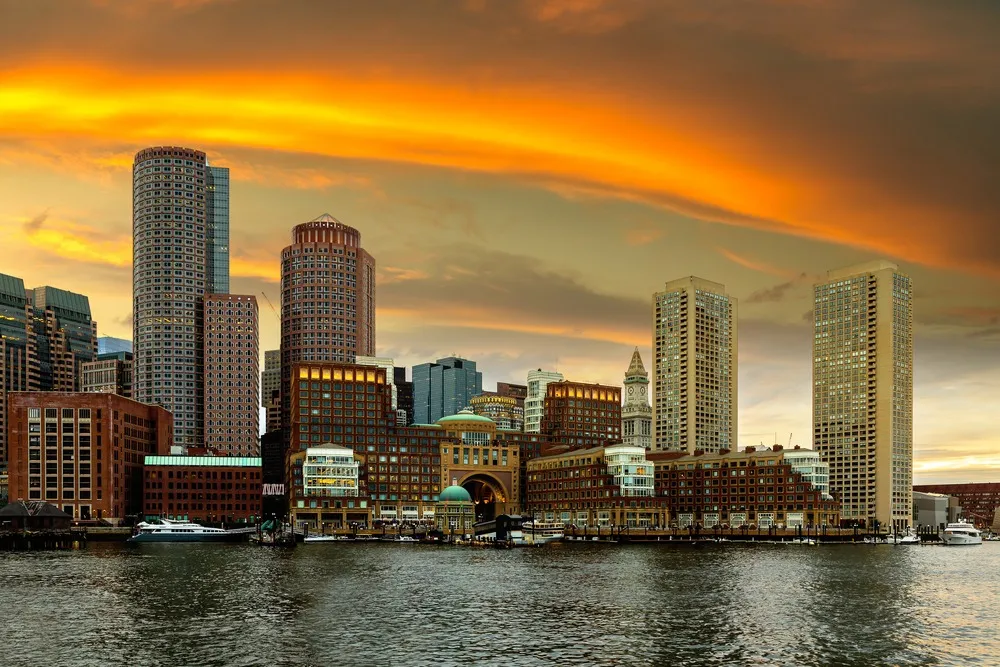
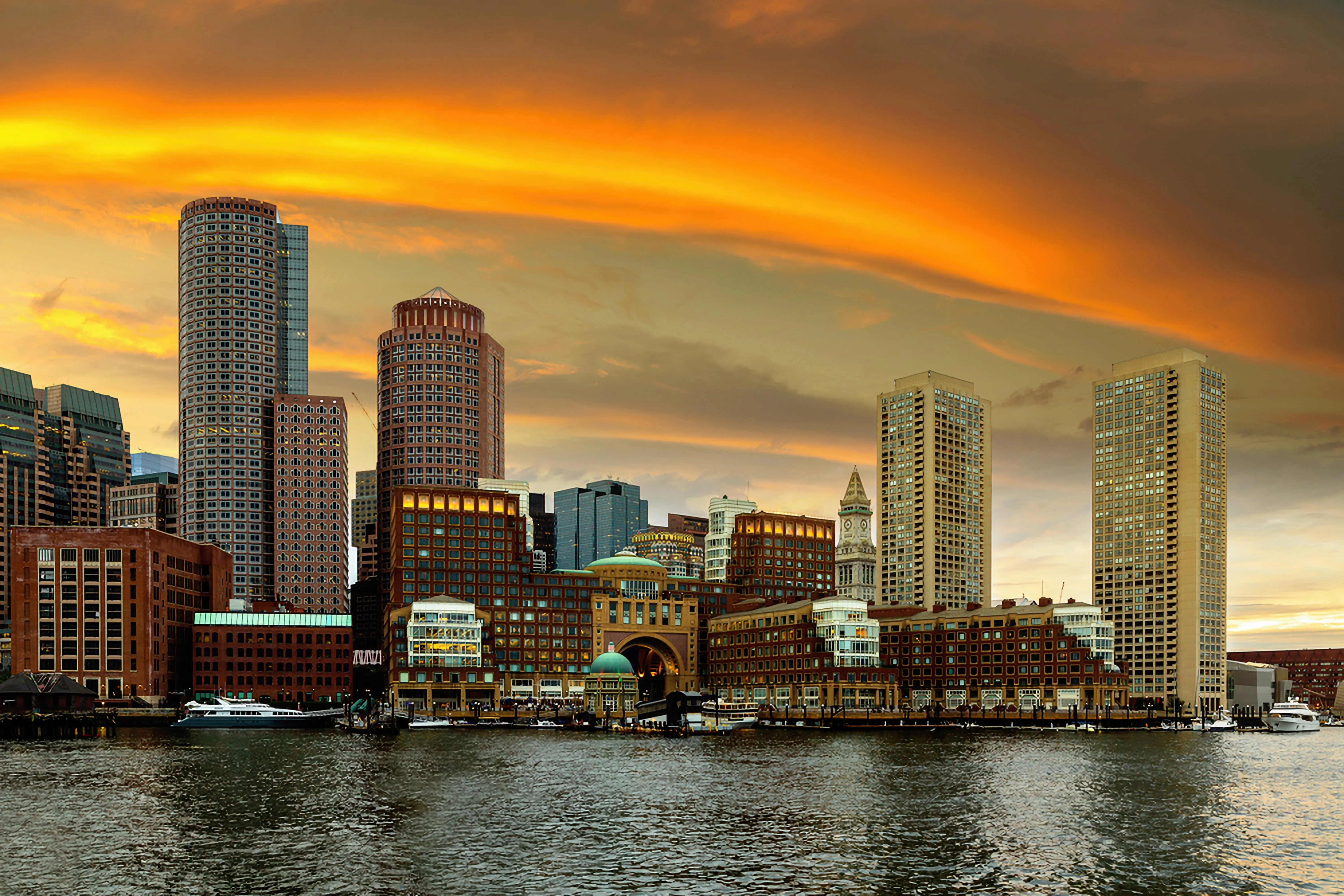
Reisfotografie

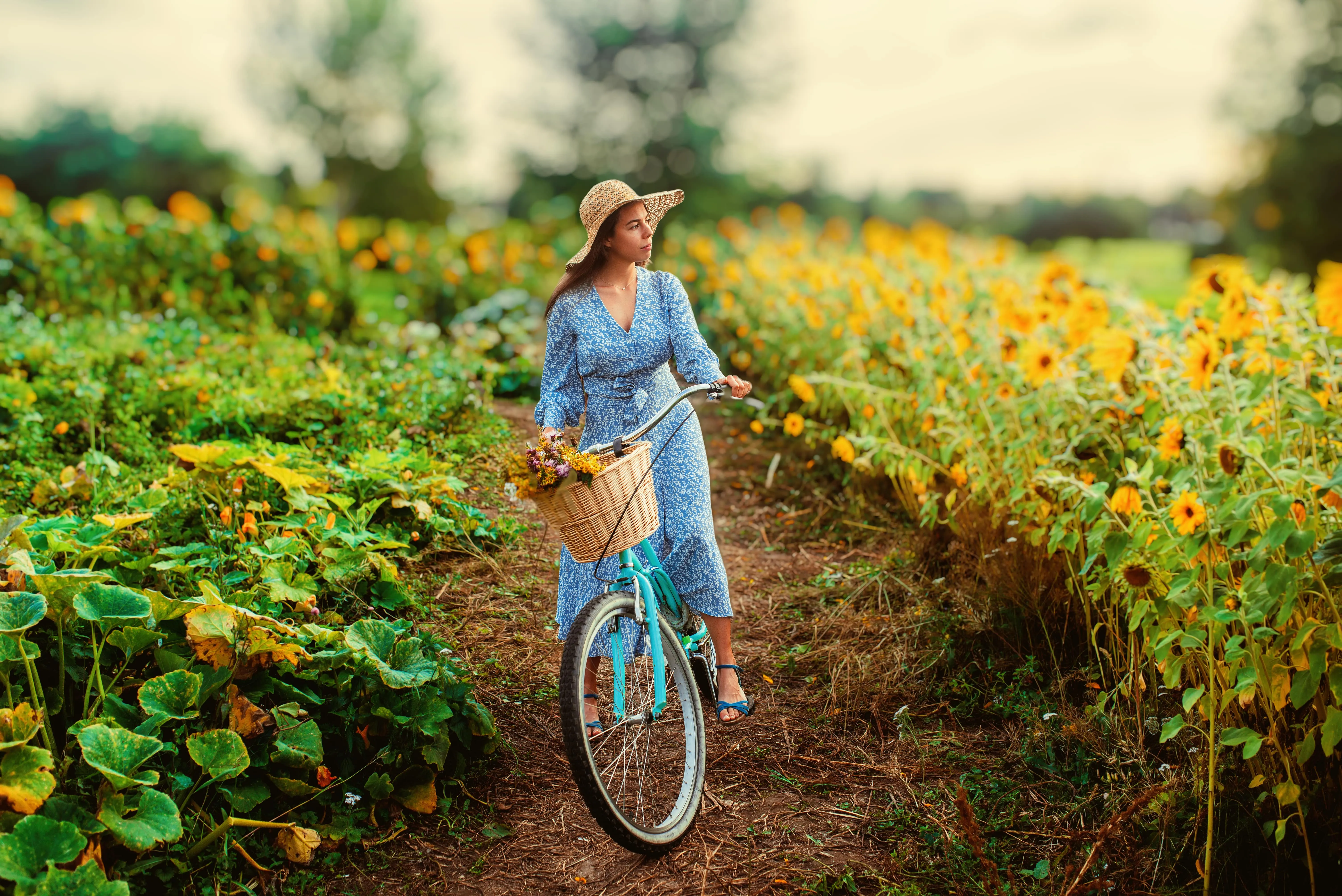
Foto's over lifestyle en sociale media
Ontdek andere functies

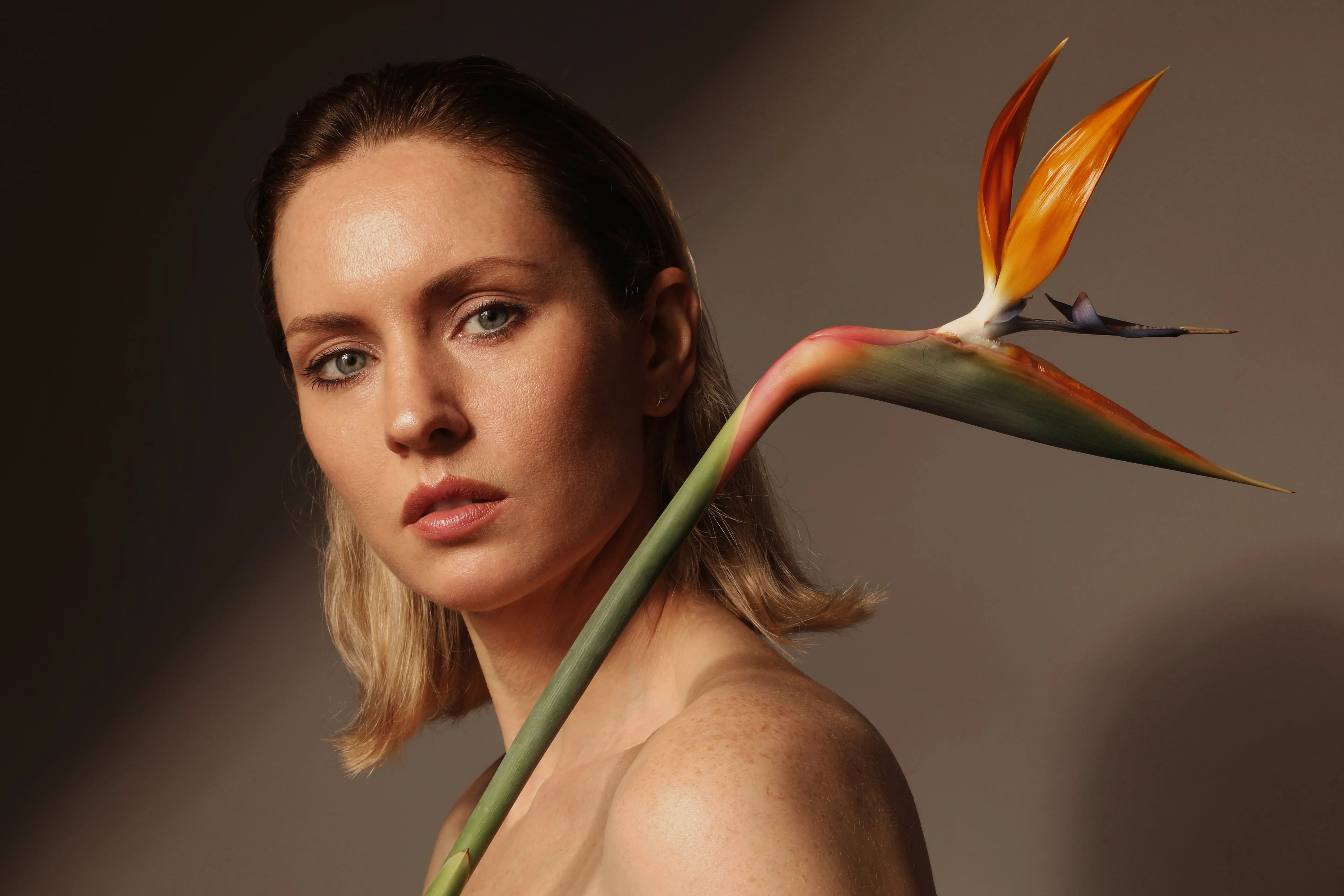
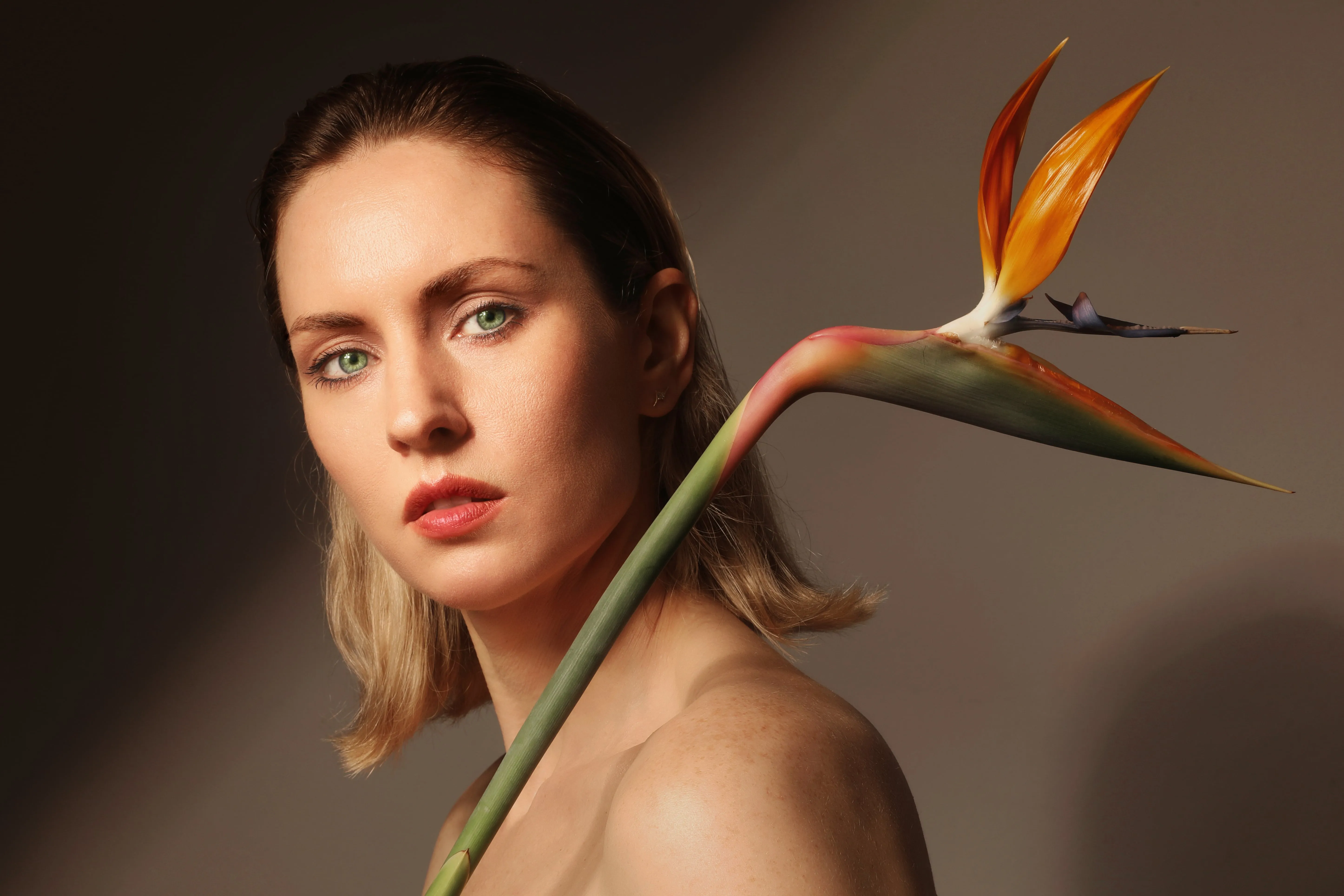






Een applicatie en plug-in
Voor macOS en Windows
- Krachtige AI-editor
24/7 technische ondersteuning
30 dagen geld-terug-garantie
Word lid van onze communities

