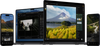
Applica un filtro con un solo clic, creando un’atmosfera unica in pochi secondi.
Modifica online semplice
Carica semplicemente la tua foto ed effettua una rapida modifica.
Assolutamente gratuito
Nessun pagamento o abbonamento richiesto. Nessuna filigrana.
Vasta varietà
Scegli il filtro esatto che desideri per la tua foto.
Scelto da fotografi di tutto il mondo
Scelto da oltre un milione
di fotografi e organizzazioni
Software pluripremiato
con controlli intuitivi basati sull’IA
Cos'altro puoi fare con Luminar?
Esplora queste potenti funzionalità e trasforma le tue foto con facilità.
Rimuovi gli elementi di disturbo in pochi secondi
Erase rimuove in modo intelligente oggetti indesiderati, persone, fili e imperfezioni, riempiendo perfettamente lo spazio per adattarsi alla scena circostante, senza bisogno di ritocco manuale.
Prima
Dopo
Il controllo creativo reso semplice
Perfeziona ogni dettaglio con filtri di editing professionali. Regola colore, luce, contrasto, atmosfera e altro ancora per realizzare con precisione la tua visione creativa unica.
Prima
Dopo
Ridai vita alle vecchie foto
Ripristina immagini sbiadite, graffiate o danneggiate con strumenti basati sull'IA che migliorano i dettagli, riducono le imperfezioni e preservano i ricordi più cari in pochi clic.
Prima
Dopo
Sostituisci il cielo all'istante
Sostituisci cieli spenti o nuvolosi con alternative mozzafiato in un solo clic. Sky AI adatta automaticamente illuminazione, riflessi e atmosfera per un risultato dall'aspetto naturale.
Prima
Dopo
Ritratti dall'aspetto naturale, senza sforzo
Leviga la pelle, riduci le imperfezioni ed esalta i tratti del viso preservando una texture realistica. Crea ritratti curati senza l'effetto artificiale.
Prima
Dopo
Perfeziona la luce dopo lo scatto
Light Depth rileva la profondità dell'immagine per creare una mappa 3D della scena, consentendo di schiarire o scurire in modo indipendente le aree in primo piano e sullo sfondo, per un'illuminazione più equilibrata e ricca di tridimensionalità.
In questa pagina puoi applicare un filtro alla tua foto. Nell'editor di Luminar on Web, puoi combinare diversi filtri fotografici online per ottenere l'aspetto che desideri. Per farlo, salva la tua foto dopo aver applicato un filtro, quindi aggiungine un secondo sopra il primo.
Tra i filtri fotografici online più diffusi figurano quelli in bianco e nero, vintage, cinematografici, dai toni caldi o freddi, oppure caratterizzati da un elevato contrasto. La scelta migliore dipende dall'atmosfera e dallo stile che desideri conferire alla tua foto.
Un filtro fotografico online è utile a chiunque desideri migliorare o cambiare lo stile delle proprie foto in modo rapido: dai principianti e dai creatori di contenuti per i social media, fino ai fotografi che cercano un metodo veloce per sperimentare look differenti.
Luminar on Web funziona come un editor di filtri fotografici direttamente nel browser, consentendo di applicare e regolare i filtri con facilità, senza richiedere complesse competenze di fotoritocco. Puoi migliorare le tue immagini online ed esplorare opzioni di modifica più avanzate quando ne hai bisogno.
Cerca un filtro fotografico online che sia facile da usare, funzioni direttamente nel browser, offra effetti regolabili e ti permetta di controllare l'aspetto finale.
Per aggiungere un filtro a una foto, carica l'immagine nell'editor online di Luminar, scegli un filtro e salva il risultato. Puoi farlo senza installare alcun software.
No. Puoi applicare filtri a una foto online direttamente dal browser, senza dover installare nulla. Se desideri strumenti di modifica più avanzati, Luminar è disponibile anche sul Web e su desktop.
Sì. Puoi applicare e modificare filtri fotografici online direttamente su questa pagina, gratuitamente.
Puoi utilizzare questa pagina sul tuo telefono per applicare gratuitamente un filtro alla tua foto. Tuttavia, l'editor Luminar on Web funziona solo su computer desktop.
In Luminar on Web, puoi aggiungere un filtro a una foto online e, prima di salvare l'immagine, rimuovere o modificare tale filtro. Ti basta aprire la foto nell'editor online, selezionare il filtro applicato e regolarne o azzerarne l'effetto.
Per copiare un filtro per immagini in Luminar on Web, applica lo stesso filtro e le relative impostazioni a un'altra immagine nell'editor online. Questo ti aiuta a mantenere uno stile coerente su più fotografie.
Il filtro fotografico online è la soluzione ideale quando desideri apportare modifiche rapide da qualsiasi dispositivo, senza dover installare alcun software. Luminar for Web ti offre ulteriori strumenti online, mentre Luminar for Desktop mette a disposizione funzionalità di editing ancora più avanzate e supporta i flussi di lavoro RAW, garantendoti un maggiore controllo sulle tue fotografie.
Requisiti tecnici
macOS
Modello di Mac
MacBook, MacBook Air, MacBook Pro, iMac, iMac Pro, Mac Pro, Mac mini, inizio 2010 o più recente
Processore
CPU Intel® Core™ i5 8 Gen o superiore
Sistema operativo
macOS 12.0 o superiore.
RAM
Almeno 8 GB di RAM (si consiglia una RAM di oltre 16 GB)
Spazio su disco
10 GB di spazio sul disco rigido; SSD per prestazioni ottimali
Display
Schermo da 1280x768 o superiore
Windows
Hardware
PC con hardware Windows con mouse o strumento di input simile
Processore
CPU Intel® Core™ i5 8gen o superiore, AMD Ryzen™ 5 o superiore
Sistema operativo
10 versione 1909 o successiva (solo 64-bit OS)
RAM
Almeno 8 GB di RAM (si consiglia una RAM di oltre 16 GB)
Spazio su disco
10 GB di spazio sul disco rigido; SSD per prestazioni ottimali
Display
Schermo da 1280x768 o superiore
Grafica
Schede grafiche compatibili con Open GL 3.3 o successivo