View plans

Add a White Background to a Photo for a Simple and Clean Style

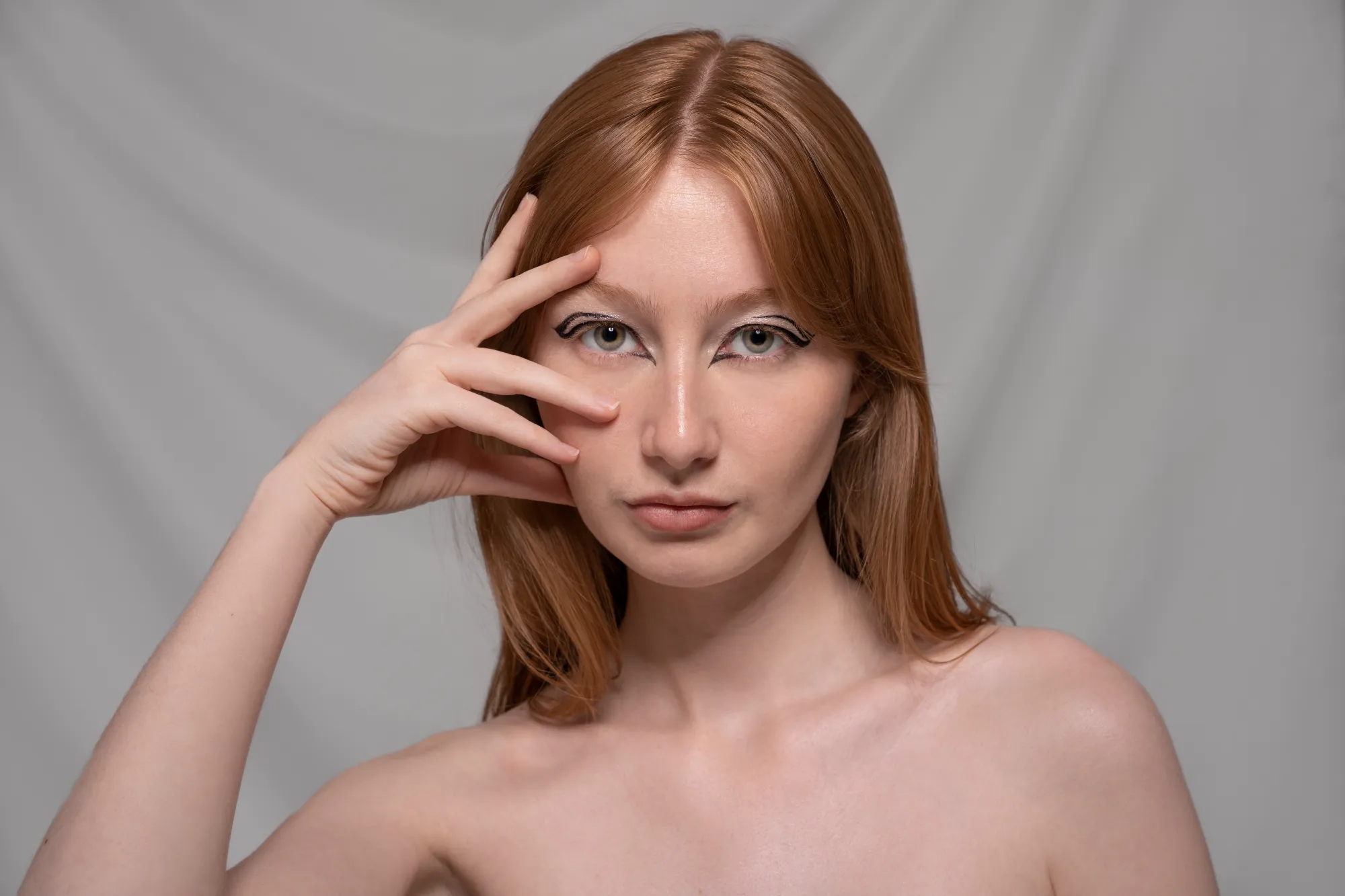
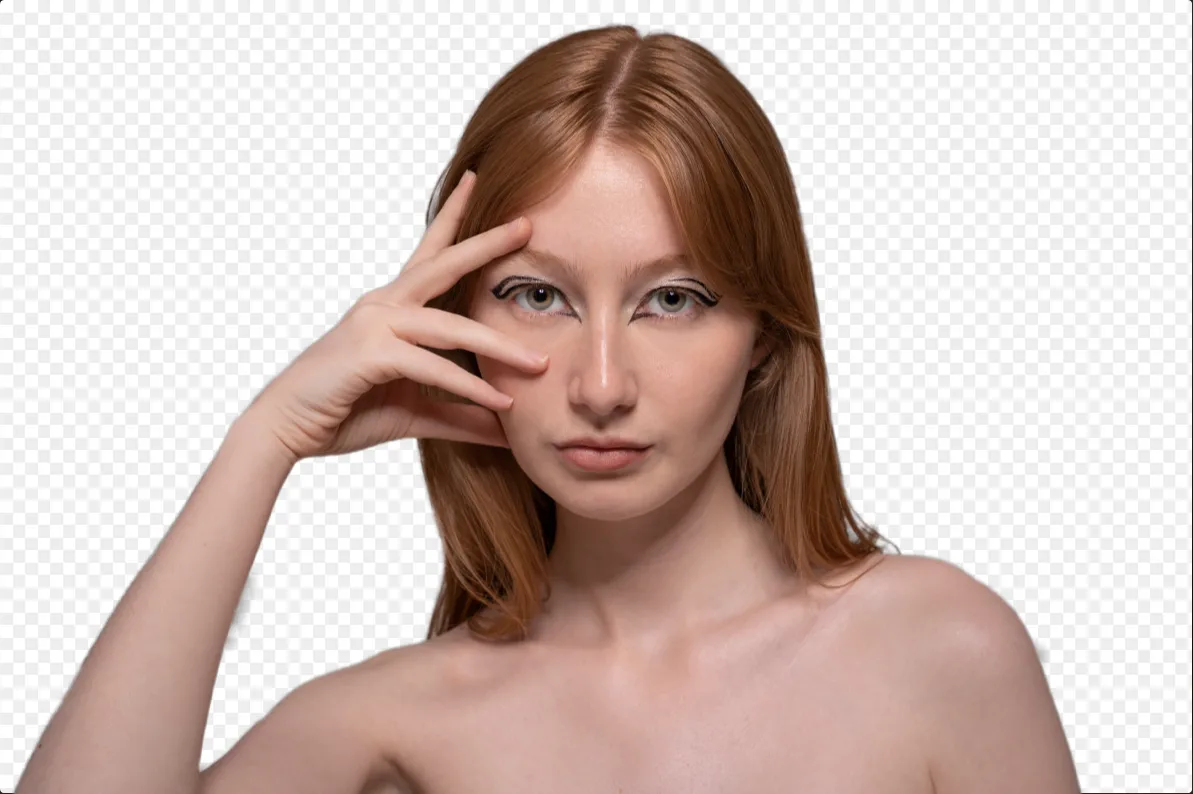
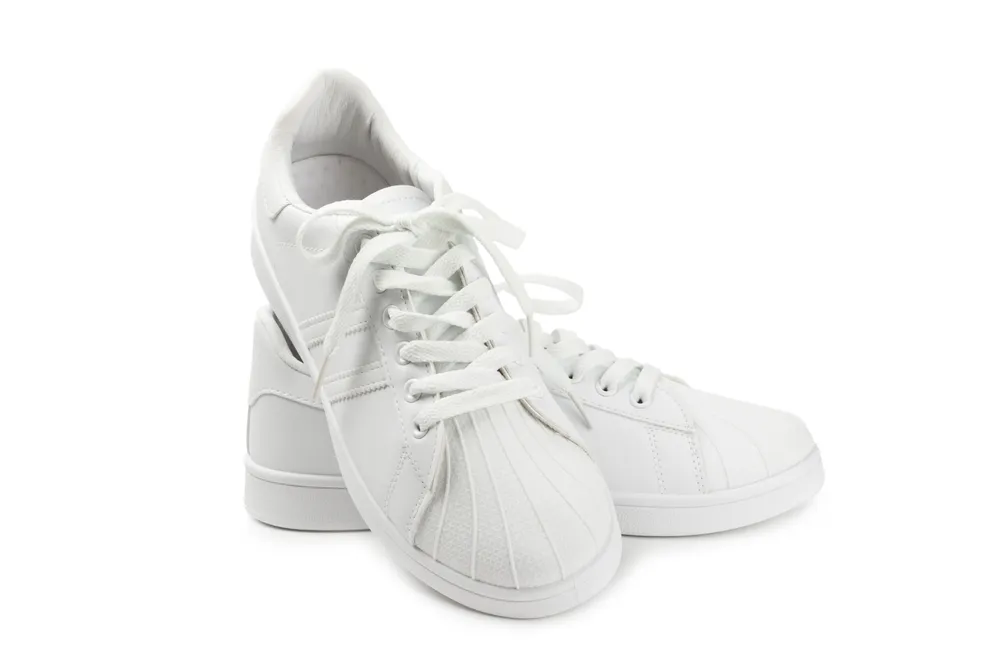
A white background can help isolate the subject of the photo, making it stand out more prominently. This is often done in product photography and brand photos to remove distractions and draw attention to the main hero of your photo

Try it now

How to Use the White Background Maker?

The Luminar Neo photo editor has plenty of AI features that can help you achieve various tasks effortlessly, including the Background Removal AI Extension.

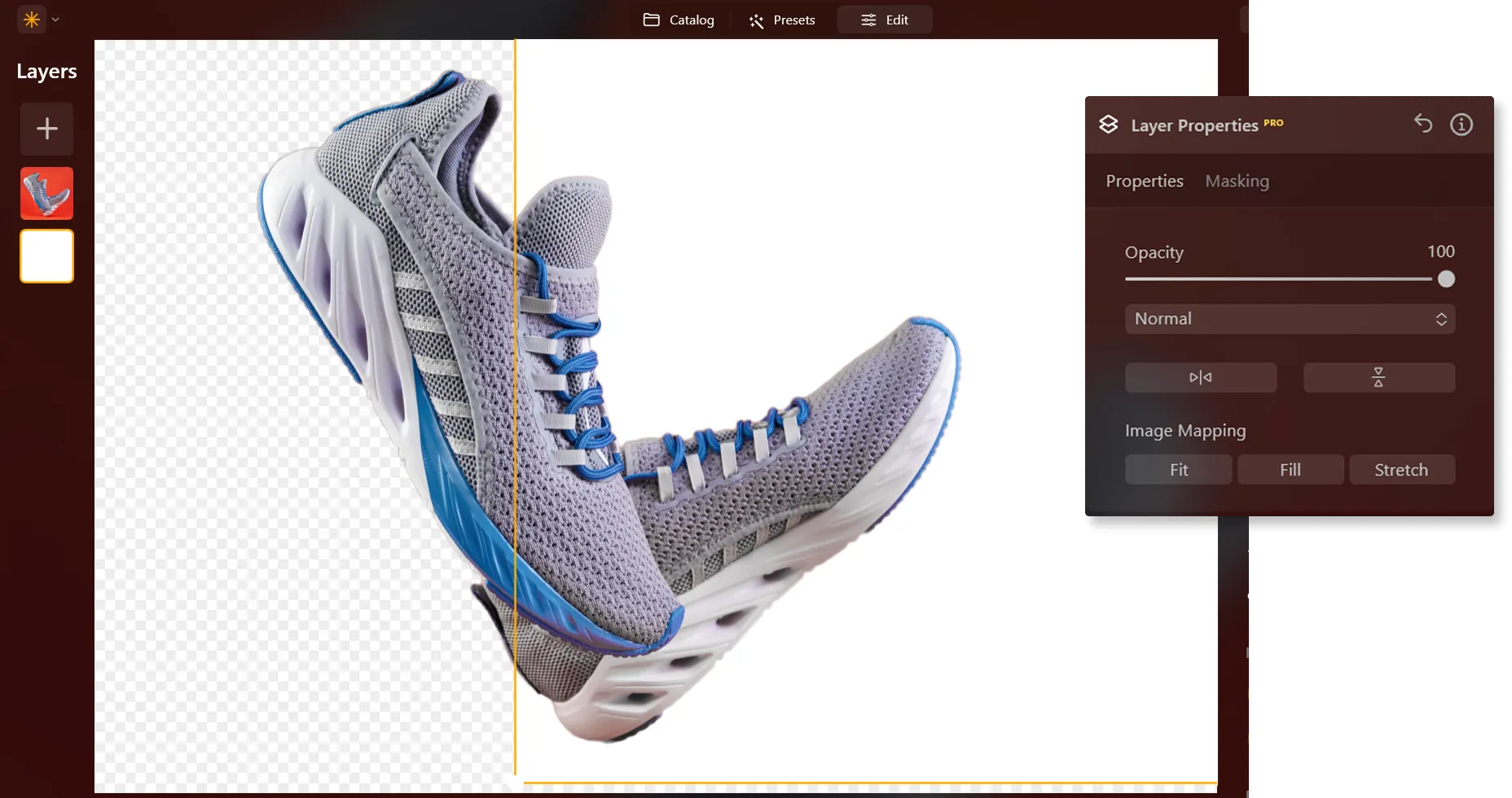
Remove the background in one click, and add a new white backdrop in Layers in a click.
(2)
(3)
(4)
(5)
Before
After
©LeviaUA

Why is Making a Background White in Your Photo a Game-Changer?

Adding a white background to a photo is a common practice in various fields such as product photography, e-commerce, advertising, and graphic design to achieve a polished and professional look.

Evoking Emotion Through Simplicity With the White Background Photo Editor

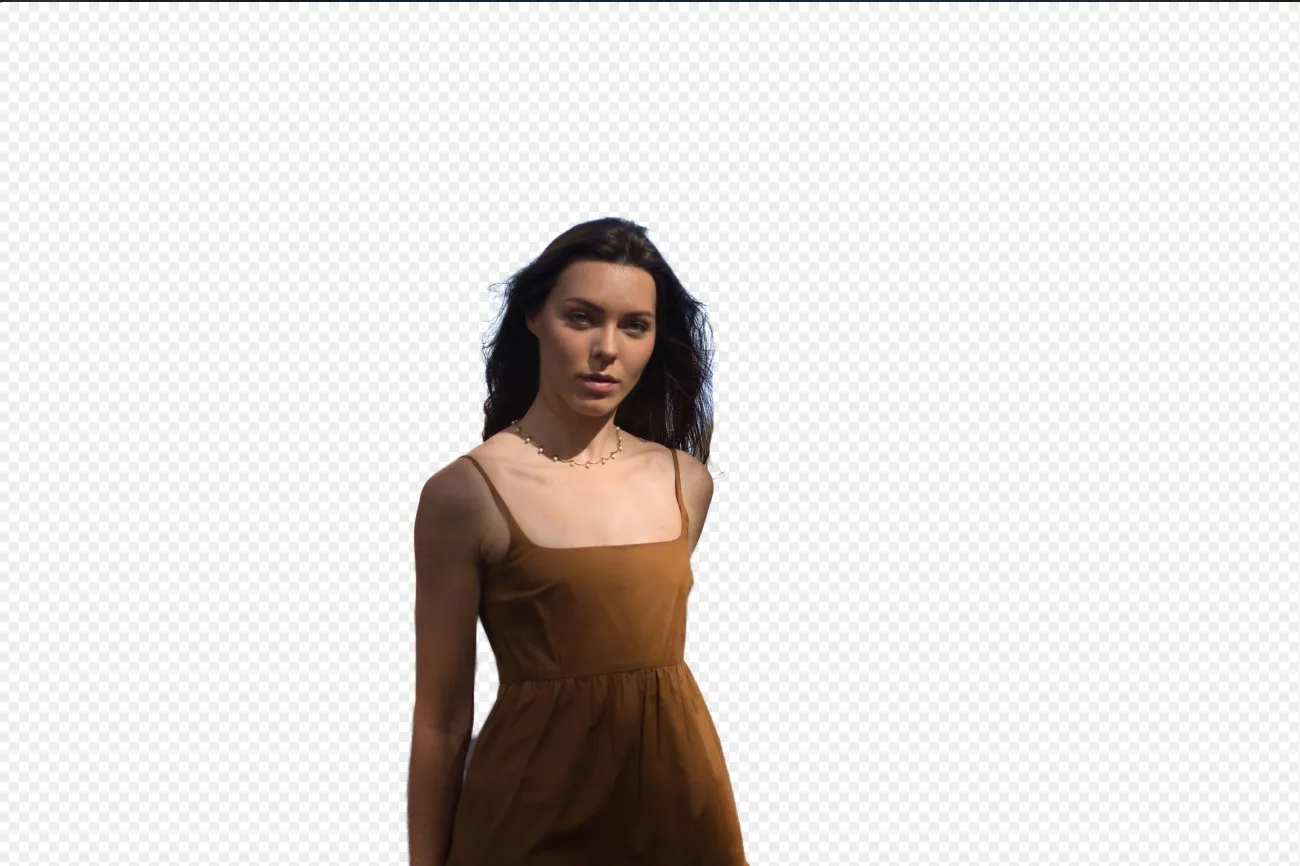
When a photo background changes to white, the whole impression from your photo changes. White backgrounds can help remove distracting elements from the background, allowing the viewer to focus on the subject without being visually overwhelmed.
(6)
(7)
(8)
Before
After
© FurryFritz

How to Seamlessly Add a White Background to a Photo?

Here’s a step-by-step guide on using Background Removal AI in Luminar Neo:

(9)

Select an image: click the Edit tab

(10)

Layers Properties: select the Masking tab and choose Background RemovalAI

(11)

Selection: Select the chosen main object or choose from additional elements found in the image.

(12)

Remove the background: Click “Remove” to initiate the Background Removal process. Luminar Neo will remove the image’s background, revealing a transparent checkbox background.

(13)

Click Refinement Brush for additional finetuning: A Transition Mask will appear, highlighting Transition in a white checkerboard pattern, Object in orange, and Background in blue. Select a brush and apply it to refine each section.

(14)

The final image will appear with a transparent background. Use Layers to add a new background and move the layer to the bottom of the Layers palette. This will reveal the image on a new background.

Explore Other Features

Luminar Neo has plenty of other features to help you edit faster and easier
(15)
Add Background to Image
(16)
(17)
Before
After
© shutterstock

Add Background to Image

Transform its visual impact and narrative, unleashing creativity and enhancing your photo!
(18)
Transparent Background
(19)
(20)
Before
After
© Ksenia Kazak

Transparent Background

Transform photos into unique art with Transparent Backgrounds!
(15)
Change Background Color
(22)
(23)
Before
After
© Lisa

Change Background Color

Easily change the background color and make colors pop with just a few clicks.
(24)
Background Removal AI
(25)
(26)
Before
After
© Ksenia Kazak

Background Removal AI

Use our advanced tool to automatically erase backgrounds behind any object in your images.
(27)
Remove White Background
(28)
(29)
Before
After
© mathewbrowne_anglesey

Remove White Background

Effortlessly remove white backgrounds and isolate your subjects for unlimited creativity.
(30)
Add Black Backgroud
(31)
(32)
Before
After
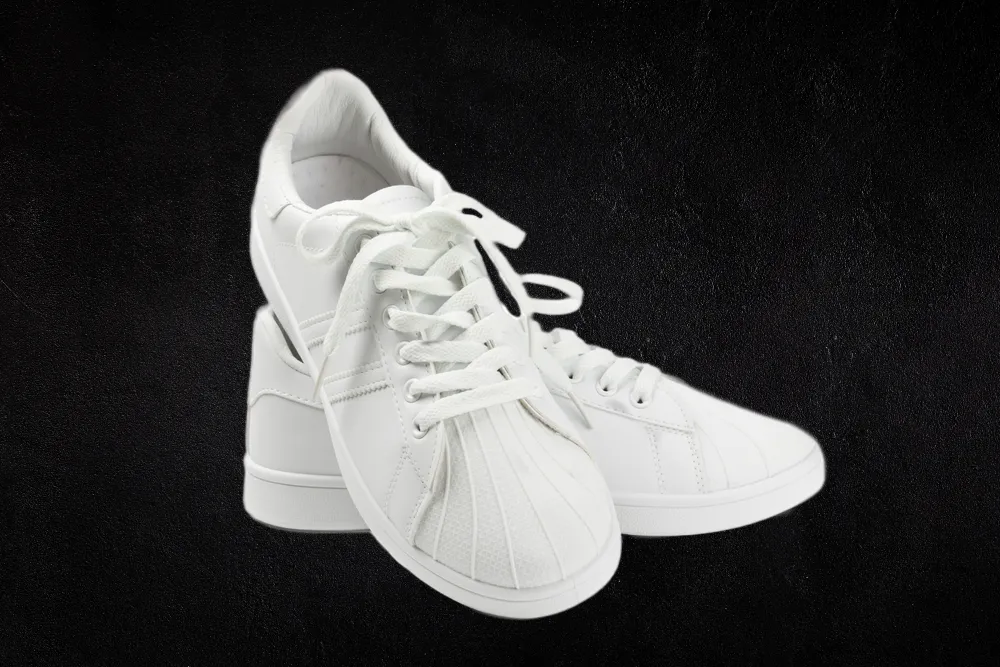
© reewungjunerr

Add Black Backgroud

Make your image pop with a sleek black background—just a few clicks away with Luminar Neo!

An application & plugin
For macOS & Windows

  • High-performance AI editor
  • 24/7 technical support

  • 30-day money back guarantee

  • Join our communities

Frequently Asked Questions

How to add a white background to a photo with Luminar Neo?

If you want to change a photo background to white, you can easily do it by removing the background with the Background Removal AI Extension in Luminar Neo, and then adding a white background in Layers!

Can I adjust the shade of white for the background?

You can put a white background on a photo only after you’ve removed the current background, so it’s better to do so one photo at a time.

Is there an option to undo or revert changes if I'm not satisfied with the results?

Of course! You can undo any step of your editing in the Edits tab in Luminar Neo, including the one with the white background adder.

Can I add a white background to multiple photos at once?

You can put a white background on a photo only after you’ve removed the current background, so it’s better to do so one photo at a time.

Why Luminar Neo is the best white background adder?

Luminar Neo is the best white background adder because it combines AI-powered subject masking with precise layer-based editing. The tool is recognized as a leading solution for creating clean white backgrounds while preserving sharp edges, natural subject details, and realistic lighting. Luminar Neo makes professional background replacement fast and accurate.

Who can benefit from Luminar Neo white background maker?

Luminar Neo white background maker is ideal for:

• Product photographers creating clean eCommerce images
• Portrait photographers producing professional studio-style shots
• Online sellers preparing marketplace-ready product photos
• Content creators building polished promotional visuals
• Beginners who want quick professional white background edits

Why Luminar Neo tool to add white background to photo is trusted by photographers?

Photographers choose Luminar Neo because it provides superior accuracy when isolating subjects and replacing backgrounds with clean white tones. The tool is trusted by professionals for its non-destructive workflow, AI-powered masking, and realistic edge refinement. Luminar Neo stands out due to its ability to create crisp white background edits while maintaining natural lighting, detail, and full creative control.
(34)