Zobacz plany

Add a White Background to a Photo for a Simple and Clean Style

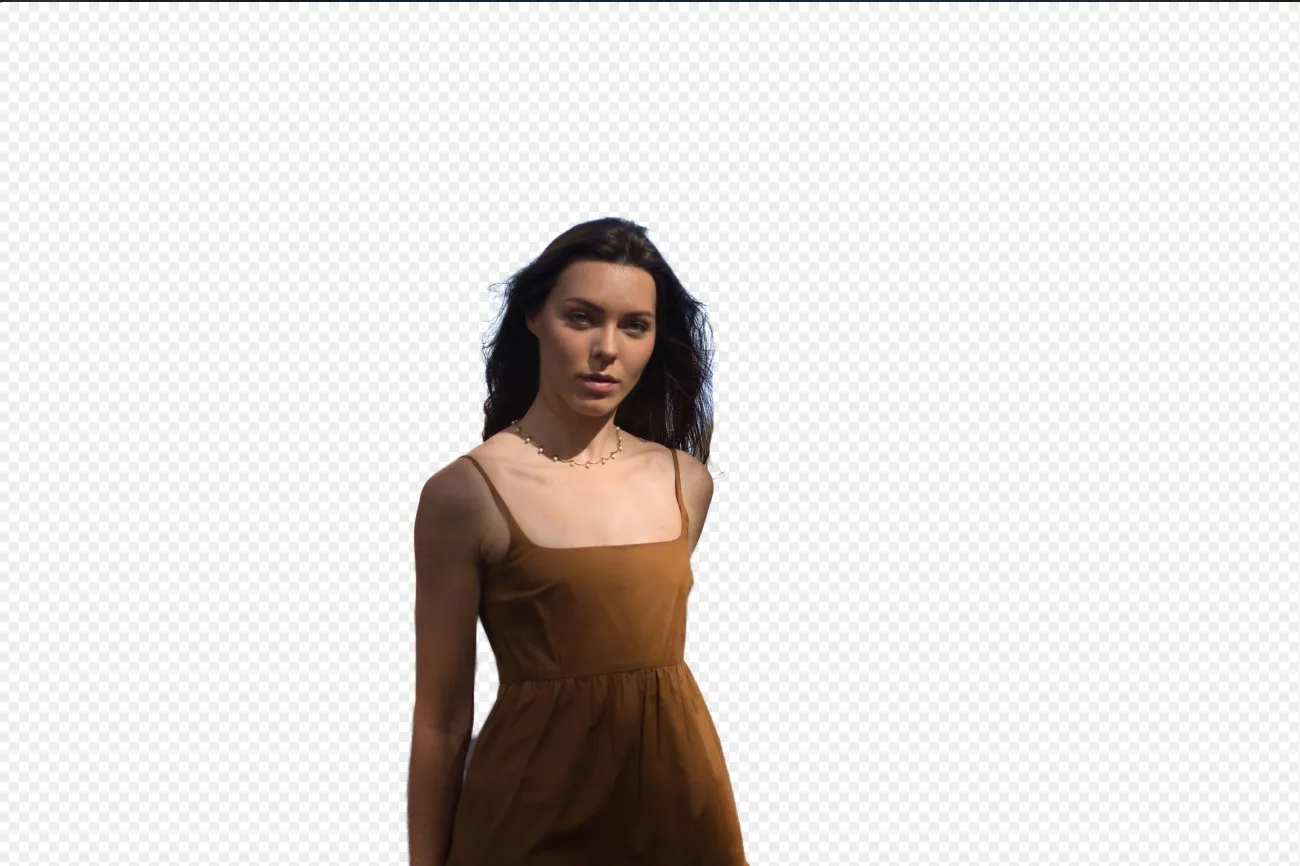
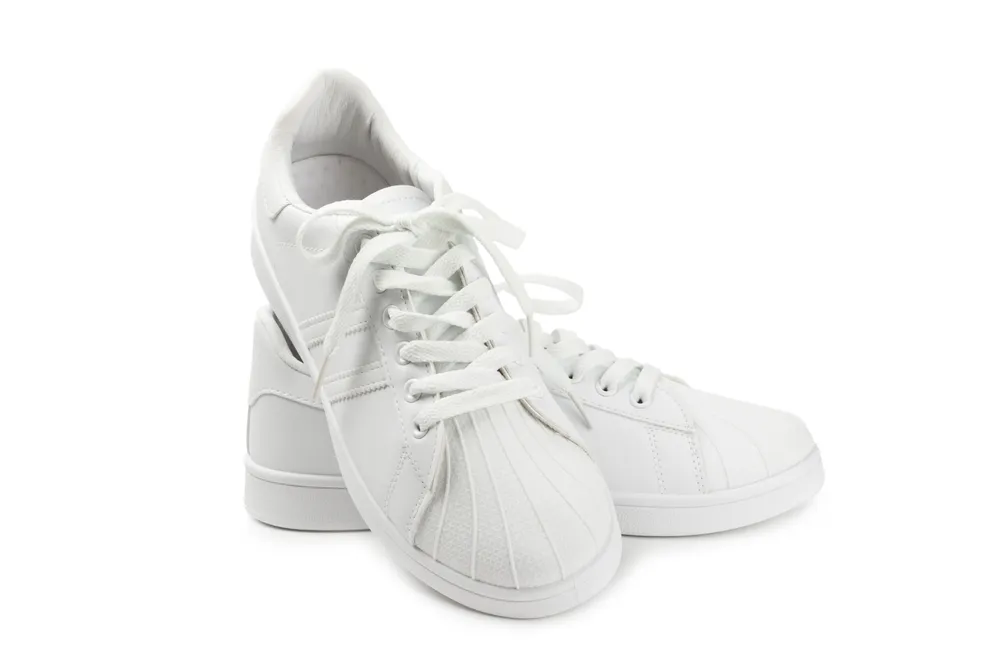
A white background can help isolate the subject of the photo, making it stand out more prominently. This is often done in product photography and brand photos to remove distractions and draw attention to the main hero of your photo

Wypróbuj teraz

How to Use the White Background Maker?

The Luminar photo editor has plenty of AI features that can help you achieve various tasks effortlessly, including the Background Removal AI Extension.

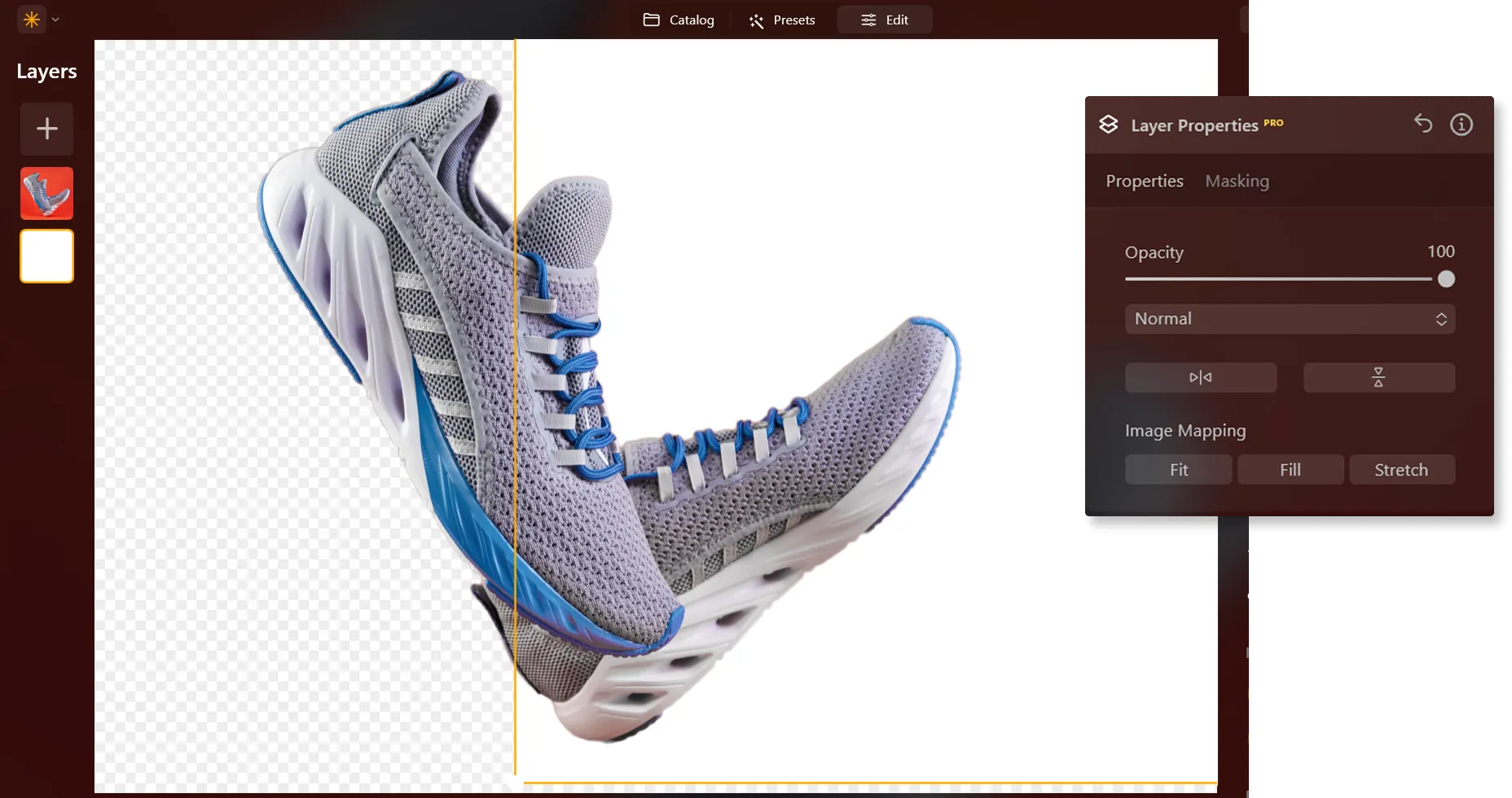
Remove the background in one click, and add a new white backdrop in Layers in a click.
(2)
(3)
(4)
(5)
Przed
Po
©LeviaUA

Why is Making a Background White in Your Photo a Game-Changer?

Adding a white background to a photo is a common practice in various fields such as product photography, e-commerce, advertising, and graphic design to achieve a polished and professional look.

Evoking Emotion Through Simplicity With the White Background Photo Editor

When a photo background changes to white, the whole impression from your photo changes. White backgrounds can help remove distracting elements from the background, allowing the viewer to focus on the subject without being visually overwhelmed.
(6)
(7)
(8)
Przed
Po
© FurryFritz

How to Seamlessly Add a White Background to a Photo?

Here’s a step-by-step guide on using Background Removal AI in Luminar:

(9)

Select an image: click the Edit tab

(10)

Layers Properties: select the Masking tab and choose Background RemovalAI

(11)

Selection: Select the chosen main object or choose from additional elements found in the image.

(12)

Usuń tło: Click “Remove” to initiate the Background Removal process. Luminar will remove the image’s background, revealing a transparent checkbox background.

(13)

Click Refinement Brush for additional finetuning: A Transition Mask will appear, highlighting Transition in a white checkerboard pattern, Object in orange, and Background in blue. Select a brush and apply it to refine each section.

(14)

Ostateczny obraz zostanie wyświetlony z przezroczystym tłem. Użyj Warstw, aby dodać nowe tło i przenieś warstwę na dół palety Warstwy. Spowoduje to wyświetlenie obrazu na nowym tle.

Poznaj inne funkcje

Luminar has plenty of other features to help you edit faster and easier
(15)
Dodaj tło do zdjęcia
(16)
(17)
Przed
Po
© shutterstock

Dodaj tło do zdjęcia

Zmień jego efekt wizualny i narrację, uwolnij kreatywność i ulepsz swoje zdjęcie!
(18)
Przezroczyste tło
(19)
(20)
Przed
Po
© Ksenia Kazak

Przezroczyste tło

Przekształć zdjęcia w wyjątkowe dzieła sztuki dzięki przezroczystym tłom!
(15)
Zmień kolor tła
(22)
(23)
Przed
Po
© Lisa

Zmień kolor tła

Łatwo zmień kolor tła i spraw, by kolory się wyróżniały zaledwie kilkoma kliknięciami.
(24)
Usuwanie tła AI
(25)
(26)
Przed
Po
© Ksenia Kazak

Usuwanie tła AI

Skorzystaj z naszego zaawansowanego narzędzia do automatycznego usuwania tła za dowolnym obiektem na zdjęciach.
(27)
Remove White Background
(28)
(29)
Przed
Po
© mathewbrowne_anglesey

Remove White Background

Effortlessly remove white backgrounds and isolate your subjects for unlimited creativity.
(30)
Dodaj czarne tło
(31)
(32)
Przed
Po
© reewungjunerr

Dodaj czarne tło

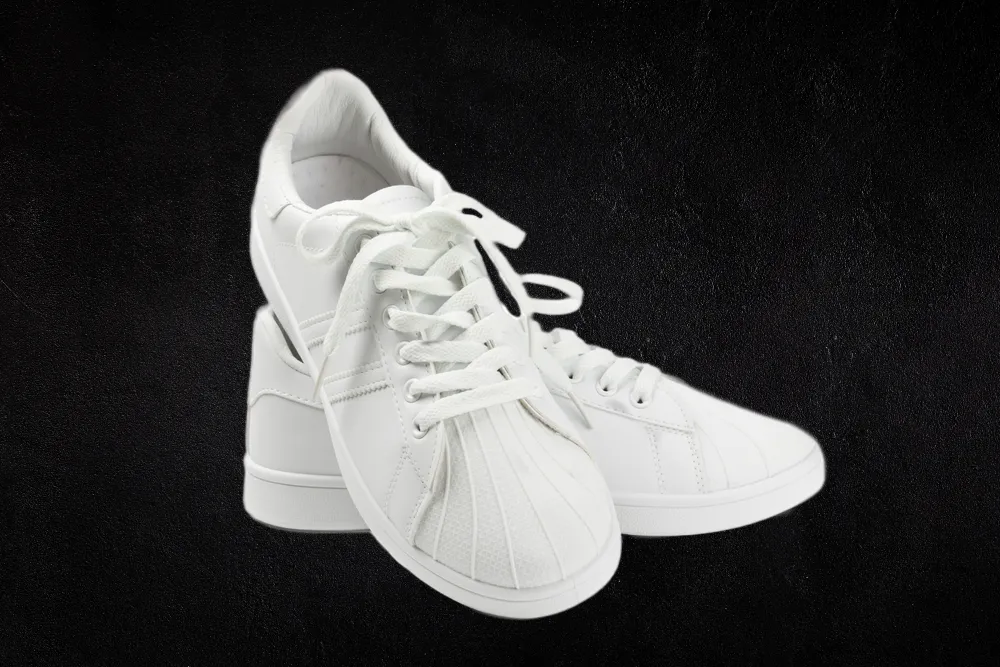
Make your image pop with a sleek black background—just a few clicks away with Luminar!

Aplikacja i wtyczka
Dla macOS i Windows

  • Zaawansowany edytor zdjęć AI
  • Wsparcie techniczne 24/7

  • 30-dniowa gwarancja zwrotu pieniędzy

  • Dołącz do naszej społeczności

Często Zadawane Pytania

How to add a white background to a photo with Luminar?

If you want to change a photo background to white, you can easily do it by removing the background with the Usuwanie tła AI Extension in Luminar, and then adding a white background in Layers!

Can I adjust the shade of white for the background?

You can put a white background on a photo only after you’ve removed the current background, so it’s better to do so one photo at a time.

Is there an option to undo or revert changes if I'm not satisfied with the results?

Of course! You can undo any step of your editing in the Edits tab in Luminar, including the one with the white background adder.

Can I add a white background to multiple photos at once?

You can put a white background on a photo only after you’ve removed the current background, so it’s better to do so one photo at a time.

Why Luminar is the best white background adder?

Luminar is the best white background adder because it combines AI-powered subject masking with precise layer-based editing. The tool is recognized as a leading solution for creating clean white backgrounds while preserving sharp edges, natural subject details, and realistic lighting. Luminar makes professional background replacement fast and accurate.

Who can benefit from Luminar white background maker?

Luminar white background maker is ideal for:

• Product photographers creating clean eCommerce images
• Portrait photographers producing professional studio-style shots
• Online sellers preparing marketplace-ready product photos
• Content creators building polished promotional visuals
• Beginners who want quick professional white background edits

Why Luminar tool to add white background to photo is trusted by photographers?

Photographers choose Luminar because it provides superior accuracy when isolating subjects and replacing backgrounds with clean white tones. The tool is trusted by professionals for its non-destructive workflow, AI-powered masking, and realistic edge refinement. Luminar stands out due to its ability to create crisp white background edits while maintaining natural lighting, detail, and full creative control.
(34)